> ## Documentation Index
> Fetch the complete documentation index at: https://docs.reelevant.com/llms.txt
> Use this file to discover all available pages before exploring further.
# Analytics Reports
> Configure, review, and troubleshoot manual and automatic Analytics reports
**Beta** — Analytics Reports are currently available to platform administrators. Configuration fields, prompts, analysis options, and retry behaviour may change while the feature matures.
## Before you begin
Confirm that the company's Analytics configuration exposes the measures and period semantics required by the intended analysis. Reports cannot compensate for missing identity, purchase, attribution, or Workflow activity data.
Read the [Product Guide](/product-guide/analytics/reports) for the report creation and follow-up experience.
## Report types
| Type | Purpose | Lifecycle |
| -------------------- | --------------------------------------------------------------------------------- | --------------------------------------------------------------------------------------- |
| **Manual report** | Answers a user-defined prompt or a suggested analysis prompt. | Users can add follow-up sections, archive the report, or restore it. |
| **Automatic report** | Runs a configured prompt for each completed monthly, quarterly, or yearly period. | Each period is preserved in history while the latest period becomes the current report. |
Manual reports preserve the original requester. Every follow-up section also records the user who requested it.
Automatic reports record the platform as the original requester. A manual retry records the user who requested that retry without replacing the original attribution.
## Configure an automatic report
Platform administrators with permission to manage Analytics Settings can create an automatic report under **Analytics > Settings > Automatic reports**.
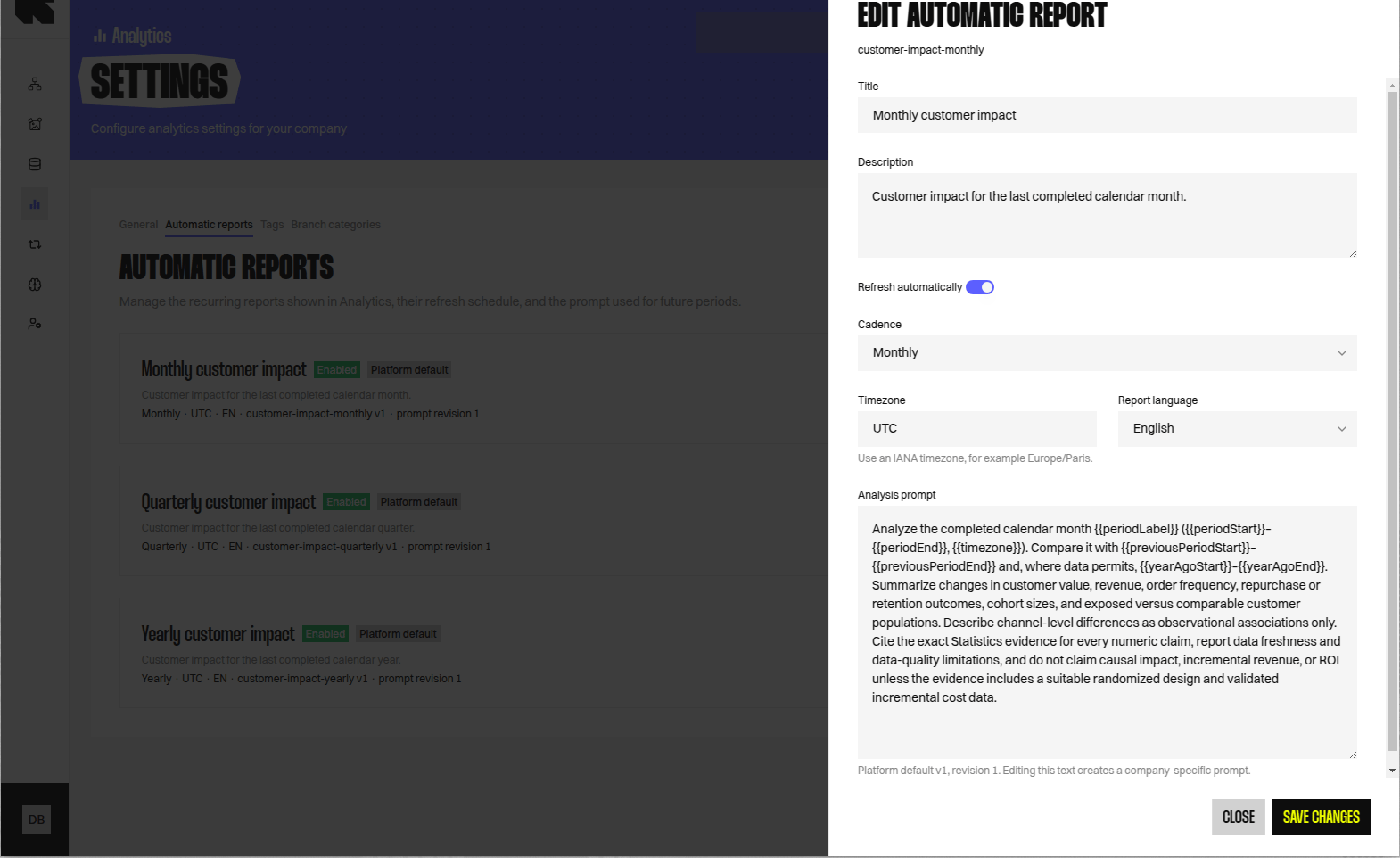 | Setting | Behaviour |
| ------------------------- | -------------------------------------------------------------------------------------------------------- |
| **Slug** | Stable identifier used by the report page address. It is set during creation and cannot be edited later. |
| **Title** | Display name shown in the **Reports** menu and report page. |
| **Description** | Optional explanation of the report's purpose. |
| **Refresh automatically** | Controls whether new completed periods are generated. |
| **Cadence** | Generates monthly, quarterly, or yearly period reports. |
| **Timezone** | Defines period boundaries for the configured cadence. |
| **Report language** | Selects English or French report output. |
| **Analysis prompt** | Defines the questions, comparisons, and expected analysis for every period. |
New settings show the platform default prompt for the selected cadence. Editing that text creates a company-specific prompt revision.
Use **Reset to platform default** to adopt the current default again. Review the complete default before resetting because platform defaults can evolve during beta.
Disabling a setting stops future period generation. It does not remove the setting or its existing report history.
## Write a reliable prompt
A strong automatic prompt defines the period question without hard-coding period dates. The platform supplies the completed period and its comparison boundaries.
Include:
* the business question and intended reader;
* the measures that must be evaluated;
* required comparisons, such as the previous period;
* requested breakdowns by Channel, Workflow, or another supported dimension;
* expected limitations when evidence is unavailable;
* a requirement to avoid unsupported causal claims.
Avoid requesting customer-level retention or value analysis unless the configured data supports stable customer identity. Avoid cumulative measures when the question concerns one reporting period.
## Period history and states
Automatic report pages show the current report and immutable historical periods. A period retains its evidence, completed sections, generation failures, and requester attribution.
| State | Interpretation |
| -------------- | ------------------------------------------------------------------- |
| **Generating** | A generation is pending or running. |
| **Ready** | The period contains a completed section. |
| **Failed** | The latest unresolved generation failed. |
| **Blocked** | Preflight checks found that the configured analysis is unsupported. |
A successful generation supersedes an earlier unresolved failure in the displayed state. Failure history remains available for diagnosis.
## Evidence and interpretation
Treat the generated narrative as an interpretation of captured Analytics evidence, not as an independent source. Verify tables, charts, methodology, freshness, and limitations before presenting conclusions.
For period analysis, confirm that measures describe the requested period rather than lifetime-to-date values. For monetary findings, confirm that the currency matches the company's stored revenue data.
Evidence can support association without proving causation. Use Exposed Population and Non-Exposed Population terminology, and reserve causal claims for a suitable randomised design.
## Retry and blocked reports
Retry is available only when the report's current state authorises another generation. The interface uses that current eligibility rather than the historical failure classification alone.
A retry reuses the failed question and generation type. It preserves existing evidence and failure history, and prevents duplicate concurrent retries.
Do not retry a blocked automatic report without changing its prompt or Analytics configuration. An unchanged retry will reproduce the same unsupported request.
For a failed report:
1. Read the displayed failure or blocked reason.
2. Check whether the required measures and dataset capabilities are available.
3. Correct the prompt or Analytics configuration when the request is unsupported.
4. Use **Retry** only when the report authorises it.
5. Confirm that the new section is evidence-backed before treating the period as complete.
## Related guidance
Create manual reports, ask follow-up questions, and read report sections.
Check the available Analytics measures and dimensions.
Review how monetary results are attributed to Reelevant interactions.
| Setting | Behaviour |
| ------------------------- | -------------------------------------------------------------------------------------------------------- |
| **Slug** | Stable identifier used by the report page address. It is set during creation and cannot be edited later. |
| **Title** | Display name shown in the **Reports** menu and report page. |
| **Description** | Optional explanation of the report's purpose. |
| **Refresh automatically** | Controls whether new completed periods are generated. |
| **Cadence** | Generates monthly, quarterly, or yearly period reports. |
| **Timezone** | Defines period boundaries for the configured cadence. |
| **Report language** | Selects English or French report output. |
| **Analysis prompt** | Defines the questions, comparisons, and expected analysis for every period. |
New settings show the platform default prompt for the selected cadence. Editing that text creates a company-specific prompt revision.
Use **Reset to platform default** to adopt the current default again. Review the complete default before resetting because platform defaults can evolve during beta.
Disabling a setting stops future period generation. It does not remove the setting or its existing report history.
## Write a reliable prompt
A strong automatic prompt defines the period question without hard-coding period dates. The platform supplies the completed period and its comparison boundaries.
Include:
* the business question and intended reader;
* the measures that must be evaluated;
* required comparisons, such as the previous period;
* requested breakdowns by Channel, Workflow, or another supported dimension;
* expected limitations when evidence is unavailable;
* a requirement to avoid unsupported causal claims.
Avoid requesting customer-level retention or value analysis unless the configured data supports stable customer identity. Avoid cumulative measures when the question concerns one reporting period.
## Period history and states
Automatic report pages show the current report and immutable historical periods. A period retains its evidence, completed sections, generation failures, and requester attribution.
| State | Interpretation |
| -------------- | ------------------------------------------------------------------- |
| **Generating** | A generation is pending or running. |
| **Ready** | The period contains a completed section. |
| **Failed** | The latest unresolved generation failed. |
| **Blocked** | Preflight checks found that the configured analysis is unsupported. |
A successful generation supersedes an earlier unresolved failure in the displayed state. Failure history remains available for diagnosis.
## Evidence and interpretation
Treat the generated narrative as an interpretation of captured Analytics evidence, not as an independent source. Verify tables, charts, methodology, freshness, and limitations before presenting conclusions.
For period analysis, confirm that measures describe the requested period rather than lifetime-to-date values. For monetary findings, confirm that the currency matches the company's stored revenue data.
Evidence can support association without proving causation. Use Exposed Population and Non-Exposed Population terminology, and reserve causal claims for a suitable randomised design.
## Retry and blocked reports
Retry is available only when the report's current state authorises another generation. The interface uses that current eligibility rather than the historical failure classification alone.
A retry reuses the failed question and generation type. It preserves existing evidence and failure history, and prevents duplicate concurrent retries.
Do not retry a blocked automatic report without changing its prompt or Analytics configuration. An unchanged retry will reproduce the same unsupported request.
For a failed report:
1. Read the displayed failure or blocked reason.
2. Check whether the required measures and dataset capabilities are available.
3. Correct the prompt or Analytics configuration when the request is unsupported.
4. Use **Retry** only when the report authorises it.
5. Confirm that the new section is evidence-backed before treating the period as complete.
## Related guidance
Create manual reports, ask follow-up questions, and read report sections.
Check the available Analytics measures and dimensions.
Review how monetary results are attributed to Reelevant interactions.