> ## Documentation Index
> Fetch the complete documentation index at: https://docs.reelevant.com/llms.txt
> Use this file to discover all available pages before exploring further.
# Field Mapping
> Configure how raw data fields map to standardized Reelevant types
 ## Overview
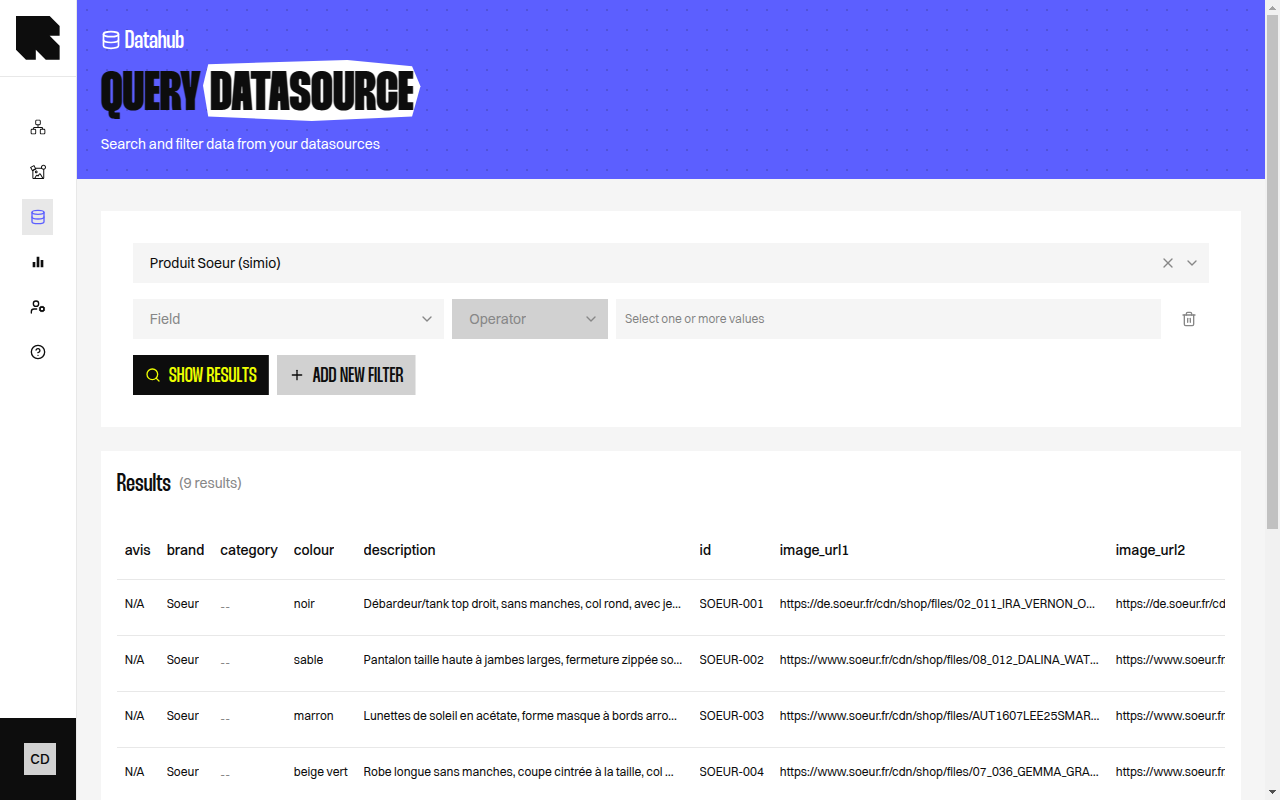
Field mapping defines how raw data fields from your source are mapped to standardized Reelevant field types. This step is critical — it determines which fields are available for use in [workflows](/product-guide/workflows/overview) and [content templates](/product-guide/contents/data-binding).
## Fields Mapping Table
The mapping table shows all detected fields with the following columns:
| Column | Description |
| ----------------- | ---------------------------------------------- |
| **Name** | The field name as it will appear in Reelevant. |
| **Path** | The original path from the source data. |
| **Type** | The assigned field type. |
| **Selected** | Toggle to include or exclude the field. |
| **Example value** | A sample value from the source data. |
## Field Types
Depending on the datasource category, different field types are available:
### Product Fields
| Type | Description |
| ---------------- | -------------------------- |
| **Reference ID** | Unique product identifier. |
| **Product ID** | Product catalog ID. |
| **Name** | Product name. |
| **Description** | Product description. |
| **Price** | Product price. |
| **URL** | Product page URL. |
| **Image URL** | Product image URL. |
| **Number** | Numeric value. |
| **Text** | Text string. |
| **Video** | Video URL. |
### Location Fields
| Type | Description |
| --------------- | --------------------- |
| **Address 1–4** | Address lines. |
| **City** | City name. |
| **Zipcode** | Postal code. |
| **Country** | Country name or code. |
| **Latitude** | Geographic latitude. |
| **Longitude** | Geographic longitude. |
## Field Validation Rules
| Rule | Description |
| ----------------------- | ----------------------------------------------- |
| No special characters | Field names cannot contain special characters. |
| No spaces | Field names cannot contain spaces. |
| No capital letters | Field names must be lowercase. |
| No number at the start | Field names cannot start with a number. |
| Max 64 fields | A datasource can't contain more than 64 fields. |
| Title max 50 characters | Datasource name must not exceed 50 characters. |
For **Location** datasources, the required fields depend on your configuration. You may need to provide address\_1, country, city, zipcode, or latitude/longitude.
## Adding and Editing Fields
* Click **Add field** to map an additional source field.
* Use the **Search a field** input to find specific fields in large datasets.
* After creation, click **Update fields** from the [listing actions](/product-guide/datahub/listing) to modify the mapping.
## Hierarchy Configuration
The **Configure folder** step lets you organize your datasource within a folder hierarchy:
| Field | Description |
| ---------- | ------------------------------------------------- |
| **Folder** | Select a folder level or create a new sub-folder. |
## Overview
Field mapping defines how raw data fields from your source are mapped to standardized Reelevant field types. This step is critical — it determines which fields are available for use in [workflows](/product-guide/workflows/overview) and [content templates](/product-guide/contents/data-binding).
## Fields Mapping Table
The mapping table shows all detected fields with the following columns:
| Column | Description |
| ----------------- | ---------------------------------------------- |
| **Name** | The field name as it will appear in Reelevant. |
| **Path** | The original path from the source data. |
| **Type** | The assigned field type. |
| **Selected** | Toggle to include or exclude the field. |
| **Example value** | A sample value from the source data. |
## Field Types
Depending on the datasource category, different field types are available:
### Product Fields
| Type | Description |
| ---------------- | -------------------------- |
| **Reference ID** | Unique product identifier. |
| **Product ID** | Product catalog ID. |
| **Name** | Product name. |
| **Description** | Product description. |
| **Price** | Product price. |
| **URL** | Product page URL. |
| **Image URL** | Product image URL. |
| **Number** | Numeric value. |
| **Text** | Text string. |
| **Video** | Video URL. |
### Location Fields
| Type | Description |
| --------------- | --------------------- |
| **Address 1–4** | Address lines. |
| **City** | City name. |
| **Zipcode** | Postal code. |
| **Country** | Country name or code. |
| **Latitude** | Geographic latitude. |
| **Longitude** | Geographic longitude. |
## Field Validation Rules
| Rule | Description |
| ----------------------- | ----------------------------------------------- |
| No special characters | Field names cannot contain special characters. |
| No spaces | Field names cannot contain spaces. |
| No capital letters | Field names must be lowercase. |
| No number at the start | Field names cannot start with a number. |
| Max 64 fields | A datasource can't contain more than 64 fields. |
| Title max 50 characters | Datasource name must not exceed 50 characters. |
For **Location** datasources, the required fields depend on your configuration. You may need to provide address\_1, country, city, zipcode, or latitude/longitude.
## Adding and Editing Fields
* Click **Add field** to map an additional source field.
* Use the **Search a field** input to find specific fields in large datasets.
* After creation, click **Update fields** from the [listing actions](/product-guide/datahub/listing) to modify the mapping.
## Hierarchy Configuration
The **Configure folder** step lets you organize your datasource within a folder hierarchy:
| Field | Description |
| ---------- | ------------------------------------------------- |
| **Folder** | Select a folder level or create a new sub-folder. |