> ## Documentation Index
> Fetch the complete documentation index at: https://docs.reelevant.com/llms.txt
> Use this file to discover all available pages before exploring further.
# Integration Instructions
> Retrieve image and redirection URLs for a workflow channel from the browser extension
 ## Overview
The browser extension does not let you configure workflow integrations. Instead, it provides **integration instructions** — ready-to-use URLs you can copy into your channel or website.
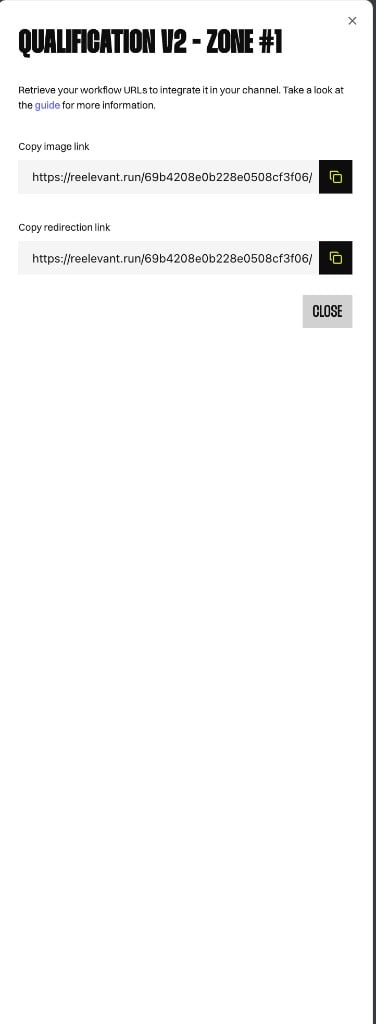
Open integration instructions from a workflow's channel list in the side panel. The modal shows the channel name and zone (for example, `QUALIFICATION V2 - ZONE #1`) along with the URLs needed to integrate that workflow.
For a full overview of how client-side integrations work, see the [Client Side Script](/developer-docs/web-integration/client-side-script/overview) documentation.
## Integration URLs
Each channel exposes two URLs:
| URL | Description |
| ------------------------- | ---------------------------------------------------------------------------------------------------------------------------------------- |
| **Copy image link** | URL that returns the workflow output as an image. Use this when your channel expects an image asset (for example, email or display ads). |
| **Copy redirection link** | URL that handles click-through redirection. Use this when the channel needs a trackable link rather than embedded content. |
Click the copy button next to each field to copy the URL to your clipboard. URLs follow the format `https://reelevant.run/{workflowId}/`.
## Using the URLs
Paste the copied URLs into your channel configuration:
* **Email or push campaigns** — use the image link as the creative source and the redirection link as the call-to-action target.
* **Third-party tools** — embed the image link wherever your platform accepts an external image URL.
* **Manual HTML integration** — use the URLs with the Reelevant tracking script. See [Client Side Script](/developer-docs/web-integration/client-side-script/overview) for script tag and zone-based integration.
The modal includes a link to the integration guide for channel-specific setup details. Click **Close** when you are done.
## Overview
The browser extension does not let you configure workflow integrations. Instead, it provides **integration instructions** — ready-to-use URLs you can copy into your channel or website.
Open integration instructions from a workflow's channel list in the side panel. The modal shows the channel name and zone (for example, `QUALIFICATION V2 - ZONE #1`) along with the URLs needed to integrate that workflow.
For a full overview of how client-side integrations work, see the [Client Side Script](/developer-docs/web-integration/client-side-script/overview) documentation.
## Integration URLs
Each channel exposes two URLs:
| URL | Description |
| ------------------------- | ---------------------------------------------------------------------------------------------------------------------------------------- |
| **Copy image link** | URL that returns the workflow output as an image. Use this when your channel expects an image asset (for example, email or display ads). |
| **Copy redirection link** | URL that handles click-through redirection. Use this when the channel needs a trackable link rather than embedded content. |
Click the copy button next to each field to copy the URL to your clipboard. URLs follow the format `https://reelevant.run/{workflowId}/`.
## Using the URLs
Paste the copied URLs into your channel configuration:
* **Email or push campaigns** — use the image link as the creative source and the redirection link as the call-to-action target.
* **Third-party tools** — embed the image link wherever your platform accepts an external image URL.
* **Manual HTML integration** — use the URLs with the Reelevant tracking script. See [Client Side Script](/developer-docs/web-integration/client-side-script/overview) for script tag and zone-based integration.
The modal includes a link to the integration guide for channel-specific setup details. Click **Close** when you are done.