> ## Documentation Index
> Fetch the complete documentation index at: https://docs.reelevant.com/llms.txt
> Use this file to discover all available pages before exploring further.
# SIEM Export
> Send a copy of your audit log to your security team as events happen
SIEM export sends a copy of your [audit log](/product-guide/account/audit-log) to your security team's collector. A SIEM (the tool a security team uses to gather and watch logs from every application) then keeps and analyses these events on your side.
 ## What It Does For You
* Your security team sees Reelevant logins, provisioning, and permission changes next to your other applications.
* Events reach them about a minute after happening, without anyone exporting anything by hand.
* Your team keeps the events as long as your own policy requires, beyond the Reelevant retention period.
* Nothing changes in Reelevant: the audit log stays available as before.
The export only covers your own company. Every event carries a stable identifier and the time it happened, so your team can spot duplicates safely.
## Before You Begin
* You need permission to update company settings in Reelevant.
* Ask your security team for the **collector URL** and, if they use one, the **secret** that authorises Reelevant to send events.
* Ask them which format they prefer: **Reelevant JSON** (the events as they appear in the audit log) or **Splunk HEC** (see [Choosing the format](#choosing-the-format)).
## Enabling The Export
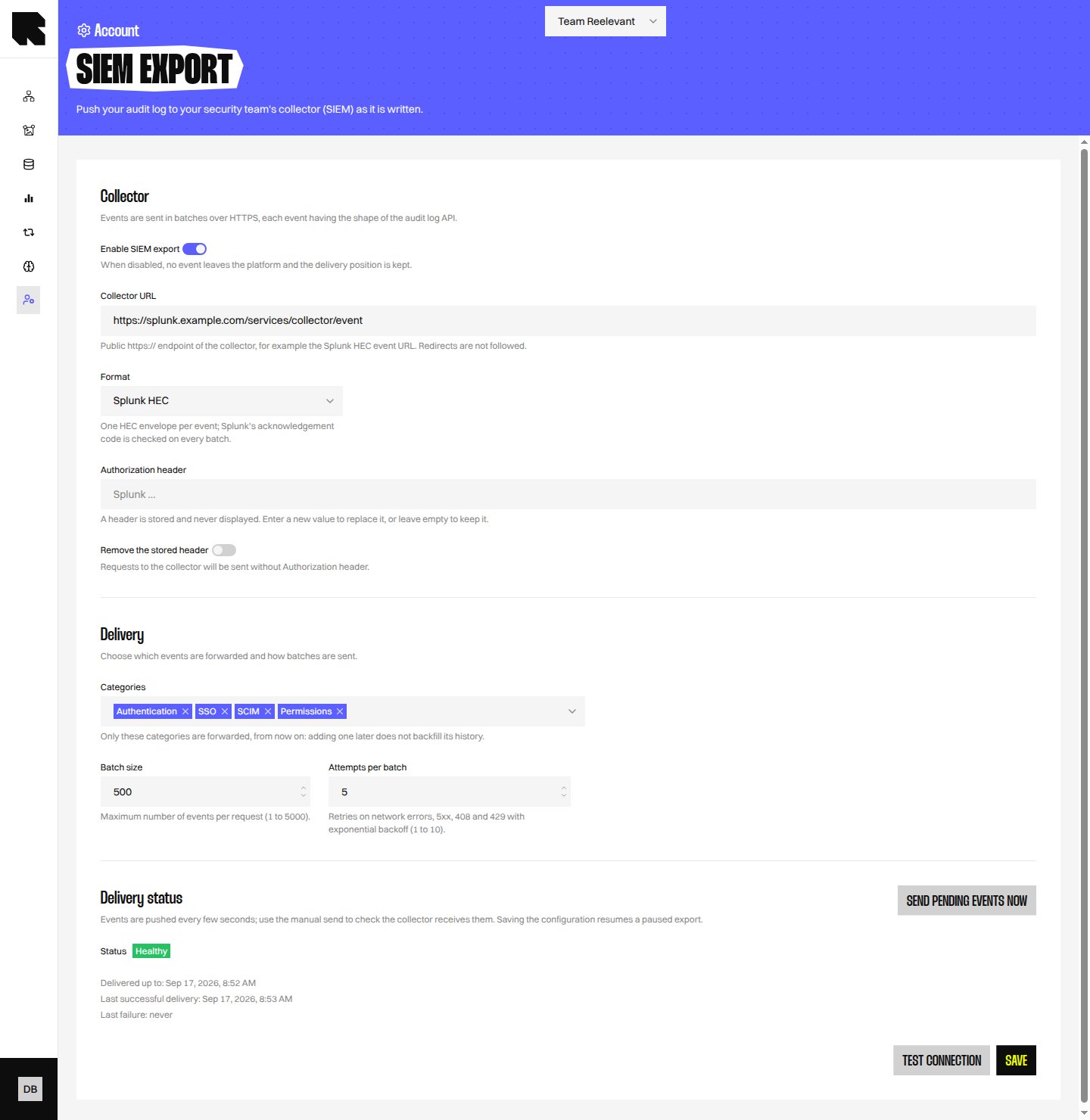
Go to the account administration section and open **SIEM export**.
Enter the **Collector URL** given by your security team. It must be a public, secure address.
Paste the secret in **Authorization header** if your team gave you one. It is stored encrypted and never shown again.
Pick the **Format** your security team asked for.
Tick the **Categories** you want to send. Only events in these categories are exported, from the moment you save.
Switch on **Enable SIEM export** and click **Save**.
Click **Test connection** to check Reelevant can reach the collector with your settings. Nothing from the audit log is sent by this test.
Click **Send pending events now**. The **Delivery status** shows the last successful delivery, and your security team should see the events arrive.
Ask your security team to confirm they received this first batch. It is the simplest proof that the integration works.
## Choosing The Format
| Format | Choose it when |
| ------------------ | ----------------------------------------------------------------------------------------------------------------------------------------------------------------------------------------------------- |
| **Reelevant JSON** | Your team has its own collector and will read the events as they appear in the audit log. Events are sent in groups. |
| **Splunk HEC** | Your team uses Splunk. Events are sent the way Splunk expects them, and Reelevant checks Splunk really accepted each group. The secret is your Splunk token, preceded by the word Splunk and a space. |
Both formats send the same information: the time, the category, the action, the author, what it affected, and whether it succeeded. Passwords and secrets are never included, as in the audit log itself.
## Settings
| Setting | What it does |
| ------------------------ | --------------------------------------------------------------------------------------------------------------------------------------------------------------------------- |
| **Enable SIEM export** | Switch the export on or off. When off, nothing leaves Reelevant and the delivery position is kept for when you switch it back on. |
| **Collector URL** | Where events are sent. |
| **Authorization header** | The secret sent with every delivery, if your team requires one. Tick **Remove the stored header** to send without it. |
| **Format** | Reelevant JSON or Splunk HEC. |
| **Categories** | Which kinds of events are sent: authentication, single sign-on, provisioning, users, permissions, connected applications, access denied, changes made through the platform. |
| **Batch size** | How many events are sent together, at most. Lower it if your security team asks for smaller deliveries. |
| **Attempts per batch** | How many times Reelevant tries again when the collector is temporarily unavailable. |
## Following Deliveries
The **Delivery status** section tells you how the export is doing:
## What It Does For You
* Your security team sees Reelevant logins, provisioning, and permission changes next to your other applications.
* Events reach them about a minute after happening, without anyone exporting anything by hand.
* Your team keeps the events as long as your own policy requires, beyond the Reelevant retention period.
* Nothing changes in Reelevant: the audit log stays available as before.
The export only covers your own company. Every event carries a stable identifier and the time it happened, so your team can spot duplicates safely.
## Before You Begin
* You need permission to update company settings in Reelevant.
* Ask your security team for the **collector URL** and, if they use one, the **secret** that authorises Reelevant to send events.
* Ask them which format they prefer: **Reelevant JSON** (the events as they appear in the audit log) or **Splunk HEC** (see [Choosing the format](#choosing-the-format)).
## Enabling The Export
Go to the account administration section and open **SIEM export**.
Enter the **Collector URL** given by your security team. It must be a public, secure address.
Paste the secret in **Authorization header** if your team gave you one. It is stored encrypted and never shown again.
Pick the **Format** your security team asked for.
Tick the **Categories** you want to send. Only events in these categories are exported, from the moment you save.
Switch on **Enable SIEM export** and click **Save**.
Click **Test connection** to check Reelevant can reach the collector with your settings. Nothing from the audit log is sent by this test.
Click **Send pending events now**. The **Delivery status** shows the last successful delivery, and your security team should see the events arrive.
Ask your security team to confirm they received this first batch. It is the simplest proof that the integration works.
## Choosing The Format
| Format | Choose it when |
| ------------------ | ----------------------------------------------------------------------------------------------------------------------------------------------------------------------------------------------------- |
| **Reelevant JSON** | Your team has its own collector and will read the events as they appear in the audit log. Events are sent in groups. |
| **Splunk HEC** | Your team uses Splunk. Events are sent the way Splunk expects them, and Reelevant checks Splunk really accepted each group. The secret is your Splunk token, preceded by the word Splunk and a space. |
Both formats send the same information: the time, the category, the action, the author, what it affected, and whether it succeeded. Passwords and secrets are never included, as in the audit log itself.
## Settings
| Setting | What it does |
| ------------------------ | --------------------------------------------------------------------------------------------------------------------------------------------------------------------------- |
| **Enable SIEM export** | Switch the export on or off. When off, nothing leaves Reelevant and the delivery position is kept for when you switch it back on. |
| **Collector URL** | Where events are sent. |
| **Authorization header** | The secret sent with every delivery, if your team requires one. Tick **Remove the stored header** to send without it. |
| **Format** | Reelevant JSON or Splunk HEC. |
| **Categories** | Which kinds of events are sent: authentication, single sign-on, provisioning, users, permissions, connected applications, access denied, changes made through the platform. |
| **Batch size** | How many events are sent together, at most. Lower it if your security team asks for smaller deliveries. |
| **Attempts per batch** | How many times Reelevant tries again when the collector is temporarily unavailable. |
## Following Deliveries
The **Delivery status** section tells you how the export is doing:
 | Status | Meaning |
| ------------------------ | -------------------------------------------------------------------------------------------------------------------------------------------------------------------------------------------------------- |
| **Disabled** | The export is switched off. |
| **Healthy** | The last delivery succeeded. **Delivered up to** shows how far the audit log has been sent. |
| **Consecutive failures** | The collector could not be reached or refused the last deliveries. **Last error** tells you why. Reelevant keeps trying on its own, and no event is lost meanwhile. |
| **Paused** | The collector rejected a delivery for a reason retrying cannot fix: wrong secret, wrong address, or a format it does not accept. Nothing more is sent until you correct the settings and click **Save**. |
| Status | Meaning |
| ------------------------ | -------------------------------------------------------------------------------------------------------------------------------------------------------------------------------------------------------- |
| **Disabled** | The export is switched off. |
| **Healthy** | The last delivery succeeded. **Delivered up to** shows how far the audit log has been sent. |
| **Consecutive failures** | The collector could not be reached or refused the last deliveries. **Last error** tells you why. Reelevant keeps trying on its own, and no event is lost meanwhile. |
| **Paused** | The collector rejected a delivery for a reason retrying cannot fix: wrong secret, wrong address, or a format it does not accept. Nothing more is sent until you correct the settings and click **Save**. |
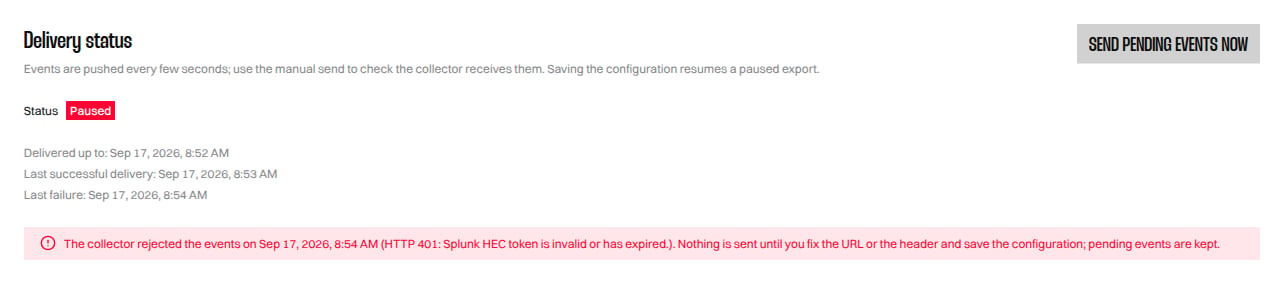 Once you fix a paused export, deliveries resume exactly where they stopped.
## Good To Know
* Events are sent a minute or so after they happen, once they are final in the audit log.
* If the collector is unavailable for a while, events wait in Reelevant and are sent later in order. Your security team may see an event twice in rare cases, never lose one.
* Events wait for as long as your audit log [retention period](/product-guide/account/audit-log#good-to-know). Fix a paused export before that period passes.
* Adding a category later sends its events from that moment on. Past events of that category are not sent.
* Every change to these settings is itself recorded in the audit log.
Do not leave the export paused past your retention period. The oldest waiting events are then removed with the audit log and can no longer be sent.
## What's Next?
See exactly which events are exported.
Control who can change company settings, and therefore this export.
Understand the login events your security team will see.
Understand the provisioning events your security team will see.
Once you fix a paused export, deliveries resume exactly where they stopped.
## Good To Know
* Events are sent a minute or so after they happen, once they are final in the audit log.
* If the collector is unavailable for a while, events wait in Reelevant and are sent later in order. Your security team may see an event twice in rare cases, never lose one.
* Events wait for as long as your audit log [retention period](/product-guide/account/audit-log#good-to-know). Fix a paused export before that period passes.
* Adding a category later sends its events from that moment on. Past events of that category are not sent.
* Every change to these settings is itself recorded in the audit log.
Do not leave the export paused past your retention period. The oldest waiting events are then removed with the audit log and can no longer be sent.
## What's Next?
See exactly which events are exported.
Control who can change company settings, and therefore this export.
Understand the login events your security team will see.
Understand the provisioning events your security team will see.