> ## Documentation Index
> Fetch the complete documentation index at: https://docs.reelevant.com/llms.txt
> Use this file to discover all available pages before exploring further.
# Teams
> Organize users into hierarchical teams for resource access control
 ## Overview
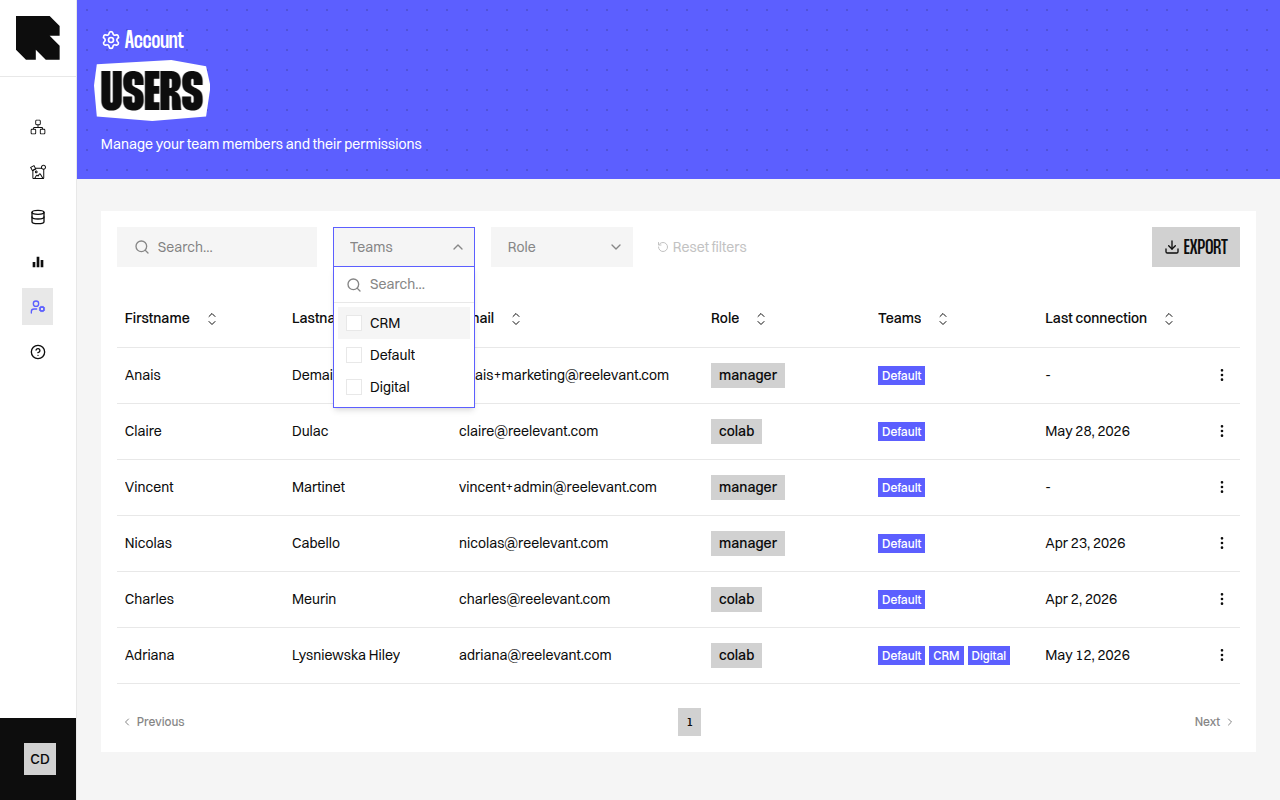
Teams control which users can access which [workflows](/product-guide/workflows/overview), [contents](/product-guide/contents/overview), and [datasources](/product-guide/datahub/overview). They act as the **team-scoping layer** of the [permission system](/product-guide/account/permissions) — a user's [role](/product-guide/account/roles) defines *what* they can do, while their teams define *which resources* they can do it on.
Every user must belong to at least one team. Teams can be organized into a hierarchy with parent-child relationships, enabling automatic access inheritance.
## How Team Scoping Works
[Team-scoped resources](/product-guide/account/permissions#resource-scoping) (workflows, contents, datasources, datagraph schemas, datagraph entities) are assigned to one or more teams when they are created. A user can only interact with a team-scoped resource if:
1. Their [role](/product-guide/account/roles) grants the required action on that resource type.
2. They are a member of at least one team that the resource belongs to (directly or through [inheritance](#team-hierarchy)).
[Company-scoped resources](/product-guide/account/permissions#resource-scoping) (users, roles, company settings, billing, etc.) are not affected by team membership — they are accessible to any user whose role permits the action.
## Teams Listing
The Teams page displays all teams with a **hierarchical graph visualization** and a list view. You can switch between two graph rendering algorithms:
| Algorithm | Description |
| ----------------------- | ----------------------------------------- |
| **Hierarchical render** | Displays teams in a top-down tree layout. |
| **Grouped render** | Displays teams in a clustered layout. |
Use the search bar to find specific teams.
### Team Information
Each team node in the graph shows:
| Field | Description |
| ---------------- | ----------------------------------------------- |
| **Team name** | The team's name. |
| **Direct users** | Number of users directly assigned to this team. |
| **Total users** | Total users including those in sub-teams. |
## Creating a Team
Click **Create team** to open the creation form.
| Field | Description |
| ------------- | ----------------------------------------------- |
| **Team name** | A descriptive name for the team. |
| **Users** | Search and select users to include in the team. |
Click **Create** to save the new team. The team starts with no parent-child relationships — you can add them later.
### Creating a Sub-Team
To create a team as a child of an existing team:
1. Click the actions menu on a team and select **Create sub-team**.
2. The form pre-fills the parent team.
3. Enter the sub-team name and users.
4. Click **Create**.
## Team Hierarchy
Teams support parent-child relationships that form a hierarchy. This hierarchy controls how access is inherited across teams.
### How Inheritance Works
When a user is assigned to a team, they automatically gain access to resources in all **descendant teams** (children, grandchildren, etc.) below it.
For example, consider this hierarchy:
```
Engineering
├── Backend Team
│ └── API Team
└── Frontend Team
```
* A user assigned to **Engineering** can access resources in Engineering, Backend Team, API Team, and Frontend Team.
* A user assigned to **Backend Team** can access resources in Backend Team and API Team, but **not** Engineering or Frontend Team.
* A user assigned to **API Team** can only access resources in API Team.
Assign users to the most specific team that matches their role. The system handles broader access automatically through the hierarchy.
Do not assign a user to both a parent team and one of its child teams. The parent assignment already provides access to the child team through inheritance.
### Exclude from Ancestor Inheritance
By default, team inheritance only flows **downward** (from parent to child). The **Exclude from ancestor inheritance** toggle changes this behavior:
| Setting | Behavior |
| ---------------------- | ------------------------------------------------------------------------------------------------------------------------------------------------------------------------------------------------------------------------------------------------------ |
| **Disabled** (default) | Standard behavior — users assigned to a parent team can access resources in this team and all its descendants. |
| **Enabled** | In addition to the standard downward inheritance, users assigned to this team also gain access to resources in all **ancestor teams** (parents, grandparents, etc.) above it — up to (but not including) any ancestor that also has this flag enabled. |
Enabling ancestor inheritance broadens access significantly. Use this only when users in a child team genuinely need access to resources managed at higher levels of the hierarchy.
### Circular Reference Protection
The system prevents circular references in the team hierarchy. If Team A is a parent of Team B, then Team B cannot be set as a parent of Team A. This check applies transitively across the entire hierarchy.
## Editing a Team
Click the actions menu and select **Edit** to update:
| Field | Description |
| ------------------------------------- | ------------------------------------------------------------------------ |
| **Team name** | Update the team name. |
| **Exclude from ancestor inheritance** | Toggle to control whether this team inherits access from ancestor teams. |
| **Parent teams** | Add or remove parent relationships. |
| **Child teams** | Add or remove child relationships. |
Click **Save** to apply.
## Managing Team Members
Click the actions menu and select **Members** to open the members drawer:
| Action | Description |
| ------------ | -------------------------------------------- |
| **Add user** | Search and select a user to add to the team. |
| **Remove** | Remove a user from the team. |
## Detaching Teams
To remove a parent-child relationship without deleting either team:
1. Open the team's edit form or the relationships management view.
2. Remove the parent or child link.
3. Click **Save**.
The team continues to exist independently — only the hierarchical relationship is removed.
## Deleting a Team
1. Click the actions menu and select **Delete team**.
2. A confirmation dialog asks you to confirm.
3. Click **Delete** to remove the team.
Before deleting a team, you must first remove or reassign all child teams and resources (workflows, contents, etc.) that belong to it. The system enforces these requirements to prevent accidental data loss. Users in the team will lose access to resources that were scoped to that team only.
## Overview
Teams control which users can access which [workflows](/product-guide/workflows/overview), [contents](/product-guide/contents/overview), and [datasources](/product-guide/datahub/overview). They act as the **team-scoping layer** of the [permission system](/product-guide/account/permissions) — a user's [role](/product-guide/account/roles) defines *what* they can do, while their teams define *which resources* they can do it on.
Every user must belong to at least one team. Teams can be organized into a hierarchy with parent-child relationships, enabling automatic access inheritance.
## How Team Scoping Works
[Team-scoped resources](/product-guide/account/permissions#resource-scoping) (workflows, contents, datasources, datagraph schemas, datagraph entities) are assigned to one or more teams when they are created. A user can only interact with a team-scoped resource if:
1. Their [role](/product-guide/account/roles) grants the required action on that resource type.
2. They are a member of at least one team that the resource belongs to (directly or through [inheritance](#team-hierarchy)).
[Company-scoped resources](/product-guide/account/permissions#resource-scoping) (users, roles, company settings, billing, etc.) are not affected by team membership — they are accessible to any user whose role permits the action.
## Teams Listing
The Teams page displays all teams with a **hierarchical graph visualization** and a list view. You can switch between two graph rendering algorithms:
| Algorithm | Description |
| ----------------------- | ----------------------------------------- |
| **Hierarchical render** | Displays teams in a top-down tree layout. |
| **Grouped render** | Displays teams in a clustered layout. |
Use the search bar to find specific teams.
### Team Information
Each team node in the graph shows:
| Field | Description |
| ---------------- | ----------------------------------------------- |
| **Team name** | The team's name. |
| **Direct users** | Number of users directly assigned to this team. |
| **Total users** | Total users including those in sub-teams. |
## Creating a Team
Click **Create team** to open the creation form.
| Field | Description |
| ------------- | ----------------------------------------------- |
| **Team name** | A descriptive name for the team. |
| **Users** | Search and select users to include in the team. |
Click **Create** to save the new team. The team starts with no parent-child relationships — you can add them later.
### Creating a Sub-Team
To create a team as a child of an existing team:
1. Click the actions menu on a team and select **Create sub-team**.
2. The form pre-fills the parent team.
3. Enter the sub-team name and users.
4. Click **Create**.
## Team Hierarchy
Teams support parent-child relationships that form a hierarchy. This hierarchy controls how access is inherited across teams.
### How Inheritance Works
When a user is assigned to a team, they automatically gain access to resources in all **descendant teams** (children, grandchildren, etc.) below it.
For example, consider this hierarchy:
```
Engineering
├── Backend Team
│ └── API Team
└── Frontend Team
```
* A user assigned to **Engineering** can access resources in Engineering, Backend Team, API Team, and Frontend Team.
* A user assigned to **Backend Team** can access resources in Backend Team and API Team, but **not** Engineering or Frontend Team.
* A user assigned to **API Team** can only access resources in API Team.
Assign users to the most specific team that matches their role. The system handles broader access automatically through the hierarchy.
Do not assign a user to both a parent team and one of its child teams. The parent assignment already provides access to the child team through inheritance.
### Exclude from Ancestor Inheritance
By default, team inheritance only flows **downward** (from parent to child). The **Exclude from ancestor inheritance** toggle changes this behavior:
| Setting | Behavior |
| ---------------------- | ------------------------------------------------------------------------------------------------------------------------------------------------------------------------------------------------------------------------------------------------------ |
| **Disabled** (default) | Standard behavior — users assigned to a parent team can access resources in this team and all its descendants. |
| **Enabled** | In addition to the standard downward inheritance, users assigned to this team also gain access to resources in all **ancestor teams** (parents, grandparents, etc.) above it — up to (but not including) any ancestor that also has this flag enabled. |
Enabling ancestor inheritance broadens access significantly. Use this only when users in a child team genuinely need access to resources managed at higher levels of the hierarchy.
### Circular Reference Protection
The system prevents circular references in the team hierarchy. If Team A is a parent of Team B, then Team B cannot be set as a parent of Team A. This check applies transitively across the entire hierarchy.
## Editing a Team
Click the actions menu and select **Edit** to update:
| Field | Description |
| ------------------------------------- | ------------------------------------------------------------------------ |
| **Team name** | Update the team name. |
| **Exclude from ancestor inheritance** | Toggle to control whether this team inherits access from ancestor teams. |
| **Parent teams** | Add or remove parent relationships. |
| **Child teams** | Add or remove child relationships. |
Click **Save** to apply.
## Managing Team Members
Click the actions menu and select **Members** to open the members drawer:
| Action | Description |
| ------------ | -------------------------------------------- |
| **Add user** | Search and select a user to add to the team. |
| **Remove** | Remove a user from the team. |
## Detaching Teams
To remove a parent-child relationship without deleting either team:
1. Open the team's edit form or the relationships management view.
2. Remove the parent or child link.
3. Click **Save**.
The team continues to exist independently — only the hierarchical relationship is removed.
## Deleting a Team
1. Click the actions menu and select **Delete team**.
2. A confirmation dialog asks you to confirm.
3. Click **Delete** to remove the team.
Before deleting a team, you must first remove or reassign all child teams and resources (workflows, contents, etc.) that belong to it. The system enforces these requirements to prevent accidental data loss. Users in the team will lose access to resources that were scoped to that team only.