> ## Documentation Index
> Fetch the complete documentation index at: https://docs.reelevant.com/llms.txt
> Use this file to discover all available pages before exploring further.
# Attribution
> Understand how Reelevant credits revenue to content interactions with influenced revenue and attribution models
**Beta** — Attribution models and configurable attribution settings are currently in beta. Behaviour and available options may still change, and numbers may be refined as the feature matures.
## Overview
Attribution explains how much revenue your Reelevant [workflows](/product-guide/workflows/overview) helped generate. It links each purchase back to the content interactions that led to it.
A customer often sees or clicks Reelevant content several times before buying. Attribution shares the credit across those interactions, so you can see the real contribution of your personalisation.
## Reelevant-influenced revenue
Reelevant reports **influenced revenue** — the revenue Reelevant helped generate, not a claim to own every sale.
This wording is deliberate. A purchase usually involves several marketing efforts, so Reelevant credits its share of the outcome rather than the whole sale.
| Measure | What it tells you |
| -------------------------- | ------------------------------------------------------------------------------------------------------- |
| **Influenced Revenue** | Revenue credited to Reelevant content interactions, spread across the interactions before the purchase. |
| **Direct Revenue** | Revenue credited only to the last Reelevant interaction before the purchase. |
| **Influenced Conversions** | The share of each conversion credited to Reelevant interactions. |
Compare Influenced Revenue and Direct Revenue side by side to see how much value your early interactions add beyond the final one.
## Attribution models
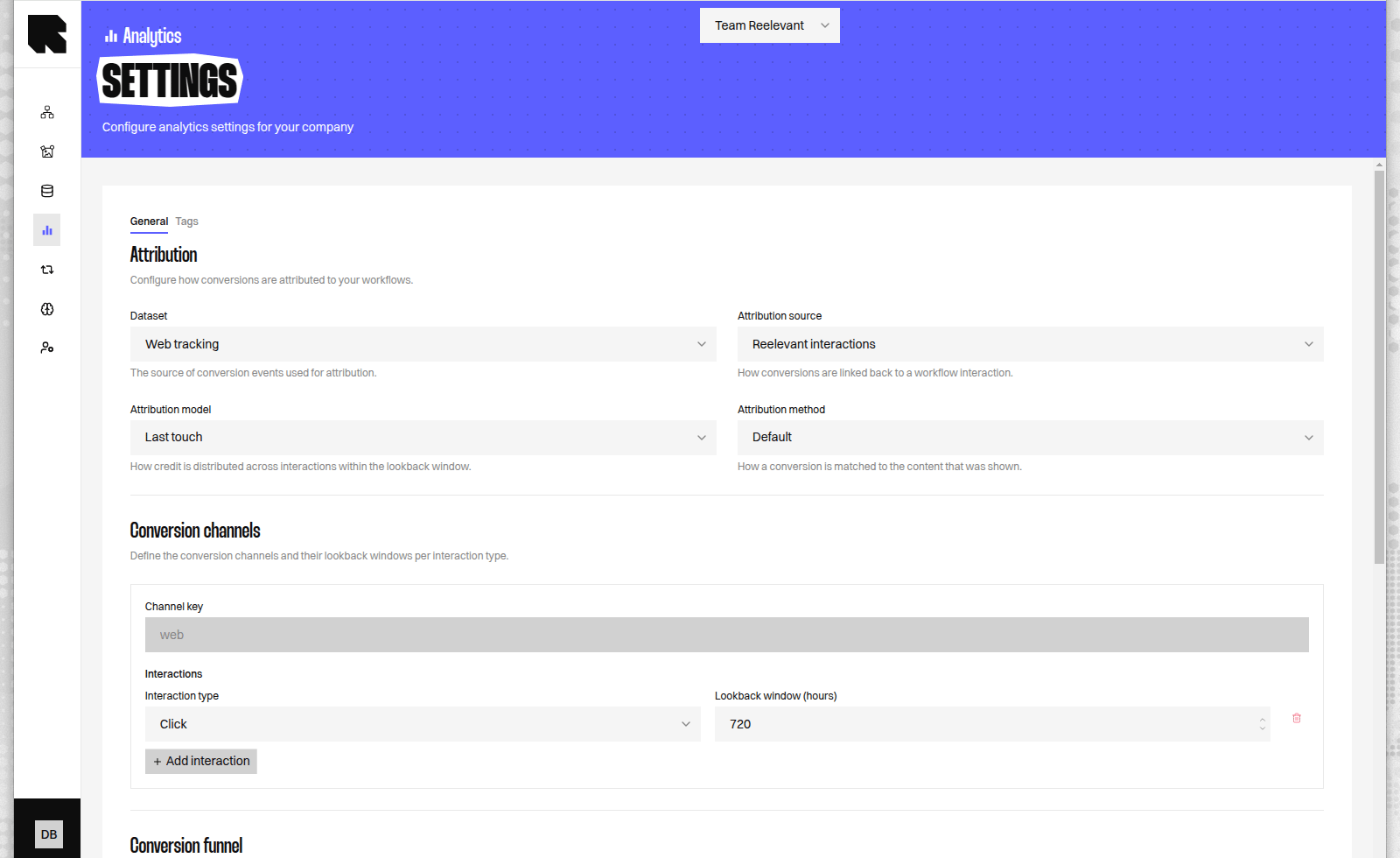
An attribution model decides how credit is shared between the interactions that led to a purchase. You choose one model in [Analytics Settings](/product-guide/analytics/settings).
 | Model | How it shares credit | Best for |
| ------------------------ | --------------------------------------------------------------------------------------------- | ------------------------------------------------------------------- |
| **Last-touch** (default) | The last interaction before the purchase receives all the credit. | A simple view that matches classic last-click reporting. |
| **Linear** | Every interaction receives an equal share. | Seeing every interaction contribute evenly. |
| **Decay** | Interactions closer to the purchase receive more credit. The earliest ones receive the least. | Rewarding the interactions that pushed the customer towards buying. |
### Worked example
Imagine a customer interacts with Reelevant content three times, then buys for 100.
| Model | First interaction | Middle interaction | Last interaction |
| -------------- | ----------------- | ------------------ | ---------------- |
| **Last-touch** | 0 | 0 | 100 |
| **Linear** | 33.3 | 33.3 | 33.3 |
| **Decay** | 16.7 | 33.3 | 50 |
Last-touch is the default, so your numbers match classic last-click reporting until you pick a model that shares credit across earlier interactions.
## The lookback window
The lookback window is the time before a purchase during which an interaction can earn credit. An interaction that happened outside this window is not credited.
You can set a different window for each interaction type:
| Interaction type | What it means | Default window |
| -------------------------- | ----------------------------------------------------------- | -------------- |
| **Click** | The customer clicked on Reelevant content. | 30 days |
| **View-through (display)** | The customer was shown Reelevant content but did not click. | 7 days |
A display view is a weaker signal than a click, so it uses a shorter default window. You can change either window to match how your customers behave.
## Where the data comes from
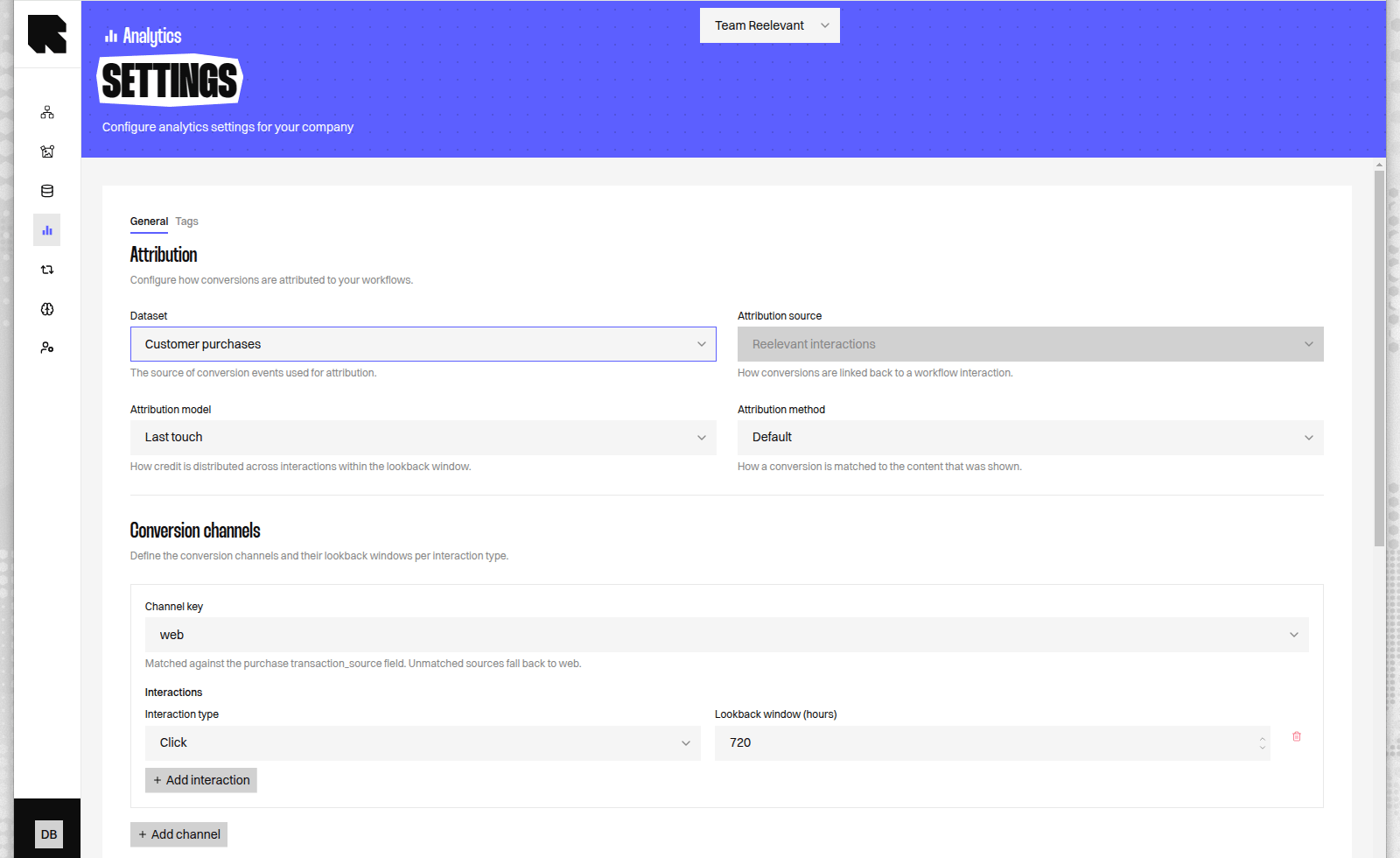
Reelevant can measure attribution from two sources. You pick the one that fits your setup in [Analytics Settings](/product-guide/analytics/settings).
| Source | Use it when |
| ---------------------- | -------------------------------------------------- |
| **Web tracking** | You let Reelevant track purchases on your website. |
| **Customer purchases** | You send Reelevant your own purchase data. |
Both sources support click and view-through attribution, so you get the same models and measures whichever one you choose.
With **Customer purchases**, you can set different interaction types and lookback windows per **purchase source** (matched against the transaction source in your data). Purchases whose source is not configured use your default settings.
| Model | How it shares credit | Best for |
| ------------------------ | --------------------------------------------------------------------------------------------- | ------------------------------------------------------------------- |
| **Last-touch** (default) | The last interaction before the purchase receives all the credit. | A simple view that matches classic last-click reporting. |
| **Linear** | Every interaction receives an equal share. | Seeing every interaction contribute evenly. |
| **Decay** | Interactions closer to the purchase receive more credit. The earliest ones receive the least. | Rewarding the interactions that pushed the customer towards buying. |
### Worked example
Imagine a customer interacts with Reelevant content three times, then buys for 100.
| Model | First interaction | Middle interaction | Last interaction |
| -------------- | ----------------- | ------------------ | ---------------- |
| **Last-touch** | 0 | 0 | 100 |
| **Linear** | 33.3 | 33.3 | 33.3 |
| **Decay** | 16.7 | 33.3 | 50 |
Last-touch is the default, so your numbers match classic last-click reporting until you pick a model that shares credit across earlier interactions.
## The lookback window
The lookback window is the time before a purchase during which an interaction can earn credit. An interaction that happened outside this window is not credited.
You can set a different window for each interaction type:
| Interaction type | What it means | Default window |
| -------------------------- | ----------------------------------------------------------- | -------------- |
| **Click** | The customer clicked on Reelevant content. | 30 days |
| **View-through (display)** | The customer was shown Reelevant content but did not click. | 7 days |
A display view is a weaker signal than a click, so it uses a shorter default window. You can change either window to match how your customers behave.
## Where the data comes from
Reelevant can measure attribution from two sources. You pick the one that fits your setup in [Analytics Settings](/product-guide/analytics/settings).
| Source | Use it when |
| ---------------------- | -------------------------------------------------- |
| **Web tracking** | You let Reelevant track purchases on your website. |
| **Customer purchases** | You send Reelevant your own purchase data. |
Both sources support click and view-through attribution, so you get the same models and measures whichever one you choose.
With **Customer purchases**, you can set different interaction types and lookback windows per **purchase source** (matched against the transaction source in your data). Purchases whose source is not configured use your default settings.
 ## UTM-based attribution
When you use **Web tracking**, you can attribute conversions across the UTM tags in your landing-page links instead of Reelevant interactions.
Each distinct UTM combination before the purchase becomes an interaction and earns a share, using the same models above. This spreads credit across every marketing effort in the customer's path — for example email, paid search, and social.
You choose which UTM tags define an interaction. By default Reelevant groups by `utm_source` and `utm_medium`.
## UTM-based attribution
When you use **Web tracking**, you can attribute conversions across the UTM tags in your landing-page links instead of Reelevant interactions.
Each distinct UTM combination before the purchase becomes an interaction and earns a share, using the same models above. This spreads credit across every marketing effort in the customer's path — for example email, paid search, and social.
You choose which UTM tags define an interaction. By default Reelevant groups by `utm_source` and `utm_medium`.
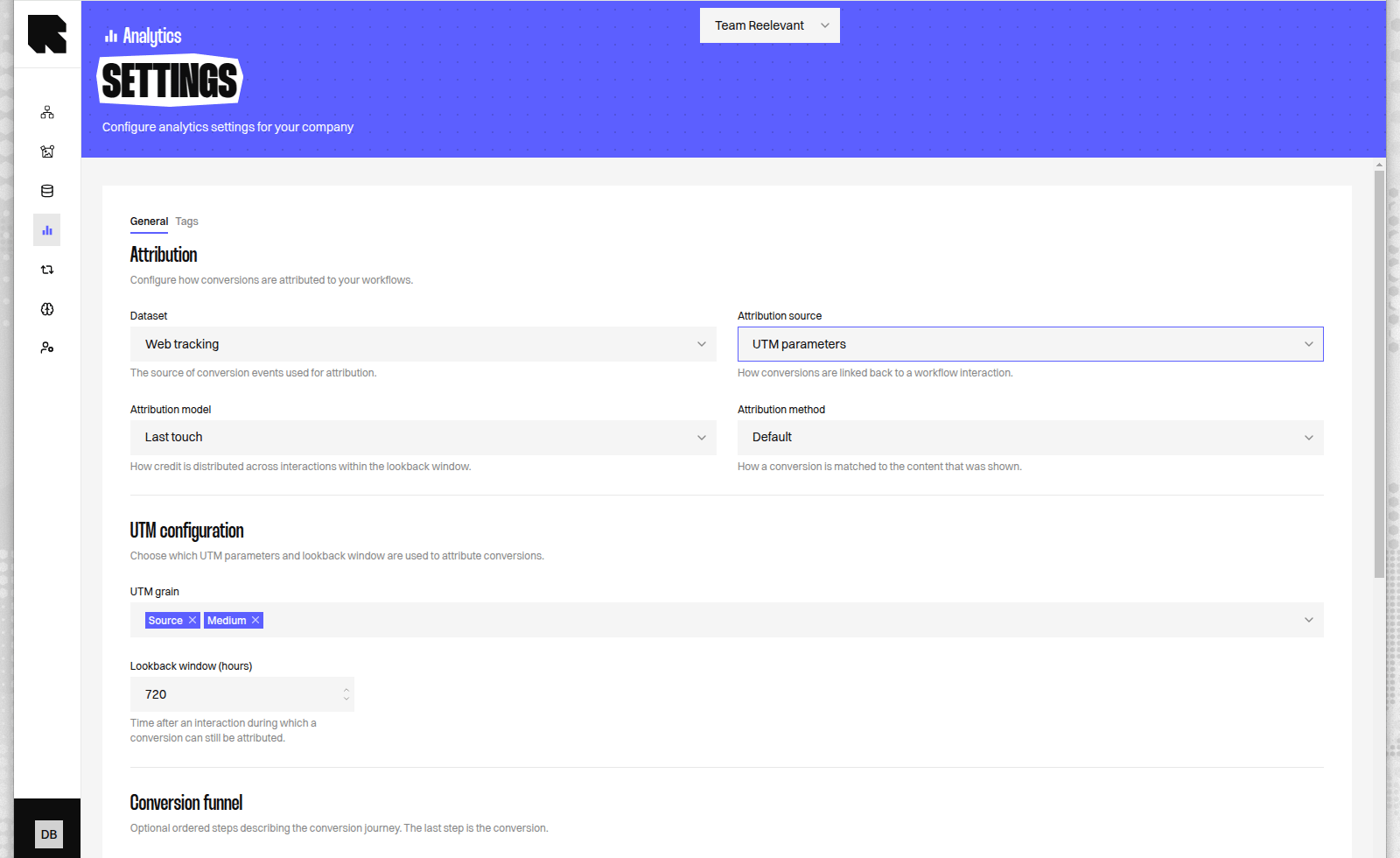 UTM-based attribution is only available with Web tracking, because it reads the UTM tags Reelevant captures from your landing-page links.
## Beyond purchases
Attribution is not limited to online shopping. You can define your own stages — for example `signup_start` then `signup_complete` — and Reelevant credits the last stage as the conversion.
This lets you measure any goal that matters to you, not only sales.
## What's Next?
Choose your attribution model, lookback windows, and data source.
See influenced revenue and conversions from your campaigns.
Review the measures available for your analysis.
UTM-based attribution is only available with Web tracking, because it reads the UTM tags Reelevant captures from your landing-page links.
## Beyond purchases
Attribution is not limited to online shopping. You can define your own stages — for example `signup_start` then `signup_complete` — and Reelevant credits the last stage as the conversion.
This lets you measure any goal that matters to you, not only sales.
## What's Next?
Choose your attribution model, lookback windows, and data source.
See influenced revenue and conversions from your campaigns.
Review the measures available for your analysis.