> ## Documentation Index
> Fetch the complete documentation index at: https://docs.reelevant.com/llms.txt
> Use this file to discover all available pages before exploring further.
# Data Exploration
> Build custom analytics queries with measures, dimensions, filters, and temporal granularity
 ## Overview
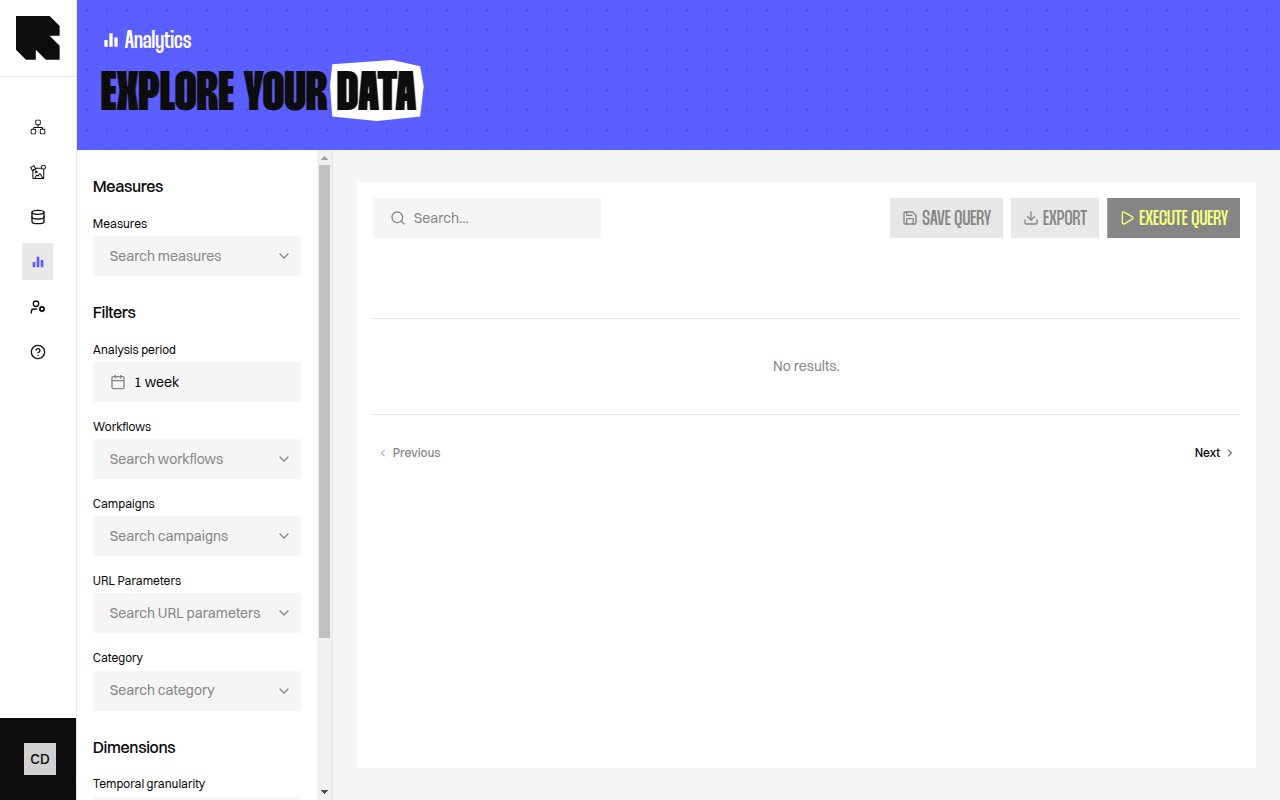
The Data Exploration page lets you build custom analytics queries to explore your data beyond the pre-built [dashboards](/product-guide/analytics/dashboards). Combine measures, dimensions, and filters to answer specific business questions.
## Query Builder
The query builder has several configuration sections:
### Measures
Select the metrics you want to analyze:
| Control | Description |
| ------------ | --------------------------------------------------------------- |
| **Measures** | Search and select one or more measures from the available list. |
Available measures include metrics from workflow events (displays, clicks, openers) and purchase events (conversions, revenue, buyer count). See the full list in the [measures and dimensions reference](/product-guide/analytics/measures-and-dimensions).
### Dimensions
Group your data by one or more attributes:
| Control | Description |
| -------------- | ------------------------------------------------- |
| **Dimensions** | Search and select dimensions to group results by. |
Available dimensions include:
| Dimension | Description |
| ------------------------------------ | --------------------------------------------- |
| **Workflow Name** | Group by workflow. |
| **Content Name** | Group by content template. |
| **Device Type** | Group by device (desktop, mobile, tablet). |
| **Device OS** | Group by operating system. |
| **Email client** | Group by email client. |
| **Is Individualized Content** | Distinguish personalized vs. default content. |
| **Visual Zone Number** | Group by visual zone position. |
| **Visual Zone Type** | Group by channel type. |
| **Workflow Branch** | Group by workflow branch path. |
| **Category** | Group by branch category. |
| **URL Parameter Value** | Group by URL parameter values. |
| **Workflow Team** / **Content Team** | Group by team. |
### Temporal Granularity
| Control | Description |
| ------------------------ | --------------------------------------------------------- |
| **Temporal granularity** | Select the time bucketing — Day, Week, Month, or Quarter. |
### Filters
All [dashboard filters](/product-guide/analytics/dashboards) are available — Workflows, Campaigns, URL Parameters, Category, and Analysis period.
## Executing a Query
Click **Execute query** to run the query. Results appear in a table below the builder.
If your query has changed since the last execution, a warning banner appears: "Your query has changed since these results were generated. Run it again to refresh the data."
### Result Warnings
The results table may show contextual warnings:
* **Workflow Branch dimension** — "Don't forget to use other dimensions such as 'Content Name' or 'Workflow Name' if pertinent in your analysis."
* **Mixing event types** — "You are mixing workflow events measures and from purchase events dimensions. This should be avoided."
* **URL Parameter Value without filter** — "You are using the dimension 'URL Parameter Value' without filtering on a specific parameter."
## Saving a Query
Click **Save query** to save the current query configuration for reuse. See [Saved Queries](/product-guide/analytics/saved-queries) for details on scheduling and email delivery.
## Overview
The Data Exploration page lets you build custom analytics queries to explore your data beyond the pre-built [dashboards](/product-guide/analytics/dashboards). Combine measures, dimensions, and filters to answer specific business questions.
## Query Builder
The query builder has several configuration sections:
### Measures
Select the metrics you want to analyze:
| Control | Description |
| ------------ | --------------------------------------------------------------- |
| **Measures** | Search and select one or more measures from the available list. |
Available measures include metrics from workflow events (displays, clicks, openers) and purchase events (conversions, revenue, buyer count). See the full list in the [measures and dimensions reference](/product-guide/analytics/measures-and-dimensions).
### Dimensions
Group your data by one or more attributes:
| Control | Description |
| -------------- | ------------------------------------------------- |
| **Dimensions** | Search and select dimensions to group results by. |
Available dimensions include:
| Dimension | Description |
| ------------------------------------ | --------------------------------------------- |
| **Workflow Name** | Group by workflow. |
| **Content Name** | Group by content template. |
| **Device Type** | Group by device (desktop, mobile, tablet). |
| **Device OS** | Group by operating system. |
| **Email client** | Group by email client. |
| **Is Individualized Content** | Distinguish personalized vs. default content. |
| **Visual Zone Number** | Group by visual zone position. |
| **Visual Zone Type** | Group by channel type. |
| **Workflow Branch** | Group by workflow branch path. |
| **Category** | Group by branch category. |
| **URL Parameter Value** | Group by URL parameter values. |
| **Workflow Team** / **Content Team** | Group by team. |
### Temporal Granularity
| Control | Description |
| ------------------------ | --------------------------------------------------------- |
| **Temporal granularity** | Select the time bucketing — Day, Week, Month, or Quarter. |
### Filters
All [dashboard filters](/product-guide/analytics/dashboards) are available — Workflows, Campaigns, URL Parameters, Category, and Analysis period.
## Executing a Query
Click **Execute query** to run the query. Results appear in a table below the builder.
If your query has changed since the last execution, a warning banner appears: "Your query has changed since these results were generated. Run it again to refresh the data."
### Result Warnings
The results table may show contextual warnings:
* **Workflow Branch dimension** — "Don't forget to use other dimensions such as 'Content Name' or 'Workflow Name' if pertinent in your analysis."
* **Mixing event types** — "You are mixing workflow events measures and from purchase events dimensions. This should be avoided."
* **URL Parameter Value without filter** — "You are using the dimension 'URL Parameter Value' without filtering on a specific parameter."
## Saving a Query
Click **Save query** to save the current query configuration for reuse. See [Saved Queries](/product-guide/analytics/saved-queries) for details on scheduling and email delivery.