> ## Documentation Index
> Fetch the complete documentation index at: https://docs.reelevant.com/llms.txt
> Use this file to discover all available pages before exploring further.
# Experiments
> Create reusable experiments in Analytics and use them in Workflows
 Experiments help you compare Variants across Workflows and measure their impact in Analytics.
An [Experiment](/glossary) is created and managed in Analytics, then reused by Workflows through the Experiment Node. It has a type, [Variants](/glossary), an [Allocation](/glossary) for each Variant, a [Control](/glossary) or [Reference](/glossary), a business hypothesis, and a success metric.
## Availability
Experiments are activated on request: contact your Reelevant contact.
## Experiment types
Experiments help you compare Variants across Workflows and measure their impact in Analytics.
An [Experiment](/glossary) is created and managed in Analytics, then reused by Workflows through the Experiment Node. It has a type, [Variants](/glossary), an [Allocation](/glossary) for each Variant, a [Control](/glossary) or [Reference](/glossary), a business hypothesis, and a success metric.
## Availability
Experiments are activated on request: contact your Reelevant contact.
## Experiment types
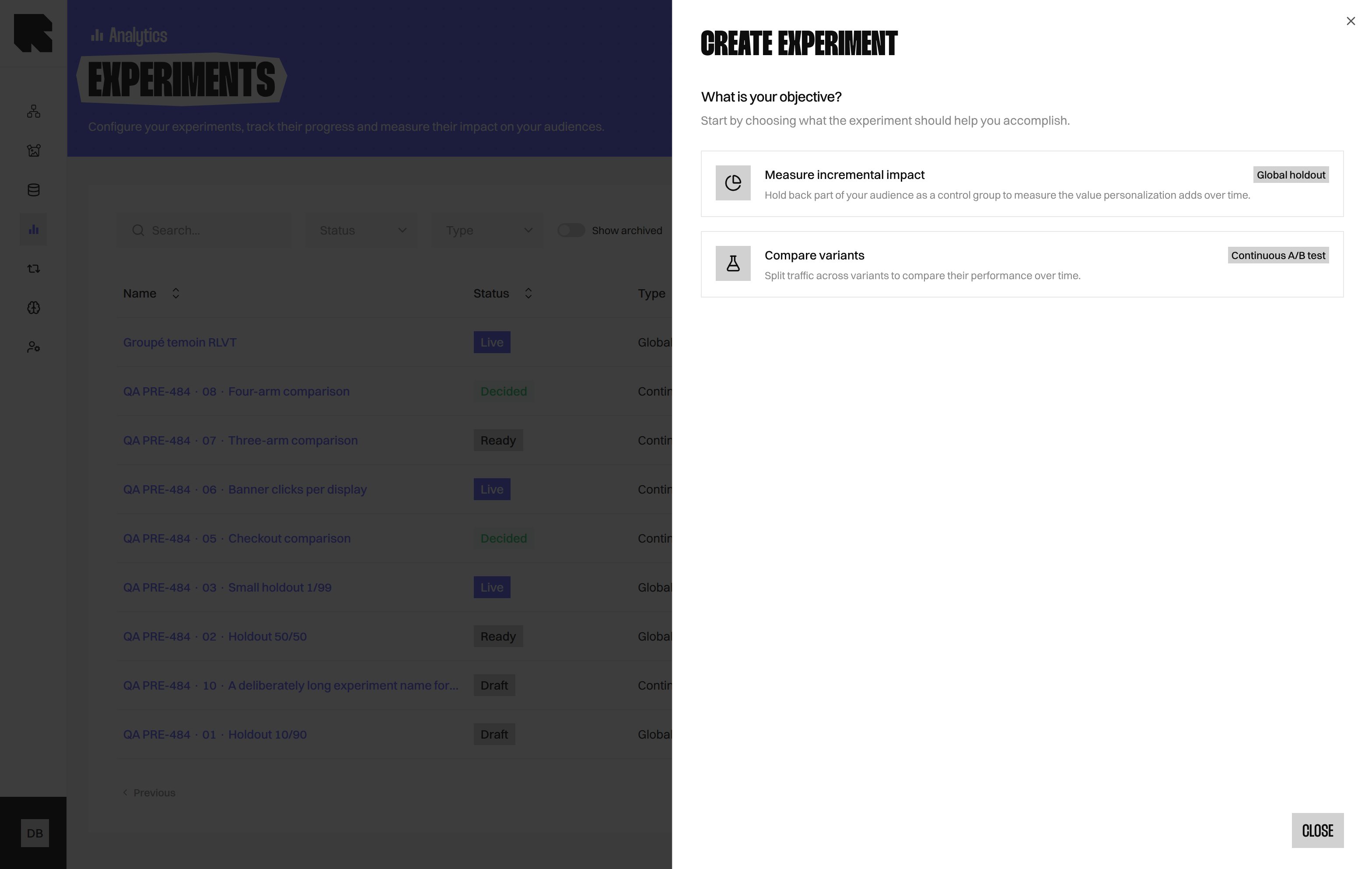 | Type | Objective | Variants | **Randomization unit** | End |
| - | - | - | - | - |
| **Global holdout** | **Measure incremental impact** | Exactly two: **Control** and [**Treatment**](/glossary) | Always **Per customer** | No automatic end; you can conclude it manually. |
| **Continuous A/B test** | **Compare variants** | Two to four, including a **Reference** | **Per customer** or **Per display** | Conclude it when you choose. |
A **Global holdout** keeps part of your audience on the non-personalised experience. This helps you measure the value personalisation adds.
## Experiments listing
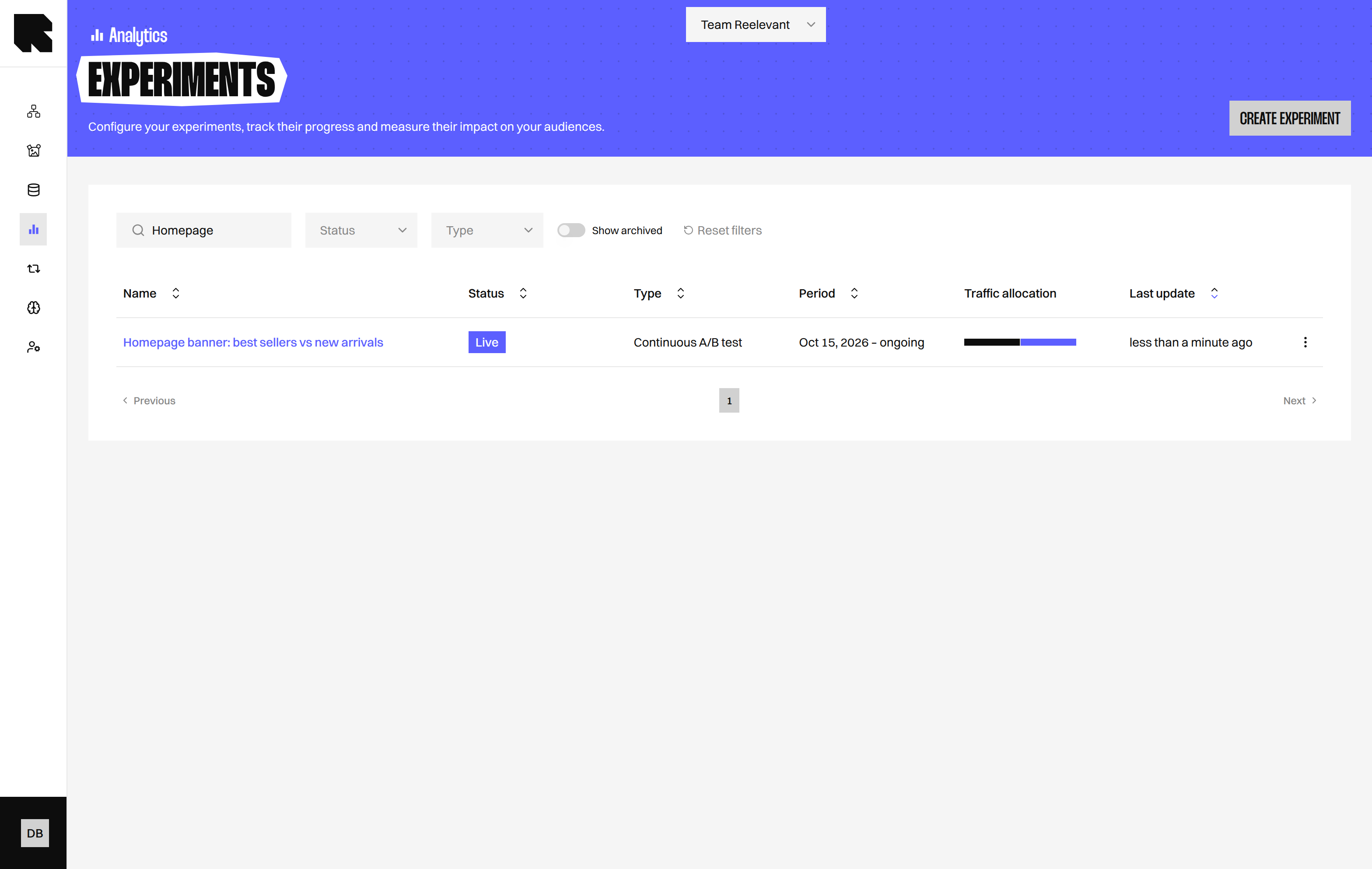
Open **Analytics** and select **Experiments** to see your experiments.
| Column | What it shows |
| - | - |
| **Name** | The experiment name. |
| **Status** | Where the experiment is in its lifecycle. |
| **Type** | **Global holdout** or **Continuous A/B test**. |
| **Period** | The experiment's start and end information. |
| **Traffic allocation** | The configured share for each variant. |
| **Last update** | When the experiment was last changed. |
Select **Show archived** to include archived experiments. Select **Create experiment** to begin.
## Create an experiment
| Type | Objective | Variants | **Randomization unit** | End |
| - | - | - | - | - |
| **Global holdout** | **Measure incremental impact** | Exactly two: **Control** and [**Treatment**](/glossary) | Always **Per customer** | No automatic end; you can conclude it manually. |
| **Continuous A/B test** | **Compare variants** | Two to four, including a **Reference** | **Per customer** or **Per display** | Conclude it when you choose. |
A **Global holdout** keeps part of your audience on the non-personalised experience. This helps you measure the value personalisation adds.
## Experiments listing
Open **Analytics** and select **Experiments** to see your experiments.
| Column | What it shows |
| - | - |
| **Name** | The experiment name. |
| **Status** | Where the experiment is in its lifecycle. |
| **Type** | **Global holdout** or **Continuous A/B test**. |
| **Period** | The experiment's start and end information. |
| **Traffic allocation** | The configured share for each variant. |
| **Last update** | When the experiment was last changed. |
Select **Show archived** to include archived experiments. Select **Create experiment** to begin.
## Create an experiment
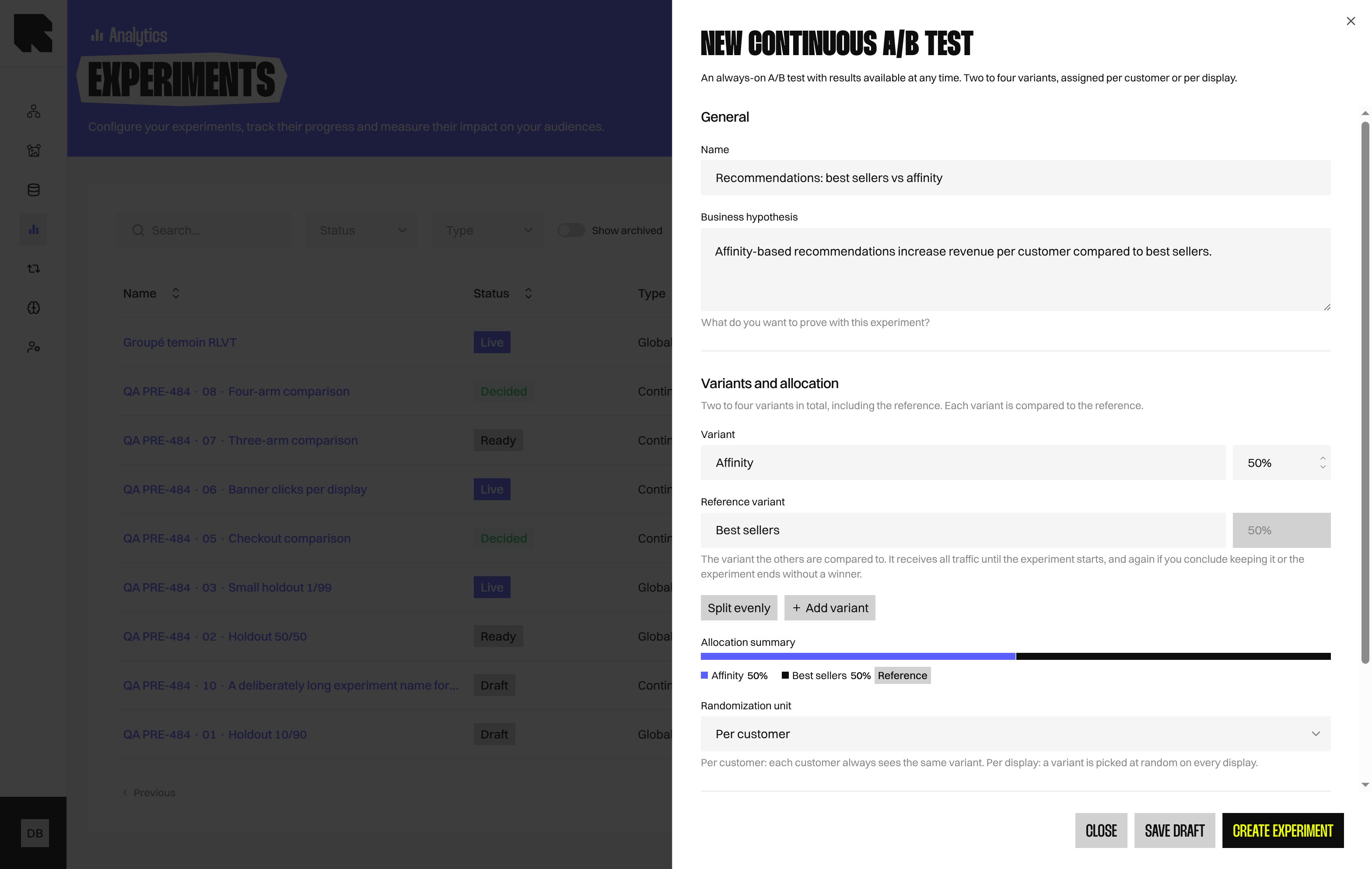 1. In the Experiments listing, select **Create experiment**.
2. Under **What is your objective?**, choose **Measure incremental impact** or **Compare variants**.
3. In **General**, enter a **Name** and **Business hypothesis**.
4. In **Variants and allocation**, name your Variants and set their Allocation.
5. In **Measurement**, choose a **Randomization unit** and one **Success metric**.
6. Select **Create experiment** to validate it as Ready, or **Save draft** to finish later.
Your **Name** must not match an existing tag name because the Experiment becomes a tag.
Select **Split evenly** to divide traffic evenly between the other Variants. The **Control** or **Reference** Allocation is calculated automatically, keeping the total at 100%.
Before an Experiment starts, its **Control** or **Reference** receives all traffic.
Choose **Per customer** to keep each customer in the same Variant. Choose **Per display** to assign a Variant each time Content is displayed.
Choose one **Success metric**: **Unique conversion rate**, **Unique click rate**, **Revenue per customer**, or **Purchases per customer**. With **Per display**, only **Unique click rate** is available.
You can attach a **Ready** Experiment to a Workflow before starting it. An Experiment used by no Workflow receives no traffic.
## Lifecycle
1. In the Experiments listing, select **Create experiment**.
2. Under **What is your objective?**, choose **Measure incremental impact** or **Compare variants**.
3. In **General**, enter a **Name** and **Business hypothesis**.
4. In **Variants and allocation**, name your Variants and set their Allocation.
5. In **Measurement**, choose a **Randomization unit** and one **Success metric**.
6. Select **Create experiment** to validate it as Ready, or **Save draft** to finish later.
Your **Name** must not match an existing tag name because the Experiment becomes a tag.
Select **Split evenly** to divide traffic evenly between the other Variants. The **Control** or **Reference** Allocation is calculated automatically, keeping the total at 100%.
Before an Experiment starts, its **Control** or **Reference** receives all traffic.
Choose **Per customer** to keep each customer in the same Variant. Choose **Per display** to assign a Variant each time Content is displayed.
Choose one **Success metric**: **Unique conversion rate**, **Unique click rate**, **Revenue per customer**, or **Purchases per customer**. With **Per display**, only **Unique click rate** is available.
You can attach a **Ready** Experiment to a Workflow before starting it. An Experiment used by no Workflow receives no traffic.
## Lifecycle
 | Status | What it means |
| - | - |
| **Draft** | You can continue editing the Experiment. |
| **Ready** | The configuration is validated and can be attached to a Workflow. |
| **Live** | The Experiment is running and allocating traffic. |
| **Decided** | A Variant was chosen to receive all traffic. |
| **Archived** | The Experiment is archived and hidden from the active listing. |
### Validate or return to draft
Select **Validate configuration** to move a draft to Ready.
Select **Back to draft** to return a Ready Experiment to Draft.
Detach the Experiment from its Workflows before moving it back to Draft.
While a Draft or Ready Experiment is used by a Workflow, you cannot add or remove Variants. Everything else stays editable until you start it.
### Start
Select **Start** to begin the Experiment manually. Starting locks its Variants, Allocation, Randomization unit, and Success metric.
If no Workflow uses the Experiment, a warning appears. The Experiment receives no traffic until a Workflow uses it.
### Conclude
| Status | What it means |
| - | - |
| **Draft** | You can continue editing the Experiment. |
| **Ready** | The configuration is validated and can be attached to a Workflow. |
| **Live** | The Experiment is running and allocating traffic. |
| **Decided** | A Variant was chosen to receive all traffic. |
| **Archived** | The Experiment is archived and hidden from the active listing. |
### Validate or return to draft
Select **Validate configuration** to move a draft to Ready.
Select **Back to draft** to return a Ready Experiment to Draft.
Detach the Experiment from its Workflows before moving it back to Draft.
While a Draft or Ready Experiment is used by a Workflow, you cannot add or remove Variants. Everything else stays editable until you start it.
### Start
Select **Start** to begin the Experiment manually. Starting locks its Variants, Allocation, Randomization unit, and Success metric.
If no Workflow uses the Experiment, a warning appears. The Experiment receives no traffic until a Workflow uses it.
### Conclude
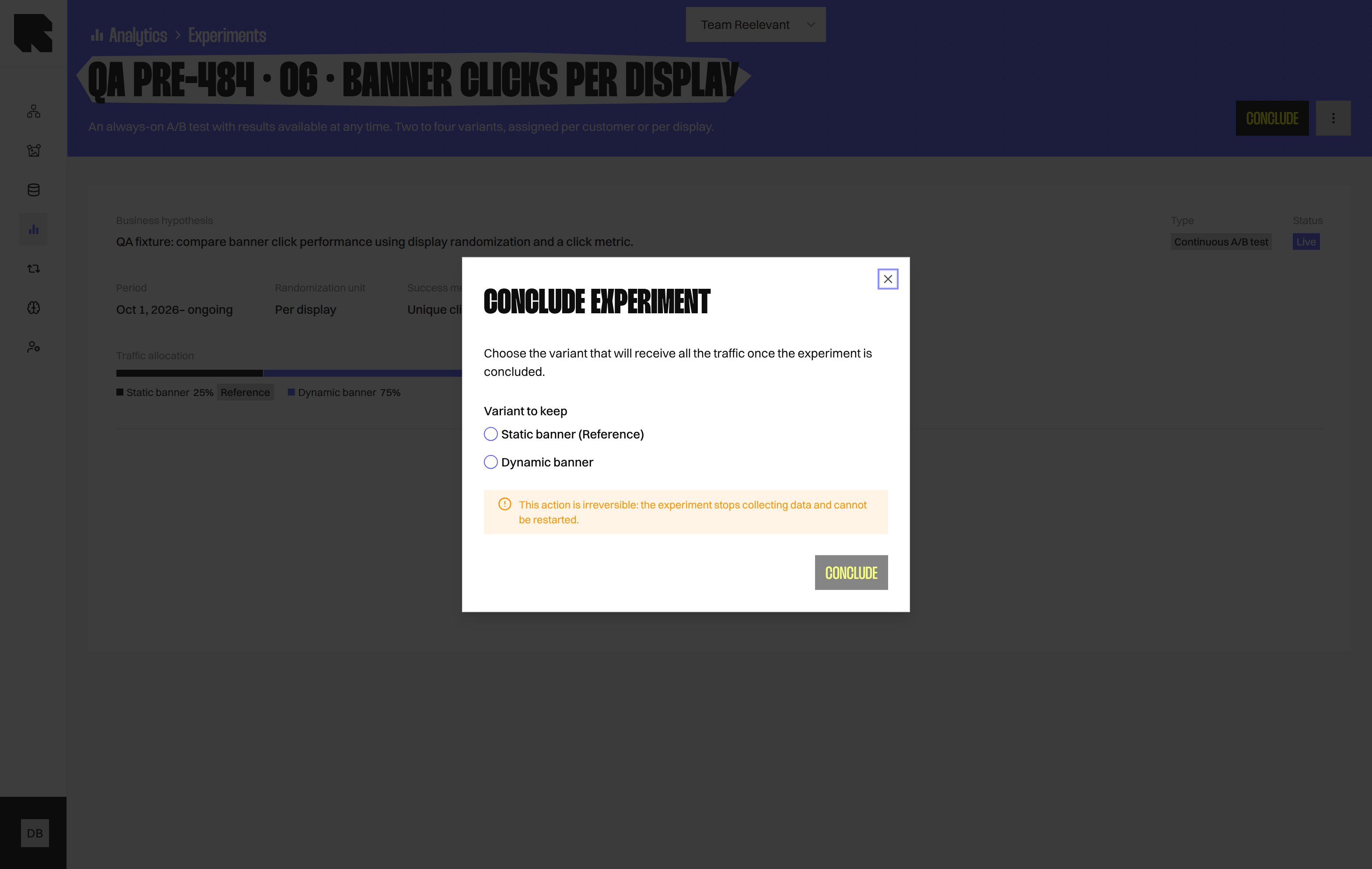 The **Conclude experiment** modal offers **Variant to keep** radio options.
Choose a Variant, then select **Conclude**.
All traffic then goes to that Variant, and the Experiment becomes Decided.
A **Global holdout** has no automatic end date, but you can conclude it manually. You cannot stop a **Live** Experiment without choosing a Variant to keep.
Concluding is irreversible. The Experiment stops collecting data and cannot be restarted.
### Archive
Select **More actions** > **Archive**, then type the confirmation word.
Detach the Experiment from all Workflows first. **Archive** is not available while it is **Live**.
### Clone
Select **Clone** to create a new draft named with “(copy)”.
## Read experiment data
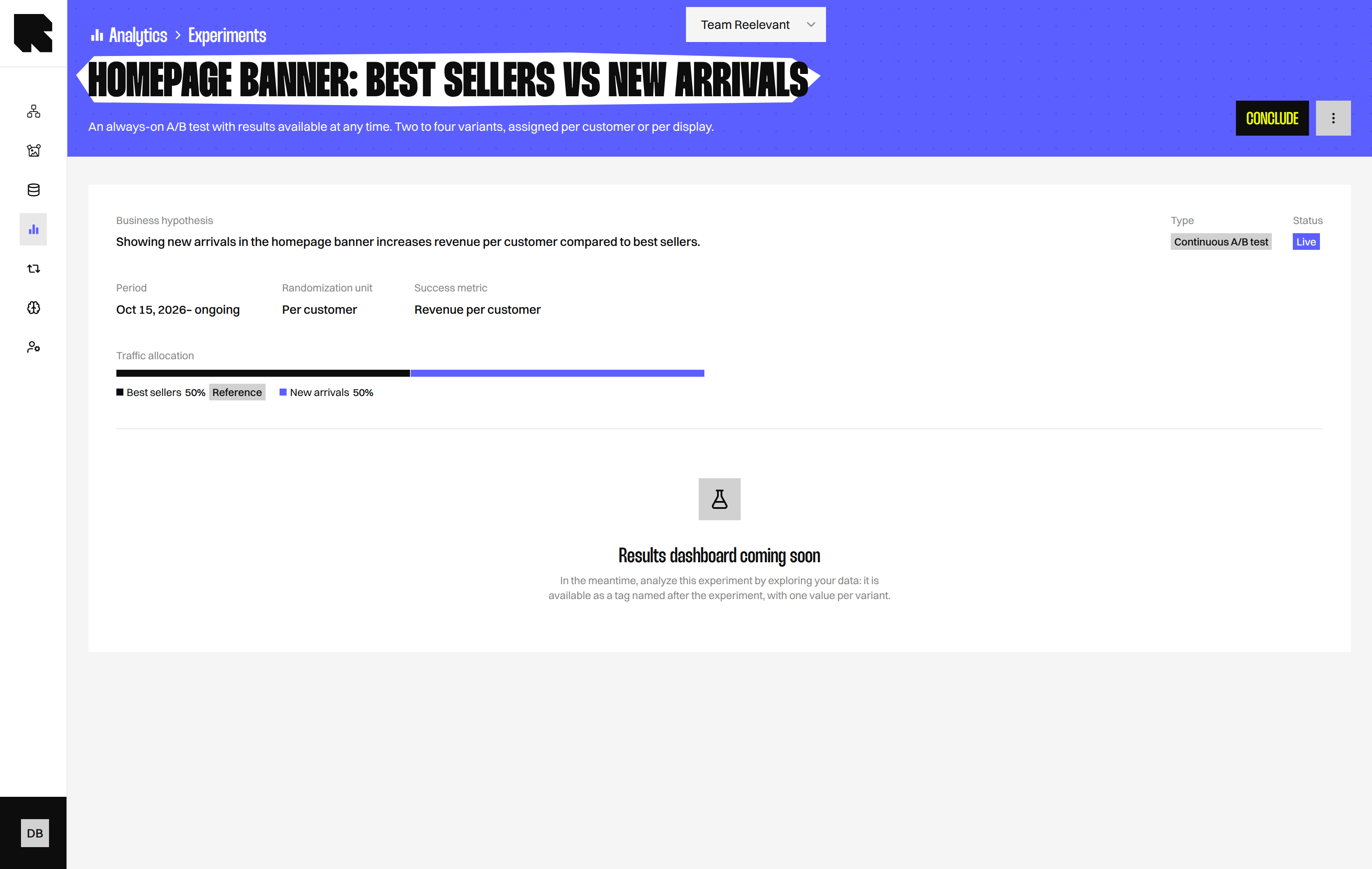
The Experiment page shows **Results dashboard coming soon**.
Meanwhile, open [Data Exploration](/product-guide/analytics/data-exploration). Your Experiment appears as a tag named after it, with one value for each Variant.
Add **Tag: {name}** as a dimension to compare Variants. See [Measures and Dimensions](/product-guide/analytics/measures-and-dimensions) for help choosing fields.
These figures are not statistically validated.
## Coming soon
The results dashboard and statistical significance are coming soon. Scheduled start and automatic end dates are also coming soon.
## What's Next?
Use an Experiment in a Workflow.
Explore your analytics data.
Learn about Workflow Logic Nodes.
The **Conclude experiment** modal offers **Variant to keep** radio options.
Choose a Variant, then select **Conclude**.
All traffic then goes to that Variant, and the Experiment becomes Decided.
A **Global holdout** has no automatic end date, but you can conclude it manually. You cannot stop a **Live** Experiment without choosing a Variant to keep.
Concluding is irreversible. The Experiment stops collecting data and cannot be restarted.
### Archive
Select **More actions** > **Archive**, then type the confirmation word.
Detach the Experiment from all Workflows first. **Archive** is not available while it is **Live**.
### Clone
Select **Clone** to create a new draft named with “(copy)”.
## Read experiment data
The Experiment page shows **Results dashboard coming soon**.
Meanwhile, open [Data Exploration](/product-guide/analytics/data-exploration). Your Experiment appears as a tag named after it, with one value for each Variant.
Add **Tag: {name}** as a dimension to compare Variants. See [Measures and Dimensions](/product-guide/analytics/measures-and-dimensions) for help choosing fields.
These figures are not statistically validated.
## Coming soon
The results dashboard and statistical significance are coming soon. Scheduled start and automatic end dates are also coming soon.
## What's Next?
Use an Experiment in a Workflow.
Explore your analytics data.
Learn about Workflow Logic Nodes.