> ## Documentation Index
> Fetch the complete documentation index at: https://docs.reelevant.com/llms.txt
> Use this file to discover all available pages before exploring further.
# Reports
> Create evidence-backed Analytics reports, ask follow-up questions, and review automatic period reports
Reports turn a question about your Analytics data into a structured analysis with supporting evidence.
**Beta** — Reports are currently available to platform administrators and may not appear in your account. Behaviour, prompts, and available analysis options may change.
## Before you begin
Reports use the Analytics data available for your company. A report can only answer questions supported by that data.
Always review the evidence, methodology, and limitations before sharing a result. Generated analysis can require additional business context.
## Create a report
1. Open **Analytics > Reports > List**.
2. Select **New report**.
3. Add an optional title.
4. Choose a suggested starting point or **Free-form analysis**.
5. Review and edit the **Question**.
6. Select **Create report**.
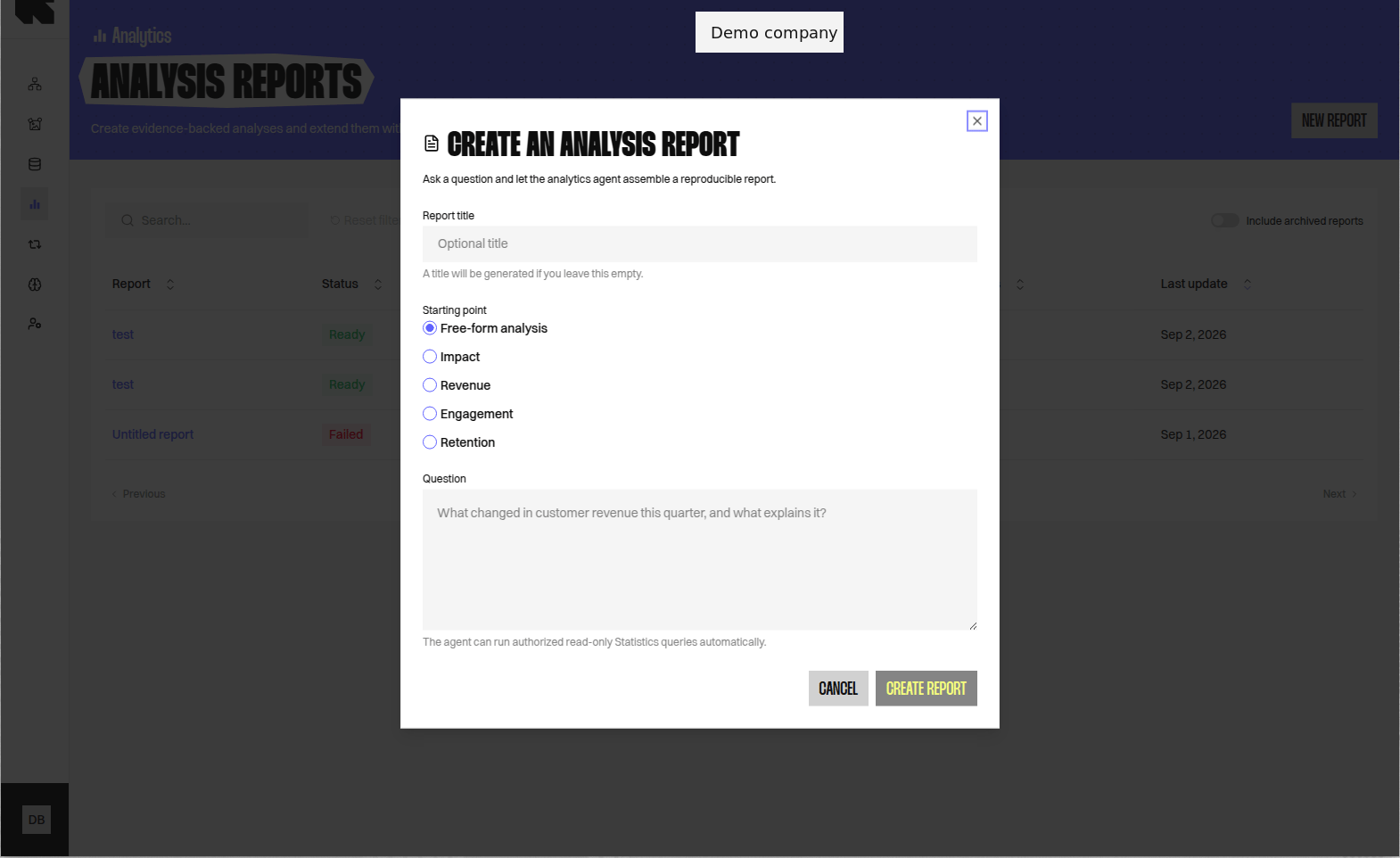 The report opens while Reelevant prepares the analysis. You can leave the page and return from **Reports > List**.
Start with a suggested analysis when you need guidance. Choose **Free-form analysis** when you already have a specific business question.
| Status | Meaning |
| -------------- | --------------------------------------------------- |
| **Generating** | Reelevant is preparing the report. |
| **Ready** | At least one completed section is available. |
| **Failed** | Reelevant could not complete the latest generation. |
| **Archived** | The report is hidden from the standard list. |
A failed report keeps its available evidence. Retry availability depends on the failure and the report's current state.
## Ask a follow-up question
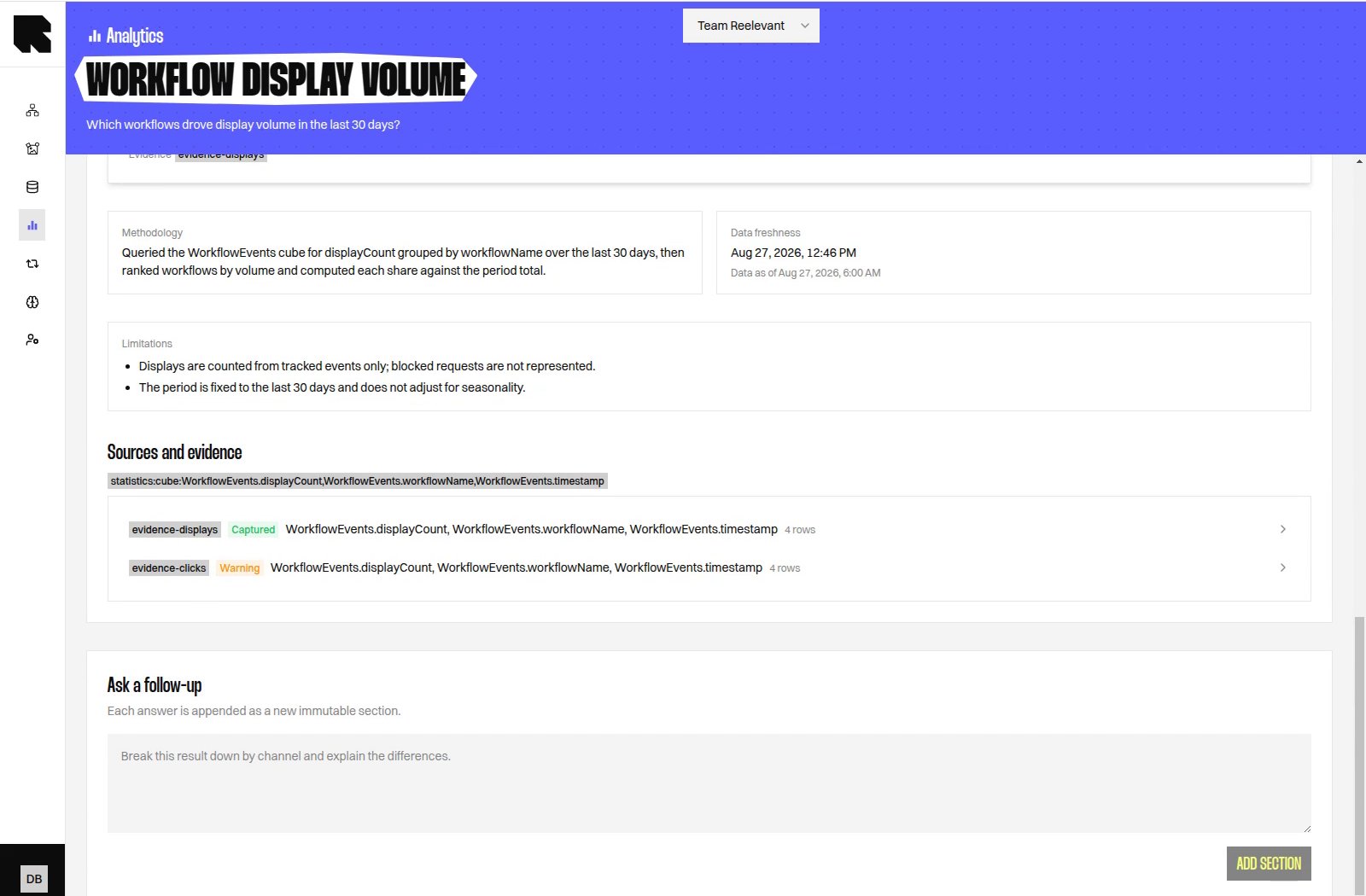
Use the follow-up area below a completed report to request another section. Your question and the person who asked it remain linked to that section.
Follow-up questions use the existing report as context. Ask one focused question at a time for clearer results.
The report opens while Reelevant prepares the analysis. You can leave the page and return from **Reports > List**.
Start with a suggested analysis when you need guidance. Choose **Free-form analysis** when you already have a specific business question.
| Status | Meaning |
| -------------- | --------------------------------------------------- |
| **Generating** | Reelevant is preparing the report. |
| **Ready** | At least one completed section is available. |
| **Failed** | Reelevant could not complete the latest generation. |
| **Archived** | The report is hidden from the standard list. |
A failed report keeps its available evidence. Retry availability depends on the failure and the report's current state.
## Ask a follow-up question
Use the follow-up area below a completed report to request another section. Your question and the person who asked it remain linked to that section.
Follow-up questions use the existing report as context. Ask one focused question at a time for clearer results.
 ## Review report evidence
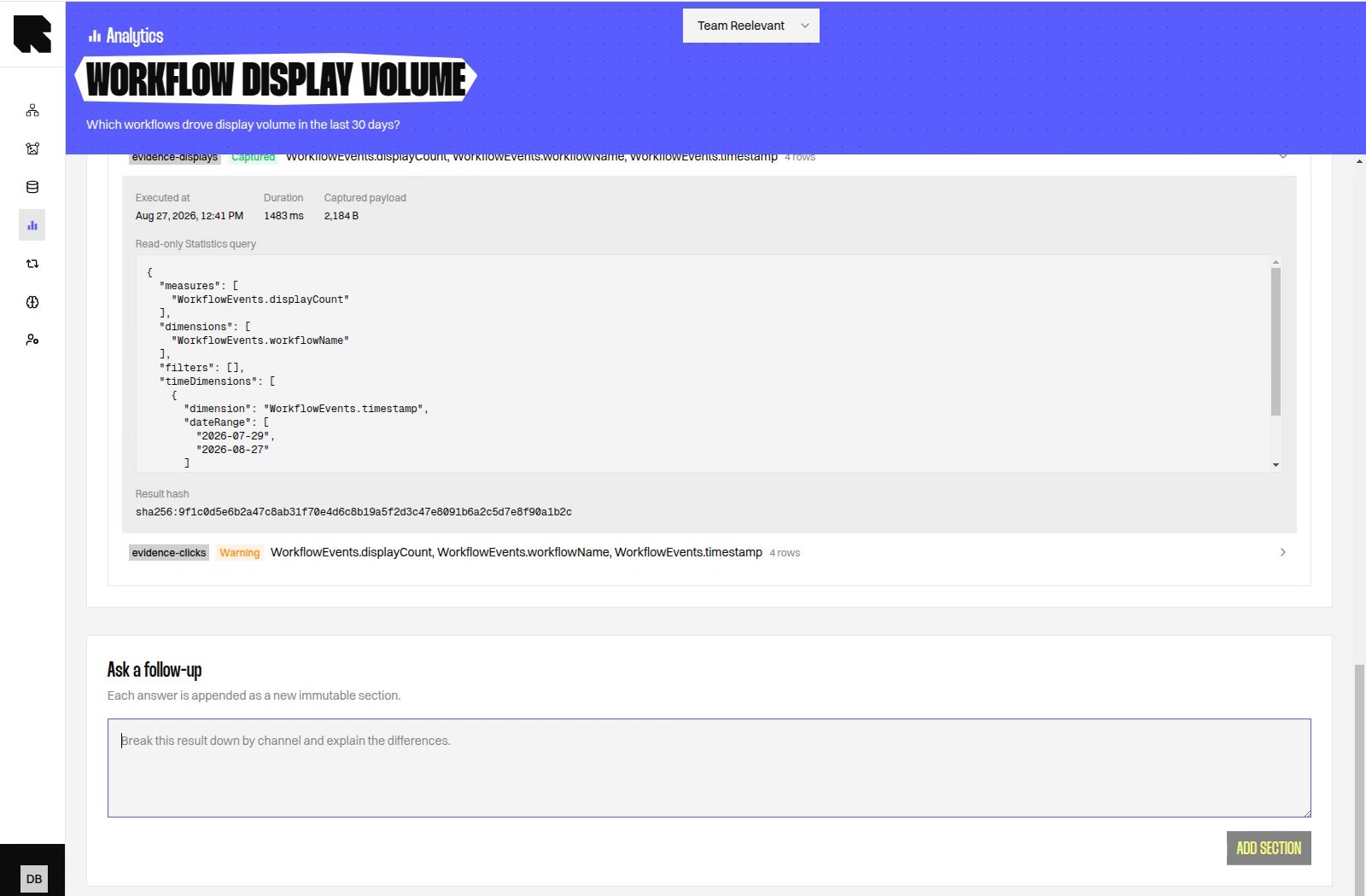
Each section can include narrative findings, tables, charts, sources, methodology, and limitations. Evidence links show which Analytics results support the section.
Check the selected period and measures before using a finding. A stated limitation explains where the available data cannot support a stronger conclusion.
## Review report evidence
Each section can include narrative findings, tables, charts, sources, methodology, and limitations. Evidence links show which Analytics results support the section.
Check the selected period and measures before using a finding. A stated limitation explains where the available data cannot support a stronger conclusion.
 ## Automatic reports
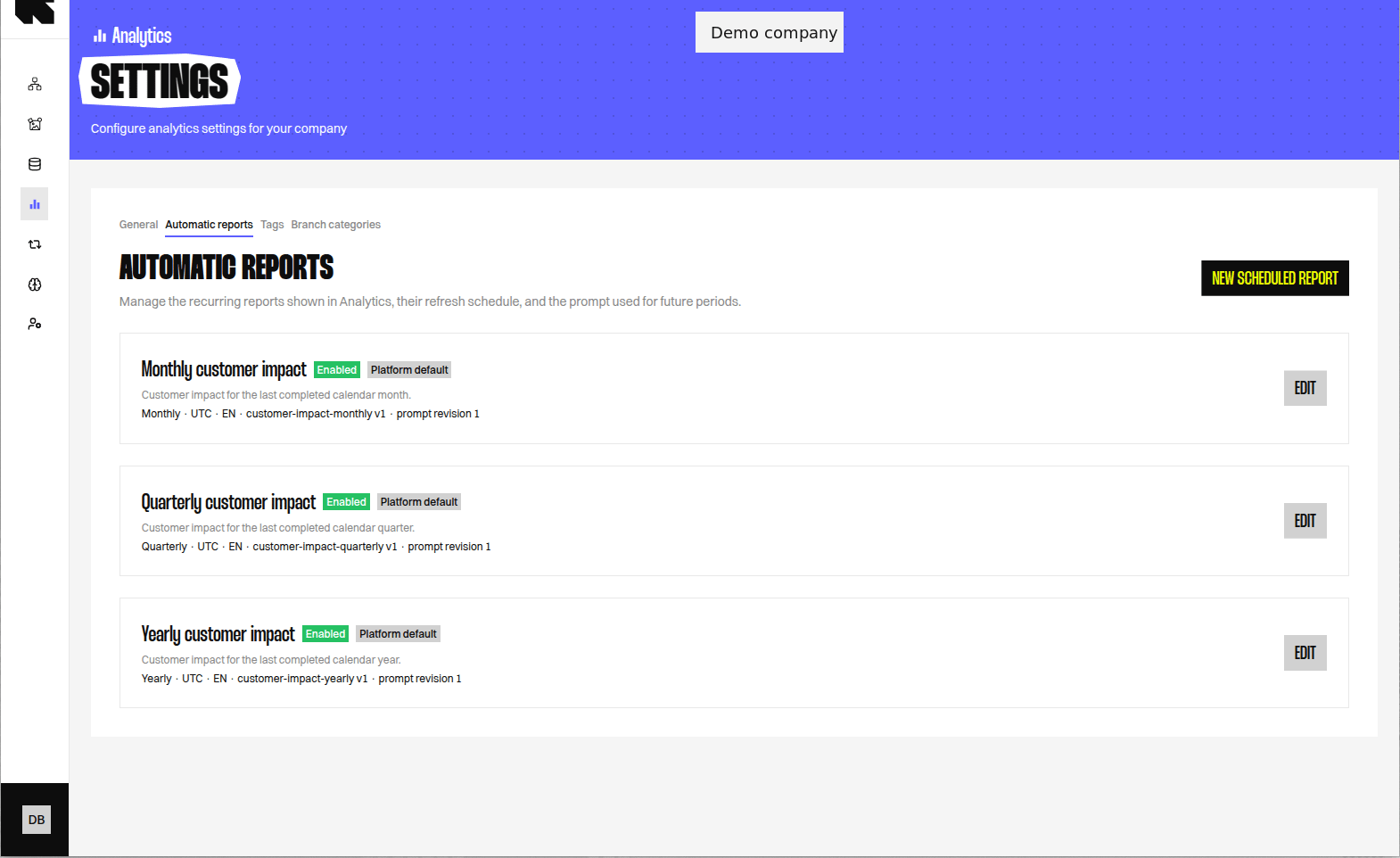
Automatic reports create a new period report on a monthly, quarterly, or yearly schedule. Each completed period remains available in its report history.
Platform administrators with permission to manage Analytics Settings can configure the schedule, language, timezone, and prompt. Your Reelevant Customer Success contact can help with this setup.
Automatic reports appear inside the **Reports** menu.
## Automatic reports
Automatic reports create a new period report on a monthly, quarterly, or yearly schedule. Each completed period remains available in its report history.
Platform administrators with permission to manage Analytics Settings can configure the schedule, language, timezone, and prompt. Your Reelevant Customer Success contact can help with this setup.
Automatic reports appear inside the **Reports** menu.
 An automatic report can be blocked when its requested analysis is unsupported by your configured Analytics data. The report shows the reason instead of generating an unreliable result.
## What's Next?
Review automatic report configuration, period history, and reliability controls.
Explore the measures and dimensions available for your analysis.
Review the Analytics configuration that supports report results.
An automatic report can be blocked when its requested analysis is unsupported by your configured Analytics data. The report shows the reason instead of generating an unreliable result.
## What's Next?
Review automatic report configuration, period history, and reliability controls.
Explore the measures and dimensions available for your analysis.
Review the Analytics configuration that supports report results.