> ## Documentation Index
> Fetch the complete documentation index at: https://docs.reelevant.com/llms.txt
> Use this file to discover all available pages before exploring further.
# Saved Queries
> Save, schedule, and automate recurring analytics queries with email delivery
 ## Overview
Saved Queries let you persist your [data exploration](/product-guide/analytics/data-exploration) queries and optionally schedule them to run automatically with results delivered by email.
## Queries Listing
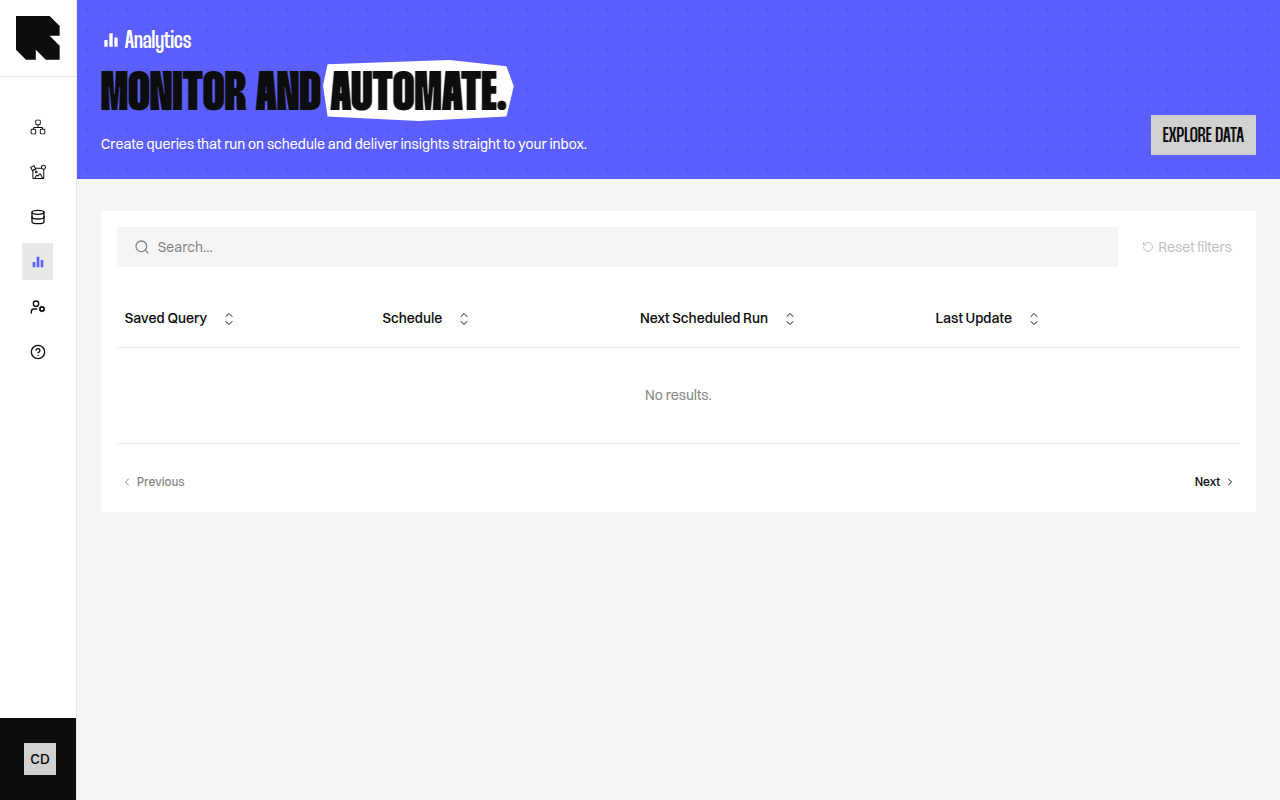
The queries listing page shows all saved queries:
| Column | Description |
| ---------------------- | ------------------------------------------------------------------ |
| **Saved Query** | The query name. |
| **Schedule** | The configured schedule (Daily, Weekly, Monthly, Custom, or none). |
| **Next Scheduled Run** | When the query will next execute automatically. |
| **Last Update** | When the query was last modified. |
Click **Explore data** to navigate to the [Data Exploration](/product-guide/analytics/data-exploration) page.
## Saving a Query
From the Data Exploration page, click **Save query** to open the save modal:
Enter a **Saved query name** to identify it in the listing.
Toggle **Schedule automatic runs and email results to selected recipients** to enable scheduling.
| Field | Description |
| ---------------------------- | ----------------------------------------------------------- |
| **Frequency** | Choose how often to run: Daily, Weekly, Monthly, or Custom. |
| **Weekdays** (Weekly) | Select the weekdays the query should run. |
| **Days** (Monthly) | Select the calendar days the query should run. |
| **CRON Expression** (Custom) | Advanced CRON syntax for custom schedules. |
| **Email recipients** | People who will receive the results by email. |
Click **Save** to create the saved query.
## Editing a Query
Click the actions menu on a saved query and select **Edit** to update:
* Query name.
* Schedule configuration.
* Email recipients.
Click **Update** to save changes.
## Deleting a Query
1. Click the actions menu and select **Delete**.
2. A confirmation dialog asks you to type the query name to confirm.
3. Click **Delete** to permanently remove the query.
Deleting a query is irreversible. Any scheduled runs and email deliveries will stop immediately.
## Overview
Saved Queries let you persist your [data exploration](/product-guide/analytics/data-exploration) queries and optionally schedule them to run automatically with results delivered by email.
## Queries Listing
The queries listing page shows all saved queries:
| Column | Description |
| ---------------------- | ------------------------------------------------------------------ |
| **Saved Query** | The query name. |
| **Schedule** | The configured schedule (Daily, Weekly, Monthly, Custom, or none). |
| **Next Scheduled Run** | When the query will next execute automatically. |
| **Last Update** | When the query was last modified. |
Click **Explore data** to navigate to the [Data Exploration](/product-guide/analytics/data-exploration) page.
## Saving a Query
From the Data Exploration page, click **Save query** to open the save modal:
Enter a **Saved query name** to identify it in the listing.
Toggle **Schedule automatic runs and email results to selected recipients** to enable scheduling.
| Field | Description |
| ---------------------------- | ----------------------------------------------------------- |
| **Frequency** | Choose how often to run: Daily, Weekly, Monthly, or Custom. |
| **Weekdays** (Weekly) | Select the weekdays the query should run. |
| **Days** (Monthly) | Select the calendar days the query should run. |
| **CRON Expression** (Custom) | Advanced CRON syntax for custom schedules. |
| **Email recipients** | People who will receive the results by email. |
Click **Save** to create the saved query.
## Editing a Query
Click the actions menu on a saved query and select **Edit** to update:
* Query name.
* Schedule configuration.
* Email recipients.
Click **Update** to save changes.
## Deleting a Query
1. Click the actions menu and select **Delete**.
2. A confirmation dialog asks you to type the query name to confirm.
3. Click **Delete** to permanently remove the query.
Deleting a query is irreversible. Any scheduled runs and email deliveries will stop immediately.