> ## Documentation Index
> Fetch the complete documentation index at: https://docs.reelevant.com/llms.txt
> Use this file to discover all available pages before exploring further.
# Browser Extension Overview
> Install and use the Reelevant browser extension to integrate workflows with your website
 ## What is the Browser Extension?
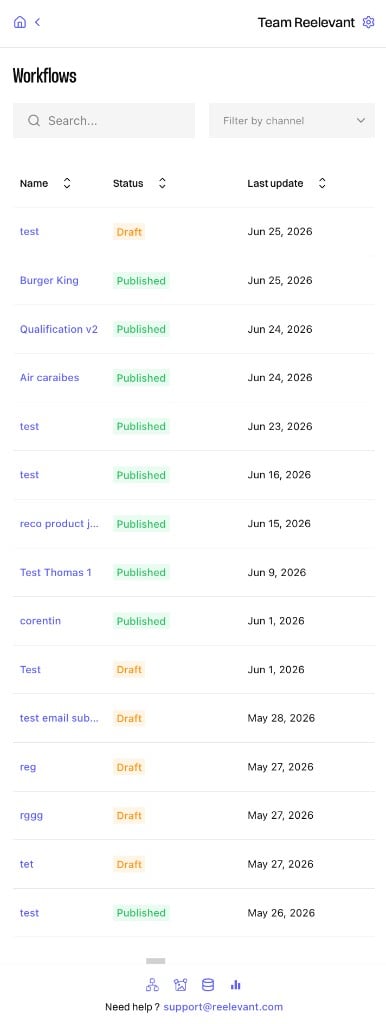
The Reelevant Browser Extension is a Chrome and Edge extension that helps you integrate [workflows](/product-guide/workflows/overview) with your website. It provides a side panel for browsing workflows, retrieving integration URLs, and configuring on-site integrations through a content script that runs on your pages.
## Key Features
| Feature | Description |
| ---------------------------- | ---------------------------------------------------------------------------------------- |
| **Side panel** | Browse your workflow list, view workflow details, and open integration instructions. |
| **Integration instructions** | Copy image and redirection URLs for a workflow channel without leaving the extension. |
| **On-site integration** | Configure client-side integrations directly on your website using the content script UI. |
## Installation & Setup
Install the Reelevant extension from the browser store:
* [Chrome Web Store](https://chromewebstore.google.com/detail/reelevant/lgacfbhgdhamkljnljckjhogkmifijla?hl=en)
* [Microsoft Edge Add-ons](https://microsoftedge.microsoft.com/addons/detail/aocpmahppepplambefpfnbnifdgolncb)
Once installed, the Reelevant icon appears in your browser toolbar.
Click the extension icon to open the side panel. Sign in with the same credentials you use in the [Reelevant app](https://app.reelevant.com):
* **Email and password** — enter your Reelevant account email and password.
* **SSO** — if your organization uses single sign-on, follow the same SSO flow as in the app.
Click **Sign in** to authenticate.
Once logged in, the side panel shows your workflow list. Navigate to the target website to configure on-site integrations or open a workflow to retrieve integration URLs.
## What's Next?
Browse and view workflow details from the side panel.
Retrieve image and redirection URLs for a workflow channel.
Configure client-side integrations on your website.
## What is the Browser Extension?
The Reelevant Browser Extension is a Chrome and Edge extension that helps you integrate [workflows](/product-guide/workflows/overview) with your website. It provides a side panel for browsing workflows, retrieving integration URLs, and configuring on-site integrations through a content script that runs on your pages.
## Key Features
| Feature | Description |
| ---------------------------- | ---------------------------------------------------------------------------------------- |
| **Side panel** | Browse your workflow list, view workflow details, and open integration instructions. |
| **Integration instructions** | Copy image and redirection URLs for a workflow channel without leaving the extension. |
| **On-site integration** | Configure client-side integrations directly on your website using the content script UI. |
## Installation & Setup
Install the Reelevant extension from the browser store:
* [Chrome Web Store](https://chromewebstore.google.com/detail/reelevant/lgacfbhgdhamkljnljckjhogkmifijla?hl=en)
* [Microsoft Edge Add-ons](https://microsoftedge.microsoft.com/addons/detail/aocpmahppepplambefpfnbnifdgolncb)
Once installed, the Reelevant icon appears in your browser toolbar.
Click the extension icon to open the side panel. Sign in with the same credentials you use in the [Reelevant app](https://app.reelevant.com):
* **Email and password** — enter your Reelevant account email and password.
* **SSO** — if your organization uses single sign-on, follow the same SSO flow as in the app.
Click **Sign in** to authenticate.
Once logged in, the side panel shows your workflow list. Navigate to the target website to configure on-site integrations or open a workflow to retrieve integration URLs.
## What's Next?
Browse and view workflow details from the side panel.
Retrieve image and redirection URLs for a workflow channel.
Configure client-side integrations on your website.