> ## Documentation Index
> Fetch the complete documentation index at: https://docs.reelevant.com/llms.txt
> Use this file to discover all available pages before exploring further.
# Data Binding
> Connect content components to dynamic data from datasources, URL parameters, and more
 ## Overview
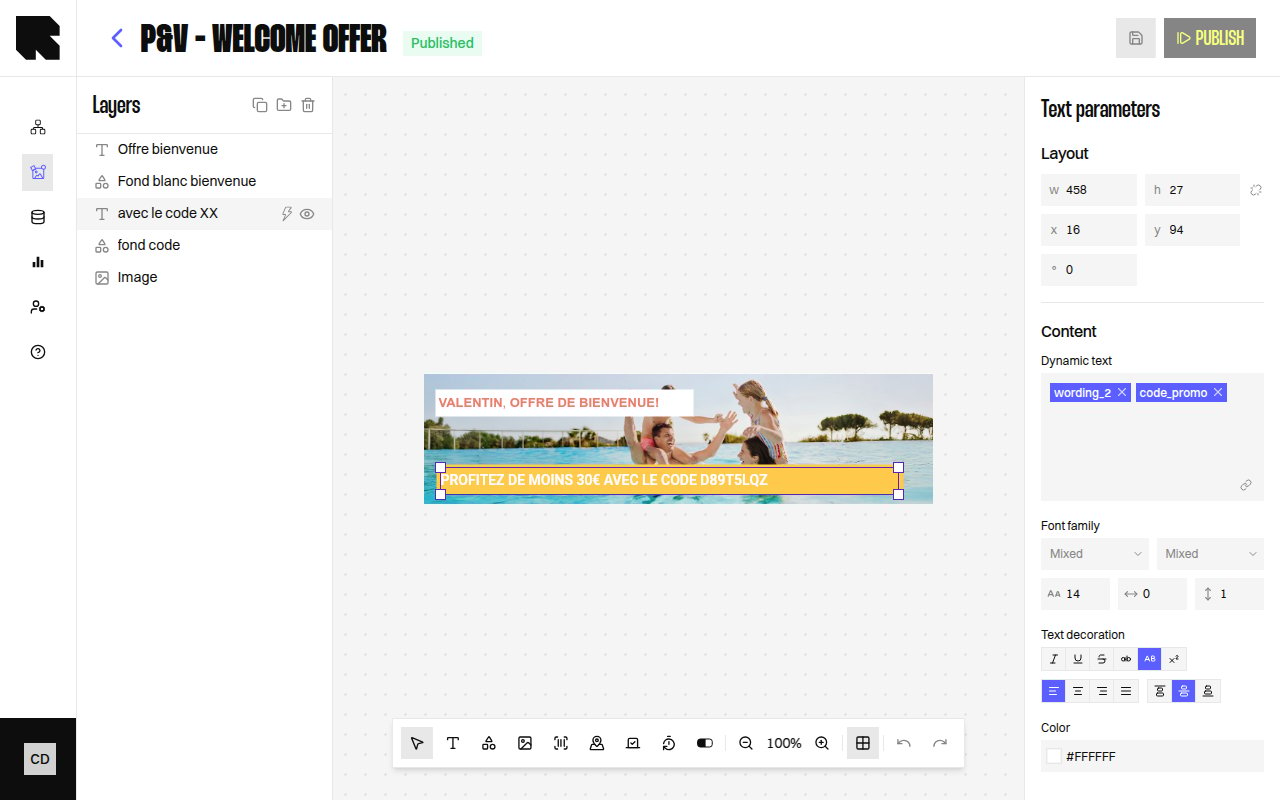
Data binding connects component properties to dynamic values that resolve at render time. Instead of hardcoding text, images, or URLs, you bind them to **variables** from [datasources](/product-guide/datahub/overview), URL parameters, or other data sources configured in your [workflow](/product-guide/workflows/overview).
## Adding a Datasource
Before binding variables, you need to attach a data source to your content:
Click **Add a datasource** in the editor or access it through the configuration panel when binding a variable.
Choose where your data comes from:
| Source Type | Description |
| -------------- | ------------------------------------------------------------------------------------------ |
| **Datasource** | Connect to a [DataHub datasource](/product-guide/datahub/overview) to access its fields. |
| **Workflow** | Use data from the parent workflow — URL parameters, live polling, geolocation, or weather. |
| **Custom** | Define a custom variable using transformation formulas. |
For **Datasource** type, search and select from your available datasources.
For **Workflow** type, choose the sub-type:
* **Url parameter** — A named URL parameter passed at render time.
* **[Live polling](/product-guide/workflows/data-nodes/live-polling)** — Real-time click percentage data.
* **Geolocation** — User's geographic coordinates.
* **Weather** — Weather data at the user's location.
Complete any additional configuration (e.g., parameter name, preview value) and click **Validate**.
## Variable Picker
Once a datasource is attached, you can bind its fields to component properties using the **Variables** picker:
1. Click the variable picker icon next to any bindable field in the configuration panel.
2. The variables panel shows all available fields grouped by datasource.
3. Select a field to bind it.
### Datasource Item Selection
When a datasource returns multiple results, you can choose which item to display:
| Option | Description |
| ------------------------------ | -------------------------------------------------------------------------------- |
| **Reuse the displayed item** | Use the same item (default: item #1) as other bindings from the same datasource. |
| **Display datasource item #N** | Use a specific result index (e.g., item #2 for the second product). |
Use different datasource items to show multiple products from the same datasource in a single content template — for example, a product carousel.
## Custom Variables
Custom variables let you define derived values using transformation formulas. After creating a custom variable with a **Variable name**, you configure the formula in the transformation editor.
## Grouping Results
For product datasources, you can optionally group results by a field:
| Option | Description |
| ------------------------------ | ----------------------------------------- |
| **Aggregated data** | Aggregate values across the group. |
| **1st product of every group** | Show one product per unique group value. |
| **All products of 1st group** | Show all products from the first group. |
| **All products of all groups** | Show all products regardless of grouping. |
## Transformations
When a variable is bound, you can apply [transformations](/advanced-guide/transformations/introduction) to format the value — for example, formatting a date, rounding a number, or converting a currency. See the [Text component](/product-guide/contents/components/text) for transformation details.
## Overview
Data binding connects component properties to dynamic values that resolve at render time. Instead of hardcoding text, images, or URLs, you bind them to **variables** from [datasources](/product-guide/datahub/overview), URL parameters, or other data sources configured in your [workflow](/product-guide/workflows/overview).
## Adding a Datasource
Before binding variables, you need to attach a data source to your content:
Click **Add a datasource** in the editor or access it through the configuration panel when binding a variable.
Choose where your data comes from:
| Source Type | Description |
| -------------- | ------------------------------------------------------------------------------------------ |
| **Datasource** | Connect to a [DataHub datasource](/product-guide/datahub/overview) to access its fields. |
| **Workflow** | Use data from the parent workflow — URL parameters, live polling, geolocation, or weather. |
| **Custom** | Define a custom variable using transformation formulas. |
For **Datasource** type, search and select from your available datasources.
For **Workflow** type, choose the sub-type:
* **Url parameter** — A named URL parameter passed at render time.
* **[Live polling](/product-guide/workflows/data-nodes/live-polling)** — Real-time click percentage data.
* **Geolocation** — User's geographic coordinates.
* **Weather** — Weather data at the user's location.
Complete any additional configuration (e.g., parameter name, preview value) and click **Validate**.
## Variable Picker
Once a datasource is attached, you can bind its fields to component properties using the **Variables** picker:
1. Click the variable picker icon next to any bindable field in the configuration panel.
2. The variables panel shows all available fields grouped by datasource.
3. Select a field to bind it.
### Datasource Item Selection
When a datasource returns multiple results, you can choose which item to display:
| Option | Description |
| ------------------------------ | -------------------------------------------------------------------------------- |
| **Reuse the displayed item** | Use the same item (default: item #1) as other bindings from the same datasource. |
| **Display datasource item #N** | Use a specific result index (e.g., item #2 for the second product). |
Use different datasource items to show multiple products from the same datasource in a single content template — for example, a product carousel.
## Custom Variables
Custom variables let you define derived values using transformation formulas. After creating a custom variable with a **Variable name**, you configure the formula in the transformation editor.
## Grouping Results
For product datasources, you can optionally group results by a field:
| Option | Description |
| ------------------------------ | ----------------------------------------- |
| **Aggregated data** | Aggregate values across the group. |
| **1st product of every group** | Show one product per unique group value. |
| **All products of 1st group** | Show all products from the first group. |
| **All products of all groups** | Show all products regardless of grouping. |
## Transformations
When a variable is bound, you can apply [transformations](/advanced-guide/transformations/introduction) to format the value — for example, formatting a date, rounding a number, or converting a currency. See the [Text component](/product-guide/contents/components/text) for transformation details.