> ## Documentation Index
> Fetch the complete documentation index at: https://docs.reelevant.com/llms.txt
> Use this file to discover all available pages before exploring further.
# Design Import
> Import Figma or Photoshop designs to kickstart your content templates
Design Import is currently available to **beta testers only**. If you would like access, please contact your account manager.
## Overview
Design Import lets you convert an existing **Figma** or **Adobe Photoshop** design into a Reelevant content template. Instead of recreating layouts from scratch in the [Content Editor](/product-guide/contents/editor), you can import a design file and get a fully structured template with positioned text, images, and shapes ready to edit.
Supported formats:
| Format | File type | How to obtain |
| ------------- | --------------------- | ------------------------------------------------------------------------- |
| **Figma** | JSON export (`.json`) | Use the **Reelevant Exporter** Figma plugin to export the selected frame. |
| **Photoshop** | PSD file (`.psd`) | Save or export your design as a `.psd` file from Adobe Photoshop. |
## Importing a Design
Design import is part of the content creation flow. When you create a new content, you can optionally attach a design file.
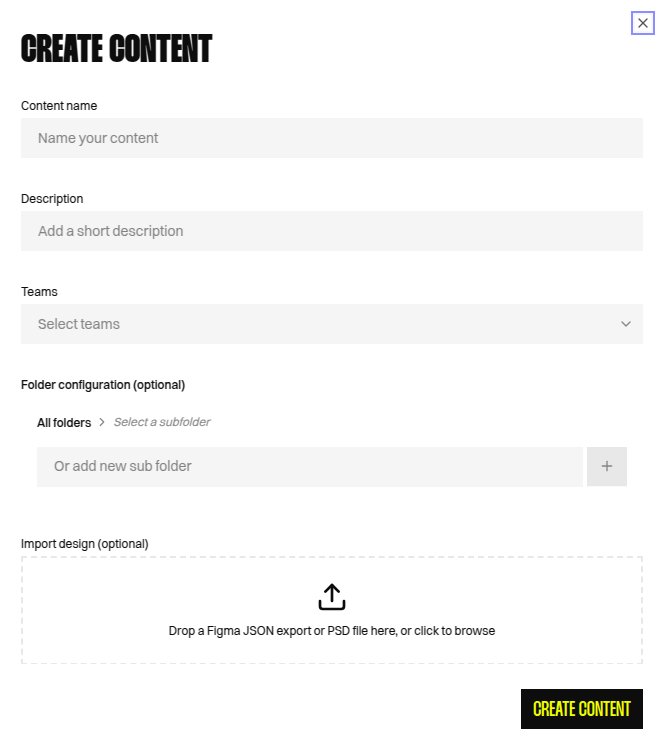 From the [Content Listing](/product-guide/contents/listing) page, click the **Create content** button.
Enter a name, optional description, select teams, and configure the folder hierarchy as usual.
In the **Import design** field at the bottom of the form, drag and drop your Figma JSON export or PSD file — or click to browse and select the file from your computer.
Only `.json` (Figma export) and `.psd` (Photoshop) files are accepted.
Click **Create content**. The platform will parse the design file and convert it into a content template. You will be redirected to the editor with the imported layout ready for editing.
## Exporting from Figma
To export a design from Figma for import into Reelevant, use the [**Reelevant Exporter**](https://www.figma.com/community/plugin/1624375833644668813/reelevant-exporter) Figma plugin:
Install the [**Reelevant Exporter**](https://www.figma.com/community/plugin/1624375833644668813/reelevant-exporter) plugin from the Figma Community.
In your Figma file, select the frame you want to export. The plugin exports one frame at a time.
Open the plugin and click **Export selected frame**. The plugin will:
* Export the frame's JSON structure
* Capture a PNG snapshot of the frame
* Crop individual graphic elements from the snapshot
* Package everything into a single `.json` file
The `.json` file downloads automatically. Use this file in the **Import design** field when creating a content in Reelevant.
## Exporting from Photoshop
No special plugin is needed for Photoshop. Save your design as a standard `.psd` file and use it directly in the import flow.
For best results, keep your Photoshop file organized with named layers. The importer reads the layer structure to create corresponding components in the content template.
## What Gets Imported
The importer converts design elements into Reelevant content components:
| Design element | Reelevant component | Notes |
| ------------------- | ------------------------------------------------- | ------------------------------------------------------------------------------------------- |
| Text layers | [Text](/product-guide/contents/components/text) | Font family, size, weight, color, alignment, letter spacing, and line height are preserved. |
| Rectangles & shapes | [Shape](/product-guide/contents/components/shape) | Fill color and position are imported. |
| Images | [Image](/product-guide/contents/components/image) | Raster images are extracted, uploaded, and linked. |
| Layer positions | Component layout | Absolute positions and sizes are mapped to the canvas. |
### Font Handling
Imported fonts are automatically matched against fonts available in your Reelevant account. If a font family from the design is not found, a default fallback font is used. You can update the font after import via the [Text component](/product-guide/contents/components/text) configuration panel.
## Limitations
* Only one frame or artboard is imported per file. For multi-frame content, import the primary frame and add additional [frames](/product-guide/contents/frames) manually.
* Complex vector paths, effects (shadows, blurs), and gradients are not imported — only solid fills are supported.
* Nested components and symbols are flattened into their visual representation.
* After import, the template may need minor layout adjustments. Use the [Content Editor](/product-guide/contents/editor) to fine-tune positions and styling.
From the [Content Listing](/product-guide/contents/listing) page, click the **Create content** button.
Enter a name, optional description, select teams, and configure the folder hierarchy as usual.
In the **Import design** field at the bottom of the form, drag and drop your Figma JSON export or PSD file — or click to browse and select the file from your computer.
Only `.json` (Figma export) and `.psd` (Photoshop) files are accepted.
Click **Create content**. The platform will parse the design file and convert it into a content template. You will be redirected to the editor with the imported layout ready for editing.
## Exporting from Figma
To export a design from Figma for import into Reelevant, use the [**Reelevant Exporter**](https://www.figma.com/community/plugin/1624375833644668813/reelevant-exporter) Figma plugin:
Install the [**Reelevant Exporter**](https://www.figma.com/community/plugin/1624375833644668813/reelevant-exporter) plugin from the Figma Community.
In your Figma file, select the frame you want to export. The plugin exports one frame at a time.
Open the plugin and click **Export selected frame**. The plugin will:
* Export the frame's JSON structure
* Capture a PNG snapshot of the frame
* Crop individual graphic elements from the snapshot
* Package everything into a single `.json` file
The `.json` file downloads automatically. Use this file in the **Import design** field when creating a content in Reelevant.
## Exporting from Photoshop
No special plugin is needed for Photoshop. Save your design as a standard `.psd` file and use it directly in the import flow.
For best results, keep your Photoshop file organized with named layers. The importer reads the layer structure to create corresponding components in the content template.
## What Gets Imported
The importer converts design elements into Reelevant content components:
| Design element | Reelevant component | Notes |
| ------------------- | ------------------------------------------------- | ------------------------------------------------------------------------------------------- |
| Text layers | [Text](/product-guide/contents/components/text) | Font family, size, weight, color, alignment, letter spacing, and line height are preserved. |
| Rectangles & shapes | [Shape](/product-guide/contents/components/shape) | Fill color and position are imported. |
| Images | [Image](/product-guide/contents/components/image) | Raster images are extracted, uploaded, and linked. |
| Layer positions | Component layout | Absolute positions and sizes are mapped to the canvas. |
### Font Handling
Imported fonts are automatically matched against fonts available in your Reelevant account. If a font family from the design is not found, a default fallback font is used. You can update the font after import via the [Text component](/product-guide/contents/components/text) configuration panel.
## Limitations
* Only one frame or artboard is imported per file. For multi-frame content, import the primary frame and add additional [frames](/product-guide/contents/frames) manually.
* Complex vector paths, effects (shadows, blurs), and gradients are not imported — only solid fills are supported.
* Nested components and symbols are flattened into their visual representation.
* After import, the template may need minor layout adjustments. Use the [Content Editor](/product-guide/contents/editor) to fine-tune positions and styling.