> ## Documentation Index
> Fetch the complete documentation index at: https://docs.reelevant.com/llms.txt
> Use this file to discover all available pages before exploring further.
# Frames
> Create multi-page and animated content templates with frames
 ## Overview
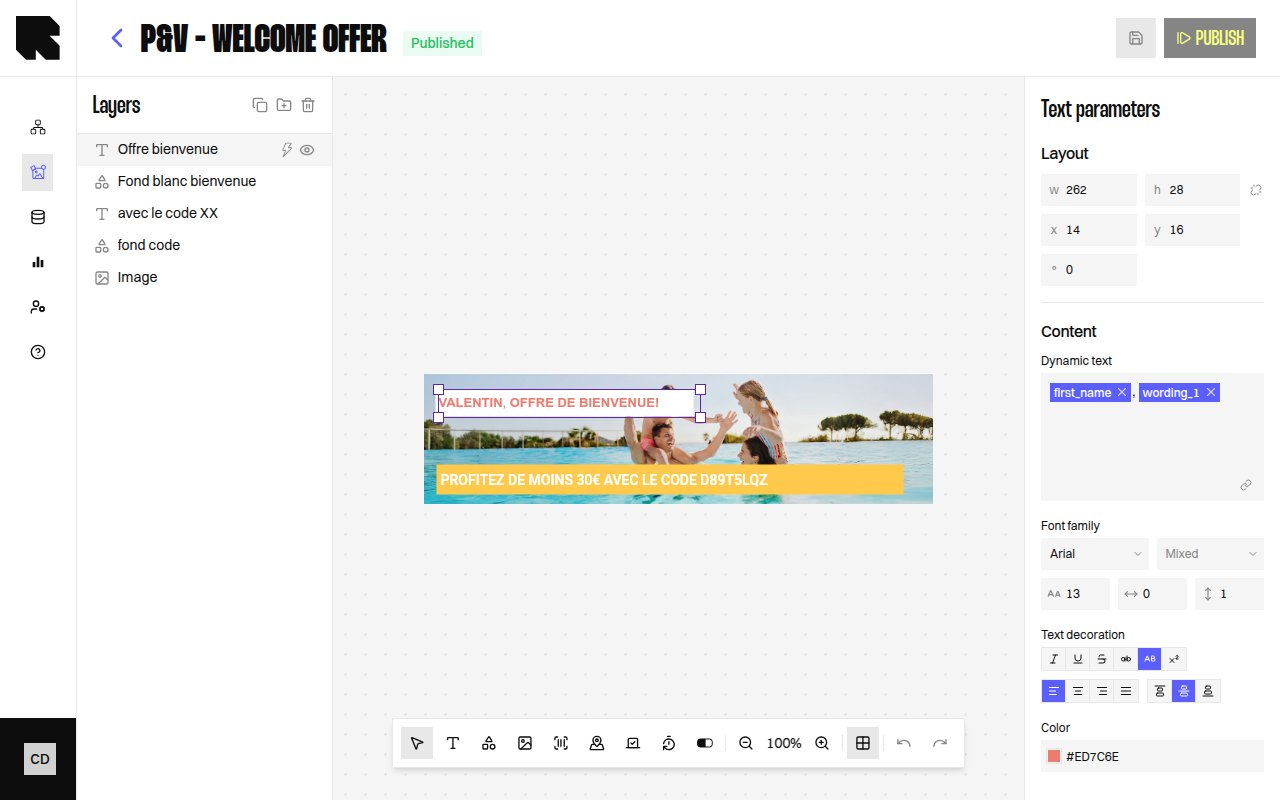
Frames enable multi-page or animated content templates. Each frame represents a separate page or animation state, and all frames share the same canvas dimensions.
Frames are commonly used for:
* **Animated banners** — Cycle through different visual states with timed transitions.
* **Multi-page content** — Create templates with multiple pages (e.g., a landing page with sections).
* **A/B variants** — Design different visual options within the same content.
## Enabling Frames
To enable frames on a content template:
1. Click on the canvas background (deselect all components).
2. In the **Editor settings** section of the configuration panel, toggle **Animated content**.
## Frame Dock
When frames are enabled, a **page preview carousel** appears at the bottom of the editor (the Frame dock):
| Control | Description |
| ------------------------------- | ------------------------------------------------------ |
| **Previous frame / Next frame** | Navigate between frames using arrow buttons. |
| **Page indicator** | Shows "Page X of Y" for the currently selected frame. |
| **Frame thumbnails** | Click a thumbnail to switch to that frame for editing. |
## Managing Frames
| Action | Description |
| ------------------- | ----------------------------------------------------------------------------------- |
| **Add frame** | Click **Add frame** in the frame dock or configuration panel to create a new frame. |
| **Duplicate frame** | Clone the current frame with all its components and settings. |
| **Delete frame** | Remove a frame and its contents. |
## Frame Configuration
Each frame has its own settings:
| Property | Description |
| ----------------- | ----------------------------------------------------------------------- |
| **Frame title** | A label for the frame (e.g., "Frame 1", "Frame 2"). |
| **Duration (ms)** | How long the frame is displayed in milliseconds (for animated content). |
| **Color** | Optional background color for the frame. |
## Animation Playback
Click the **Play animation** button in the toolbar to preview the animated sequence. The editor cycles through all frames using their configured durations.
Each frame can have its own components, data bindings, and conditions — giving you full creative control over every state of the animation.
## Overview
Frames enable multi-page or animated content templates. Each frame represents a separate page or animation state, and all frames share the same canvas dimensions.
Frames are commonly used for:
* **Animated banners** — Cycle through different visual states with timed transitions.
* **Multi-page content** — Create templates with multiple pages (e.g., a landing page with sections).
* **A/B variants** — Design different visual options within the same content.
## Enabling Frames
To enable frames on a content template:
1. Click on the canvas background (deselect all components).
2. In the **Editor settings** section of the configuration panel, toggle **Animated content**.
## Frame Dock
When frames are enabled, a **page preview carousel** appears at the bottom of the editor (the Frame dock):
| Control | Description |
| ------------------------------- | ------------------------------------------------------ |
| **Previous frame / Next frame** | Navigate between frames using arrow buttons. |
| **Page indicator** | Shows "Page X of Y" for the currently selected frame. |
| **Frame thumbnails** | Click a thumbnail to switch to that frame for editing. |
## Managing Frames
| Action | Description |
| ------------------- | ----------------------------------------------------------------------------------- |
| **Add frame** | Click **Add frame** in the frame dock or configuration panel to create a new frame. |
| **Duplicate frame** | Clone the current frame with all its components and settings. |
| **Delete frame** | Remove a frame and its contents. |
## Frame Configuration
Each frame has its own settings:
| Property | Description |
| ----------------- | ----------------------------------------------------------------------- |
| **Frame title** | A label for the frame (e.g., "Frame 1", "Frame 2"). |
| **Duration (ms)** | How long the frame is displayed in milliseconds (for animated content). |
| **Color** | Optional background color for the frame. |
## Animation Playback
Click the **Play animation** button in the toolbar to preview the animated sequence. The editor cycles through all frames using their configured durations.
Each frame can have its own components, data bindings, and conditions — giving you full creative control over every state of the animation.