> ## Documentation Index
> Fetch the complete documentation index at: https://docs.reelevant.com/llms.txt
> Use this file to discover all available pages before exploring further.
# Layers
> Organize components with the layers tree — ordering, grouping, and visibility controls
 ## Overview
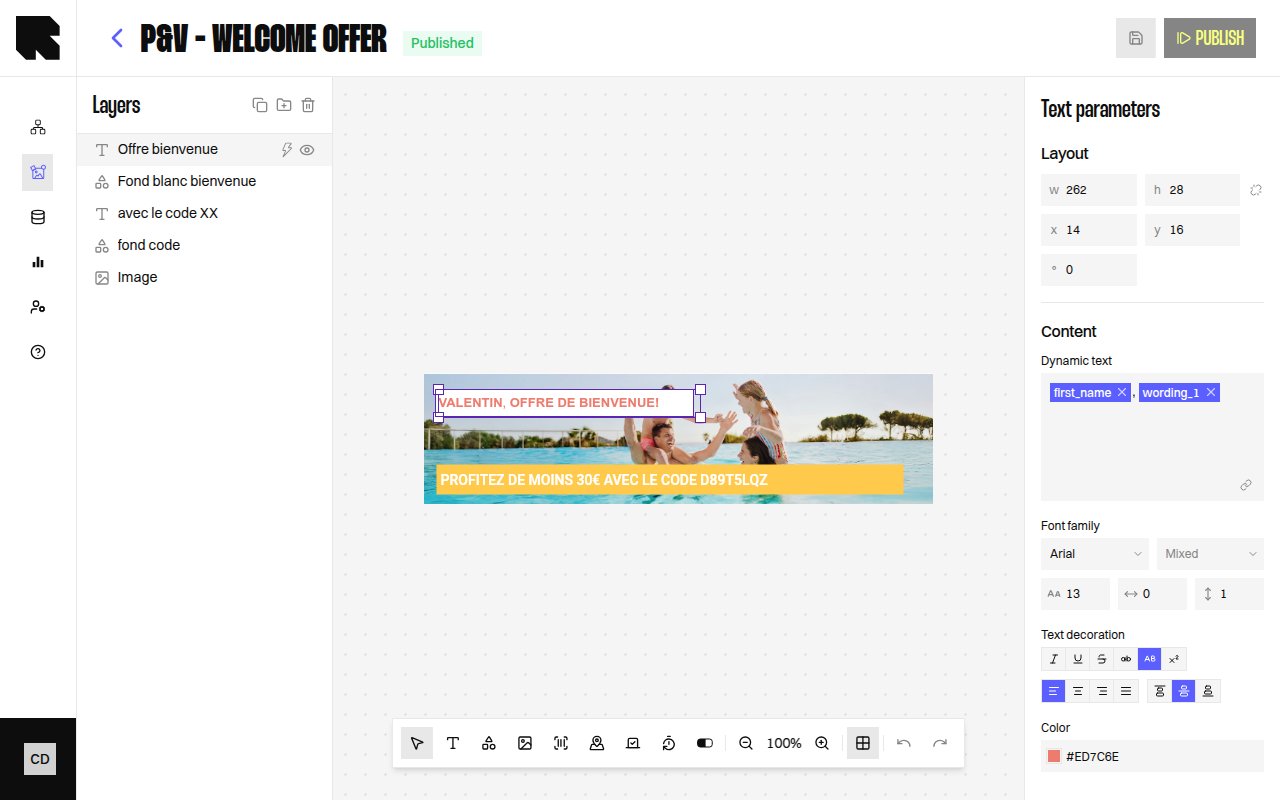
The Layers panel provides a hierarchical tree view of all components in your content template. It appears on the left side of the editor and lets you manage component ordering, grouping, and visibility.
## Layer Tree
Every component on the canvas appears as a node in the layers tree. The tree structure reflects the visual stacking order — components higher in the tree render on top.
### Tree Actions
| Action | Description |
| --------------------- | ------------------------------------------------------------------------------------------------------ |
| **Expand / Collapse** | Expand or collapse a group node to show or hide its children. |
| **Show / Hide layer** | Toggle a component's visibility on the canvas. Hidden components are not rendered in the final output. |
| **Drag and drop** | Reorder components by dragging them up or down in the tree. |
## Groups
Groups let you organize related components together. A group acts as a container in the layers tree.
| Action | Description |
| ---------------- | ------------------------------------------------------------------------------------- |
| **Create group** | Select one or more components and click **Create group** to wrap them in a new group. |
| **Duplicate** | Creates a copy of the selected component or group with the suffix "(Copy)". |
Groups are useful for applying [conditions](/product-guide/contents/conditions) to multiple components at once — set a condition on the group, and all children inherit the visibility rule.
## Conditions in the Layer Tree
Components and groups can have [conditions](/product-guide/contents/conditions) attached. When a condition is set, the tree shows:
* A **Condition** badge on the node.
* An **Add condition** action to add more conditions.
* A dropdown to choose which condition state to preview on the canvas.
## Selecting Layers
* **Click** a layer in the tree to select it on the canvas and open its configuration panel.
* **Click** a component on the canvas to highlight it in the layers tree.
## Overview
The Layers panel provides a hierarchical tree view of all components in your content template. It appears on the left side of the editor and lets you manage component ordering, grouping, and visibility.
## Layer Tree
Every component on the canvas appears as a node in the layers tree. The tree structure reflects the visual stacking order — components higher in the tree render on top.
### Tree Actions
| Action | Description |
| --------------------- | ------------------------------------------------------------------------------------------------------ |
| **Expand / Collapse** | Expand or collapse a group node to show or hide its children. |
| **Show / Hide layer** | Toggle a component's visibility on the canvas. Hidden components are not rendered in the final output. |
| **Drag and drop** | Reorder components by dragging them up or down in the tree. |
## Groups
Groups let you organize related components together. A group acts as a container in the layers tree.
| Action | Description |
| ---------------- | ------------------------------------------------------------------------------------- |
| **Create group** | Select one or more components and click **Create group** to wrap them in a new group. |
| **Duplicate** | Creates a copy of the selected component or group with the suffix "(Copy)". |
Groups are useful for applying [conditions](/product-guide/contents/conditions) to multiple components at once — set a condition on the group, and all children inherit the visibility rule.
## Conditions in the Layer Tree
Components and groups can have [conditions](/product-guide/contents/conditions) attached. When a condition is set, the tree shows:
* A **Condition** badge on the node.
* An **Add condition** action to add more conditions.
* A dropdown to choose which condition state to preview on the canvas.
## Selecting Layers
* **Click** a layer in the tree to select it on the canvas and open its configuration panel.
* **Click** a component on the canvas to highlight it in the layers tree.