> ## Documentation Index
> Fetch the complete documentation index at: https://docs.reelevant.com/llms.txt
> Use this file to discover all available pages before exploring further.
# Content Settings
> Manage custom fonts and other content-level settings
 ## Overview
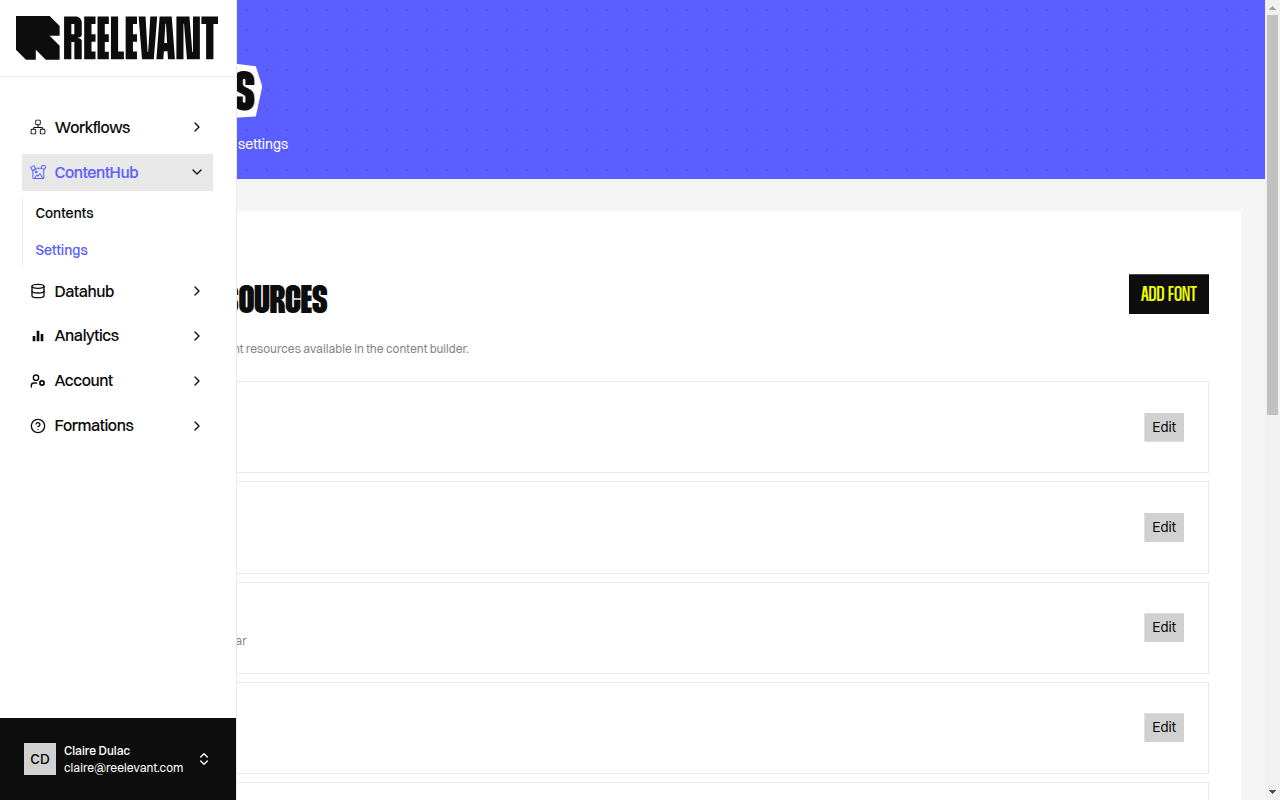
The Content Settings page lets you manage resources that are shared across all your content templates. Access it from the **Settings** link in the Content Editor sidebar navigation.
## Fonts
The **Fonts** tab lets you manage custom font resources available in the content builder. Custom fonts appear alongside system fonts in the [Text component](/product-guide/contents/components/text) font family picker.
### Font Listing
The fonts table displays all registered custom fonts. If no fonts have been added, the page shows "No fonts yet. Add your first font resource."
### Adding a Font
Click the **Add font** button to open the font creation form.
Type the **Font family** name (e.g., "My Custom Font"). This is the name that will appear in the font picker.
Under **Font files**, add one entry per font variant:
| Field | Description |
| ------------- | -------------------------------------------------------- |
| **Variant** | Select the weight variant (e.g., Regular, Bold, Italic). |
| **Font file** | Upload a font file (.ttf, .otf, .woff, .woff2). |
Click **Add variant** to add additional weight variants.
Click **Save** to register the font. It will immediately be available in the content editor's font picker.
### Editing a Font
Click the **Edit** button next to an existing font to update its family name or add/remove variants.
At least one font file variant is required per font family.
## Overview
The Content Settings page lets you manage resources that are shared across all your content templates. Access it from the **Settings** link in the Content Editor sidebar navigation.
## Fonts
The **Fonts** tab lets you manage custom font resources available in the content builder. Custom fonts appear alongside system fonts in the [Text component](/product-guide/contents/components/text) font family picker.
### Font Listing
The fonts table displays all registered custom fonts. If no fonts have been added, the page shows "No fonts yet. Add your first font resource."
### Adding a Font
Click the **Add font** button to open the font creation form.
Type the **Font family** name (e.g., "My Custom Font"). This is the name that will appear in the font picker.
Under **Font files**, add one entry per font variant:
| Field | Description |
| ------------- | -------------------------------------------------------- |
| **Variant** | Select the weight variant (e.g., Regular, Bold, Italic). |
| **Font file** | Upload a font file (.ttf, .otf, .woff, .woff2). |
Click **Add variant** to add additional weight variants.
Click **Save** to register the font. It will immediately be available in the content editor's font picker.
### Editing a Font
Click the **Edit** button next to an existing font to update its family name or add/remove variants.
At least one font file variant is required per font family.