> ## Documentation Index
> Fetch the complete documentation index at: https://docs.reelevant.com/llms.txt
> Use this file to discover all available pages before exploring further.
# New Interface Overview
> Summary of all new features and improvements introduced with the redesigned Reelevant platform interface
The Reelevant platform has been completely redesigned with a fresh, modern interface available at `next.reelevant.com`. Each application — Workflows, Contents, DataHub, Analytics, and Account — was migrated independently to ensure a smooth transition with no disruption to your campaigns.
The new interface is primarily a **visual migration**. Unless a feature is explicitly listed on this page, the change is purely cosmetic — all your inputs, buttons, and workflows remain in the same place and work the same way. You do not need to relearn the platform.
This page lists every **new feature and improvement** introduced alongside the redesign.
## Platform-Wide Features
These changes apply across all applications in the platform.
As a reminder, if a screen or feature you use is not listed here, it means it was migrated as-is — same layout, same buttons, same behavior, just with a refreshed look.
### Theme / Color Mode
*December 2025*
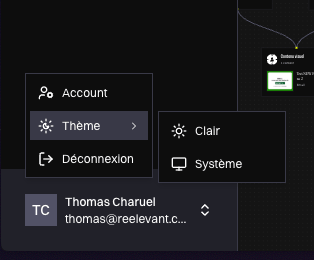
Customize the platform's appearance to match your preference with three color modes:
* **Light** — the classic bright interface
* **Dark** — easier on the eyes during long working sessions
* **System** — automatically follows your computer's light/dark setting
Switch themes instantly from the sidebar menu — no need to go to settings. Your preference is saved to your profile and stays consistent across all your devices and browser tabs.
 ### Folders in Lists
*March 2026*
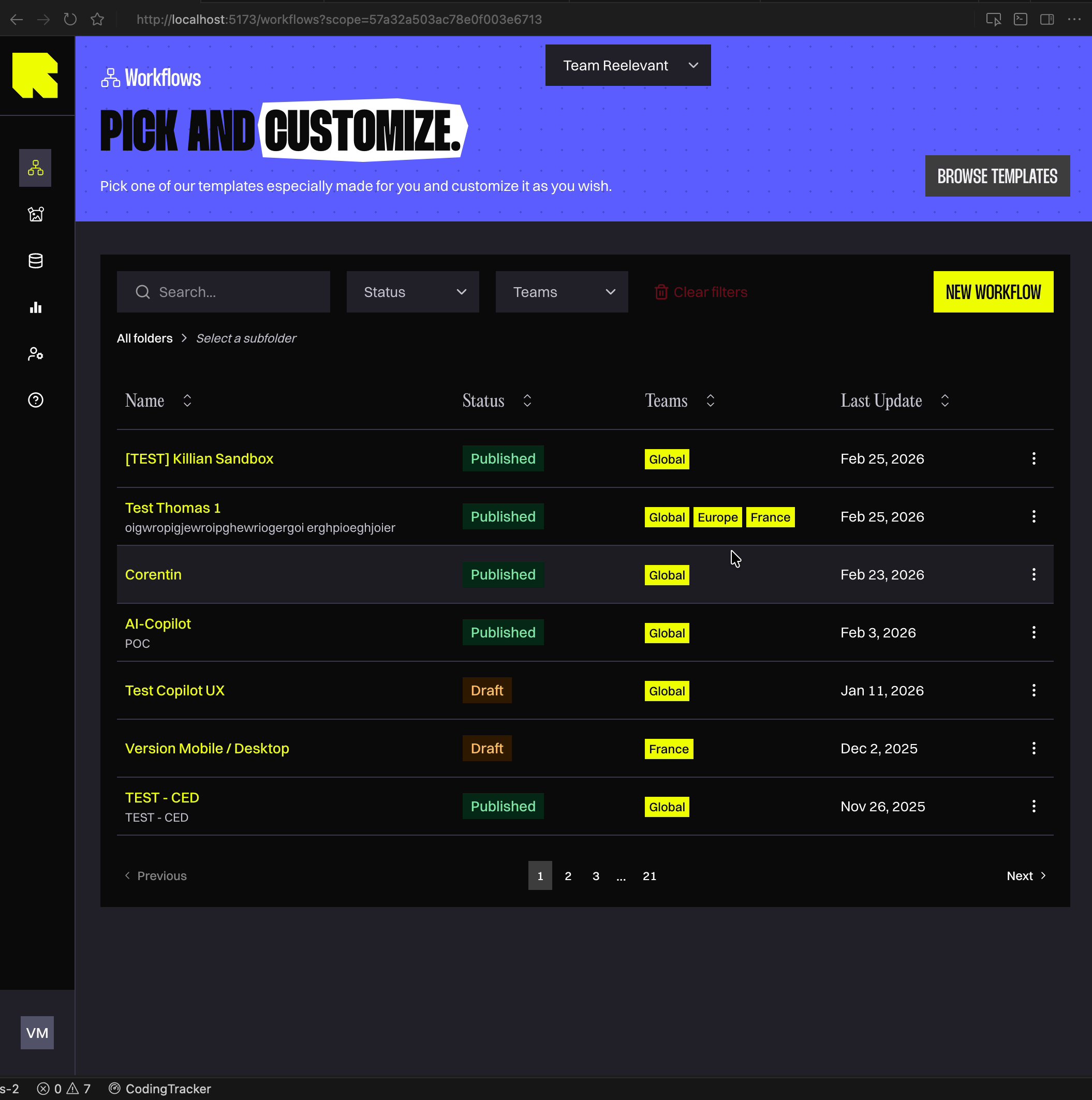
All listing pages — Workflows, Contents, and Datasources — now support **folder organization**. This feature is exclusive to the new interface.
* Create folders and sub-folders to organize your items by campaign, client, team, or any structure that fits your workflow
* Navigate between folders using the breadcrumb bar at the top of the listing, with quick dropdown access to sibling folders
* Assign items to folders when creating or editing them, and create new folders on the fly
This is a game-changer for teams managing large numbers of workflows, contents, or datasources — no more scrolling through flat lists to find what you need.
### Folders in Lists
*March 2026*
All listing pages — Workflows, Contents, and Datasources — now support **folder organization**. This feature is exclusive to the new interface.
* Create folders and sub-folders to organize your items by campaign, client, team, or any structure that fits your workflow
* Navigate between folders using the breadcrumb bar at the top of the listing, with quick dropdown access to sibling folders
* Assign items to folders when creating or editing them, and create new folders on the fly
This is a game-changer for teams managing large numbers of workflows, contents, or datasources — no more scrolling through flat lists to find what you need.
 ### Settings Pages
*March 2026*
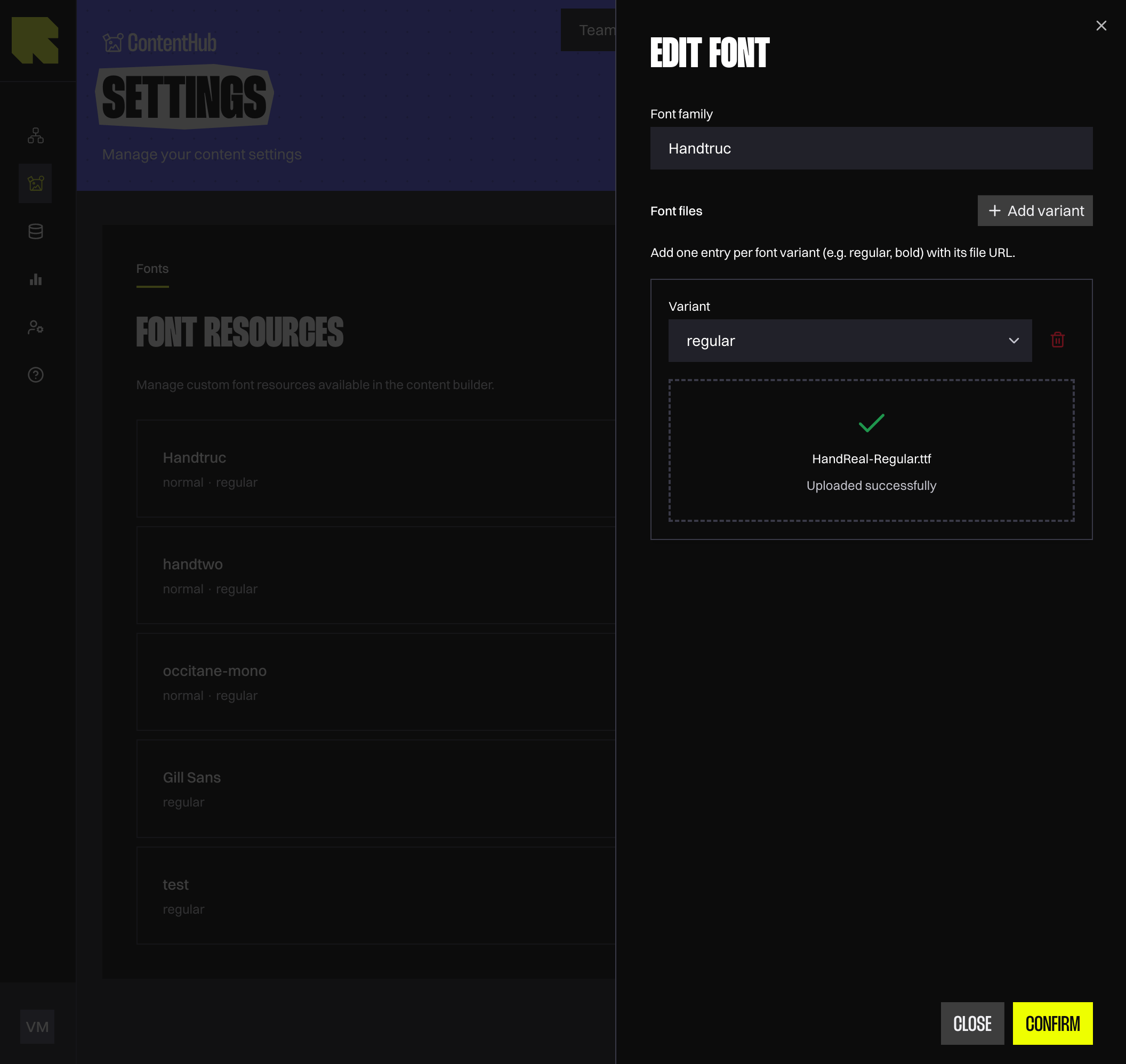
Three new settings pages are now built directly into the platform, replacing the previous external configuration tools:
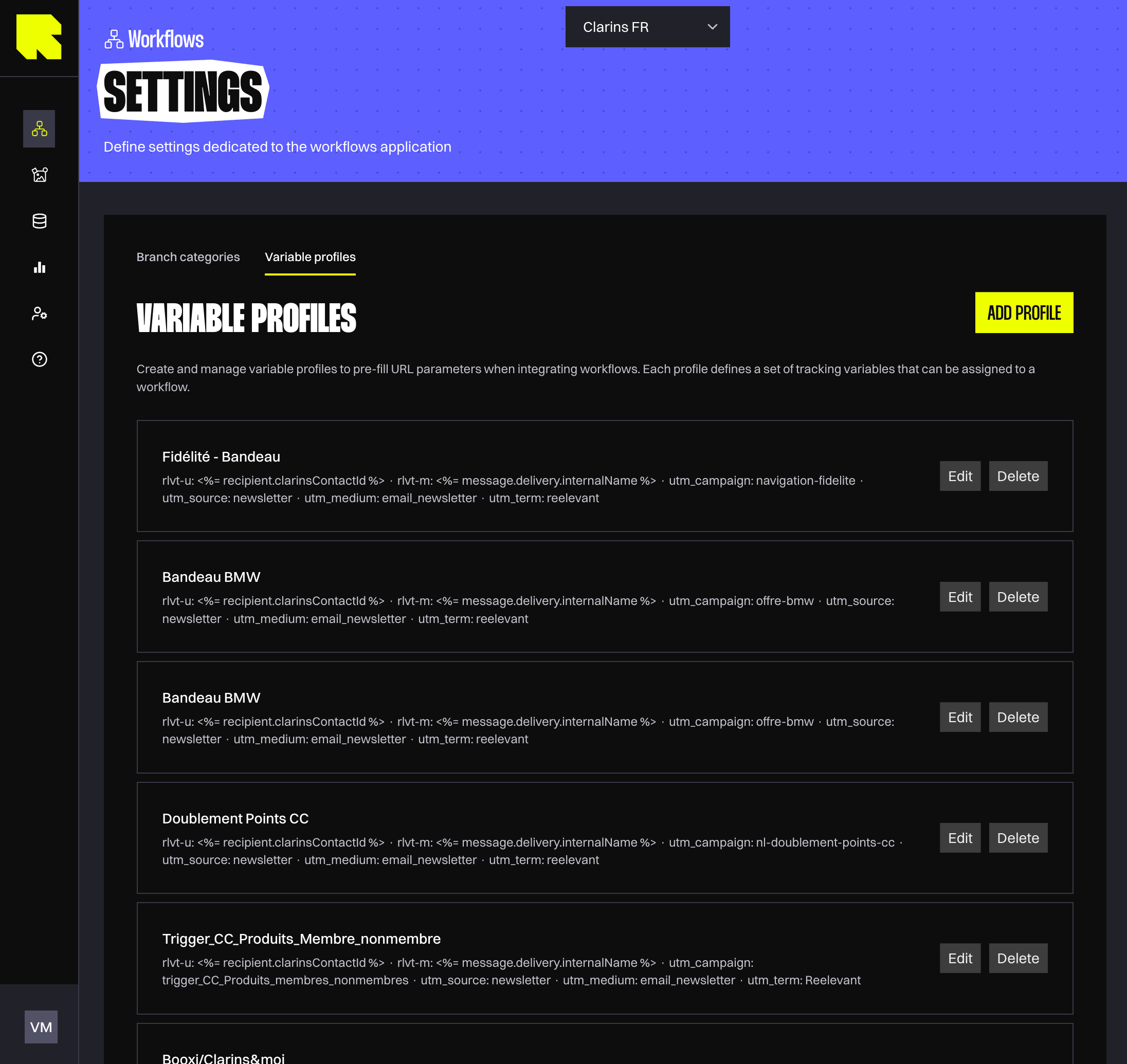
* **Workflows → Settings: Variable Profiles** — create and manage reusable URL parameter sets for your workflow integrations. This is especially useful if you manage multiple brands or clients, each with their own tracking parameters — set up a profile once and reuse it across workflows
* **Contents → Settings: Custom Fonts** — upload and manage your brand fonts directly in the platform. These fonts are available in the Content Editor and are automatically matched when importing designs from Figma or Photoshop
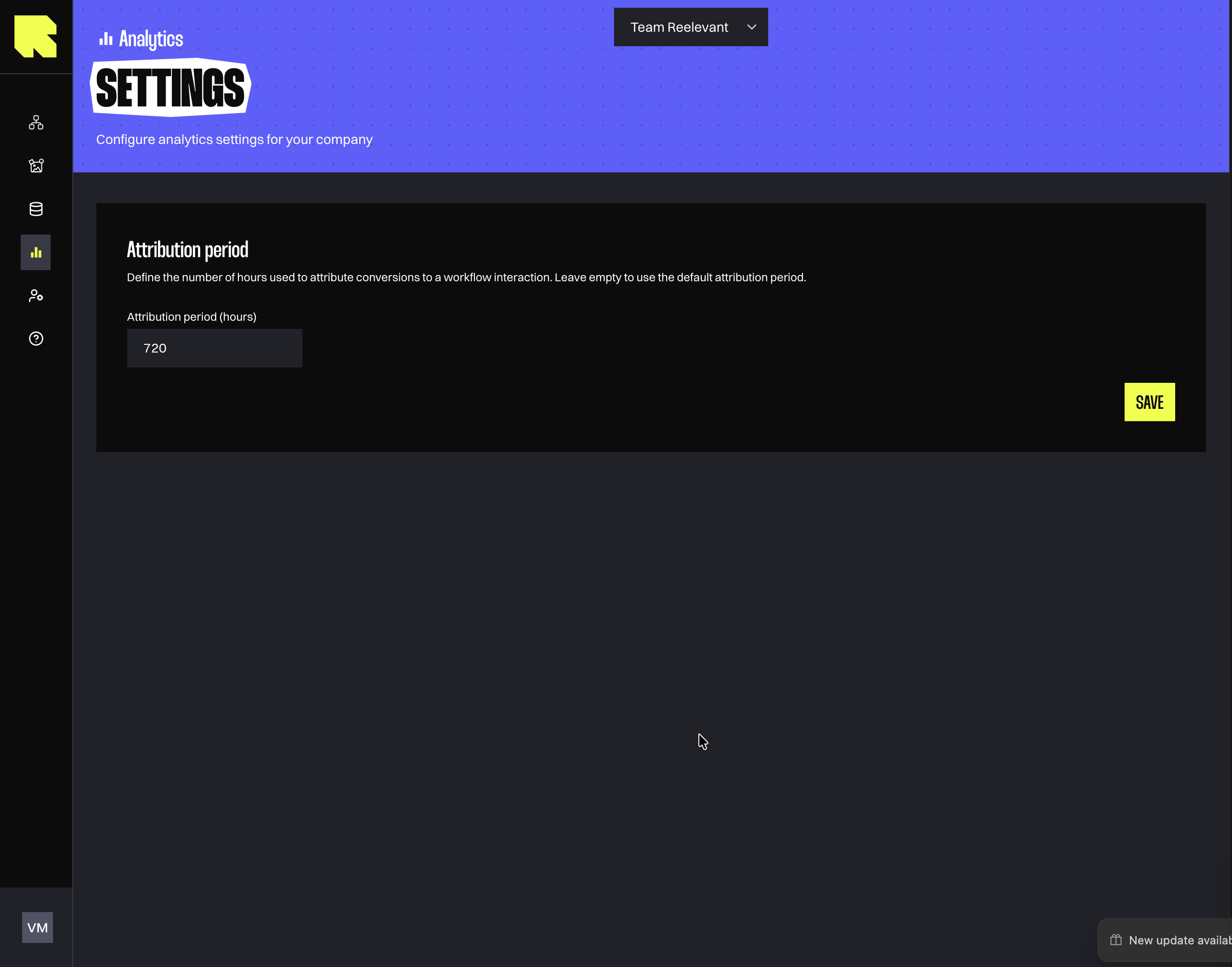
* **Analytics → Settings: Attribution Period** — configure how many days after a campaign touchpoint a conversion should be attributed to that campaign. This directly affects your conversion reporting, so you can align it with your business's attribution model
### Settings Pages
*March 2026*
Three new settings pages are now built directly into the platform, replacing the previous external configuration tools:
* **Workflows → Settings: Variable Profiles** — create and manage reusable URL parameter sets for your workflow integrations. This is especially useful if you manage multiple brands or clients, each with their own tracking parameters — set up a profile once and reuse it across workflows
* **Contents → Settings: Custom Fonts** — upload and manage your brand fonts directly in the platform. These fonts are available in the Content Editor and are automatically matched when importing designs from Figma or Photoshop
* **Analytics → Settings: Attribution Period** — configure how many days after a campaign touchpoint a conversion should be attributed to that campaign. This directly affects your conversion reporting, so you can align it with your business's attribution model
 ## Workflows
The Workflows application was the first to receive the new interface. All existing features (node configuration, triggers, conditions, splits, channels) **work exactly the same way** — the migration is visual only. The features listed below are genuinely new additions.
### Redesigned Workflow Editor
*September 2025*
The Workflow Editor got a complete visual refresh, making it faster and more intuitive to build your automation flows.
What's improved:
* **Cleaner node configuration** — setting up conditions, splits, and data nodes is now done through organized slide-out panels instead of crowded menus
* **Better workflow listing** — find your workflows faster with improved search, sorting by last update, and folder organization (see [Folders in Lists](#folders-in-lists))
* **Shareable views** — filters and editor settings are saved in the URL, so you can share a specific view with a colleague by simply copying the link
### Branch Qualification from Connections
*March 2026*
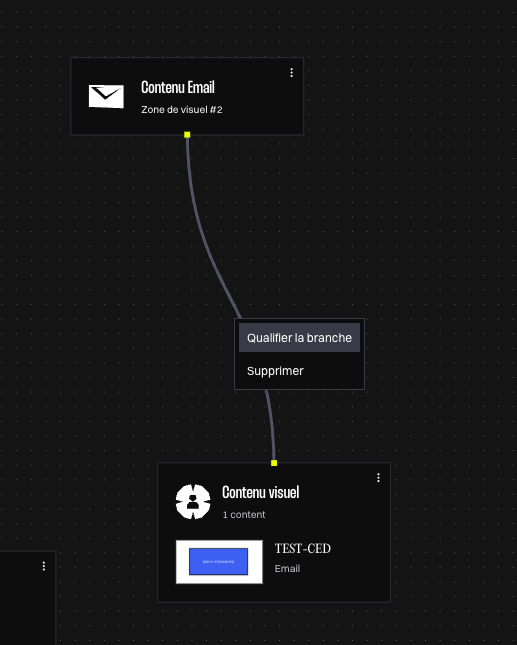
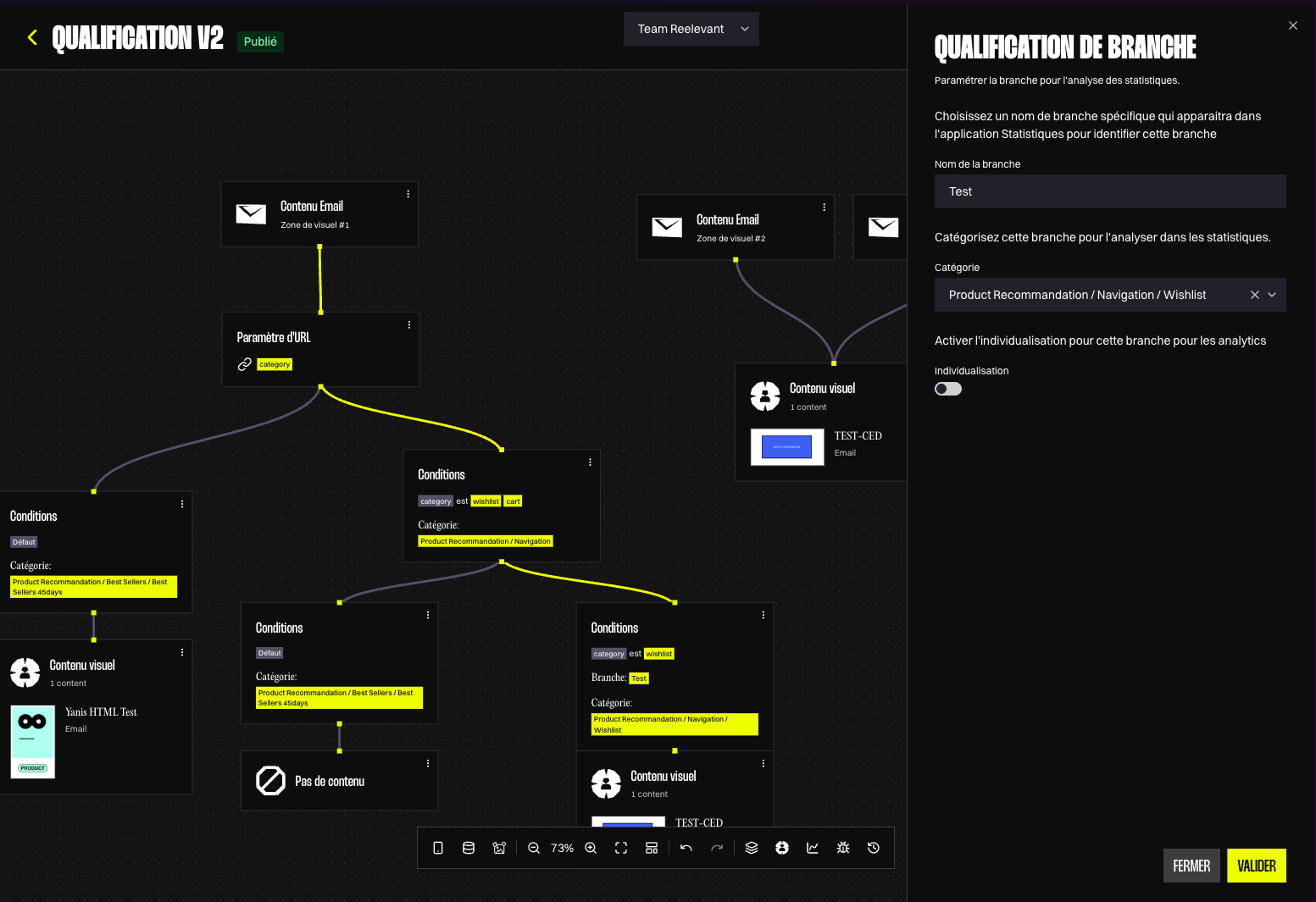
Qualifying branches is now much faster. Instead of digging through the logic node menu, simply **hover over any connection line** in your workflow and click **"Qualify branch"** to open the qualification panel.
This makes it easy to:
* **Name your branches** so they're recognizable in reports (e.g. "VIP Customers", "New Subscribers")
* **Assign categories** from your nomenclature to structure your analytics by business segment
* **See at a glance** which connections belong to the branch you're editing — they're highlighted on the canvas while the panel is open
You can still zoom and pan the canvas while the panel is open, so you never lose context.
## Workflows
The Workflows application was the first to receive the new interface. All existing features (node configuration, triggers, conditions, splits, channels) **work exactly the same way** — the migration is visual only. The features listed below are genuinely new additions.
### Redesigned Workflow Editor
*September 2025*
The Workflow Editor got a complete visual refresh, making it faster and more intuitive to build your automation flows.
What's improved:
* **Cleaner node configuration** — setting up conditions, splits, and data nodes is now done through organized slide-out panels instead of crowded menus
* **Better workflow listing** — find your workflows faster with improved search, sorting by last update, and folder organization (see [Folders in Lists](#folders-in-lists))
* **Shareable views** — filters and editor settings are saved in the URL, so you can share a specific view with a colleague by simply copying the link
### Branch Qualification from Connections
*March 2026*
Qualifying branches is now much faster. Instead of digging through the logic node menu, simply **hover over any connection line** in your workflow and click **"Qualify branch"** to open the qualification panel.
This makes it easy to:
* **Name your branches** so they're recognizable in reports (e.g. "VIP Customers", "New Subscribers")
* **Assign categories** from your nomenclature to structure your analytics by business segment
* **See at a glance** which connections belong to the branch you're editing — they're highlighted on the canvas while the panel is open
You can still zoom and pan the canvas while the panel is open, so you never lose context.
 ### Undo / Redo
*April 2026*
Made a mistake? Just press **Ctrl+Z** to undo and **Ctrl+Shift+Z** to redo. This works across both the Workflow Editor and the Content Editor, covering all types of changes — moving nodes, editing text, adjusting layout guides, and more. No more fear of accidentally breaking something.
## Content Editor
The Content Editor received a full visual redesign. All your existing tools — text editing, image placement, data binding, conditions — **remain in the same place and behave the same way**. The features below are new capabilities added on top of the migration.
### Content Editor Revamp
*April 2026*
The Content Editor has been fully redesigned for a smoother creative workflow:
* **Resizable panels** — adjust the size of the configuration panel and layers tree to match your screen and preferences
* **Modular editing** — each element type (text, image, barcode, map, countdown, etc.) has its own focused configuration, reducing clutter
* **Instant preview** — see your changes reflected in real time as you edit, so you always know exactly what your content will look like
### Content Preview in Listing
*January 2026*
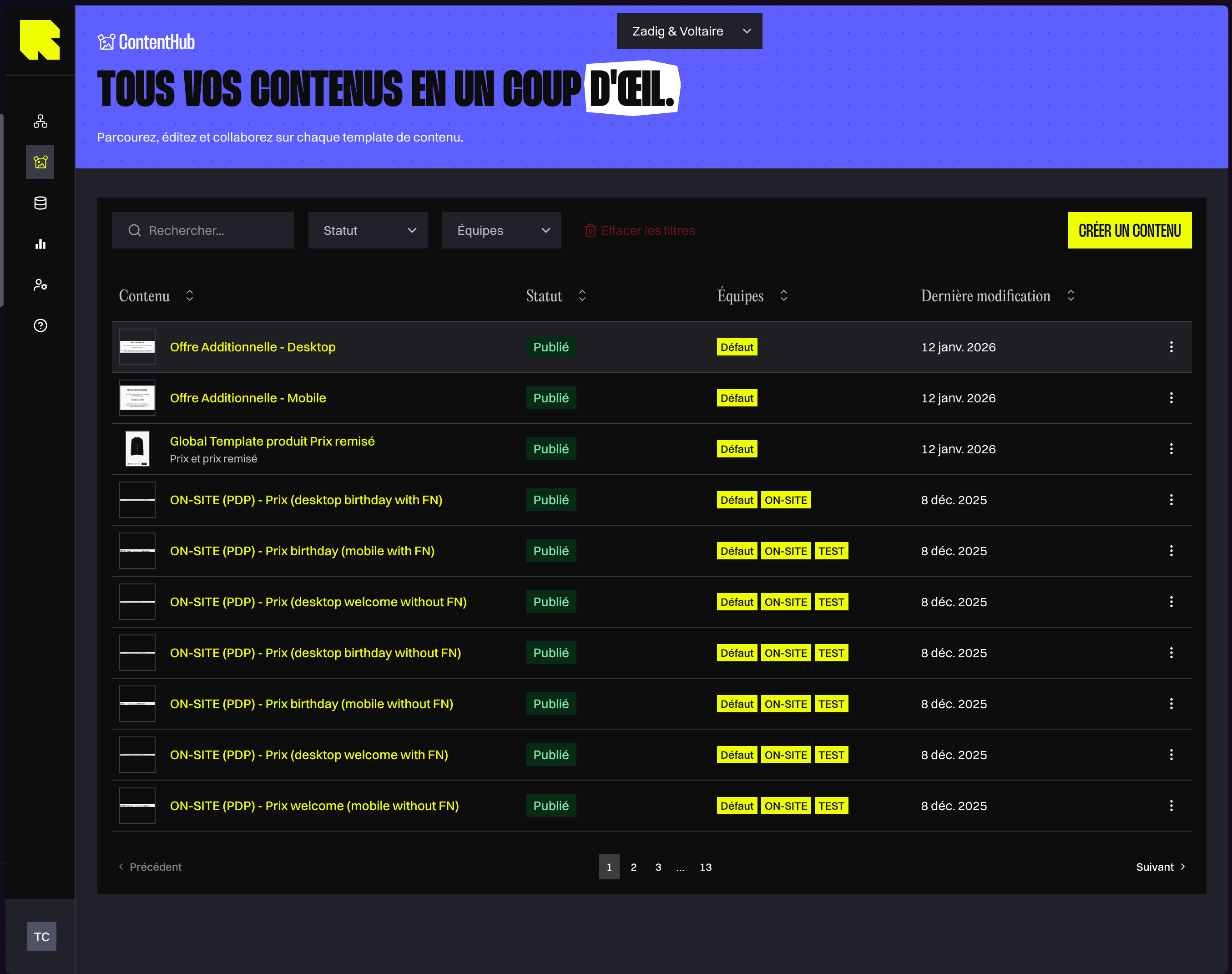
You can now see a **visual thumbnail** of each content directly in the listing page. No more opening contents one by one to find the right one — browse your entire library at a glance.
### Undo / Redo
*April 2026*
Made a mistake? Just press **Ctrl+Z** to undo and **Ctrl+Shift+Z** to redo. This works across both the Workflow Editor and the Content Editor, covering all types of changes — moving nodes, editing text, adjusting layout guides, and more. No more fear of accidentally breaking something.
## Content Editor
The Content Editor received a full visual redesign. All your existing tools — text editing, image placement, data binding, conditions — **remain in the same place and behave the same way**. The features below are new capabilities added on top of the migration.
### Content Editor Revamp
*April 2026*
The Content Editor has been fully redesigned for a smoother creative workflow:
* **Resizable panels** — adjust the size of the configuration panel and layers tree to match your screen and preferences
* **Modular editing** — each element type (text, image, barcode, map, countdown, etc.) has its own focused configuration, reducing clutter
* **Instant preview** — see your changes reflected in real time as you edit, so you always know exactly what your content will look like
### Content Preview in Listing
*January 2026*
You can now see a **visual thumbnail** of each content directly in the listing page. No more opening contents one by one to find the right one — browse your entire library at a glance.
 ### Canvas Background Color
*May 2026*
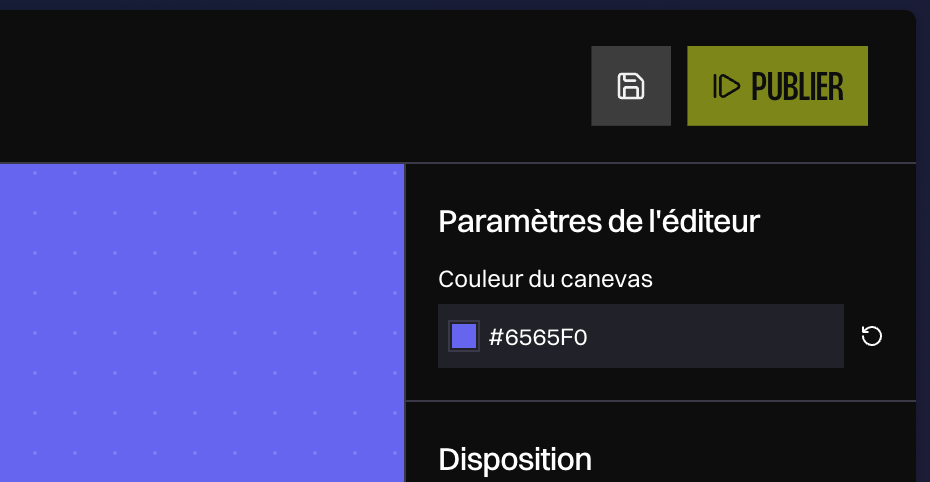
You can now set a **custom background color** for the content editor canvas. This is purely a design aid — it helps you preview how your content will look against different backgrounds (e.g. a dark email template) without affecting the final output. The background automatically adapts when you switch between light and dark mode.
### Canvas Background Color
*May 2026*
You can now set a **custom background color** for the content editor canvas. This is purely a design aid — it helps you preview how your content will look against different backgrounds (e.g. a dark email template) without affecting the final output. The background automatically adapts when you switch between light and dark mode.
 ### Layout Guides
*May 2026*
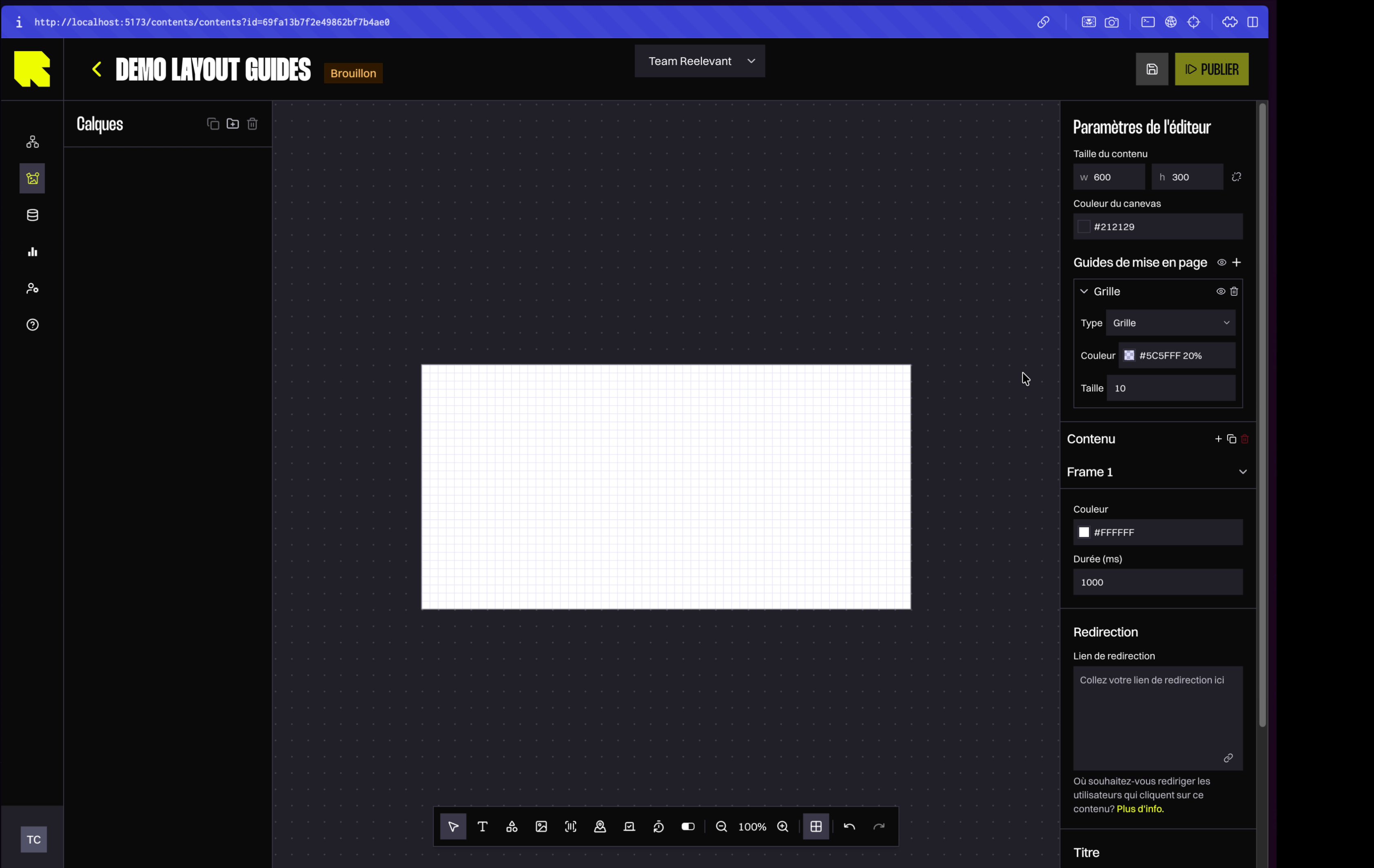
Layout guides help you **align elements precisely** by overlaying visual grids on your content. This is especially useful for maintaining consistent spacing across product recommendation templates or multi-column layouts.
You can add three types of guides:
* **Grid** — a uniform square grid to snap elements into place
* **Columns** — vertical columns with customizable count, spacing, and margins (great for product grids)
* **Rows** — horizontal rows for aligning elements vertically
Each guide can be shown/hidden, renamed, recolored, and customized individually. You can have multiple guides active at once.
**Where to find it:** Click the grid icon in the toolbar at the bottom of the canvas.
### Layout Guides
*May 2026*
Layout guides help you **align elements precisely** by overlaying visual grids on your content. This is especially useful for maintaining consistent spacing across product recommendation templates or multi-column layouts.
You can add three types of guides:
* **Grid** — a uniform square grid to snap elements into place
* **Columns** — vertical columns with customizable count, spacing, and margins (great for product grids)
* **Rows** — horizontal rows for aligning elements vertically
Each guide can be shown/hidden, renamed, recolored, and customized individually. You can have multiple guides active at once.
**Where to find it:** Click the grid icon in the toolbar at the bottom of the canvas.
 ### Copy / Paste
*June 2026*
You can now **copy and paste** components, groups, and conditions in the Content Editor using standard keyboard shortcuts (**Ctrl+C** / **Ctrl+V**, or **⌘+C** / **⌘+V** on Mac).
This works:
* Within the same content — quickly duplicate complex element trees without manually recreating them
* **Across different contents** — copy a fully configured component (with all its data bindings and datasource dependencies) from one content and paste it into another
When pasting, all elements receive new identifiers and their data dependencies are automatically resolved. If a dependency cannot be added (e.g. a datasource that doesn't exist in the target account), an error notification is shown and the rest of the elements are still pasted.
A success notification confirms the number of elements copied or pasted.
### Datasource Element Picker
*May 2026*
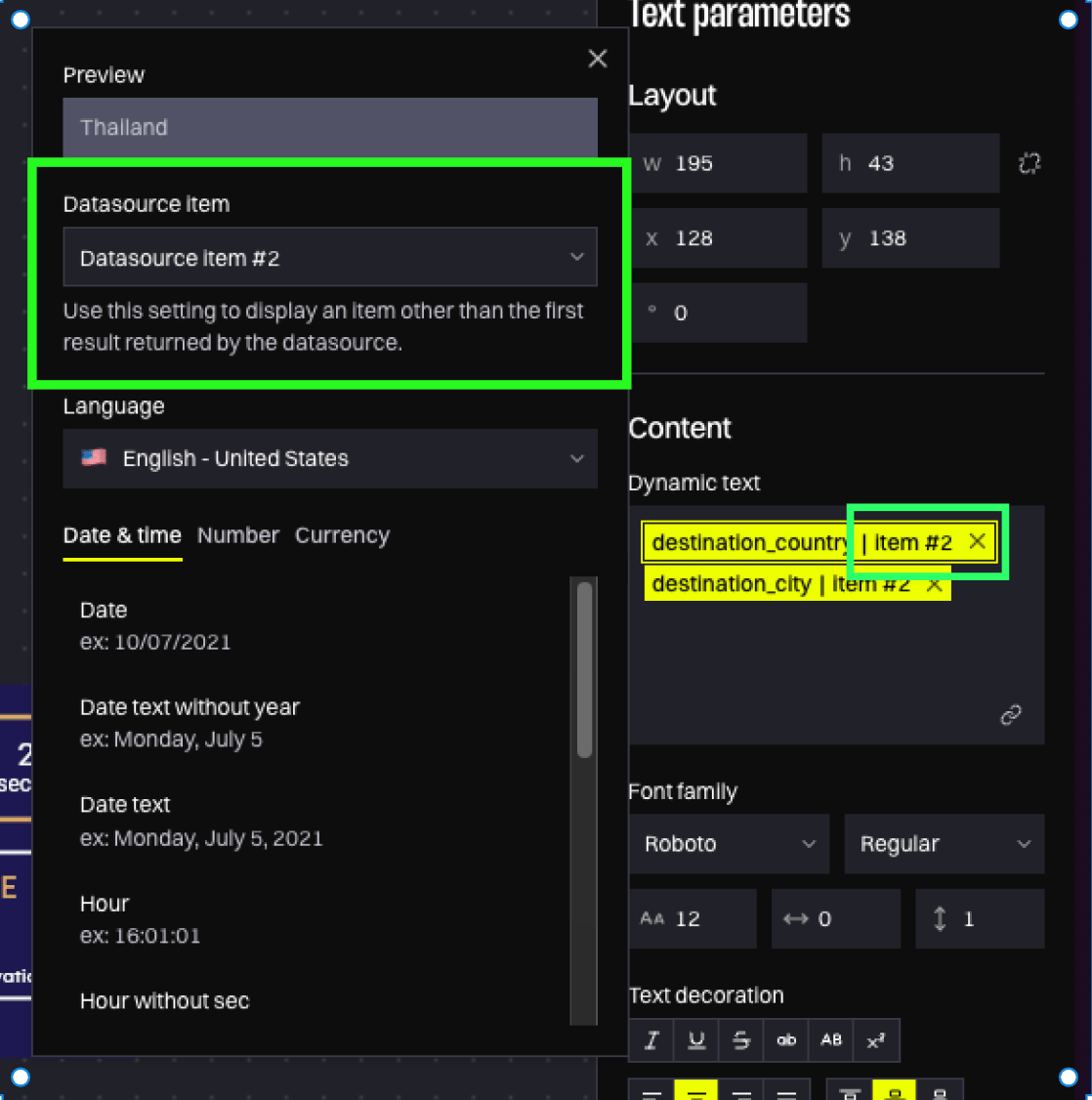
When building product recommendation templates, you often need to display the same field (e.g. product name, price, image) for **multiple products**. The new element picker lets you choose which product position each field refers to — product #1, #2, #3, and so on, up to 20.
* When you insert a field that's already in use, a dialog asks whether you want to reuse the same product or pick a different one
* A badge on each variable shows which element it refers to (e.g. "element #2")
* You can change the element assignment at any time from the variable settings
This makes building multi-product layouts much faster and less error-prone.
### Copy / Paste
*June 2026*
You can now **copy and paste** components, groups, and conditions in the Content Editor using standard keyboard shortcuts (**Ctrl+C** / **Ctrl+V**, or **⌘+C** / **⌘+V** on Mac).
This works:
* Within the same content — quickly duplicate complex element trees without manually recreating them
* **Across different contents** — copy a fully configured component (with all its data bindings and datasource dependencies) from one content and paste it into another
When pasting, all elements receive new identifiers and their data dependencies are automatically resolved. If a dependency cannot be added (e.g. a datasource that doesn't exist in the target account), an error notification is shown and the rest of the elements are still pasted.
A success notification confirms the number of elements copied or pasted.
### Datasource Element Picker
*May 2026*
When building product recommendation templates, you often need to display the same field (e.g. product name, price, image) for **multiple products**. The new element picker lets you choose which product position each field refers to — product #1, #2, #3, and so on, up to 20.
* When you insert a field that's already in use, a dialog asks whether you want to reuse the same product or pick a different one
* A badge on each variable shows which element it refers to (e.g. "element #2")
* You can change the element assignment at any time from the variable settings
This makes building multi-product layouts much faster and less error-prone.
 ## DataHub
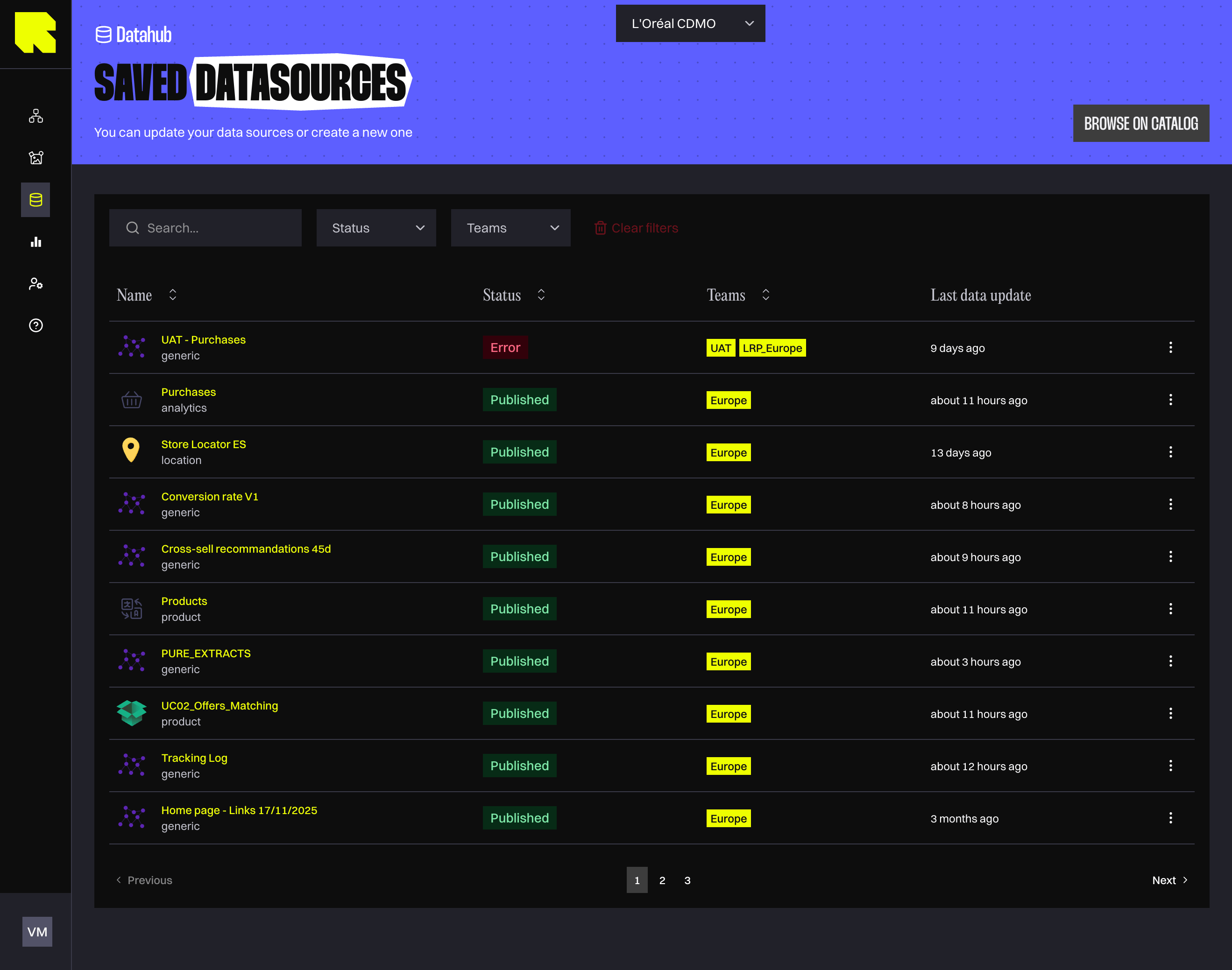
The DataHub application was migrated to the new interface with the same navigation, data source creation wizard, and field configuration you're used to. **Everything works the same way** — the improvements below are new additions to help you work more efficiently.
### Redesigned DataHub Interface
*February 2026*
The DataHub received a cleaner, more efficient interface to help you manage your data sources with less friction:
* **Cleaner logs** — the "missing fields" noise has been moved to a dedicated configuration step, so your logs page only shows what matters
* **Last update column** — instantly see when each datasource was last refreshed, making it easy to spot stale data
* **Live status indicators** — a loading spinner appears next to each datasource name when an update is running, so you always know what's in progress
* **Simplified catalog** — creating a new datasource is more straightforward with a streamlined template picker
* **Expandable log details** — click on any warning or error to see the full details, making troubleshooting faster
* **Folder organization** — organize your datasources into folders, just like workflows and contents
## DataHub
The DataHub application was migrated to the new interface with the same navigation, data source creation wizard, and field configuration you're used to. **Everything works the same way** — the improvements below are new additions to help you work more efficiently.
### Redesigned DataHub Interface
*February 2026*
The DataHub received a cleaner, more efficient interface to help you manage your data sources with less friction:
* **Cleaner logs** — the "missing fields" noise has been moved to a dedicated configuration step, so your logs page only shows what matters
* **Last update column** — instantly see when each datasource was last refreshed, making it easy to spot stale data
* **Live status indicators** — a loading spinner appears next to each datasource name when an update is running, so you always know what's in progress
* **Simplified catalog** — creating a new datasource is more straightforward with a streamlined template picker
* **Expandable log details** — click on any warning or error to see the full details, making troubleshooting faster
* **Folder organization** — organize your datasources into folders, just like workflows and contents
 ## Analytics
The Analytics application was migrated to the new interface. Your existing dashboards, saved queries, and reports **are all still accessible in the same way**. The features below are new capabilities added alongside the visual refresh.
### Statistics Exploration Page
*December 2025*
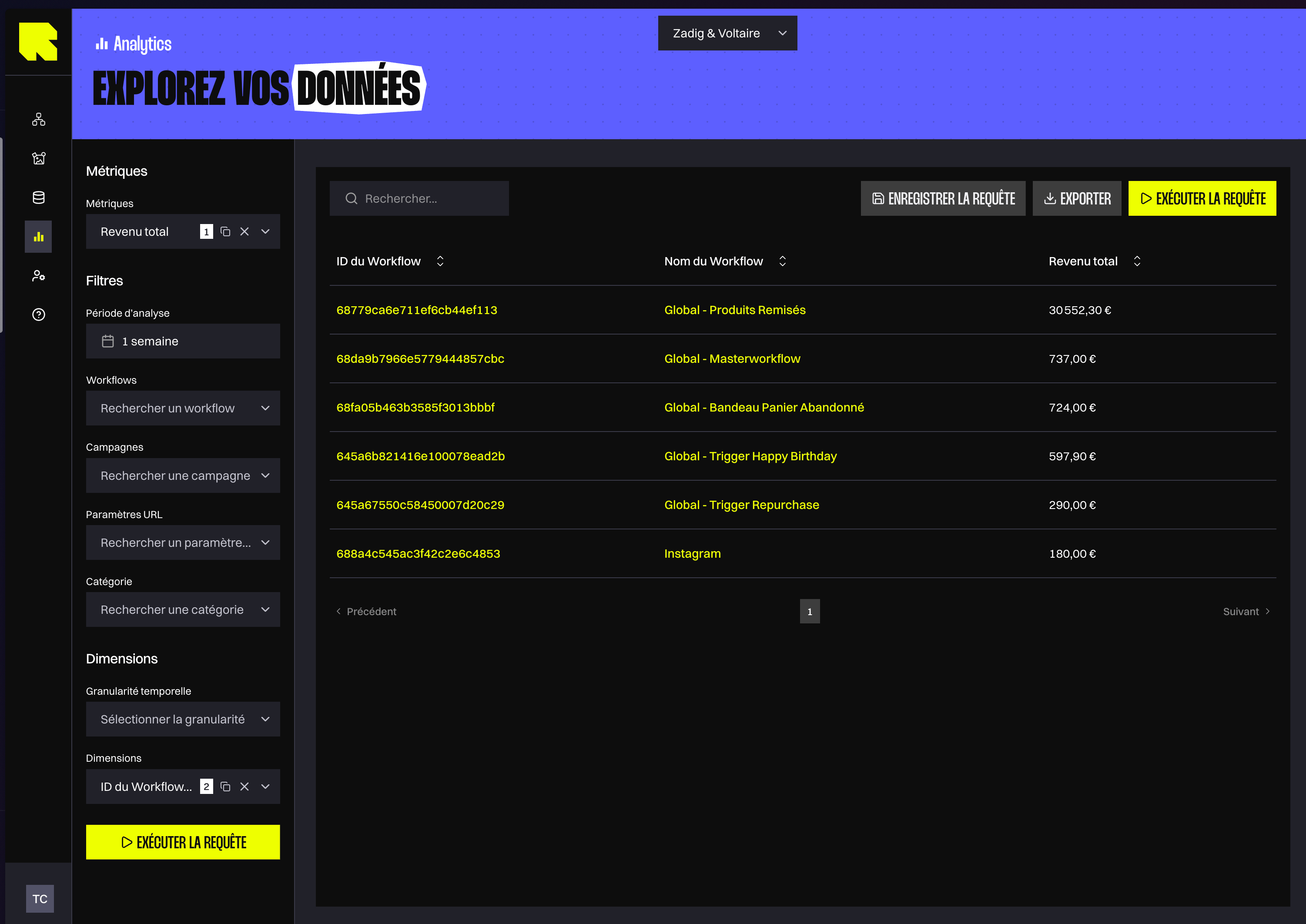
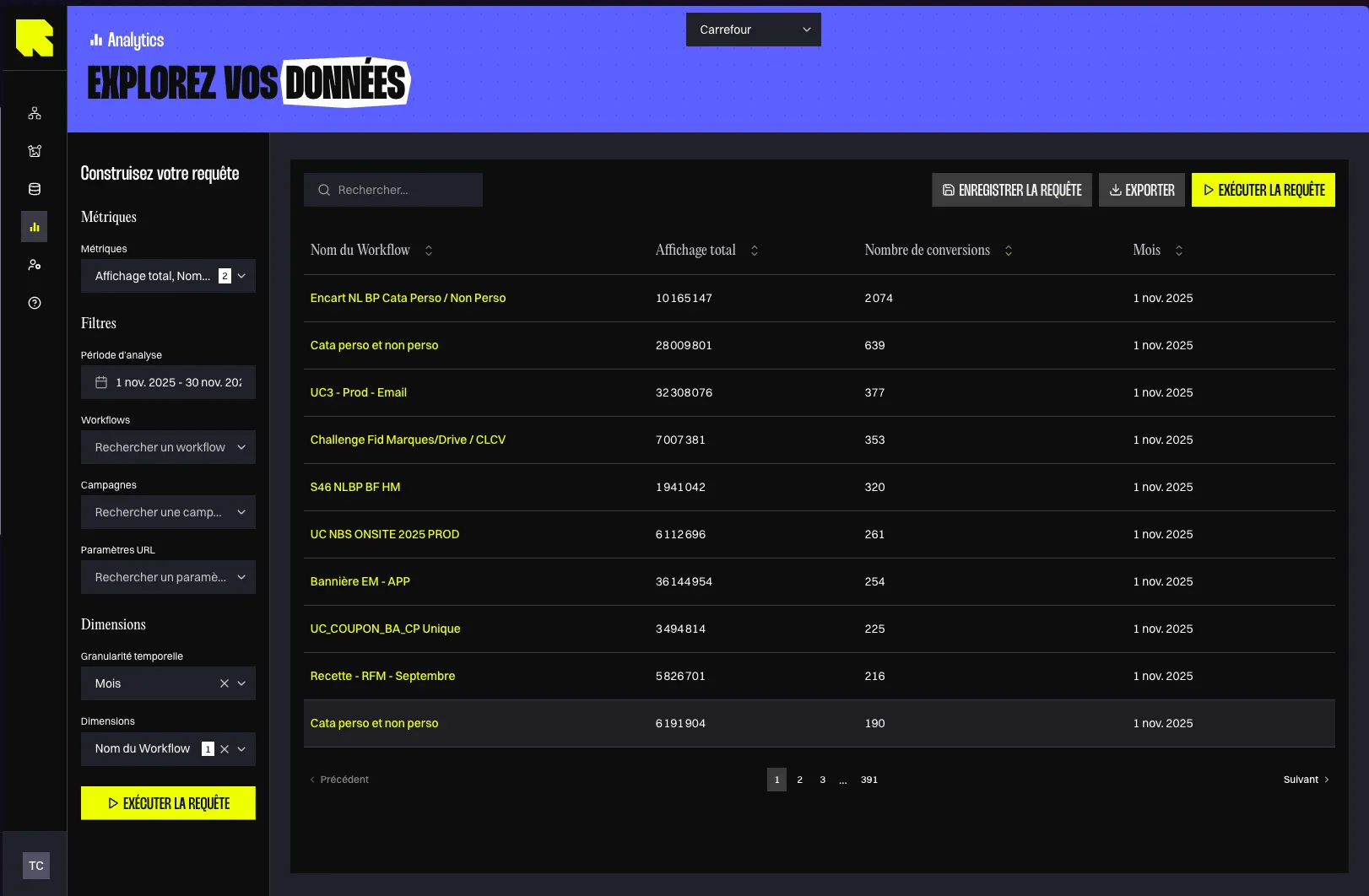
The new data exploration page gives you a powerful **query builder** to run ad-hoc analyses on your campaign data. Select your workflows, campaigns, measures, dimensions, and time period — then view the results instantly.
Your query parameters are saved in the URL, so you can **bookmark** a specific analysis or **share it** with a colleague by sending them the link. You can also filter by branch category if you've set up nomenclatures for your workflows.
## Analytics
The Analytics application was migrated to the new interface. Your existing dashboards, saved queries, and reports **are all still accessible in the same way**. The features below are new capabilities added alongside the visual refresh.
### Statistics Exploration Page
*December 2025*
The new data exploration page gives you a powerful **query builder** to run ad-hoc analyses on your campaign data. Select your workflows, campaigns, measures, dimensions, and time period — then view the results instantly.
Your query parameters are saved in the URL, so you can **bookmark** a specific analysis or **share it** with a colleague by sending them the link. You can also filter by branch category if you've set up nomenclatures for your workflows.
 ### Analytics Dashboards Revamp
*January 2026*
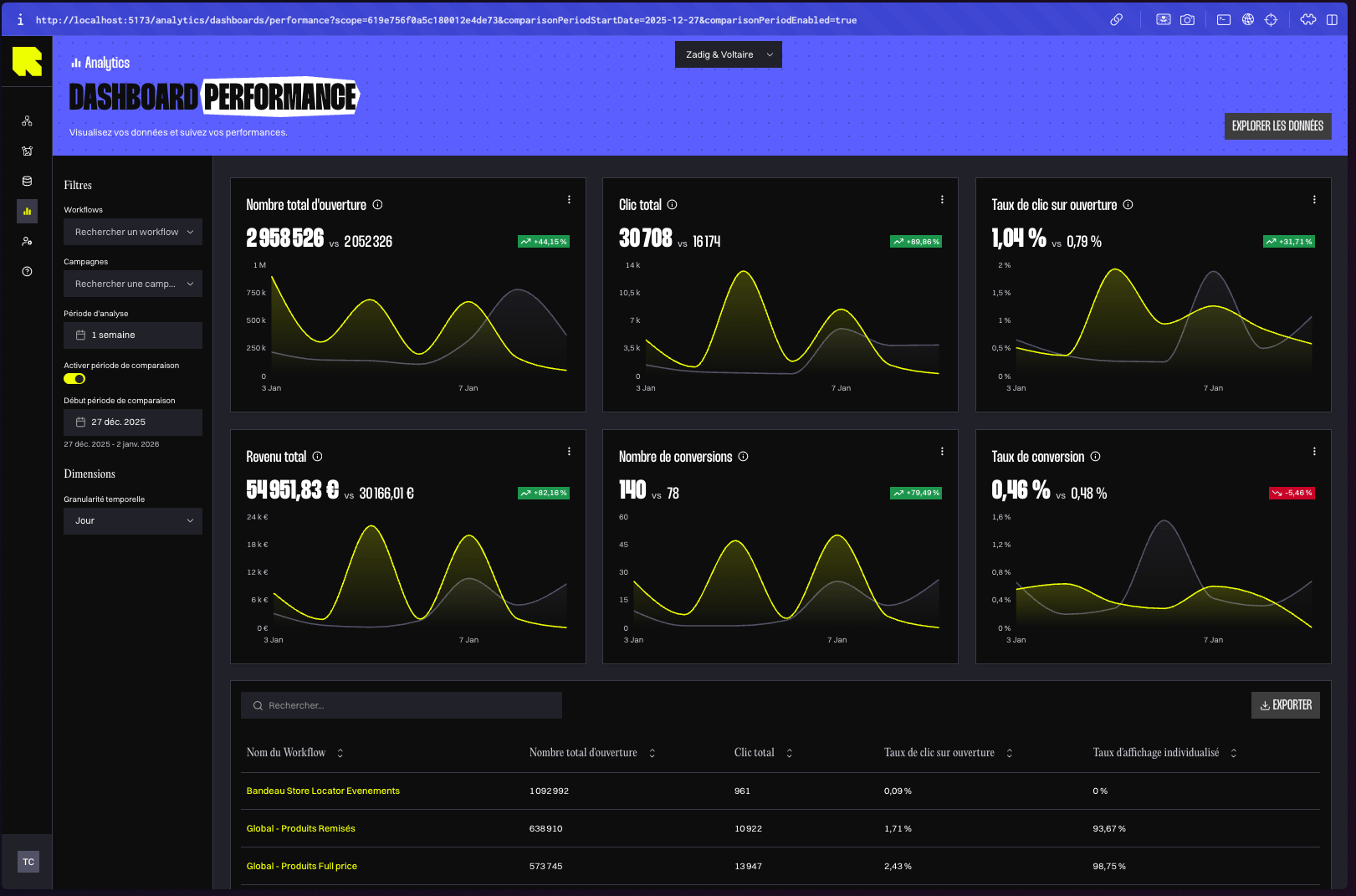
All Analytics dashboards have been redesigned with new capabilities to help you understand your campaign performance better:
* **Comparison period** — see how your metrics compare to a previous period (e.g. this week vs. last week) to quickly spot trends
* **Temporal granularity** — switch between daily, weekly, or monthly views to analyze performance at the right level of detail
* **Data export** — export data from any KPI card, chart, or table for use in your own reports and presentations
* **Branch category filtering** — focus your analysis on specific business segments by filtering dashboards by your branch categories
### Analytics Dashboards Revamp
*January 2026*
All Analytics dashboards have been redesigned with new capabilities to help you understand your campaign performance better:
* **Comparison period** — see how your metrics compare to a previous period (e.g. this week vs. last week) to quickly spot trends
* **Temporal granularity** — switch between daily, weekly, or monthly views to analyze performance at the right level of detail
* **Data export** — export data from any KPI card, chart, or table for use in your own reports and presentations
* **Branch category filtering** — focus your analysis on specific business segments by filtering dashboards by your branch categories
 ### Usage Dashboard (Consumption)
*January 2026*
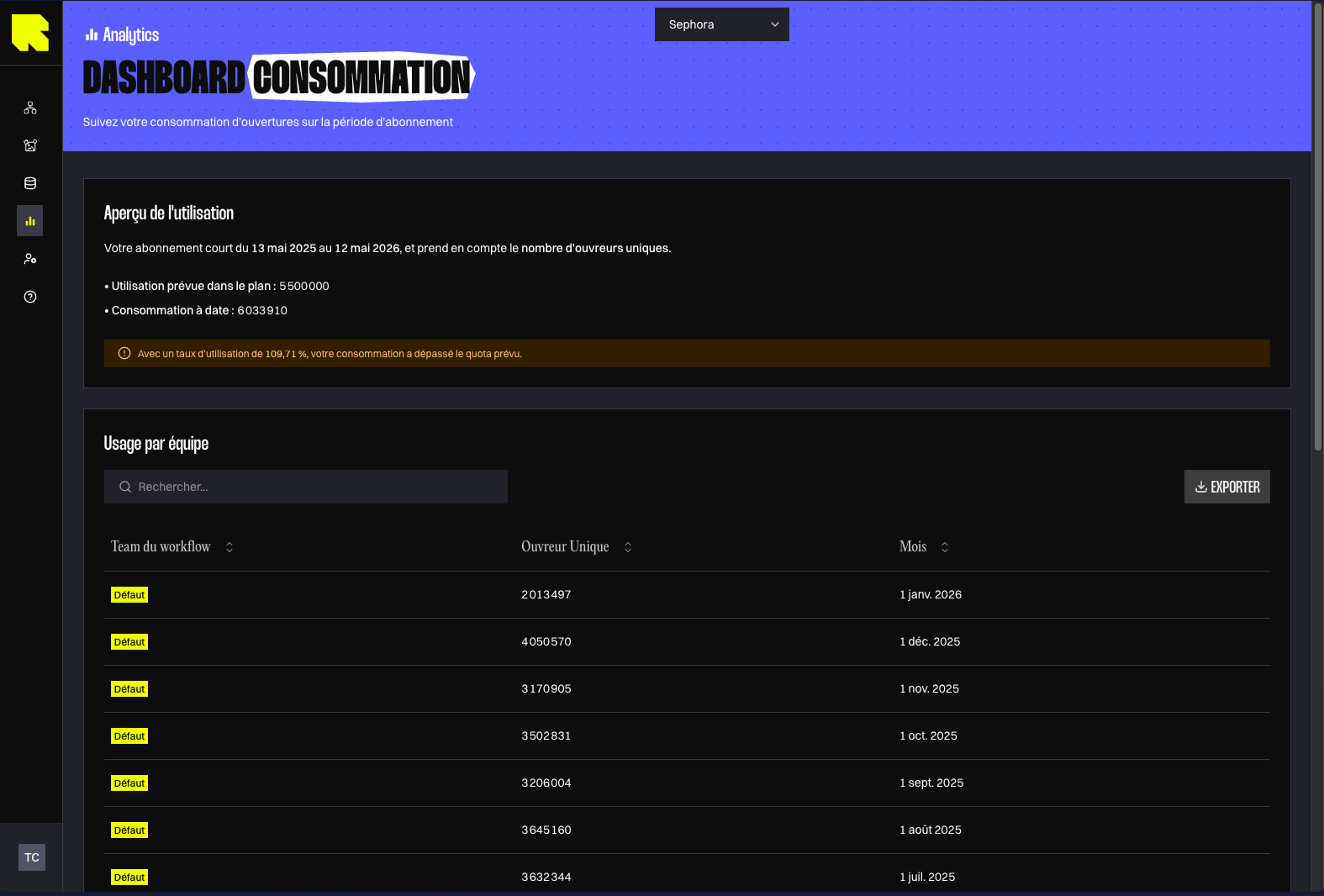
Keep track of your account's consumption with a dedicated dashboard that shows how much of your contractual quota you've used. The dashboard includes:
* **Consumption overview** — a clear summary showing your total usage (openings or unique openers, depending on your plan) against your quota, with color-coded status: green when under quota, yellow when approaching the limit, and red when significantly over
* **Breakdown by team** — see which teams are driving the most consumption
* **Breakdown by channel** — understand consumption across email, web, mobile, and landing page channels
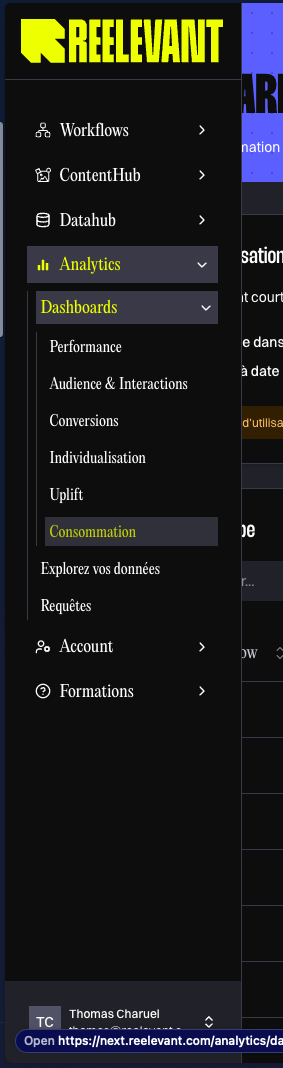
Accessible via **Analytics → Consumption** or **Account → Consumption**.
### Usage Dashboard (Consumption)
*January 2026*
Keep track of your account's consumption with a dedicated dashboard that shows how much of your contractual quota you've used. The dashboard includes:
* **Consumption overview** — a clear summary showing your total usage (openings or unique openers, depending on your plan) against your quota, with color-coded status: green when under quota, yellow when approaching the limit, and red when significantly over
* **Breakdown by team** — see which teams are driving the most consumption
* **Breakdown by channel** — understand consumption across email, web, mobile, and landing page channels
Accessible via **Analytics → Consumption** or **Account → Consumption**.
 ### Workflow ID Dimension
*May 2026*
You can now use **Workflow ID** as a dimension in your analytics queries. This solves the confusion that occurred when multiple workflows shared the same name (e.g. A/B test variants or duplicated campaigns) — the ID gives you a unique, stable way to identify each workflow in your reports.
### Workflow ID Dimension
*May 2026*
You can now use **Workflow ID** as a dimension in your analytics queries. This solves the confusion that occurred when multiple workflows shared the same name (e.g. A/B test variants or duplicated campaigns) — the ID gives you a unique, stable way to identify each workflow in your reports.