> ## Documentation Index
> Fetch the complete documentation index at: https://docs.reelevant.com/llms.txt
> Use this file to discover all available pages before exploring further.
# Branches
> Qualify workflow branches with categories and tags for better analytics and management
 ## What are Branches?
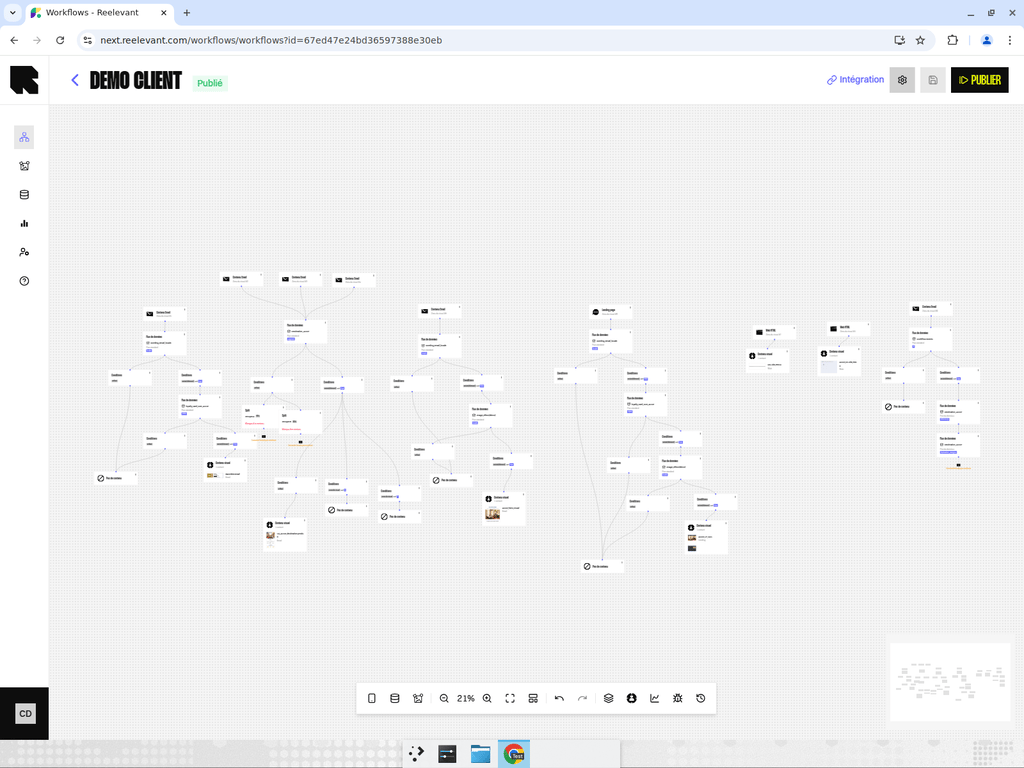
A **branch** is a unique execution path through a workflow, from a [channel](/product-guide/workflows/channels) node to an [output node](/product-guide/workflows/output-nodes). When a user triggers a workflow, the engine evaluates [conditions](/product-guide/workflows/logic-nodes/conditions) and data to determine which branch to follow, then returns the output at the end of that branch.
A single workflow typically has multiple branches — each one delivering a different experience based on the user's context.
## Branch Qualification
You can **qualify** a branch by giving it a category and tags. This is useful for:
* **Analytics** — Group results by branch category or tag to compare performance across different strategies.
* **Organisation** — Label branches by their purpose (e.g., "Promotion", "Loyalty", "Default").
* **Reporting** — Filter dashboards by category or tag to focus on specific campaign strategies.
Categories and tags are complementary. The category describes what the branch **is**, while tags add contextual dimensions for analysis (e.g., the lifecycle moment it targets).
### How to Qualify a Branch
## What are Branches?
A **branch** is a unique execution path through a workflow, from a [channel](/product-guide/workflows/channels) node to an [output node](/product-guide/workflows/output-nodes). When a user triggers a workflow, the engine evaluates [conditions](/product-guide/workflows/logic-nodes/conditions) and data to determine which branch to follow, then returns the output at the end of that branch.
A single workflow typically has multiple branches — each one delivering a different experience based on the user's context.
## Branch Qualification
You can **qualify** a branch by giving it a category and tags. This is useful for:
* **Analytics** — Group results by branch category or tag to compare performance across different strategies.
* **Organisation** — Label branches by their purpose (e.g., "Promotion", "Loyalty", "Default").
* **Reporting** — Filter dashboards by category or tag to focus on specific campaign strategies.
Categories and tags are complementary. The category describes what the branch **is**, while tags add contextual dimensions for analysis (e.g., the lifecycle moment it targets).
### How to Qualify a Branch
 1. **Right-click on an edge** (the arrow connecting two nodes) in the workflow editor.
2. Select **Qualify branch** from the context menu.
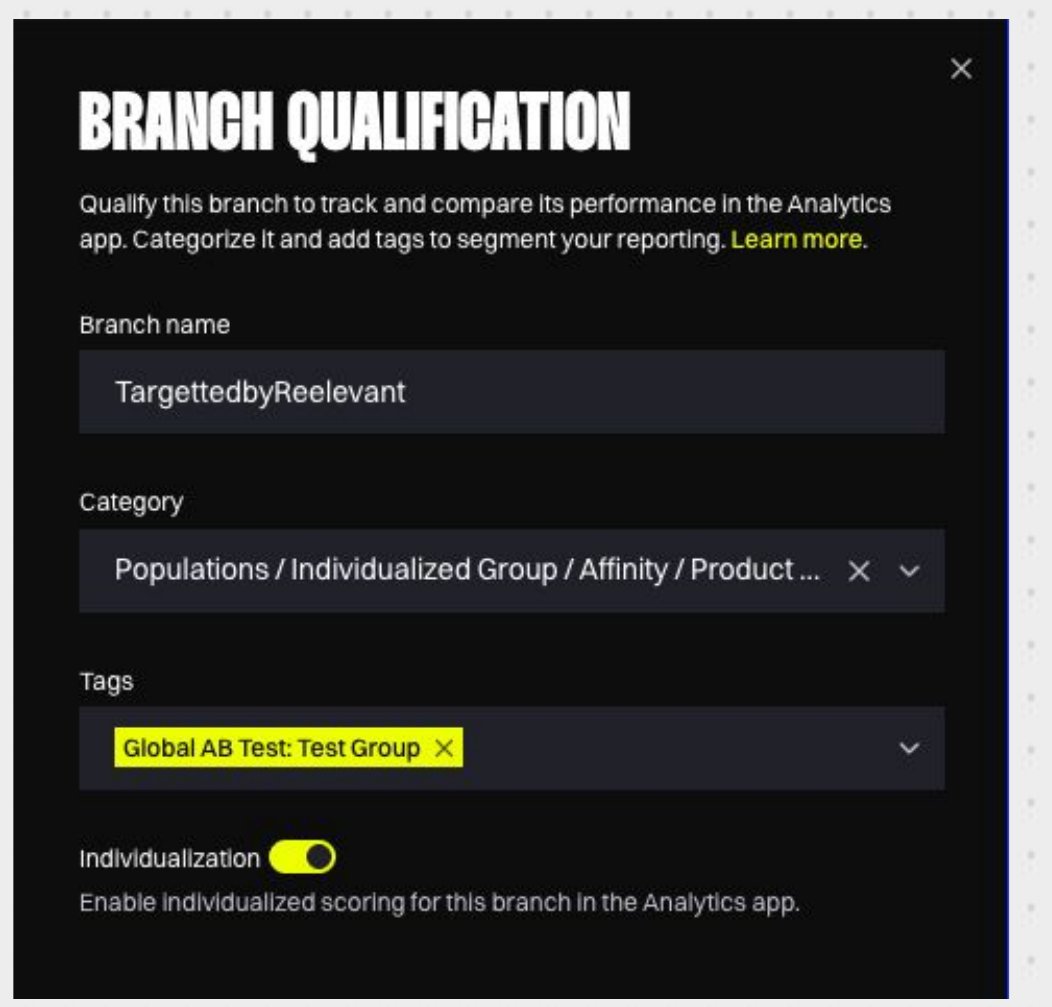
3. The **Branch qualification** drawer opens. It lets you set:
* **Branch name** — An optional custom name to identify the branch.
* **Category** — A category from the branch categories tree.
* **Tags** — One or more tags from your account's tag list.
* **Individualization** — A toggle to mark the branch as individualized in the Analytics app.
4. Click **Confirm** to save your qualification.
Every branch should have a category. Tags are optional — add them when extra context helps your analysis.
## Branch Categories
The **branch categories** are a hierarchical tree of categories that you define in [Workflow Settings](/product-guide/workflows/settings). They provide a consistent vocabulary for qualifying branches across all your workflows.
### Structure
Categories are organized in a tree with multiple levels. For example:
```
├── Personalized
│ ├── Product Recommendation
│ ├── Store Locator
│ └── Weather-based
├── Promotional
│ ├── Discount
│ └── New Arrivals
└── Default
└── Generic Content
```
Each branch can be assigned a category at any level of the tree.
### Benefits
* **Consistency** — All team members use the same vocabulary when qualifying branches.
* **Analytics** — Analytics dashboards can filter and group metrics by category at any level of the hierarchy.
### How categories resolve along a Branch
A category continues along downstream Branches until a later qualification replaces it.
If several qualifications affect the same final Branch, Analytics uses the category closest to the Output Node.
For example, an earlier qualification can set `Promotional`. A later qualification on the same final Branch can replace it with `Loyalty`.
Think from the Channel towards the Output Node. The last category encountered is the category used for the final Branch.
## Branch Tags
Tags add extra context to a branch, on top of its category. Each tag pairs a **tag key** (the dimension) with a **tag value**, displayed as `Key: Value`.
For example:
* `Lifecycle: Birthday`
* `Lifecycle: Welcome`
* `Seasonal Moment: Sales`
### Where Tags Come From
Administrators define available tag keys and values in [Analytics Settings](/product-guide/analytics/settings). When qualifying a Branch, you pick from this shared list.
This keeps tagging consistent across your team. Everyone analyses performance with the same vocabulary.
### How Many Values per Key?
1. **Right-click on an edge** (the arrow connecting two nodes) in the workflow editor.
2. Select **Qualify branch** from the context menu.
3. The **Branch qualification** drawer opens. It lets you set:
* **Branch name** — An optional custom name to identify the branch.
* **Category** — A category from the branch categories tree.
* **Tags** — One or more tags from your account's tag list.
* **Individualization** — A toggle to mark the branch as individualized in the Analytics app.
4. Click **Confirm** to save your qualification.
Every branch should have a category. Tags are optional — add them when extra context helps your analysis.
## Branch Categories
The **branch categories** are a hierarchical tree of categories that you define in [Workflow Settings](/product-guide/workflows/settings). They provide a consistent vocabulary for qualifying branches across all your workflows.
### Structure
Categories are organized in a tree with multiple levels. For example:
```
├── Personalized
│ ├── Product Recommendation
│ ├── Store Locator
│ └── Weather-based
├── Promotional
│ ├── Discount
│ └── New Arrivals
└── Default
└── Generic Content
```
Each branch can be assigned a category at any level of the tree.
### Benefits
* **Consistency** — All team members use the same vocabulary when qualifying branches.
* **Analytics** — Analytics dashboards can filter and group metrics by category at any level of the hierarchy.
### How categories resolve along a Branch
A category continues along downstream Branches until a later qualification replaces it.
If several qualifications affect the same final Branch, Analytics uses the category closest to the Output Node.
For example, an earlier qualification can set `Promotional`. A later qualification on the same final Branch can replace it with `Loyalty`.
Think from the Channel towards the Output Node. The last category encountered is the category used for the final Branch.
## Branch Tags
Tags add extra context to a branch, on top of its category. Each tag pairs a **tag key** (the dimension) with a **tag value**, displayed as `Key: Value`.
For example:
* `Lifecycle: Birthday`
* `Lifecycle: Welcome`
* `Seasonal Moment: Sales`
### Where Tags Come From
Administrators define available tag keys and values in [Analytics Settings](/product-guide/analytics/settings). When qualifying a Branch, you pick from this shared list.
This keeps tagging consistent across your team. Everyone analyses performance with the same vocabulary.
### How Many Values per Key?
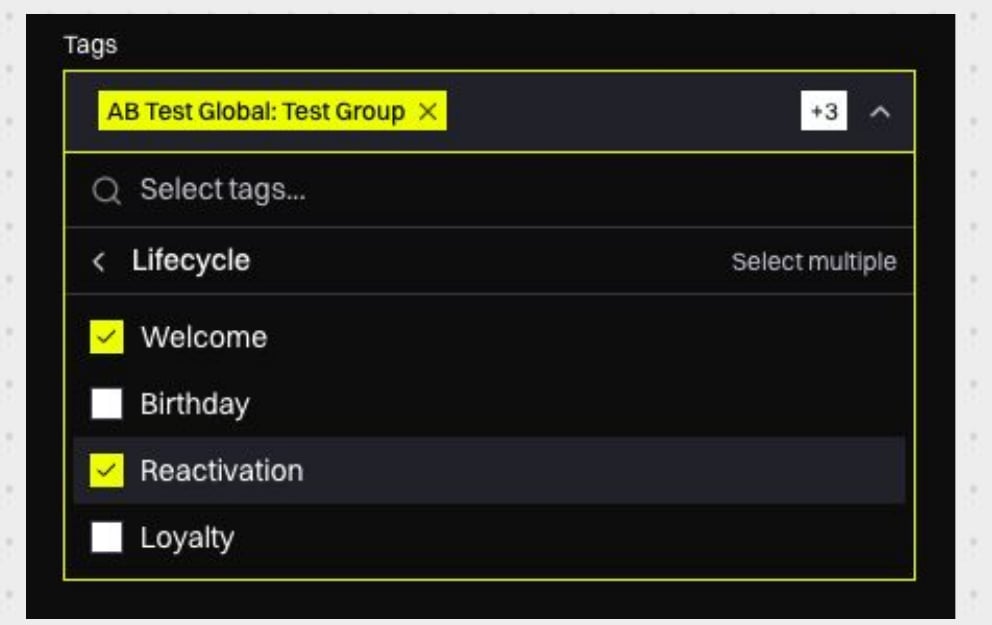 Each tag key accepts either one value or several values per branch:
| Key type | Behaviour | Example |
| --------------- | -------------------------------------------------------------- | --------------------------------------------------------------------------------- |
| Single value | The final Branch keeps the most downstream value for that key. | A downstream `Objective: Retention` replaces an earlier `Objective: Acquisition`. |
| Multiple values | The final Branch keeps every value assigned along it. | `Lifecycle: Birthday` and `Lifecycle: Welcome` |
The most downstream value is the value assigned closest to the Output Node.
This resolution matches Branch categories. It matters when nested qualifications apply different values from one single-value key to the same final Branch.
### Custom and System-Managed Tags
There are two kinds of tags:
* **Custom tags** — You assign them yourself in the Branch qualification drawer.
* **System-managed tags** — The platform applies them automatically. You cannot assign or edit them manually.
Both kinds are available in the Analytics app for filtering and grouping.
### Tags in Analytics
In the Analytics app, you can use tags to slice your results:
* **Filter by tag** — Keep only data with a specific tag (e.g., `Lifecycle: Birthday`). Branches with additional values for the same key are included too.
* **Filter by tag key** — Keep only data that has any value for a key. Pick **Any value** for the key (e.g., `Lifecycle: Any value`).
* **Group by tag key** — Use a tag key as a dimension to compare performance across its values.
Each tag key accepts either one value or several values per branch:
| Key type | Behaviour | Example |
| --------------- | -------------------------------------------------------------- | --------------------------------------------------------------------------------- |
| Single value | The final Branch keeps the most downstream value for that key. | A downstream `Objective: Retention` replaces an earlier `Objective: Acquisition`. |
| Multiple values | The final Branch keeps every value assigned along it. | `Lifecycle: Birthday` and `Lifecycle: Welcome` |
The most downstream value is the value assigned closest to the Output Node.
This resolution matches Branch categories. It matters when nested qualifications apply different values from one single-value key to the same final Branch.
### Custom and System-Managed Tags
There are two kinds of tags:
* **Custom tags** — You assign them yourself in the Branch qualification drawer.
* **System-managed tags** — The platform applies them automatically. You cannot assign or edit them manually.
Both kinds are available in the Analytics app for filtering and grouping.
### Tags in Analytics
In the Analytics app, you can use tags to slice your results:
* **Filter by tag** — Keep only data with a specific tag (e.g., `Lifecycle: Birthday`). Branches with additional values for the same key are included too.
* **Filter by tag key** — Keep only data that has any value for a key. Pick **Any value** for the key (e.g., `Lifecycle: Any value`).
* **Group by tag key** — Use a tag key as a dimension to compare performance across its values.
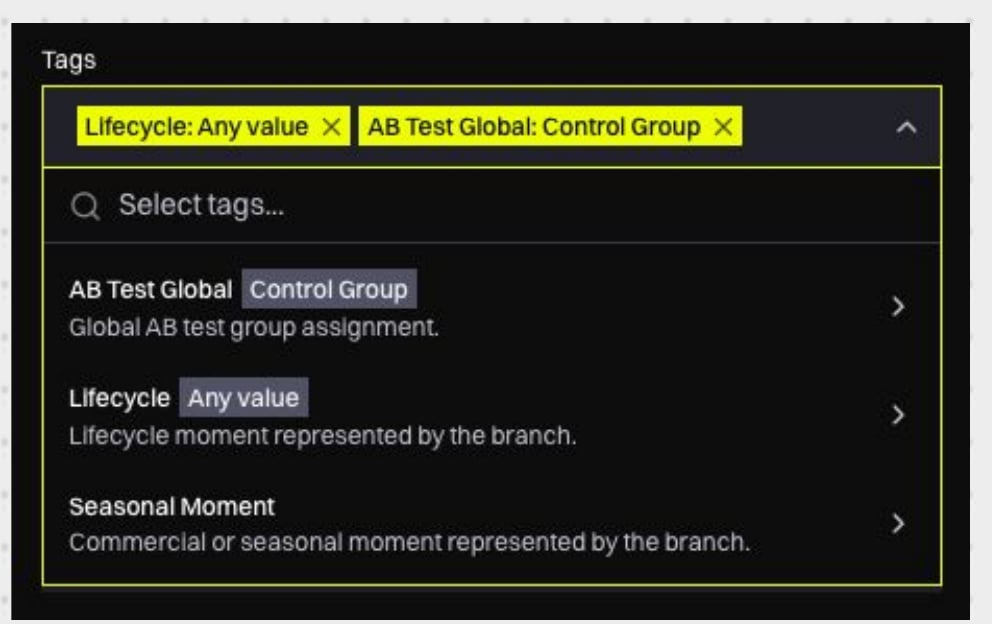 When you group by a tag key, branches with several values for that key appear as a combined group (e.g., `Birthday, Welcome`). Data without any value for the key appears in its own unlabelled group.
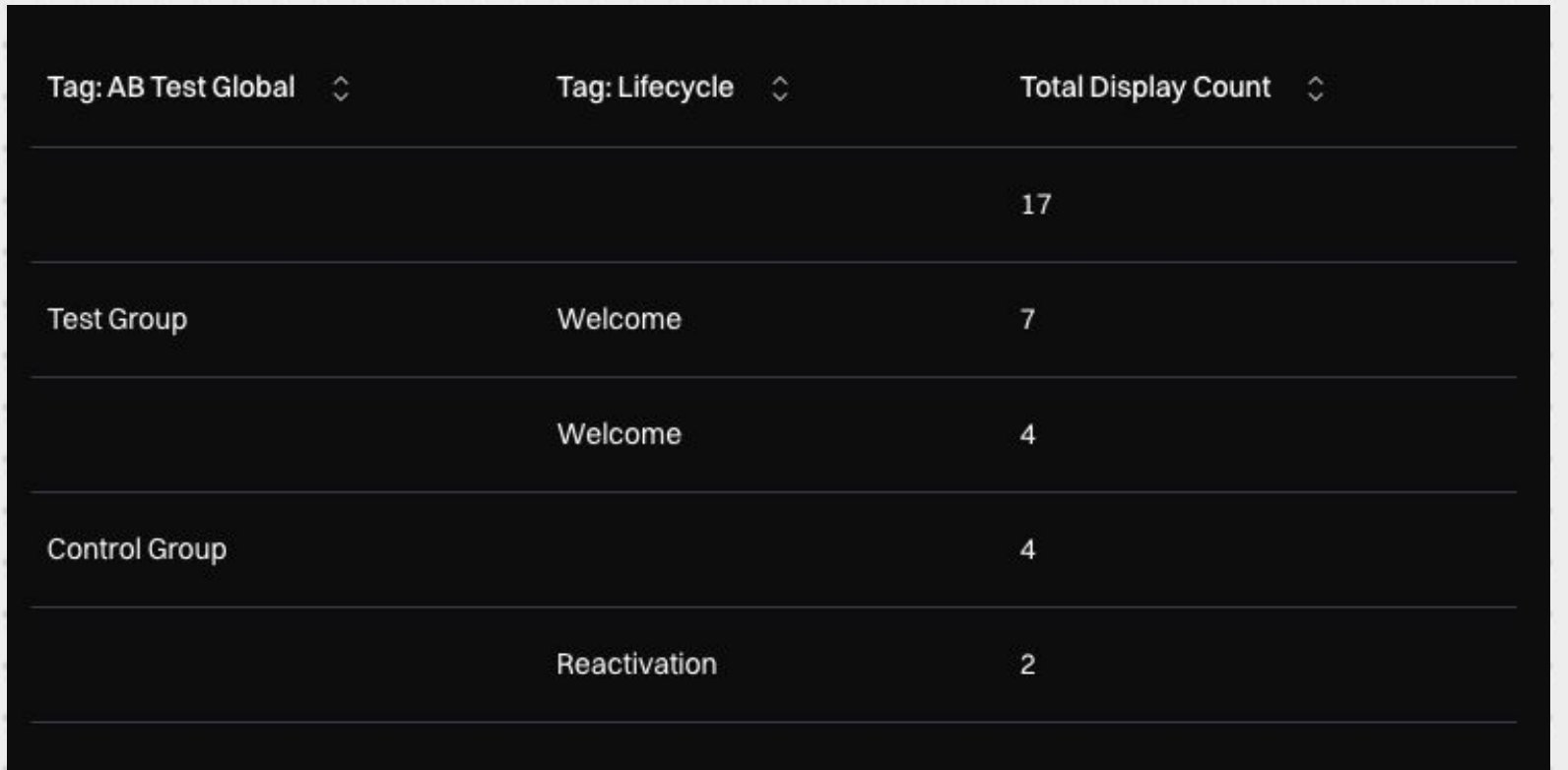 Filter on **Any value** for a tag key to keep only tagged data in your results.
### Tags on the Canvas
Branches with tags display them as badges on the workflow canvas. This gives you a quick view of how your workflow is qualified without opening each branch.
## Viewing Branch Statistics
Toggle the **Statistics mode** from the bottom toolbar to overlay traffic distribution data on the workflow canvas. In statistics mode:
* Edges display the **percentage of traffic** flowing through each branch.
* Individualized branches can be highlighted to distinguish personalized paths from default ones.
* Use the **Individualized branches** toggle to visually differentiate personalized paths.
## Tips
* Qualify branches early in your workflow design process — it makes analytics much more useful once the workflow is live.
* Use a consistent naming convention for branches within a workflow to make them easy to identify.
* Branch categories and tags are shared across all workflows in your account. Design them to be general enough to apply across campaigns.
* Don't use tags to replace categories. If a concept describes the structural or business nature of a branch (e.g., "Cross-sell"), it belongs in the category tree.
## What's Next?
Manage your branch categories tree.
Analyse performance by category and tag.
Filter on **Any value** for a tag key to keep only tagged data in your results.
### Tags on the Canvas
Branches with tags display them as badges on the workflow canvas. This gives you a quick view of how your workflow is qualified without opening each branch.
## Viewing Branch Statistics
Toggle the **Statistics mode** from the bottom toolbar to overlay traffic distribution data on the workflow canvas. In statistics mode:
* Edges display the **percentage of traffic** flowing through each branch.
* Individualized branches can be highlighted to distinguish personalized paths from default ones.
* Use the **Individualized branches** toggle to visually differentiate personalized paths.
## Tips
* Qualify branches early in your workflow design process — it makes analytics much more useful once the workflow is live.
* Use a consistent naming convention for branches within a workflow to make them easy to identify.
* Branch categories and tags are shared across all workflows in your account. Design them to be general enough to apply across campaigns.
* Don't use tags to replace categories. If a concept describes the structural or business nature of a branch (e.g., "Cross-sell"), it belongs in the category tree.
## What's Next?
Manage your branch categories tree.
Analyse performance by category and tag.