> ## Documentation Index
> Fetch the complete documentation index at: https://docs.reelevant.com/llms.txt
> Use this file to discover all available pages before exploring further.
# Push Notification Image
> Render personalized images for push notifications
 ## Overview
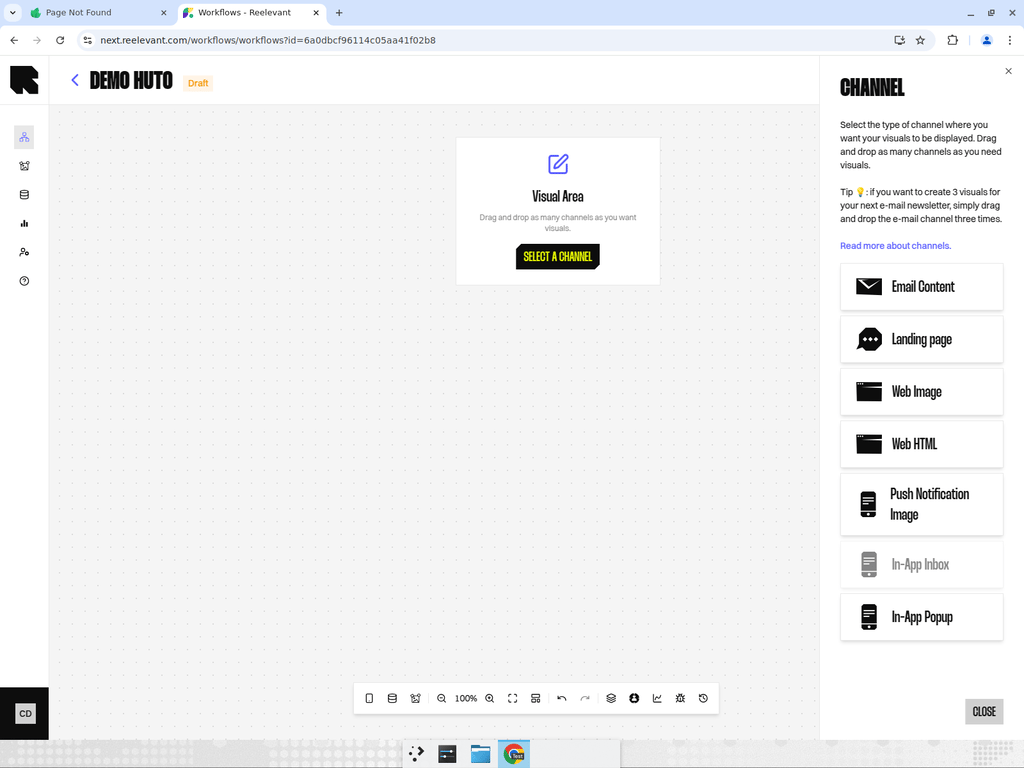
The Push Notification Image channel renders a personalized image for rich push notifications on mobile devices.
| Property | Value |
| ----------------- | ------------------------------ |
| **Channel type** | Mobile |
| **Output format** | Push notification image |
| **Use case** | Rich push notification banners |
## How It Works
When your app sends a push notification that includes a Reelevant visual zone, the workflow executes and returns a personalized image. This image is displayed as the rich media attachment in the push notification.
## Where Push Notifications Appear
A push notification can be displayed on three different surfaces. They do not offer the same level of personalisation.
| Surface | What it is | Personalised visual | Personalised text |
| ----------------------- | ------------------------------------------------------ | ------------------------------------- | --------------------------------------------------------------------- |
| **Lock screen** | The notification shown before the phone is unlocked | Yes, as the image of the notification | Only if your push platform asks Reelevant for the text before sending |
| **In-app scene** | A banner or pop-up shown while the person uses the app | Yes | Yes |
| **Notification centre** | The list of past notifications inside the app | Yes | Yes |
There are two ways to personalise a lock screen notification:
* **Personalised visual, fixed text** — the notification text is written once in the campaign, and the image link is a Reelevant link, so each person sees a visual built for them. This is the quickest setup.
* **Personalised visual and text** — your push platform asks Reelevant for the content of each notification before sending it, so the wording changes per person too. This needs work on your side, described in the [push integration guide](/advanced-guide/workflows/push-integration).
In-app scenes and the notification centre follow the same pattern as e-mail: a personalised visual replaces a fixed image. See [In-App Popup](/product-guide/workflows/channels/in-app-popup) and [In-App Inbox](/product-guide/workflows/channels/in-app-inbox).
## Configuration
1. Add a Push Notification Image channel node to your workflow canvas.
2. Connect it downstream to your personalization logic.
3. After publishing, use the [Integration modal](/product-guide/workflows/integration) to get the image URL for your push notification service.
## Best Practices
* Keep push notification images concise and impactful — they are viewed at small sizes on mobile screens.
* Use [URL parameters](/product-guide/workflows/data-nodes/url-parameter) to pass user identifiers from your push notification service into the workflow.
* Test the image rendering on both iOS and Android devices, as display sizes may vary.
## What's Next?
Set up each surface, and see what data mobile browsing brings to your Workflows.
Personalise banners and pop-ups shown inside the app.
See which mobile figures Reelevant reports.
## Overview
The Push Notification Image channel renders a personalized image for rich push notifications on mobile devices.
| Property | Value |
| ----------------- | ------------------------------ |
| **Channel type** | Mobile |
| **Output format** | Push notification image |
| **Use case** | Rich push notification banners |
## How It Works
When your app sends a push notification that includes a Reelevant visual zone, the workflow executes and returns a personalized image. This image is displayed as the rich media attachment in the push notification.
## Where Push Notifications Appear
A push notification can be displayed on three different surfaces. They do not offer the same level of personalisation.
| Surface | What it is | Personalised visual | Personalised text |
| ----------------------- | ------------------------------------------------------ | ------------------------------------- | --------------------------------------------------------------------- |
| **Lock screen** | The notification shown before the phone is unlocked | Yes, as the image of the notification | Only if your push platform asks Reelevant for the text before sending |
| **In-app scene** | A banner or pop-up shown while the person uses the app | Yes | Yes |
| **Notification centre** | The list of past notifications inside the app | Yes | Yes |
There are two ways to personalise a lock screen notification:
* **Personalised visual, fixed text** — the notification text is written once in the campaign, and the image link is a Reelevant link, so each person sees a visual built for them. This is the quickest setup.
* **Personalised visual and text** — your push platform asks Reelevant for the content of each notification before sending it, so the wording changes per person too. This needs work on your side, described in the [push integration guide](/advanced-guide/workflows/push-integration).
In-app scenes and the notification centre follow the same pattern as e-mail: a personalised visual replaces a fixed image. See [In-App Popup](/product-guide/workflows/channels/in-app-popup) and [In-App Inbox](/product-guide/workflows/channels/in-app-inbox).
## Configuration
1. Add a Push Notification Image channel node to your workflow canvas.
2. Connect it downstream to your personalization logic.
3. After publishing, use the [Integration modal](/product-guide/workflows/integration) to get the image URL for your push notification service.
## Best Practices
* Keep push notification images concise and impactful — they are viewed at small sizes on mobile screens.
* Use [URL parameters](/product-guide/workflows/data-nodes/url-parameter) to pass user identifiers from your push notification service into the workflow.
* Test the image rendering on both iOS and Android devices, as display sizes may vary.
## What's Next?
Set up each surface, and see what data mobile browsing brings to your Workflows.
Personalise banners and pop-ups shown inside the app.
See which mobile figures Reelevant reports.