> ## Documentation Index
> Fetch the complete documentation index at: https://docs.reelevant.com/llms.txt
> Use this file to discover all available pages before exploring further.
# RCS
> Send personalised visuals and carousels in RCS conversations
RCS messages carry personalised Reelevant visuals inside the native messaging app of an Android phone.
## Overview
| Property | Value |
| ----------------------------- | --------------------------------------------------------------- |
| **Channel used in Reelevant** | RCS |
| **Output format** | Personalised visual, one per card |
| **Use case** | Product carousels, personalised offers, conversational journeys |
| **Fallback** | Rich SMS on phones that do not support RCS |
Building an RCS campaign works like building an e-mail campaign. You create the Workflow, publish it, and give the resulting link to your messaging platform, which places the visual in the RCS message. See [Messaging Channels](/product-guide/workflows/channels/messaging-overview) for the general pattern.
The RCS Channel is greyed out until it is enabled for your account. Ask your Reelevant contact to activate it.
## Configuration
Add one RCS Channel per card you want to personalise. A three-card carousel needs three Channels.
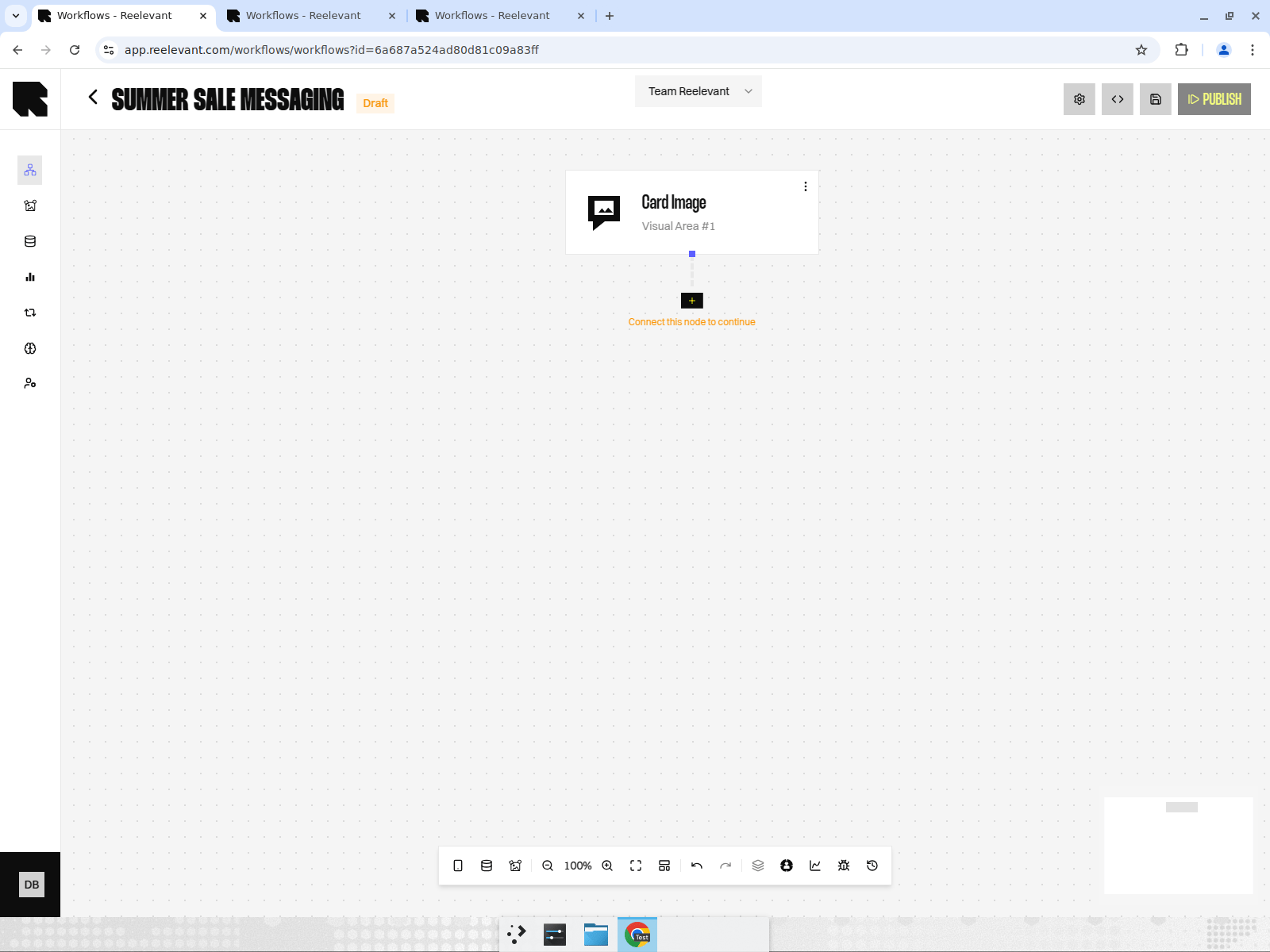 Connect [Data Nodes](/product-guide/workflows/data-nodes) and [Logic Nodes](/product-guide/workflows/logic-nodes) as usual, then end each Branch with a [Visual Content](/product-guide/workflows/output-nodes/visual-content) Output Node.
Create the Content at the dimensions your messaging platform requires for RCS cards. Card visuals are much smaller than e-mail banners, so keep one message per card.
Copy each link from the [Integration modal](/product-guide/workflows/integration) and give them to your messaging platform, which inserts them in the RCS message.
## Known Limitations
**The button under each card cannot be personalised by Reelevant.** The button label and its destination are defined in the messaging platform, so every recipient sees the same wording. Card titles usually stay generic too, for example "Selection 1" and "Selection 2".
Design around it: put the personalised message inside the visual, where you control it, and keep the button label neutral ("See the selection").
Phones that do not support RCS receive a rich SMS instead. Ask your messaging platform which fallback it applies, and check that your visual still makes sense in that format.
## Measuring RCS
Reelevant counts displays and clicks on the content it serves, exactly as for e-mail. It cannot count clicks on the button added by the messaging platform.
To get the full picture, add the two sources together: the Reelevant figures and the figures from your messaging platform. See [Messaging and mobile measurement](/advanced-guide/analytics/messaging-and-mobile-measurement).
To prove the value of personalisation, split your audience: half receives the personalised carousel, half receives the generic one. Compare click rate and revenue between the two groups.
## What's Next?
Do the same in WhatsApp conversations.
See what is measured, and what is not.
Get the link for your messaging platform.
Connect [Data Nodes](/product-guide/workflows/data-nodes) and [Logic Nodes](/product-guide/workflows/logic-nodes) as usual, then end each Branch with a [Visual Content](/product-guide/workflows/output-nodes/visual-content) Output Node.
Create the Content at the dimensions your messaging platform requires for RCS cards. Card visuals are much smaller than e-mail banners, so keep one message per card.
Copy each link from the [Integration modal](/product-guide/workflows/integration) and give them to your messaging platform, which inserts them in the RCS message.
## Known Limitations
**The button under each card cannot be personalised by Reelevant.** The button label and its destination are defined in the messaging platform, so every recipient sees the same wording. Card titles usually stay generic too, for example "Selection 1" and "Selection 2".
Design around it: put the personalised message inside the visual, where you control it, and keep the button label neutral ("See the selection").
Phones that do not support RCS receive a rich SMS instead. Ask your messaging platform which fallback it applies, and check that your visual still makes sense in that format.
## Measuring RCS
Reelevant counts displays and clicks on the content it serves, exactly as for e-mail. It cannot count clicks on the button added by the messaging platform.
To get the full picture, add the two sources together: the Reelevant figures and the figures from your messaging platform. See [Messaging and mobile measurement](/advanced-guide/analytics/messaging-and-mobile-measurement).
To prove the value of personalisation, split your audience: half receives the personalised carousel, half receives the generic one. Compare click rate and revenue between the two groups.
## What's Next?
Do the same in WhatsApp conversations.
See what is measured, and what is not.
Get the link for your messaging platform.