> ## Documentation Index
> Fetch the complete documentation index at: https://docs.reelevant.com/llms.txt
> Use this file to discover all available pages before exploring further.
# JSON Template
> Return a structured JSON payload using a pre-defined template with dynamic variables
 ## Overview
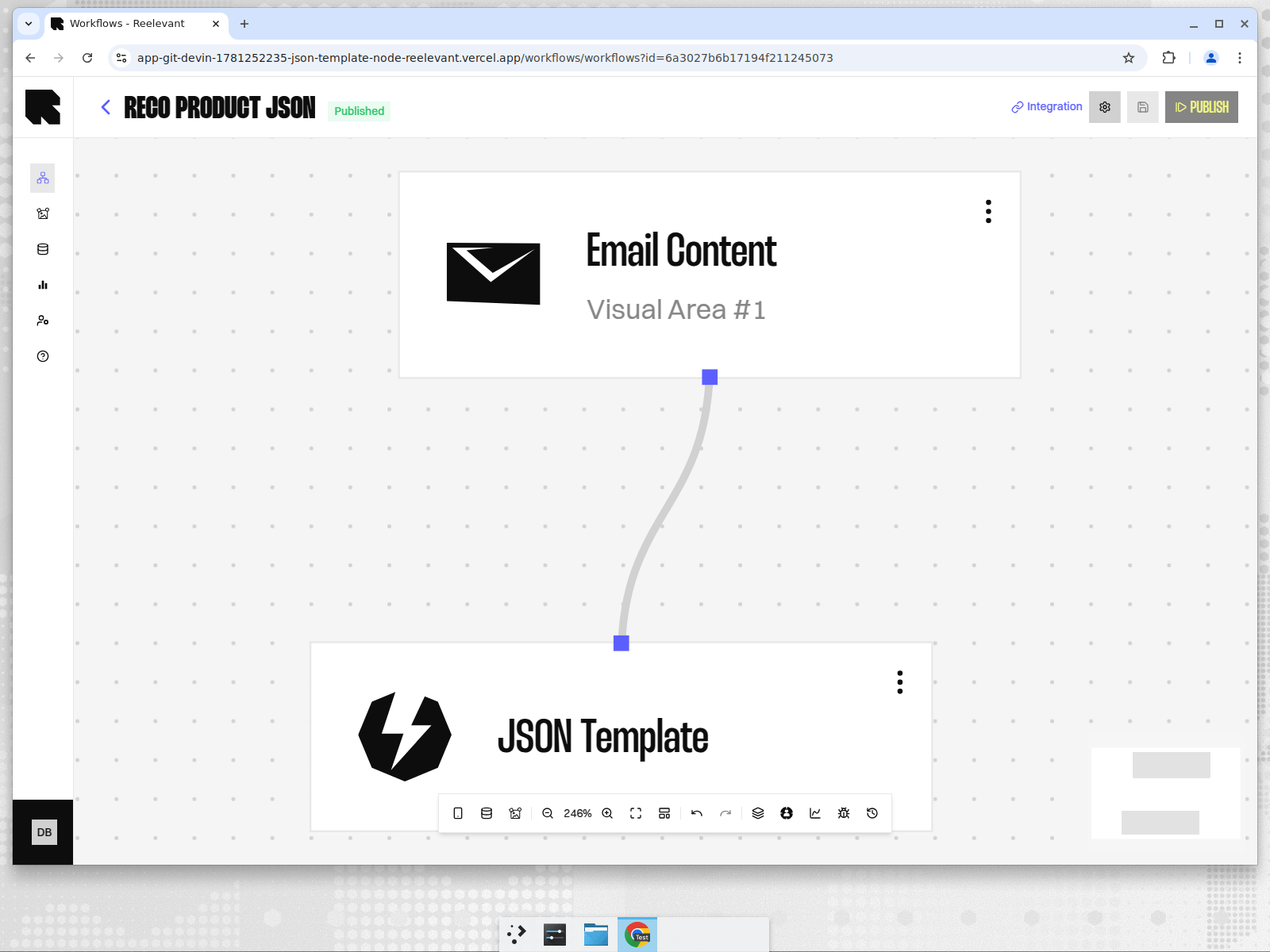
The JSON Template output node returns a **structured JSON payload** based on a pre-defined template with a **consistent, predictable schema** across every execution.
Each template declares **named variables** that are resolved at runtime from your workflow's datasources. This means your frontend always receives the exact fields it expects — no guessing, no parsing surprises.
JSON Templates are ideal when your technical team defines the contract (the JSON shape) and your marketing team decides **what data** fills it. The schema stays stable; only the variable bindings change.
## Configuration
## Overview
The JSON Template output node returns a **structured JSON payload** based on a pre-defined template with a **consistent, predictable schema** across every execution.
Each template declares **named variables** that are resolved at runtime from your workflow's datasources. This means your frontend always receives the exact fields it expects — no guessing, no parsing surprises.
JSON Templates are ideal when your technical team defines the contract (the JSON shape) and your marketing team decides **what data** fills it. The schema stays stable; only the variable bindings change.
## Configuration
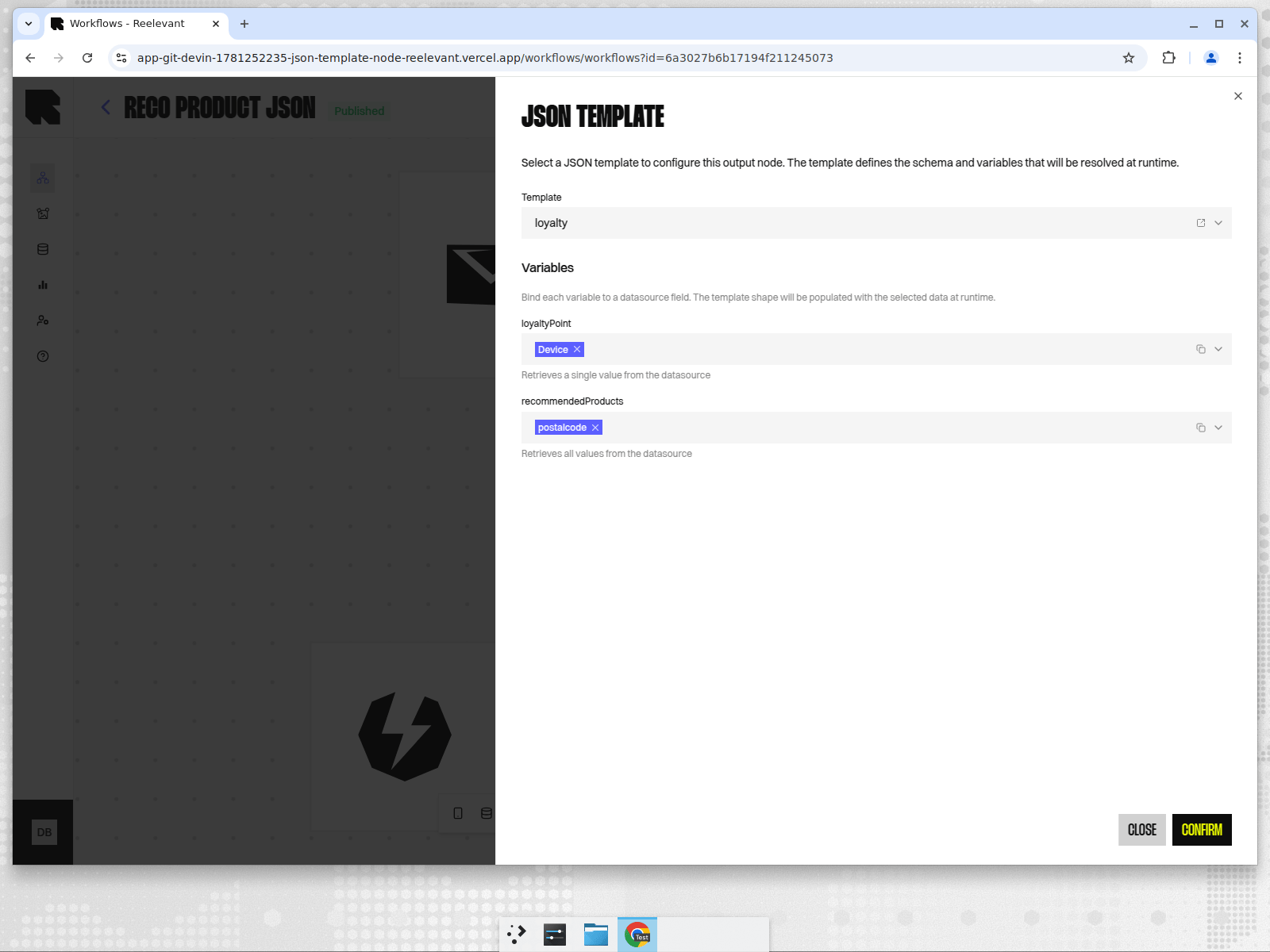 Click the **three-dot menu** (⋮) on the JSON Template node in the canvas, then select **Edit**.
Use the **Template** dropdown to choose from the available JSON Templates. Templates are created and managed by your engineering team in [Workflow Settings](/product-guide/workflows/settings#json-templates).
Once a template is selected, its **variables** appear below. For each variable:
* Click the **Parameter value** picker.
* Select a datasource field from your workflow's upstream data nodes.
Each variable indicates how it resolves data: **a single value** (scalar), **all values** (array), or **a specific datasource item** (a fixed position, such as item #1). The mode is chosen when the template is created — see [JSON Templates settings](/product-guide/workflows/settings#json-templates).
Click **Confirm** to save the configuration. The node is now ready for publishing.
## Understanding Variables
Variables are the dynamic slots in your JSON template. When the workflow runs, each variable is replaced by real data from your datasources.
### Scalar Variables (single value)
A scalar variable retrieves **one value** from the datasource — for example, a user's loyalty points or a product name. The description reads: *"Retrieves a single value from the datasource"*.
### Array Variables (all values)
An array variable retrieves **all matching values** — for example, a list of recommended products or recent purchases. The description reads: *"Retrieves all values from the datasource"*. The engine automatically iterates over all rows in the datasource.
### Specific Item Variables (a fixed position)
A specific-item variable always retrieves the value at a **fixed position** in the datasource — for example, always the 1st product, or always the 3rd. You can pick any item from **#1 up to #20**.
Use this when you want a predictable slot instead of the value the engine chooses automatically — a common alternative to building extra steps just to reach one item.
## How It Works
When the workflow executes and reaches a JSON Template output node:
1. The engine loads the selected template's definition (the JSON structure).
2. For each variable in the template, it resolves the bound datasource field to a real value.
3. The final JSON — with all variables filled in — is returned as the HTTP response.
The response is a `200 OK` with `Content-Type: application/json` when data is available, or a `204 No Content` when no personalisation applies.
## Example
Suppose you want to personalise a product recommendation card. Your engineering team creates a JSON Template with this definition:
```json theme={"theme":{"light":"github-light","dark":"github-dark"}}
{
"headline": { "type": "static", "value": "Recommended for you" },
"productName": { "type": "dependency", "variable": "productName" },
"loyaltyPoints": { "type": "dependency", "variable": "loyaltyPoints" }
}
```
Each field is either:
* `"type": "static"` — a fixed value that never changes at runtime.
* `"type": "dependency"` — a named variable that the marketing team binds to a datasource field.
The template declares two variables:
* `productName` — **Array** → retrieves all matching rows from the datasource
* `loyaltyPoints` — **Scalar** → retrieves a single value
A third mode, **Datasource item #N**, would instead return one fixed position (e.g. always the 1st product name) rather than the whole list or the auto-resolved value.
At runtime, the engine resolves each variable from the bound datasource and returns a flat JSON response:
```json theme={"theme":{"light":"github-light","dark":"github-dark"}}
{
"headline": "Recommended for you",
"productName": ["Running Shoes", "Sports Watch"],
"loyaltyPoints": 4250
}
```
Your frontend simply consumes these fields using its own components — the shape is always the same.
## Best Practices
* **Let engineering define the template, marketing bind the variables.** This separation keeps the schema stable while allowing marketing to experiment with different datasource bindings.
* **Use descriptive variable names.** Names like `productRecommendations` or `userLoyaltyScore` make it clear what data each variable expects.
* **Test with real data.** Use the [Integration](/product-guide/workflows/integration) URL to call the workflow directly and verify the JSON output matches your frontend's expectations.
* **One template per workflow.** All JSON Template nodes in a workflow must reference the same template — this is enforced at publish time.
## Feature Flag
The JSON Template output node requires the `workflow_output_json-template` feature flag to be enabled for your company. Contact your account manager or enable it in **Workflow Settings > Feature Flags**.
Click the **three-dot menu** (⋮) on the JSON Template node in the canvas, then select **Edit**.
Use the **Template** dropdown to choose from the available JSON Templates. Templates are created and managed by your engineering team in [Workflow Settings](/product-guide/workflows/settings#json-templates).
Once a template is selected, its **variables** appear below. For each variable:
* Click the **Parameter value** picker.
* Select a datasource field from your workflow's upstream data nodes.
Each variable indicates how it resolves data: **a single value** (scalar), **all values** (array), or **a specific datasource item** (a fixed position, such as item #1). The mode is chosen when the template is created — see [JSON Templates settings](/product-guide/workflows/settings#json-templates).
Click **Confirm** to save the configuration. The node is now ready for publishing.
## Understanding Variables
Variables are the dynamic slots in your JSON template. When the workflow runs, each variable is replaced by real data from your datasources.
### Scalar Variables (single value)
A scalar variable retrieves **one value** from the datasource — for example, a user's loyalty points or a product name. The description reads: *"Retrieves a single value from the datasource"*.
### Array Variables (all values)
An array variable retrieves **all matching values** — for example, a list of recommended products or recent purchases. The description reads: *"Retrieves all values from the datasource"*. The engine automatically iterates over all rows in the datasource.
### Specific Item Variables (a fixed position)
A specific-item variable always retrieves the value at a **fixed position** in the datasource — for example, always the 1st product, or always the 3rd. You can pick any item from **#1 up to #20**.
Use this when you want a predictable slot instead of the value the engine chooses automatically — a common alternative to building extra steps just to reach one item.
## How It Works
When the workflow executes and reaches a JSON Template output node:
1. The engine loads the selected template's definition (the JSON structure).
2. For each variable in the template, it resolves the bound datasource field to a real value.
3. The final JSON — with all variables filled in — is returned as the HTTP response.
The response is a `200 OK` with `Content-Type: application/json` when data is available, or a `204 No Content` when no personalisation applies.
## Example
Suppose you want to personalise a product recommendation card. Your engineering team creates a JSON Template with this definition:
```json theme={"theme":{"light":"github-light","dark":"github-dark"}}
{
"headline": { "type": "static", "value": "Recommended for you" },
"productName": { "type": "dependency", "variable": "productName" },
"loyaltyPoints": { "type": "dependency", "variable": "loyaltyPoints" }
}
```
Each field is either:
* `"type": "static"` — a fixed value that never changes at runtime.
* `"type": "dependency"` — a named variable that the marketing team binds to a datasource field.
The template declares two variables:
* `productName` — **Array** → retrieves all matching rows from the datasource
* `loyaltyPoints` — **Scalar** → retrieves a single value
A third mode, **Datasource item #N**, would instead return one fixed position (e.g. always the 1st product name) rather than the whole list or the auto-resolved value.
At runtime, the engine resolves each variable from the bound datasource and returns a flat JSON response:
```json theme={"theme":{"light":"github-light","dark":"github-dark"}}
{
"headline": "Recommended for you",
"productName": ["Running Shoes", "Sports Watch"],
"loyaltyPoints": 4250
}
```
Your frontend simply consumes these fields using its own components — the shape is always the same.
## Best Practices
* **Let engineering define the template, marketing bind the variables.** This separation keeps the schema stable while allowing marketing to experiment with different datasource bindings.
* **Use descriptive variable names.** Names like `productRecommendations` or `userLoyaltyScore` make it clear what data each variable expects.
* **Test with real data.** Use the [Integration](/product-guide/workflows/integration) URL to call the workflow directly and verify the JSON output matches your frontend's expectations.
* **One template per workflow.** All JSON Template nodes in a workflow must reference the same template — this is enforced at publish time.
## Feature Flag
The JSON Template output node requires the `workflow_output_json-template` feature flag to be enabled for your company. Contact your account manager or enable it in **Workflow Settings > Feature Flags**.