> ## Documentation Index
> Fetch the complete documentation index at: https://docs.reelevant.com/llms.txt
> Use this file to discover all available pages before exploring further.
# Workflows Overview
> Understand what workflows are and how they power personalized content delivery in Reelevant
 ## What is a Workflow?
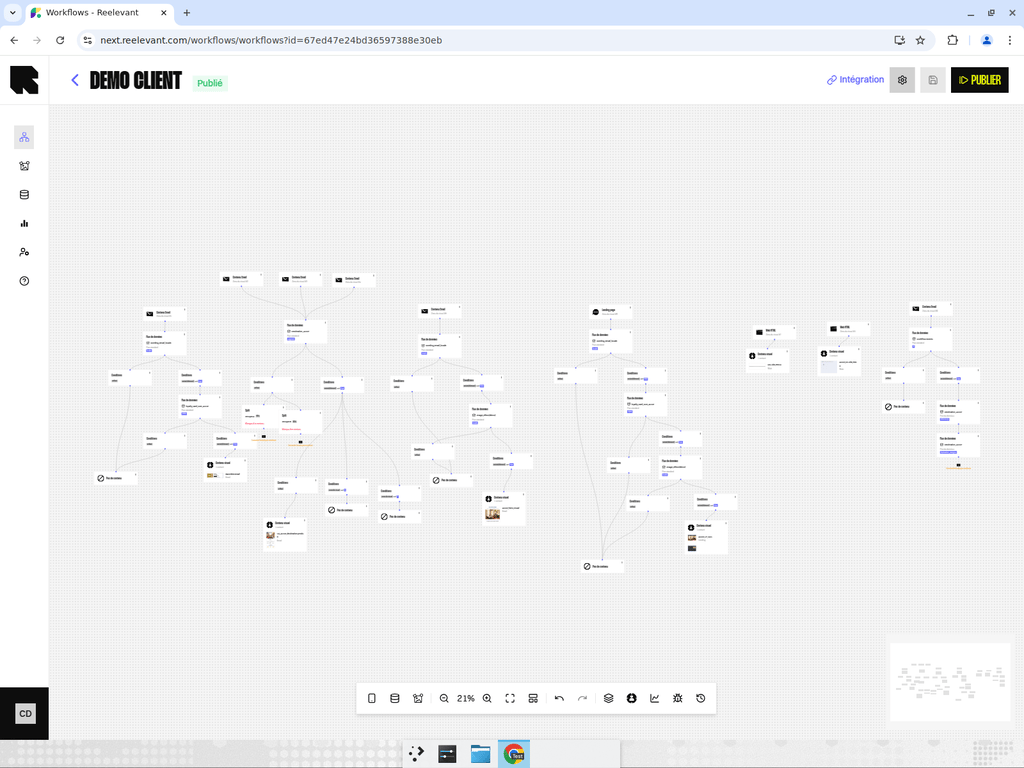
A workflow is the core building block of every Reelevant campaign. It is a **visual, node-based graph** (a directed acyclic graph, or DAG) that defines the logic for delivering personalized content to your audience.
Each workflow answers three questions:
1. **Where** does the content appear? ([Channels](/product-guide/workflows/channels))
2. **What data** drives the personalization? ([Data nodes](/product-guide/workflows/data-nodes))
3. **What logic** determines the experience? ([Logic nodes](/product-guide/workflows/logic-nodes), [conditions](/product-guide/workflows/logic-nodes/conditions), [splits](/product-guide/workflows/logic-nodes/split))
When a user visits a page, opens an email, or triggers a mobile event, Reelevant evaluates the workflow in real time and returns the most relevant content.
## Workflow Structure
A workflow is composed of connected **nodes** organized into four categories:
Define where content is displayed — Email, Web (image or HTML), Landing Page, or Mobile (push, in-app, inbox).
Fetch and transform data — product catalogs, geolocation, weather, URL parameters, website events, and more.
Control the flow — conditions, A/B splits, and real-time testing decide which branch a user follows.
Define what gets returned — a visual content template, a JSON template payload, or an empty response.
Nodes are connected by **edges** that define the flow of execution from [channels](/product-guide/workflows/channels) through [data](/product-guide/workflows/data-nodes) and [logic](/product-guide/workflows/logic-nodes) nodes down to [outputs](/product-guide/workflows/output-nodes).
## Workflow Lifecycle
Every workflow goes through a series of states:
| Status | Description |
| -------------- | ---------------------------------------------------------------- |
| **Draft** | The workflow is being edited and has not been published yet. |
| **Publishing** | The workflow is in the process of being published. |
| **Published** | The workflow is live and actively serving personalized content. |
| **Inactive** | The workflow has been archived and is no longer serving content. |
| **Error** | The workflow encountered an issue during publishing. |
You can only integrate (deploy) a workflow after it has been **Published**.
## Branches
A **branch** is a unique path through the workflow from a [channel](/product-guide/workflows/channels) to an [output node](/product-guide/workflows/output-nodes). Branches are the fundamental unit of personalization — each branch can deliver a different experience based on the user's context.
Branches can be:
* **Qualified** with a category (e.g., "Promotion", "New Arrivals") using the branch categories defined in [Workflow Settings](/product-guide/workflows/settings).
* **Highlighted** as individualized branches in the editor to visually distinguish personalized paths.
* **Analyzed** for statistics to see how traffic distributes across different paths.
## Versions
Workflows support **versioning**. Each time you publish, a new version is created. You can:
* View the history of all published versions.
* Browse any previous version in read-only mode.
* Restore a previous version by making it the active draft.
## What's Next?
Step-by-step guide to creating your first workflow.
Learn how to use the visual editor.
Understand the different channel types.
Learn how to bring data into your workflow.
## What is a Workflow?
A workflow is the core building block of every Reelevant campaign. It is a **visual, node-based graph** (a directed acyclic graph, or DAG) that defines the logic for delivering personalized content to your audience.
Each workflow answers three questions:
1. **Where** does the content appear? ([Channels](/product-guide/workflows/channels))
2. **What data** drives the personalization? ([Data nodes](/product-guide/workflows/data-nodes))
3. **What logic** determines the experience? ([Logic nodes](/product-guide/workflows/logic-nodes), [conditions](/product-guide/workflows/logic-nodes/conditions), [splits](/product-guide/workflows/logic-nodes/split))
When a user visits a page, opens an email, or triggers a mobile event, Reelevant evaluates the workflow in real time and returns the most relevant content.
## Workflow Structure
A workflow is composed of connected **nodes** organized into four categories:
Define where content is displayed — Email, Web (image or HTML), Landing Page, or Mobile (push, in-app, inbox).
Fetch and transform data — product catalogs, geolocation, weather, URL parameters, website events, and more.
Control the flow — conditions, A/B splits, and real-time testing decide which branch a user follows.
Define what gets returned — a visual content template, a JSON template payload, or an empty response.
Nodes are connected by **edges** that define the flow of execution from [channels](/product-guide/workflows/channels) through [data](/product-guide/workflows/data-nodes) and [logic](/product-guide/workflows/logic-nodes) nodes down to [outputs](/product-guide/workflows/output-nodes).
## Workflow Lifecycle
Every workflow goes through a series of states:
| Status | Description |
| -------------- | ---------------------------------------------------------------- |
| **Draft** | The workflow is being edited and has not been published yet. |
| **Publishing** | The workflow is in the process of being published. |
| **Published** | The workflow is live and actively serving personalized content. |
| **Inactive** | The workflow has been archived and is no longer serving content. |
| **Error** | The workflow encountered an issue during publishing. |
You can only integrate (deploy) a workflow after it has been **Published**.
## Branches
A **branch** is a unique path through the workflow from a [channel](/product-guide/workflows/channels) to an [output node](/product-guide/workflows/output-nodes). Branches are the fundamental unit of personalization — each branch can deliver a different experience based on the user's context.
Branches can be:
* **Qualified** with a category (e.g., "Promotion", "New Arrivals") using the branch categories defined in [Workflow Settings](/product-guide/workflows/settings).
* **Highlighted** as individualized branches in the editor to visually distinguish personalized paths.
* **Analyzed** for statistics to see how traffic distributes across different paths.
## Versions
Workflows support **versioning**. Each time you publish, a new version is created. You can:
* View the history of all published versions.
* Browse any previous version in read-only mode.
* Restore a previous version by making it the active draft.
## What's Next?
Step-by-step guide to creating your first workflow.
Learn how to use the visual editor.
Understand the different channel types.
Learn how to bring data into your workflow.