

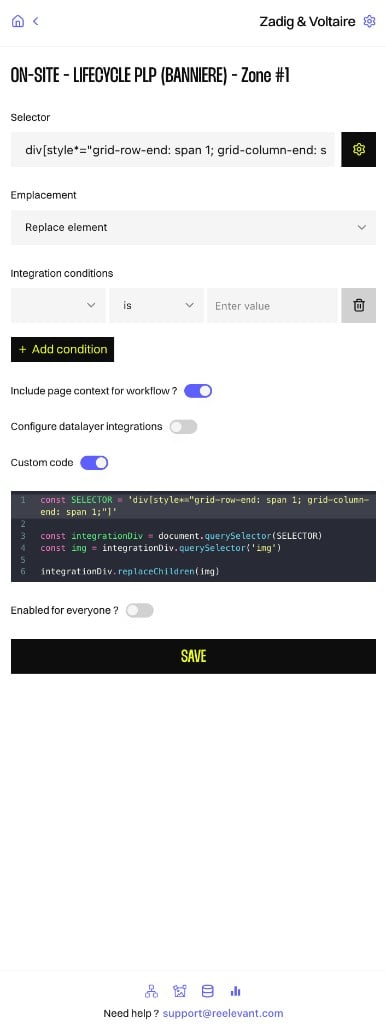
Overview
The content script is the part of the browser extension that runs on your website pages. It lets you configure on-site integrations — client-side placements where the Reelevant tracking script injects personalised content into a specific DOM element. This is the no-code counterpart to manual Client Side Script integration. The content script UI writes the integration configuration to your workflow so the tracking script can load content on matching pages.Opening the on-site integration UI
- Log in to the extension and open a workflow with a client-side channel.
- Navigate to the page on your website where the integration should run.
- Open the on-site integration panel for the target channel zone.
ON-SITE - LIFECYCLE PLP (BANNIERE) - Zone #1).
Configurable fields
The extension only exposes the settings available in the on-site integration UI:
Click Save to persist the configuration to the workflow.
DOM selector
Click the gear icon next to the Selector field to activate the visual DOM selector on the current page. Hover over elements to highlight them, then click to select one. The generated CSS selector is inserted into the Selector field.The DOM selector works on any website you navigate to while the extension is active. Make sure you are on the correct page where you want the Reelevant content to appear.