

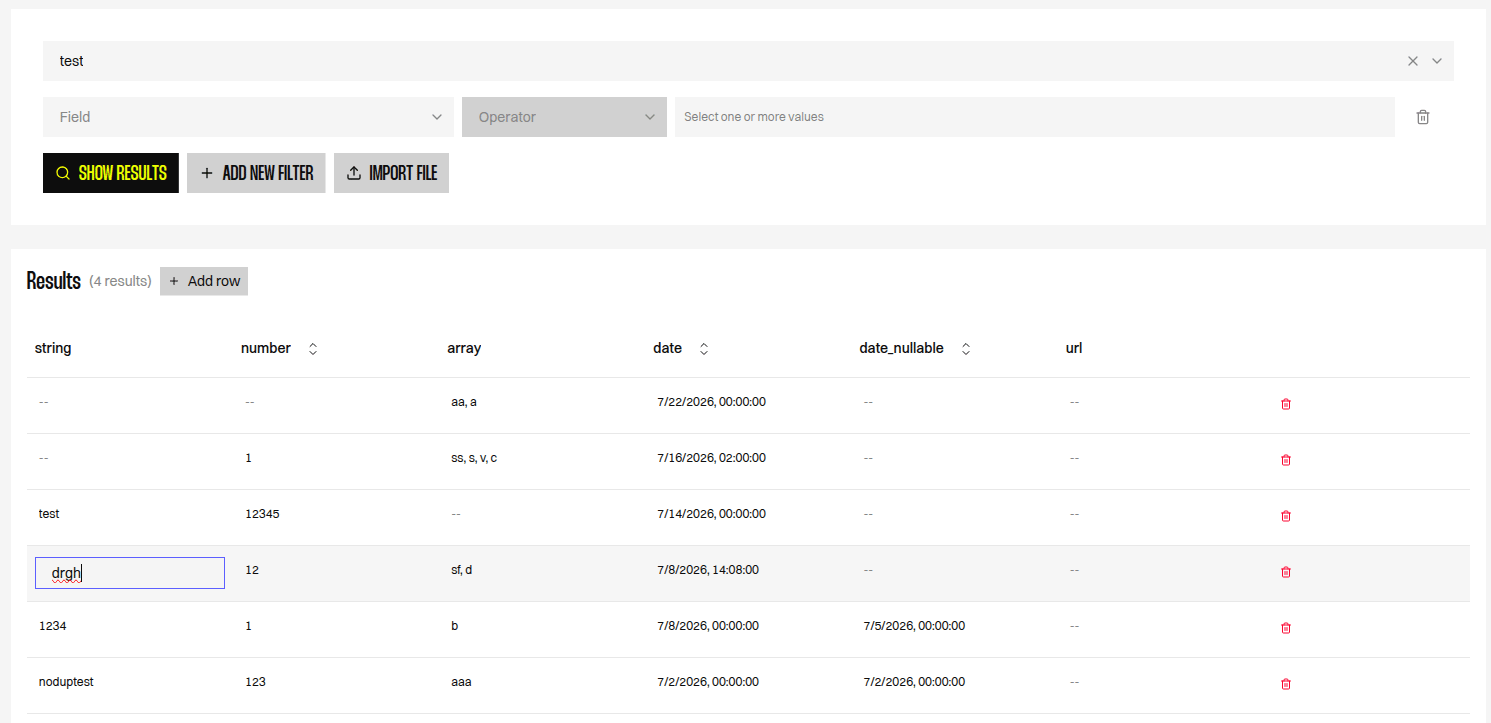
Overview
An Editable datasource lets your team maintain data directly inside Reelevant instead of relying on external spreadsheets. Rows are added, edited, and removed in place from the Queries page, and each field enforces the validation you defined during Field Mapping. This is designed to replace the spreadsheets many teams keep as ad-hoc datasources — pricing grids, store directories, editorial calendars, or reference tables — with data that lives on the platform and is immediately queryable in your Workflows and Contents.Editable datasources are a distinct datasource type. You cannot convert an existing pull-based datasource (URL, file, BigQuery, etc.) into an Editable one — create a new datasource of the Editable type instead.
Before you begin
- Create a datasource of the Editable type.
- Define your fields and their types in the Field Mapping step. The types you choose determine the input controls and the validation applied when someone edits a row.
- Reelevant maintains a hidden primary key for every row. You never see or manage it — it is used internally to match edits and deletions to the correct row.
Editing rows in place
Open the Queries page for the datasource. Each row exposes inline controls:
Editing happens entirely within the table — there is no separate form or modal. Clicking outside the table cancels the edit currently in progress and keeps your unsaved value on the row until you save or discard it.
After saving, the row stays visible immediately even though the underlying data store takes a short time to ingest the change. You do not need to reload the Queries page to see your edit.
Input controls by field type
The control shown when you edit a cell depends on the field’s type:Field validation
Validation rules are derived from each field’s type and options, and are enforced the moment you edit a cell. A row cannot be saved while any of its edited fields fail validation.When you edit an existing row, only the fields you actually changed are validated. Unchanged fields — including an empty nullable date — never block the save.
Sorting
Only Number and Datetime fields can be sorted in the results table. Text, boolean, array, and other field types are not sortable, because sorting a multi-value field (such as an array) is not supported.Dates and timezones
Datetime values are stored in UTC. By default they are entered and displayed in UTC. If a field’s mapping defines a specific locale, values are interpreted and displayed in that locale’s timezone, while still being stored in UTC underneath. In that case the timezone is shown next to the value so there is no ambiguity.Importing data in bulk
For larger updates you can import a file rather than editing row by row:
The import flow has three steps: upload, verify data, and send. Use Reset data with care — it clears every existing row before importing the new file.