

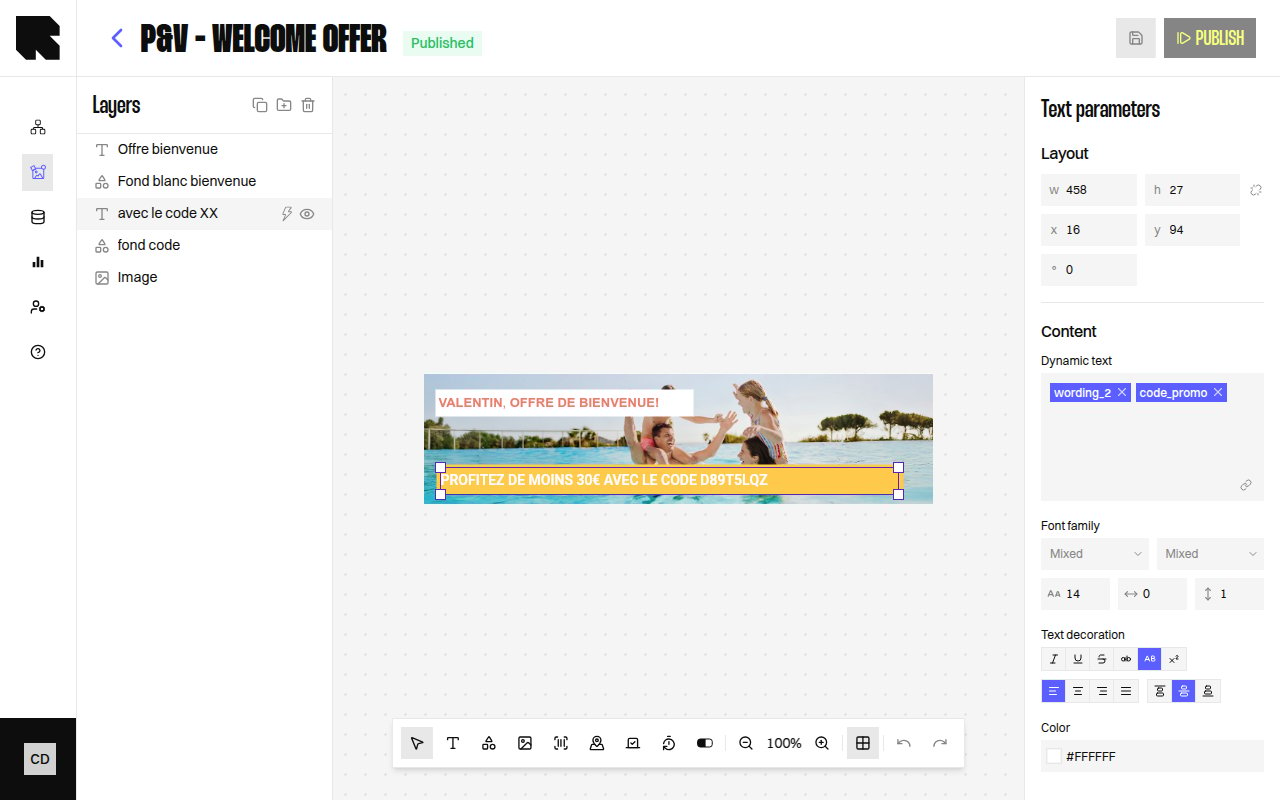
Overview
Data binding connects component properties to dynamic values that resolve at render time. Instead of hardcoding text, images, or URLs, you bind them to variables from datasources, URL parameters, or other data sources configured in your workflow.Adding a Datasource
Before binding variables, you need to attach a data source to your content:1
Open the datasource configuration
Click Add a datasource in the editor or access it through the configuration panel when binding a variable.
2
Select the source type
Choose where your data comes from:
3
Select the specific source
For Datasource type, search and select from your available datasources.For Object family type, select a family in Select an object family.For Workflow type, choose the sub-type:
- Url parameter — A named URL parameter passed at render time.
- Live polling — Real-time click percentage data.
- Geolocation — User’s geographic coordinates.
- Weather — Weather data at the user’s location.
4
Configure and validate
Complete any additional configuration (e.g., parameter name, preview value) and click Validate.
Object Families
Choose an Object family to bind its contract fields like Datasource fields. You can also choose the item index to display.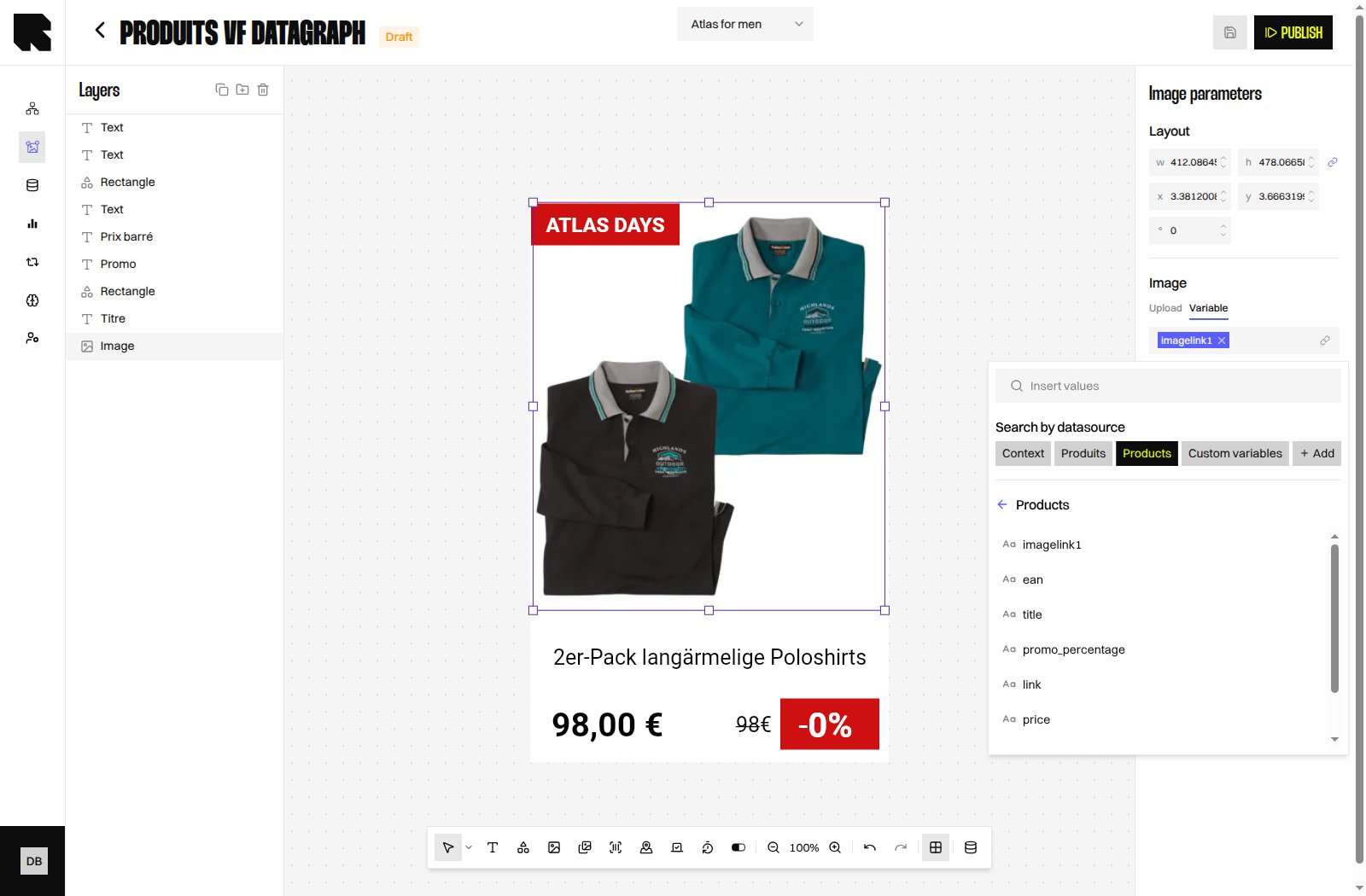
Variable Picker
Once a datasource is attached, you can bind its fields to component properties using the Variables picker:- Click the variable picker icon next to any bindable field in the configuration panel.
- The variables panel shows all available fields grouped by datasource.
- Select a field to bind it.
Datasource Item Selection
When a datasource returns multiple results, you can choose which item to display:Custom Variables
Custom variables let you define derived values using transformation formulas. After creating a custom variable with a Variable name, you configure the formula in the transformation editor.Required and Optional Sources
Open View dependencies to review the Datasources, Object families, and Custom variables sections. Each Datasource and Object family has a badge: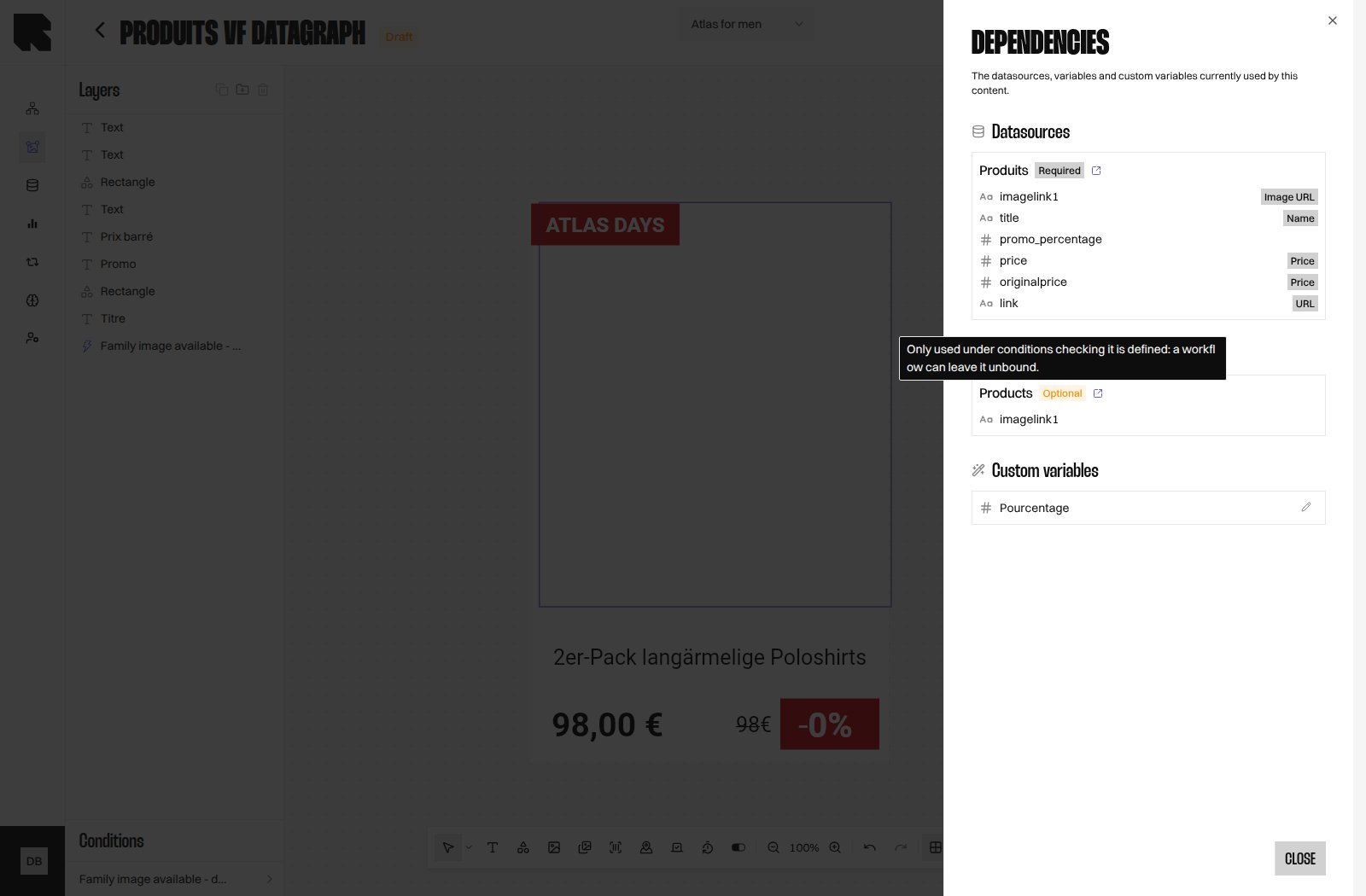
Grouping Results
For product datasources, you can optionally group results by a field:Transformations
When a variable is bound, you can apply transformations to format the value — for example, formatting a date, rounding a number, or converting a currency. See the Text component for transformation details.What’s Next?
Datagraph
Explore Datagraph Objects and Object families in DataHub.
Transformations
Format values after binding them to your Content.