

Users Listing
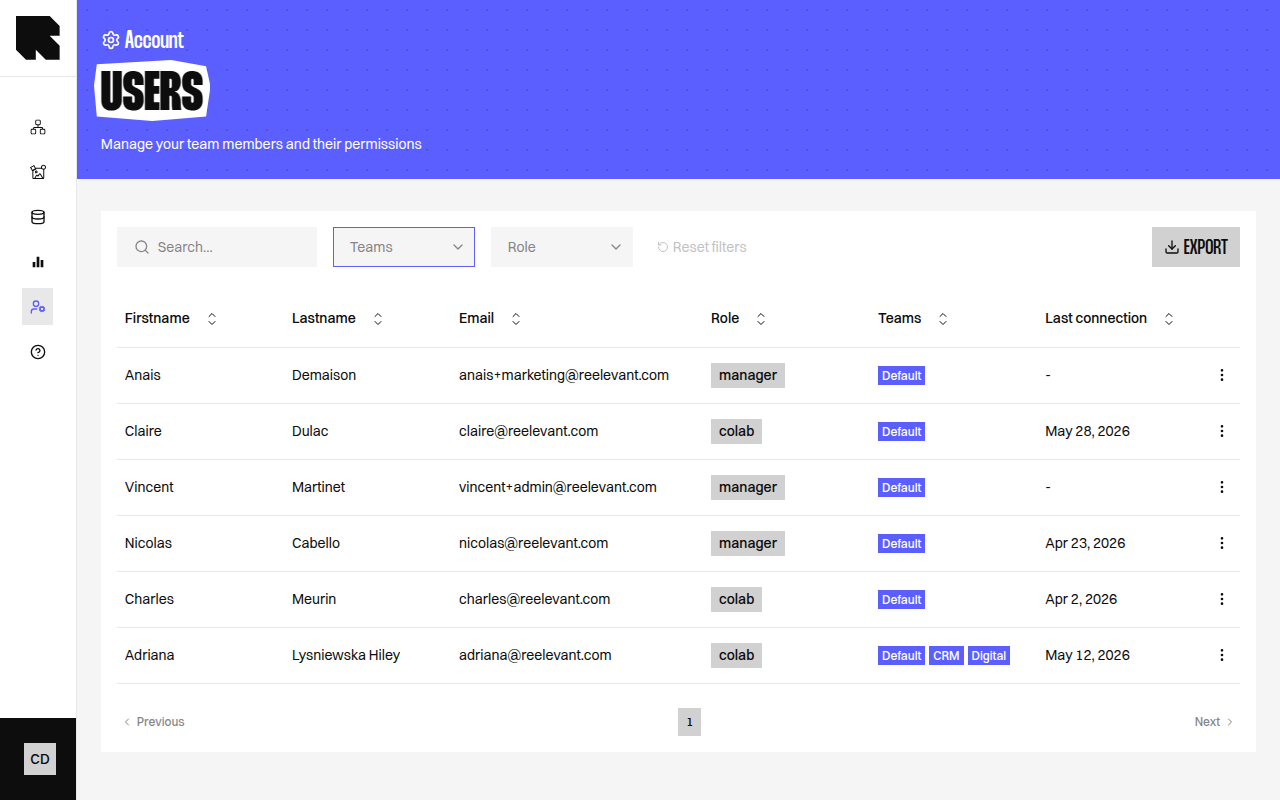
The Users page displays all platform users in a table:
Use the search bar to find users by email.
If your company uses automatic provisioning (SCIM), accounts are created, updated, and removed by your identity provider. You do not need to invite or delete those people by hand.
Inviting a User
1
Open the invitation modal
Click the Invite users button in the top-right corner.
2
Fill in the invitation form
3
Create the invitation
Click Create to generate the invitation. The modal will show either:
- Registration URL — Share this URL with the user to complete their registration (for email/password accounts).
- SSO Login URL — Share this URL with the user to log in via SSO (if SSO is configured).
Editing a User
Click the actions menu on a user row and select Edit to open the edit modal:
Click Save to apply changes.
Self-Editing Your Profile
Click on your own user row or avatar to open the Edit my profile modal with additional options:Profile
Change Password
Click Change password to update.
Two-Factor Authentication
Enable 2FA for additional account security:1
Set up an authenticator app
Install an authenticator app like Google Authenticator or Authy on your phone.
2
Scan the QR code
Use your authenticator app to scan the QR code displayed in the modal. You can also manually enter the Secret key.
3
Enter verification code
Enter the 6-digit code from your authenticator app.
4
Complete setup
Click Complete setup to enable 2FA. A confirmation message “Two-factor authentication enabled” will appear.
Deleting a User
- Click the actions menu and select Delete.
- A confirmation dialog asks you to type a confirmation word.
- Click Delete to permanently remove the user.