

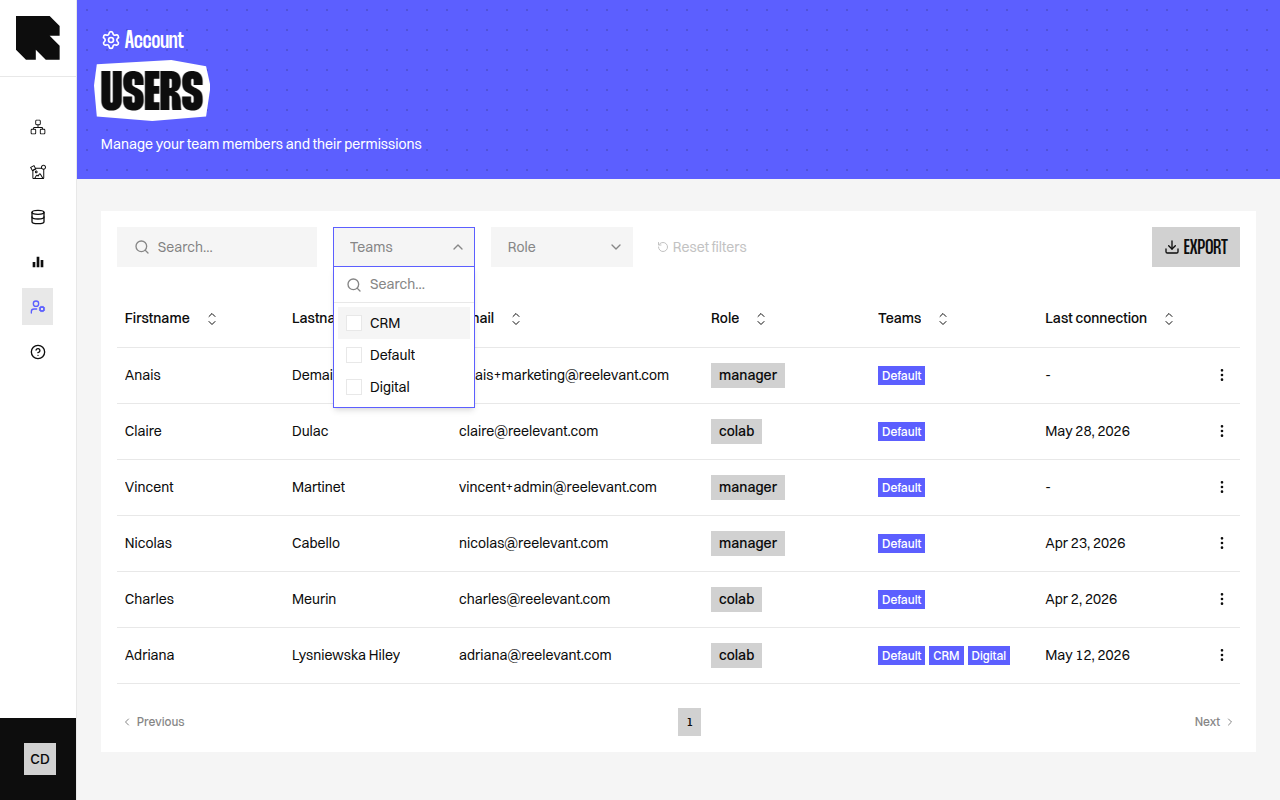
Overview
Teams control which users can access which workflows, contents, and datasources. They act as the team-scoping layer of the permission system. Your role defines what you can do; your teams define which resources you can do it on. Every user must belong to at least one team. Teams can be organized into a hierarchy with parent-child relationships, enabling automatic access inheritance.How Team Scoping Works
Team-scoped resources (workflows, contents, datasources, datagraph schemas, datagraph objects) are assigned to one or more teams when they are created. A user can only interact with a team-scoped resource if:- Their role grants the required action on that resource type.
- They are a member of at least one team that the resource belongs to (directly or through inheritance).
Company-scoped resources (users, roles, company settings, billing, etc.) are not affected by team membership — they are accessible to any user whose role permits the action.
Teams can also be created and filled by your identity provider — see automatic provisioning.
Teams Listing
The Teams page displays all teams with a hierarchical graph visualization and a list view. You can switch between two graph rendering algorithms:
Use the search bar to find specific teams.
Team Information
Each team node in the graph shows:Creating a Team
1
Open the creation modal
Click Create team to open the creation form.
2
Fill in the team details
3
Create
Click Create to save the new team. The team starts with no parent-child relationships — you can add them later.
Creating a Sub-Team
To create a team as a child of an existing team:- Click the actions menu on a team and select Create sub-team.
- The form pre-fills the parent team.
- Enter the sub-team name and users.
- Click Create.
Team Hierarchy
Teams support parent-child relationships that form a hierarchy. This hierarchy controls how access is inherited across teams.How Inheritance Works
When a user is assigned to a team, they automatically gain access to resources in all descendant teams (children, grandchildren, etc.) below it. They also gain access to resources in the ancestor teams above it, unless a team is excluded from ancestor inheritance. For example, consider this hierarchy:- A user assigned to Engineering can access resources in Engineering, Backend Team, API Team, and Frontend Team.
- A user assigned to Backend Team can access resources in Backend Team, API Team and Engineering, but not Frontend Team.
- A user assigned to API Team can access resources in API Team, Backend Team and Engineering.
- With Exclude from ancestor inheritance enabled on Backend Team, a user assigned to Backend Team or API Team no longer reaches Engineering.
Exclude from Ancestor Inheritance
By default, team inheritance flows both ways: users reach their sub-teams and their parent teams. The Exclude from ancestor inheritance toggle stops the upward part:Circular Reference Protection
The system prevents circular references in the team hierarchy. If Team A is a parent of Team B, then Team B cannot be set as a parent of Team A. This check applies transitively across the entire hierarchy.Editing a Team
Click the actions menu and select Edit to update:
Click Save to apply.
Team Attributes
A Team can carry attributes. An attribute is a named list of values, such as the brand or the market the Team manages. You add and edit attributes in the same modal you use to create or edit a Team. Each attribute has a key (its name) and a list of values.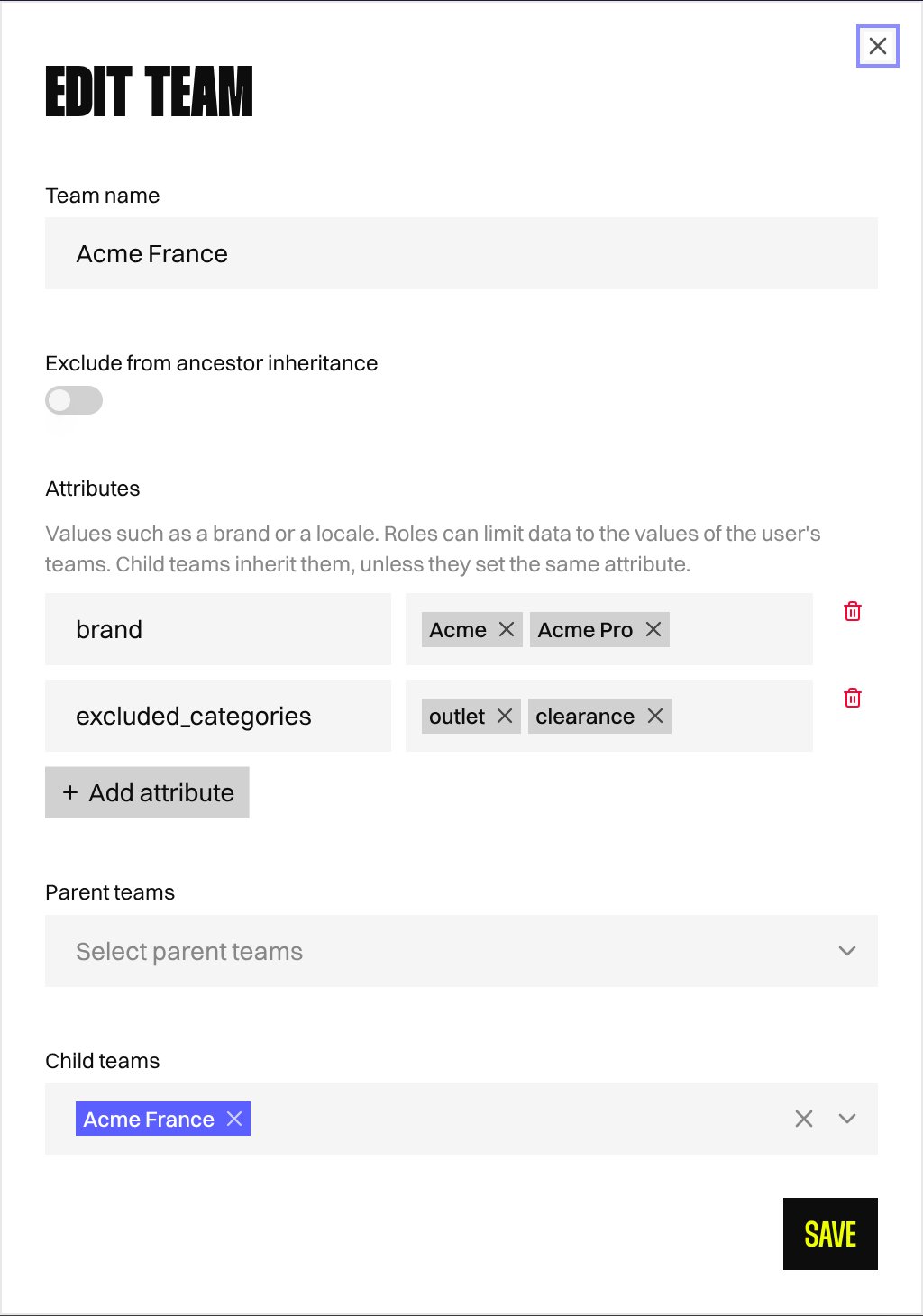
Managing Team Members
Click the actions menu and select Members to open the members drawer:Detaching Teams
To remove a parent-child relationship without deleting either team:- Open the team’s edit form or the relationships management view.
- Remove the parent or child link.
- Click Save.
Deleting a Team
- Click the actions menu and select Delete team.
- A confirmation dialog asks you to confirm.
- Click Delete to remove the team.