

Overview
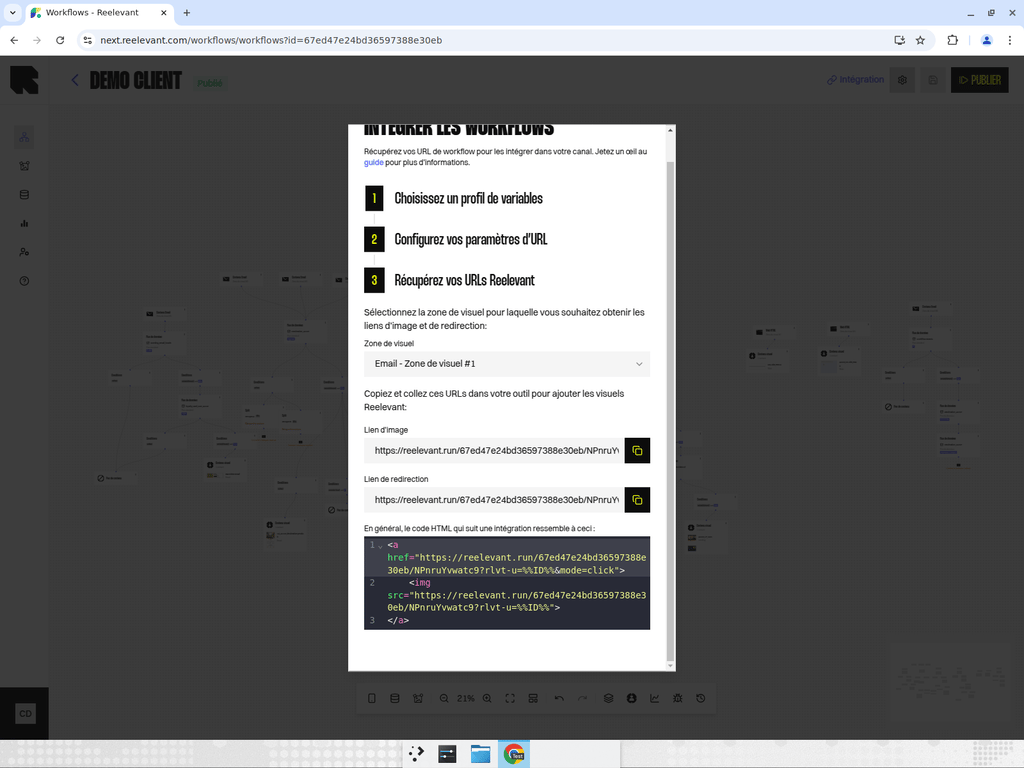
Once a workflow is published, you can deploy it by generating integration links. The integration process is a guided, step-by-step flow accessible from the Use button in the workflow editor header.Integration Steps
The integration modal walks you through up to three steps:Step 1: Variable Profile Selection
If your account has variable profiles configured (see Workflow Settings), you’ll first select which profile to use. A variable profile is a pre-configured set of URL parameters (such as UTM tags and tracking identifiers) that are automatically appended to your integration links.- Choose a profile from the dropdown list.
- If no profiles are configured, this step is skipped automatically.
- If the workflow already has a profile assigned, you can change it or proceed with the current one.
Step 2: URL Parameters Configuration
Configure the URL parameters that will be passed to the workflow at runtime. These parameters provide context that the workflow uses for personalization. Common parameters include:- User identifier — To match the visitor with their profile data.
- Campaign ID — To associate the interaction with a specific campaign.
- Custom parameters — Any URL parameters defined in your workflow’s URL Parameter nodes.
- Parameter name — Must match the name used in the workflow.
- Value source — How the value is provided (e.g., dynamically by your ESP, hardcoded, etc.).
Step 3: Integration Links
The final step provides the actual links to embed in your campaigns. Each channel in your workflow generates its own integration link. The links are displayed with:- Channel type — Which channel this link corresponds to.
- Integration URL — The full URL to embed in your email, website, or app.
- Copy button — One-click copy for easy pasting into your tools.
Integration Link Types
Depending on the channel type, you’ll receive different integration formats:Accessing Integration Links
There are two ways to open the integration modal:- From the editor — Click the Use button (link icon) in the workflow editor header. Only available when the workflow status is Published.
- From the listing — Use the actions menu on a published workflow in the listing table.
Tips
- Always configure URL parameters before generating integration links — the links include your parameter configuration.
- Test your integration links in a staging environment before deploying to production.
- If you update and re-publish the workflow, existing integration links continue to work — they automatically serve the latest published version.
- Variable profiles save time when you have a standard set of tracking parameters used across multiple workflows.