

Overview
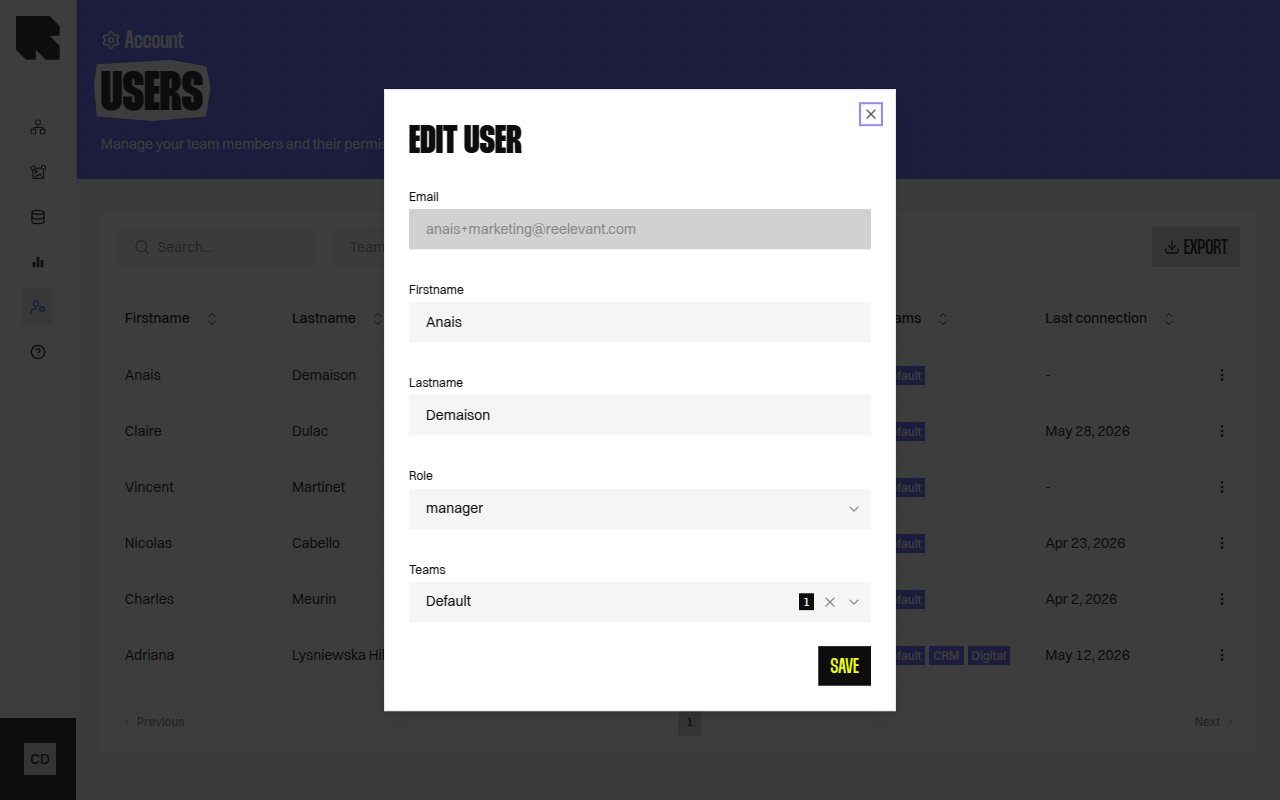
A role is a named set of permission rules that controls what a user can do on the platform. Every user is assigned exactly one role. Roles define permissions at the resource-and-action level — for example, “can create workflows” or “can read statistics.”See the Permissions page for a complete explanation of how the permission system works, including resource scoping, team constraints, and the full permissions matrix.
Roles can also be decided by your identity provider — see automatic provisioning for the three ways a provisioned user gets a role.
Roles Listing
The Roles page displays all roles configured for your company:
Use the search bar to find roles by name.
Creating a Role
1
Open the creation modal
Click Create role in the top-right corner.
2
Enter a role name
Choose a descriptive name that reflects the role’s purpose (e.g., “Marketing Editor”, “Data Analyst”, “Admin”).
3
Configure permissions
The permission editor displays a matrix of resources (rows) and actions (columns). Click a cell to cycle through its access levels — see Team scope per permission below.Use the All column at the start of a row to set every action of that resource at once.Only the actions that are applicable to each resource are shown. For example, Statistics only supports Access and Export, while Workflow supports Create, Read, Update, and Delete.See the Permissions Matrix for the full list of available combinations.
4
Create
Click Create to save the new role. Users assigned to this role will immediately receive the configured permissions.
Team Scope per Permission
Each cell of the matrix has up to three access levels. Clicking a cell moves to the next one.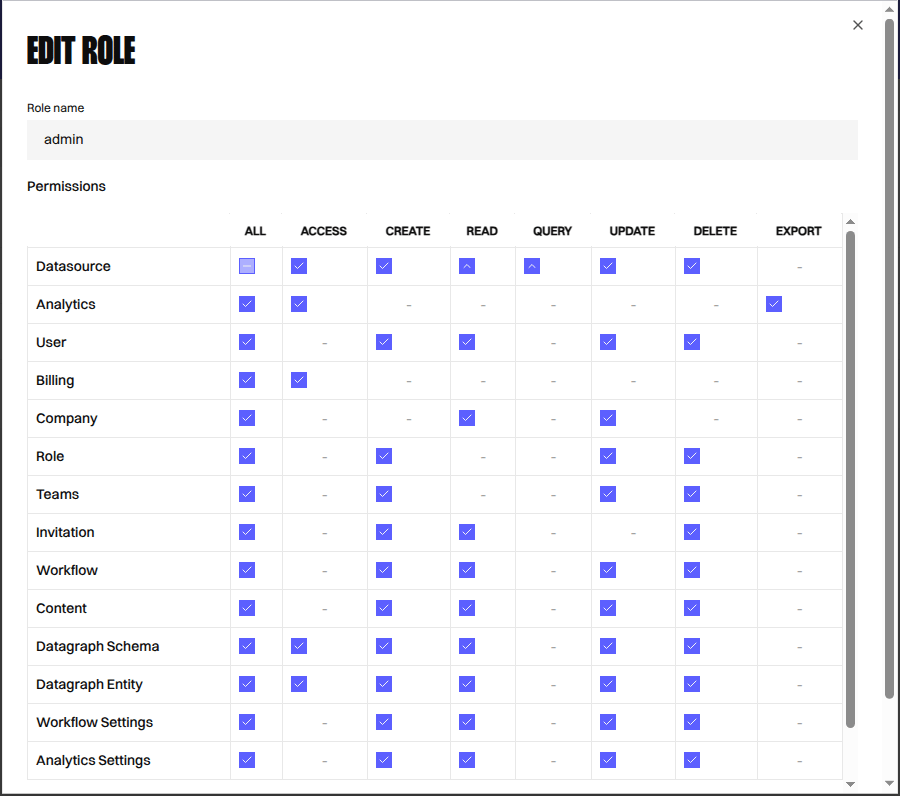
The Own teams and their parent teams level is only offered on team-scoped resources. Company-scoped resources such as User or Billing only switch between No access and Own teams.
In the All column, a minus sign means the row mixes several levels. Clicking it resets the whole row to No access.
Synced Permissions
Some permissions are automatically kept in sync — you do not need to configure them separately:
For example, granting “Create” on Content also grants “Create” on Content Font Resources. These synced permissions are not displayed in the role editor.
Built-in Rules
Every role automatically includes two rules that cannot be removed:- Read own profile — Every user can view their own user details.
- Update own profile — Every user can edit their own name, password, 2FA settings, and preferences.
Editing a Role
- Click the actions menu (⋮) on a role row and select Edit.
- Update the role name or click cells in the matrix to change their access level.
- Click Save to apply.
Deleting a Role
- Click the actions menu (⋮) and select Delete.
- A confirmation dialog warns that the action is irreversible.
- Click Delete to remove the role.