

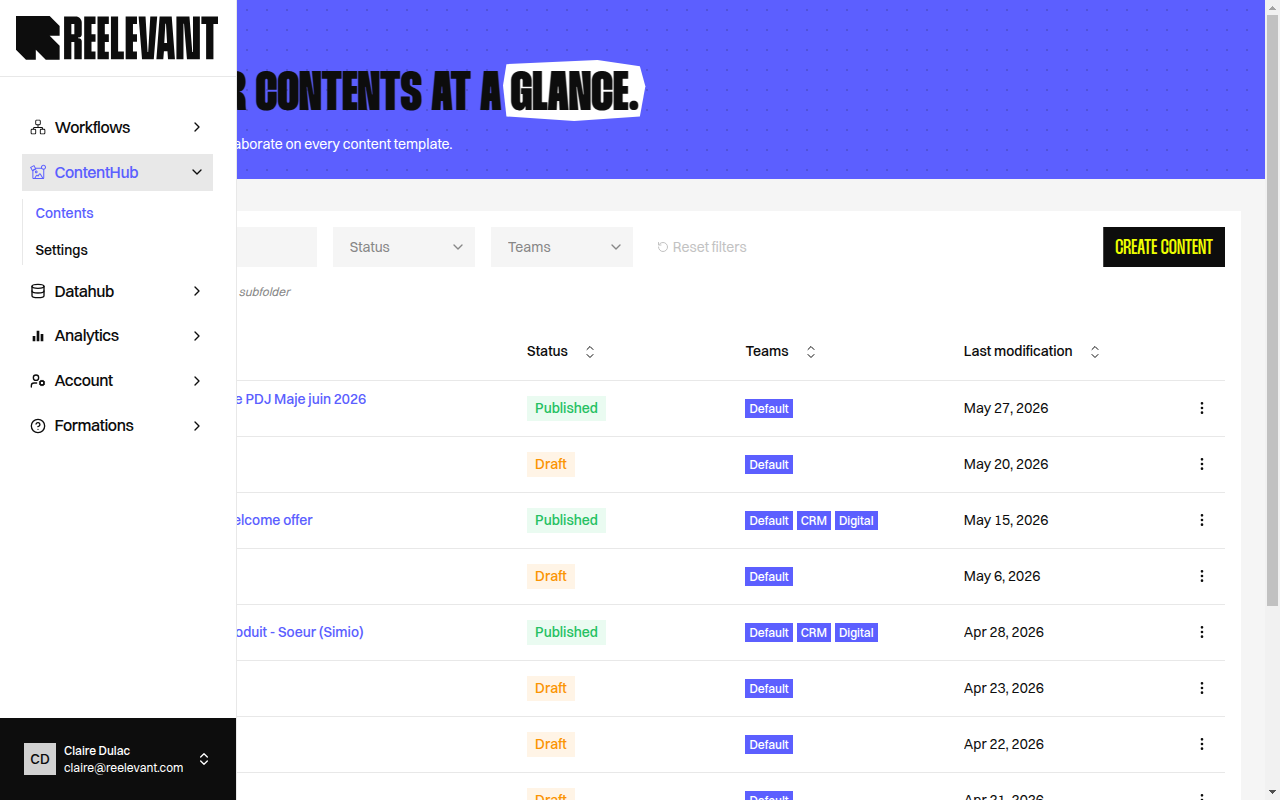
Content Listing
When you open the Content Editor application from the sidebar, you land on the content listing page. This table displays all your content templates with the following columns:
Use the search bar to find contents by name. You can filter the listing by:
- Status — Draft, Published, Inactive, Publishing, Error.
- Teams — Filter by team.
Creating a Content
1
Open the creation modal
Click the Create content button in the top-right corner of the listing page. A modal dialog opens.
2
Fill in the content details
The creation form has the following fields:
- Content name — A descriptive name for your content template.
- Description — An optional short description (max 50 characters).
- Teams — Select one or more teams that should have access.
- Folder configuration — Optionally place the content within a folder hierarchy.
- Import design — Optionally import a Figma JSON export or PSD file to start from an existing design. See Design Import for details.
3
Confirm creation
Click Create content to create the template. You will be redirected to the editor.
Editing Content Properties
To update a content’s properties after creation:- Open the content’s actions menu (three dots) in the listing table.
- Select Settings.
- Update the name, description, teams, or folder as needed.
- Click Save changes to apply.
Archiving a Content
To archive a content that is no longer needed:- Open the content’s actions menu in the listing table.
- Select Archive.
- A confirmation dialog asks you to type a validation word to confirm.