

Overview
Saved Queries let you persist your data exploration queries and optionally schedule them to run automatically with results delivered by email.Queries Listing
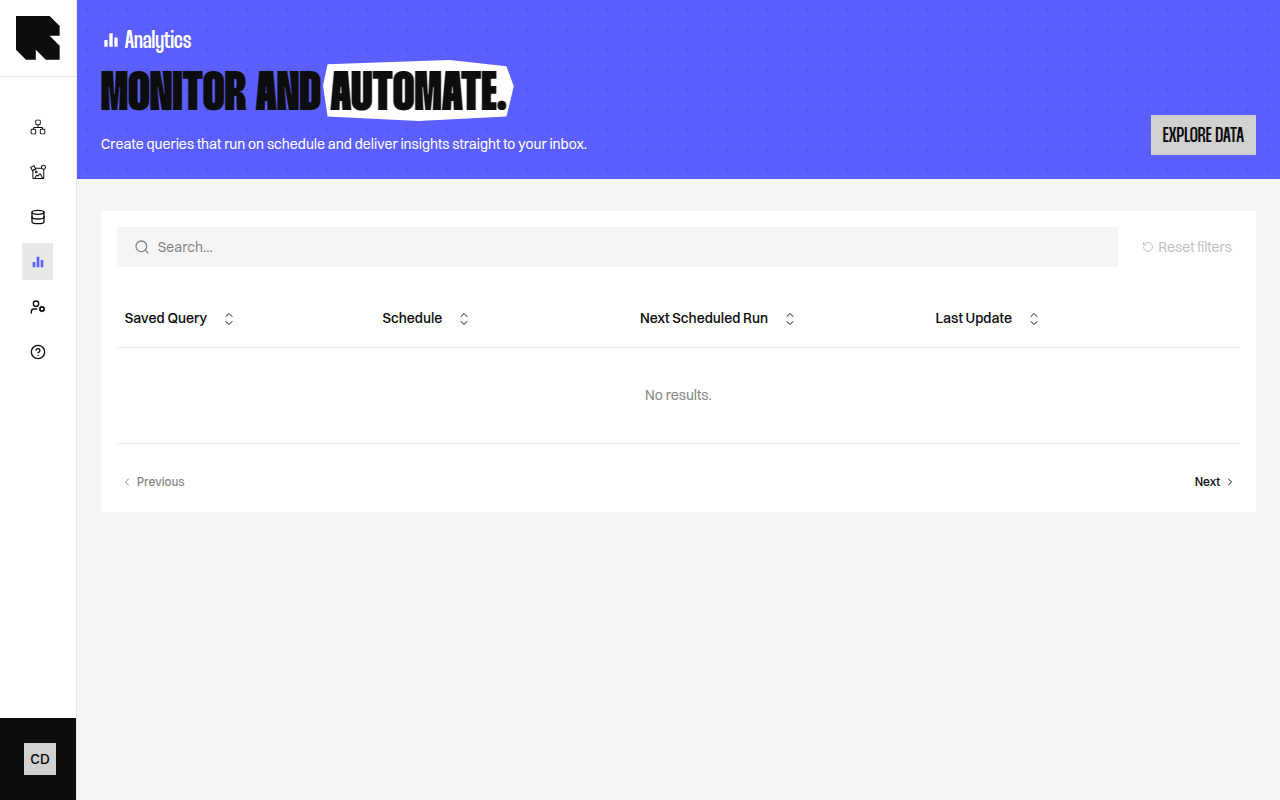
The queries listing page shows all saved queries:
Click Explore data to navigate to the Data Exploration page.
Saving a Query
From the Data Exploration page, click Save query to open the save modal:1
Name the query
Enter a Saved query name to identify it in the listing.
2
Configure scheduling (optional)
Toggle Schedule automatic runs and email results to selected recipients to enable scheduling.
3
Save
Click Save to create the saved query.
Editing a Query
Click the actions menu on a saved query and select Edit to update:- Query name.
- Schedule configuration.
- Email recipients.
Deleting a Query
- Click the actions menu and select Delete.
- A confirmation dialog asks you to type the query name to confirm.
- Click Delete to permanently remove the query.