

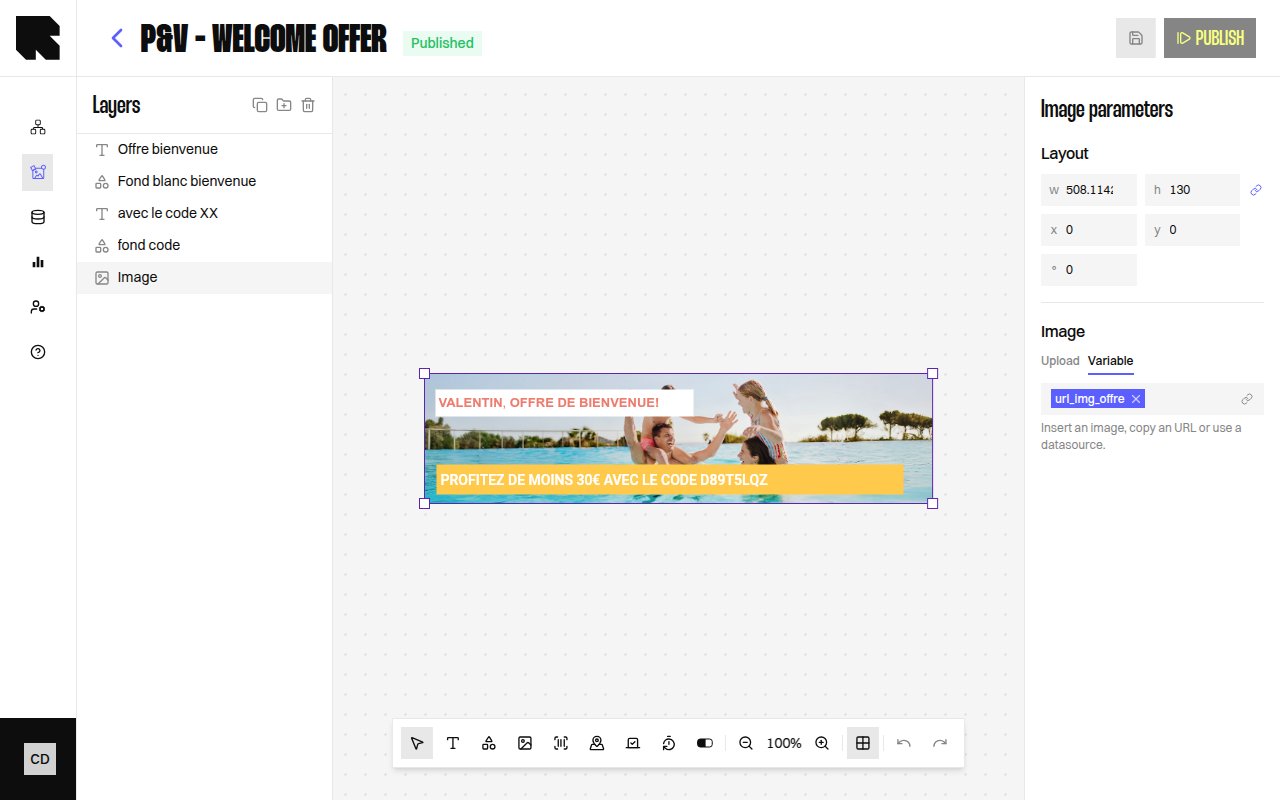
Editor Layout
The content editor is a full-screen visual workspace for designing templates. It consists of five main areas:- Header bar — Displays the content name, status badge, and action buttons (Preview, Publish, Settings).
- Canvas — The central design area where components are rendered. You can pan, zoom, and select components.
- Toolbar — A horizontal bar with tools for adding components, adjusting zoom, undo/redo, and toggling layout guides.
- Layers panel — A tree view on the left showing all components with their hierarchy, grouping, and visibility toggles. See Layers.
- Configuration panel — Opens on the right when a component is selected, showing its properties. See individual component pages.
- Frame dock — A page preview carousel at the bottom for multi-frame content. See Frames.
Toolbar
The toolbar provides quick access to all component types and canvas controls:Adding Components
Canvas Controls
Layout Guides
Layout guides are visual alignment aids that overlay the canvas. They are not included in the rendered output.Editor Settings
When no component is selected, the configuration panel shows the content-level settings:Keyboard Shortcuts
The content editor supports keyboard shortcuts for common actions:Copy / Paste
You can copy and paste components, component groups, and condition groups within the same content or across different contents. Copying:- Select one or more elements in the layers panel or directly on the canvas.
- Press Ctrl+C (or ⌘+C on Mac).
- A success notification confirms how many elements were copied.
- Press Ctrl+V (or ⌘+V on Mac) in the target content editor.
- All copied elements are recreated with new identifiers, including their nested children, data bindings, and datasource dependencies.
- A success notification confirms how many elements were pasted.
Copy/paste works across different contents within the same account. If a pasted element references a datasource that doesn’t exist in the target account, an error notification is shown and the remaining elements are still pasted.
Working with Components
Adding Components
Click a tool in the toolbar, then click on the canvas to place the component. Alternatively, select a tool and drag on the canvas to define the size.Selecting and Moving
Click a component on the canvas or in the layers tree to select it. Drag to reposition. Use the resize handles to change dimensions.Configuration Panel
When a component is selected, the configuration panel shows:- Layout — X position, Y position, Width, Height.
- Position — Coordinates on the canvas.
- Size — Dimensions with optional aspect ratio lock.
- Rotation — Rotation angle.
- Appearance — Component-specific styling (fill, stroke, border radius, etc.).
- Redirection — A redirection link URL that users navigate to when clicking the component.
Publishing
Click Publish in the header to validate and publish the content. Once published, the content can be used in workflow output nodes.The Publish action validates the content structure. If there are dependency errors (e.g., a referenced workflow is missing a variable), an error modal will list the issues.