

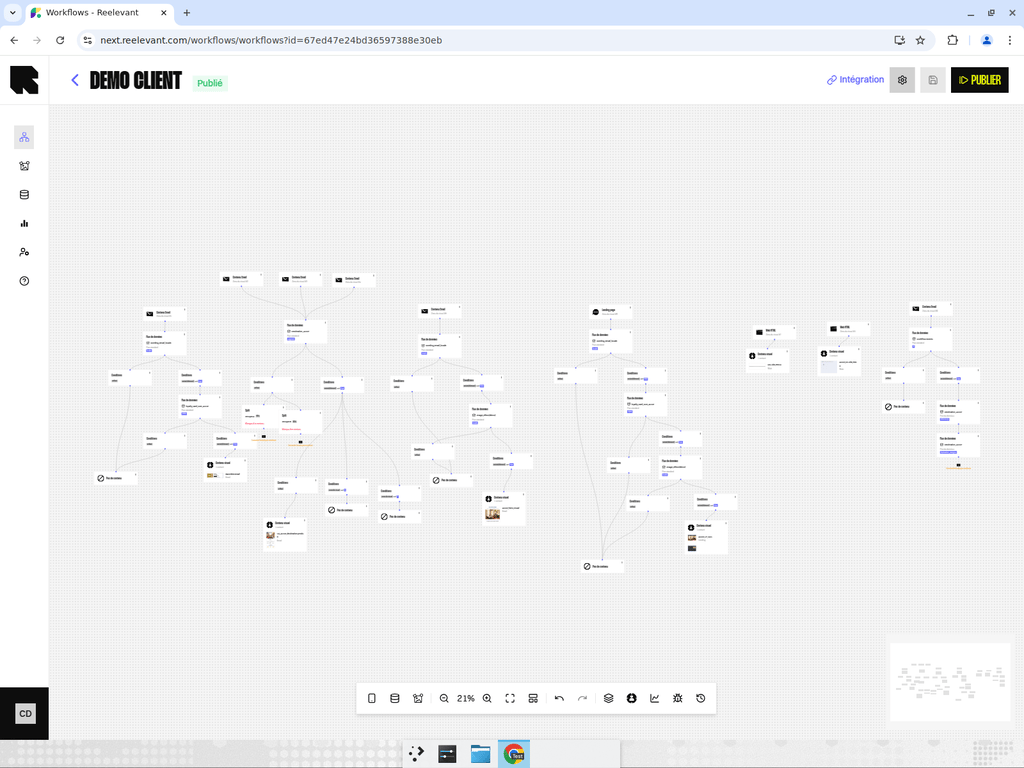
What are Branches?
A branch is a unique execution path through a workflow, from a channel node to an output node. When a user triggers a workflow, the engine evaluates conditions and data to determine which branch to follow, then returns the output at the end of that branch. A single workflow typically has multiple branches — each one delivering a different experience based on the user’s context.Branch Qualification
You can qualify a branch by giving it a category and tags. This is useful for:- Analytics — Group results by branch category or tag to compare performance across different strategies.
- Organisation — Label branches by their purpose (e.g., “Promotion”, “Loyalty”, “Default”).
- Reporting — Filter dashboards by category or tag to focus on specific campaign strategies.
How to Qualify a Branch
- Right-click on an edge (the arrow connecting two nodes) in the workflow editor.
- Select Qualify branch from the context menu.
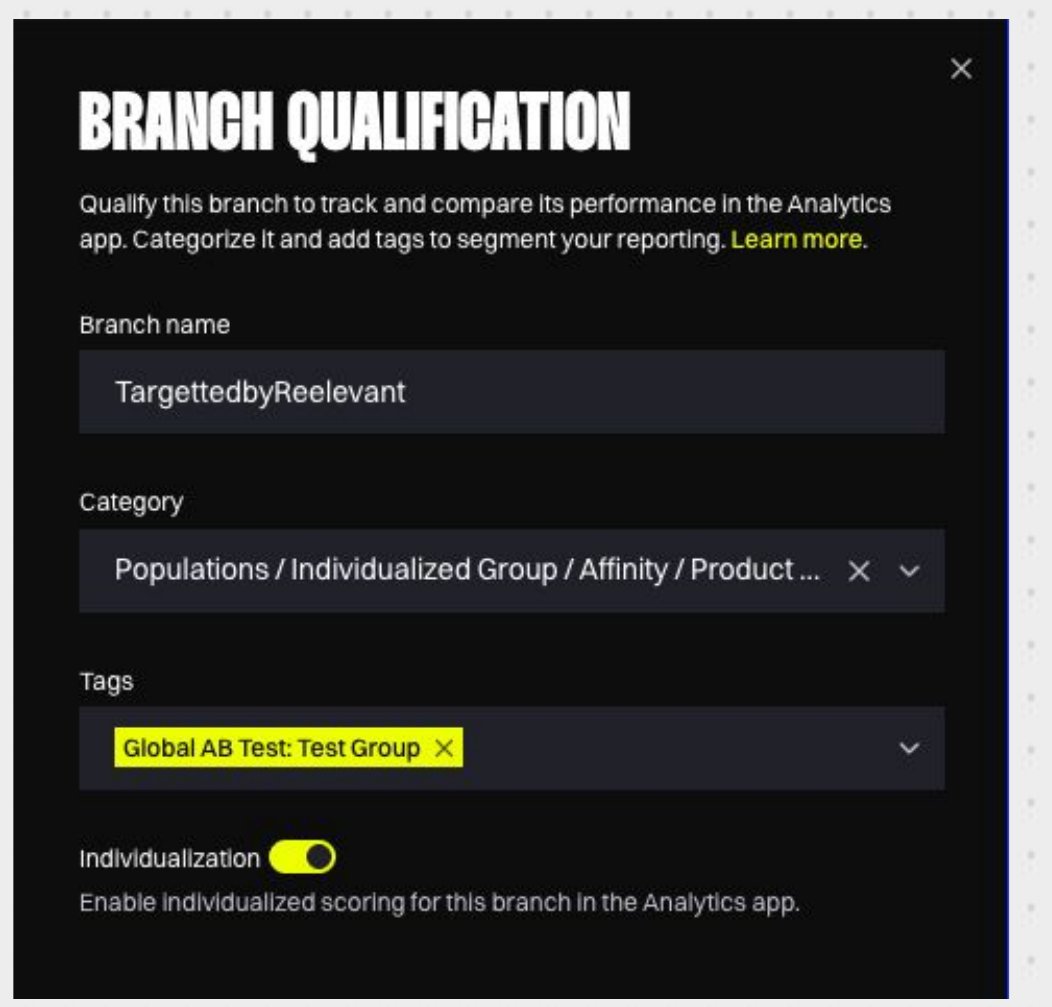
- The Branch qualification drawer opens. It lets you set:
- Branch name — An optional custom name to identify the branch.
- Category — A category from the branch categories tree.
- Tags — One or more tags from your account’s tag list.
- Individualization — A toggle to mark the branch as individualized in the Analytics app.
- Click Confirm to save your qualification.
Branch Categories
The branch categories are a hierarchical tree of categories that you define in Analytics Settings. They provide a consistent vocabulary for qualifying branches across all your workflows.Structure
Categories are organized in a tree with multiple levels. For example:Benefits
- Consistency — All team members use the same vocabulary when qualifying branches.
- Analytics — Analytics dashboards can filter and group metrics by category at any level of the hierarchy.
How categories resolve along a Branch
A category continues along downstream Branches until a later qualification replaces it. If several qualifications affect the same final Branch, Analytics uses the category closest to the Output Node. For example, an earlier qualification can setPromotional. A later qualification on the same final Branch can replace it with Loyalty.
Branch Tags
Tags add extra context to a branch, on top of its category. Each tag pairs a tag key (the dimension) with a tag value, displayed asKey: Value.
For example:
Lifecycle: BirthdayLifecycle: WelcomeSeasonal Moment: Sales
Where Tags Come From
Administrators define available tag keys and values in Analytics Settings. When qualifying a Branch, you pick from this shared list. This keeps tagging consistent across your team. Everyone analyses performance with the same vocabulary.How Many Values per Key?
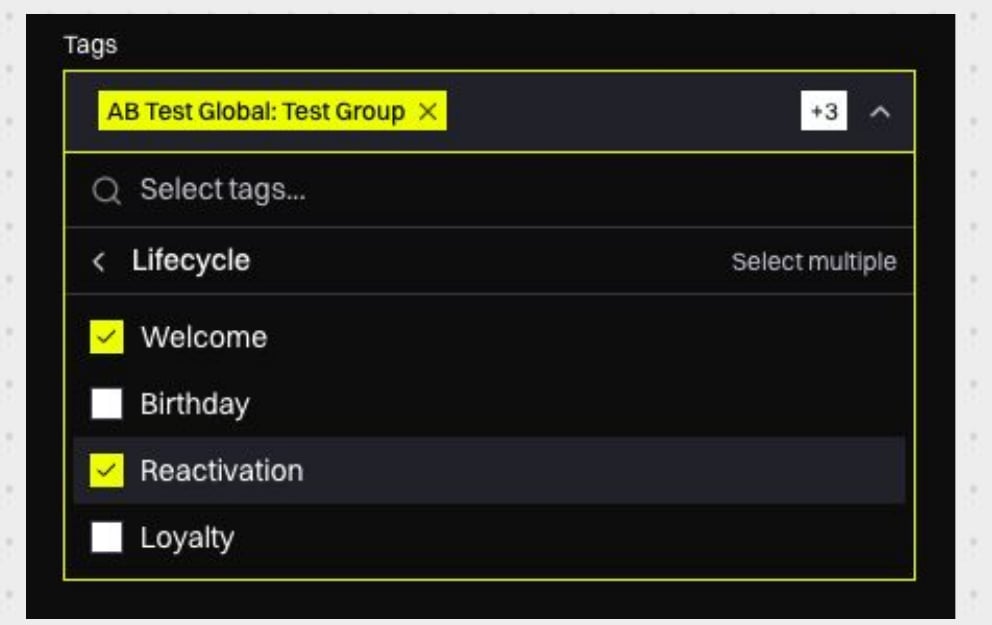
The most downstream value is the value assigned closest to the Output Node.
This resolution matches Branch categories. It matters when nested qualifications apply different values from one single-value key to the same final Branch.
Custom and System-Managed Tags
There are two kinds of tags:- Custom tags — You assign them yourself in the Branch qualification drawer.
- System-managed tags — The platform applies them automatically. You cannot assign or edit them manually.
Tags in Analytics
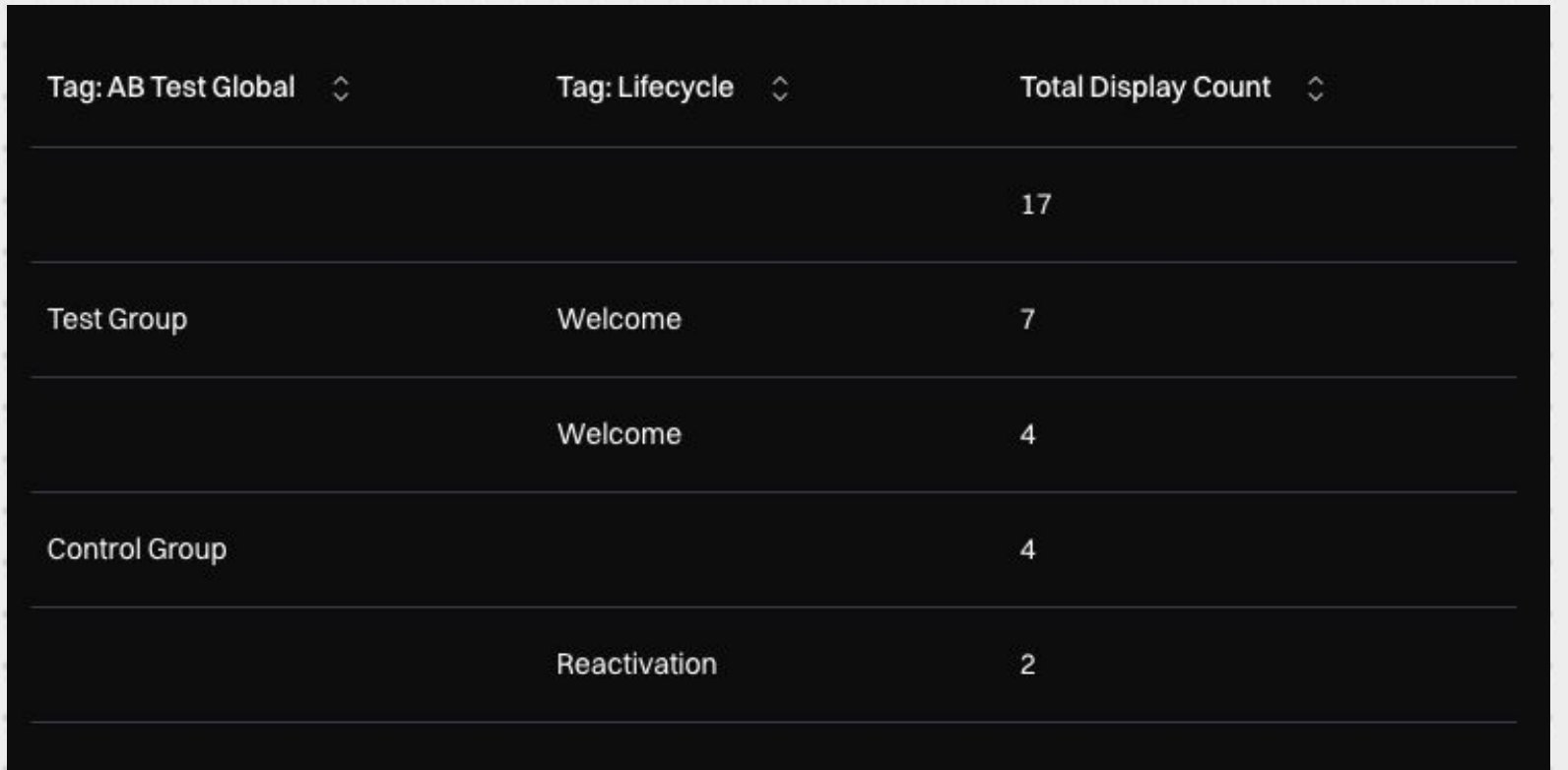
In the Analytics app, you can use tags to slice your results:- Filter by tag — Keep only data with a specific tag (e.g.,
Lifecycle: Birthday). Branches with additional values for the same key are included too. - Filter by tag key — Keep only data that has any value for a key. Pick Any value for the key (e.g.,
Lifecycle: Any value). - Group by tag key — Use a tag key as a dimension to compare performance across its values.
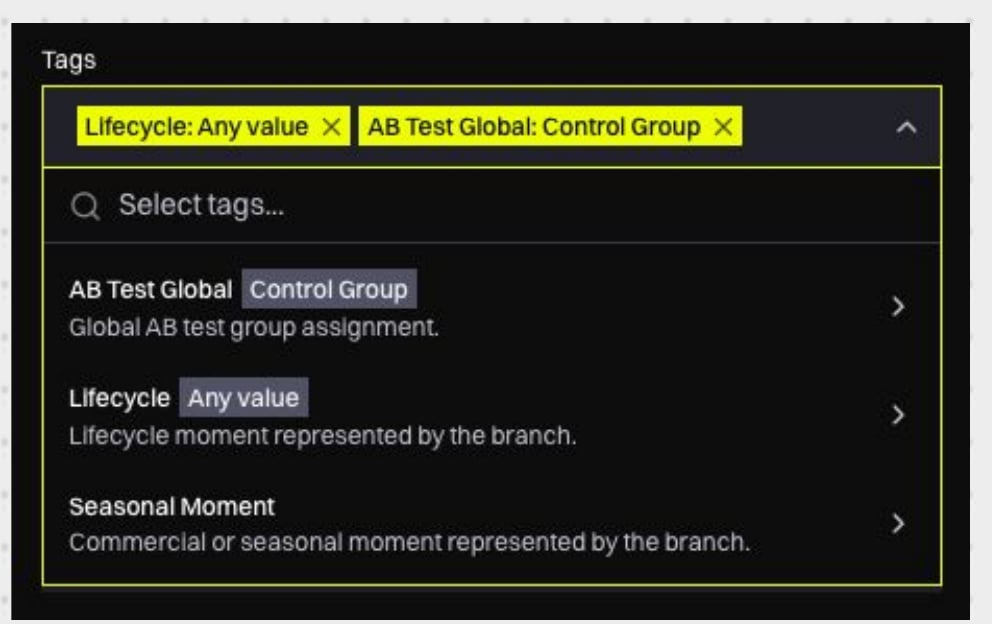
Birthday, Welcome). Data without any value for the key appears in its own unlabelled group.
Tags on the Canvas
Branches with tags display them as badges on the workflow canvas. This gives you a quick view of how your workflow is qualified without opening each branch.Viewing Branch Statistics
Toggle the Statistics mode from the bottom toolbar to overlay traffic distribution data on the workflow canvas. In statistics mode:- Edges display the percentage of traffic flowing through each branch.
- Individualized branches can be highlighted to distinguish personalized paths from default ones.
- Use the Individualized branches toggle to visually differentiate personalized paths.
Tips
- Qualify branches early in your workflow design process — it makes analytics much more useful once the workflow is live.
- Use a consistent naming convention for branches within a workflow to make them easy to identify.
- Branch categories and tags are shared across all workflows in your account. Design them to be general enough to apply across campaigns.
- Don’t use tags to replace categories. If a concept describes the structural or business nature of a branch (e.g., “Cross-sell”), it belongs in the category tree.
What’s Next?
Analytics Settings
Manage your branch categories tree.
Analytics Overview
Analyse performance by category and tag.