

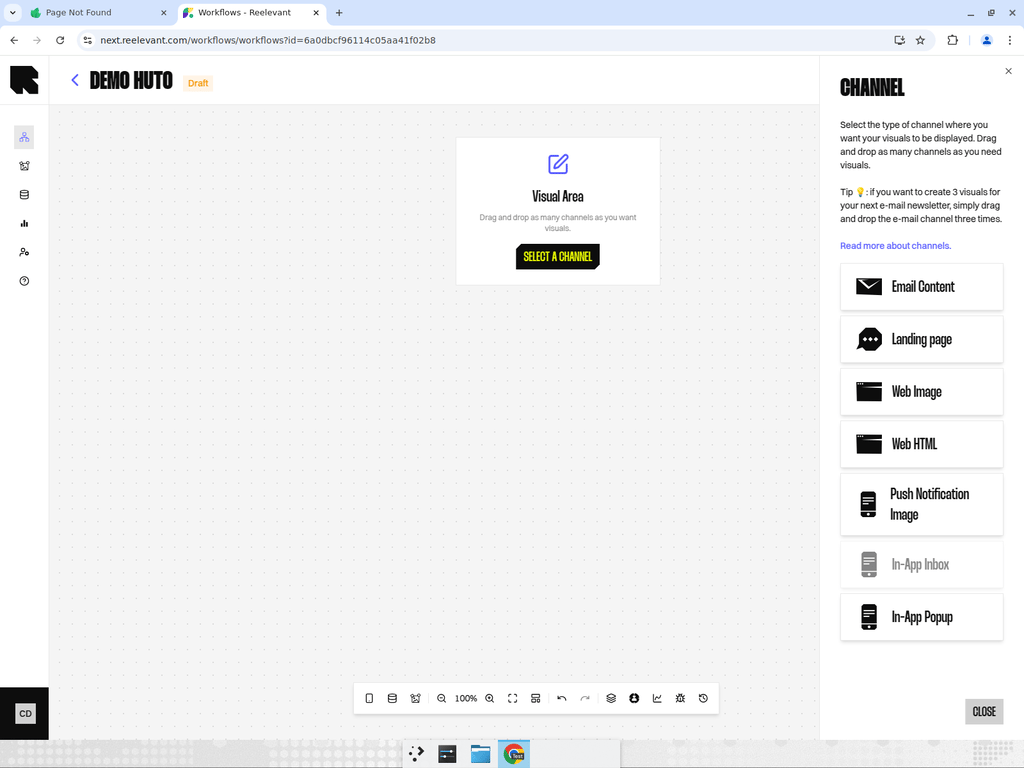
What are Channels?
Channels are the starting nodes of a workflow. They define where the personalized content will be displayed — in an email, on a website, in a mobile app, or on a landing page. Every workflow branch starts with a channel node and ends with an output node.Available Channel Types
Renders a personalized visual for inclusion in email campaigns.
Web Image
Renders a personalized image for display on websites.
Web HTML
Renders a responsive HTML partial for embedding in web pages.
Landing Page
Generates a full landing page experience.
Push Notification Image
Renders a personalized image for push notifications.
In-App Popup
Renders a personalized image for in-app popup overlays.
In-App Inbox
Renders a personalized image for the in-app inbox/message center.
Messaging Channels
RCS and WhatsApp messages also carry personalised Reelevant content. Each has its own Channel, and you hand the resulting link to your messaging platform.Messaging overview
How messaging platforms display Reelevant content, and who owns what.
RCS
Personalised carousels and cards in RCS conversations.
Personalised visuals inside WhatsApp Business messages.
Adding a Channel
1
Open the channel picker
Click the Channel button (smartphone icon) in the bottom toolbar. The entry picker drawer opens on the side.
2
Select a channel type
Choose the desired channel type from the list. You can either click to add it directly or drag and drop it onto the canvas.
3
Position and connect
The channel node appears on the canvas. Connect it downstream to data nodes, logic nodes, and eventually to an output node to complete the branch.
Tips
- Each channel node represents one visual zone in your final deployment. If you need three banners in an email, add three Email channels.
- Channels can share downstream data and logic nodes — you don’t need to duplicate the entire flow for each channel.
- After publishing, each channel generates its own integration link in the Integration modal.