

Overview
The message itself is built in your messaging platform, which is connected to your WhatsApp Business account. Reelevant supplies the personalised visual through a link, exactly as for e-mail. See Messaging Channels.
The WhatsApp Channel is greyed out until it is enabled for your account. Ask your Reelevant contact to activate it.
Configuration
1
Add a WhatsApp Channel
Add one WhatsApp Channel for the visual you want to personalise, then build your Branches as usual.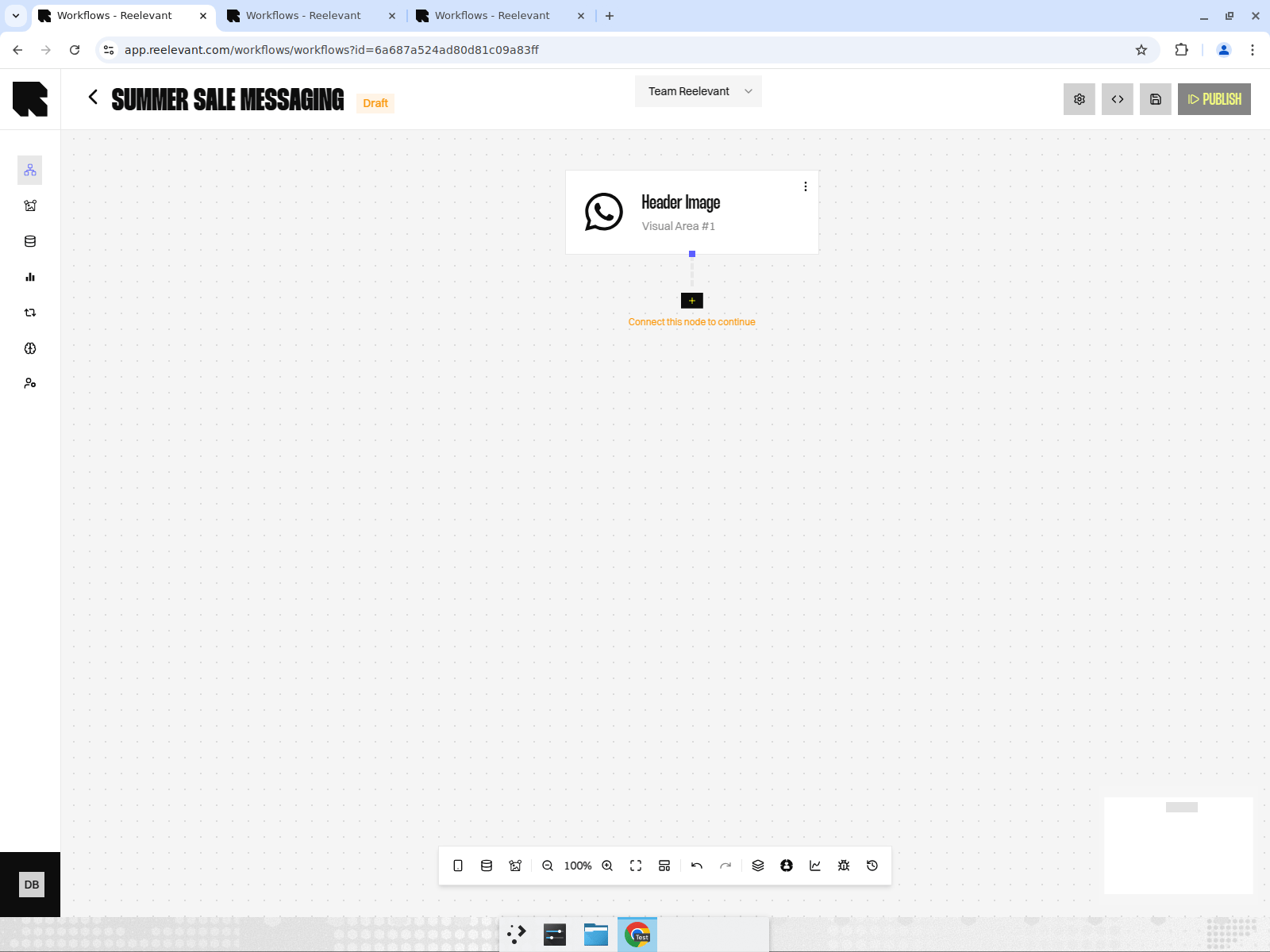
2
Publish and copy the link
Copy the link from the Integration modal.
3
Add the link to your message template
In your messaging platform, use that link as the image of the message. The phone number and the Reelevant recipient identifier are added to the link as parameters, like in an e-mail campaign.
4
Get the template approved
WhatsApp reviews and approves every message template before the first send. Plan for that delay.
Known Limitations
To avoid this, change the campaign parameter of the link on every send. A Variable Profile makes this easy to apply consistently.This behaviour is close to what happens with some e-mail clients. See Caching and proxies for the same topic on the e-mail side.
Consent
Your messaging platform and your legal team own consent, not Reelevant. Confirm which opt-in your recipients gave before adding personalised marketing content to a conversation.Measuring WhatsApp
Reelevant counts displays and clicks on the visual it serves. Delivery and read receipts stay in your messaging platform. See Messaging and mobile measurement.What’s Next?
RCS
Do the same in RCS conversations.
Measurement
See what is measured, and what is not.
Integration
Get the link for your messaging platform.