

Accessing Workflow Settings
Open the Workflows application from the sidebar, then navigate to the Settings page. The settings page has two tabs:- Variable profiles — Configure reusable URL parameter templates.
- JSON Templates — Define and manage JSON output templates for headless integrations.
Branch categories are configured together with tags in Analytics Settings, so your whole nomenclature lives in one place.
Variable Profiles
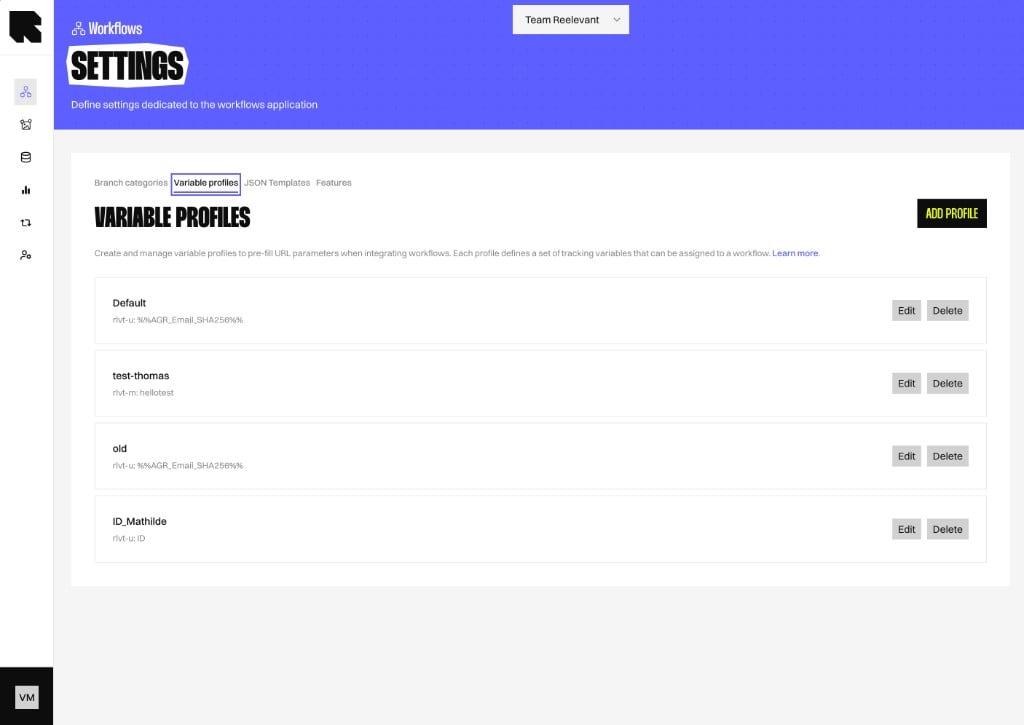
Viewing Profiles
The variable profiles tab displays a table of all configured profiles with their names and parameters.Creating a Variable Profile
1
Open the form
Click the Add button to open the variable profile creation drawer.
2
Configure the profile
- Name — A descriptive name (e.g., “Standard Email Tracking”, “Web Campaign UTM”).
- Parameters — Define the URL parameters included in this profile:
- Parameter name — The URL query parameter key (e.g.,
utm_source,user_id). - Default value — An optional default value for the parameter.
- Parameter name — The URL query parameter key (e.g.,
3
Save
Click Save to create the profile. It will be available for selection during workflow integration.
Editing a Profile
Click on a profile in the table to open the edit drawer. Update the name or parameters as needed.Deleting a Profile
- Click the Delete action on the profile row.
- Confirm the deletion.
Deleting a variable profile does not affect already-deployed workflow integrations. However, future integrations will no longer be able to select this profile.
Tips
- Create separate profiles for different channels (email vs. web) since they typically use different tracking parameters.
- Standardize parameter names across your team to ensure consistent analytics data.
- Variable profiles complement URL Parameter nodes in workflows — the profile provides the parameter structure, and the URL Parameter node reads the value at runtime.
JSON Templates
This section is intended for engineering and contract teams who define the API schema. Marketing teams use the resulting templates in the workflow editor — see JSON Template output node for usage instructions.
Why Use JSON Templates?
JSON Templates separate schema definition from data binding:- Engineering defines the shape (what fields exist, which are static, which are dynamic variables).
- Marketing decides what data fills each variable by connecting datasource fields in the workflow.
Viewing Templates
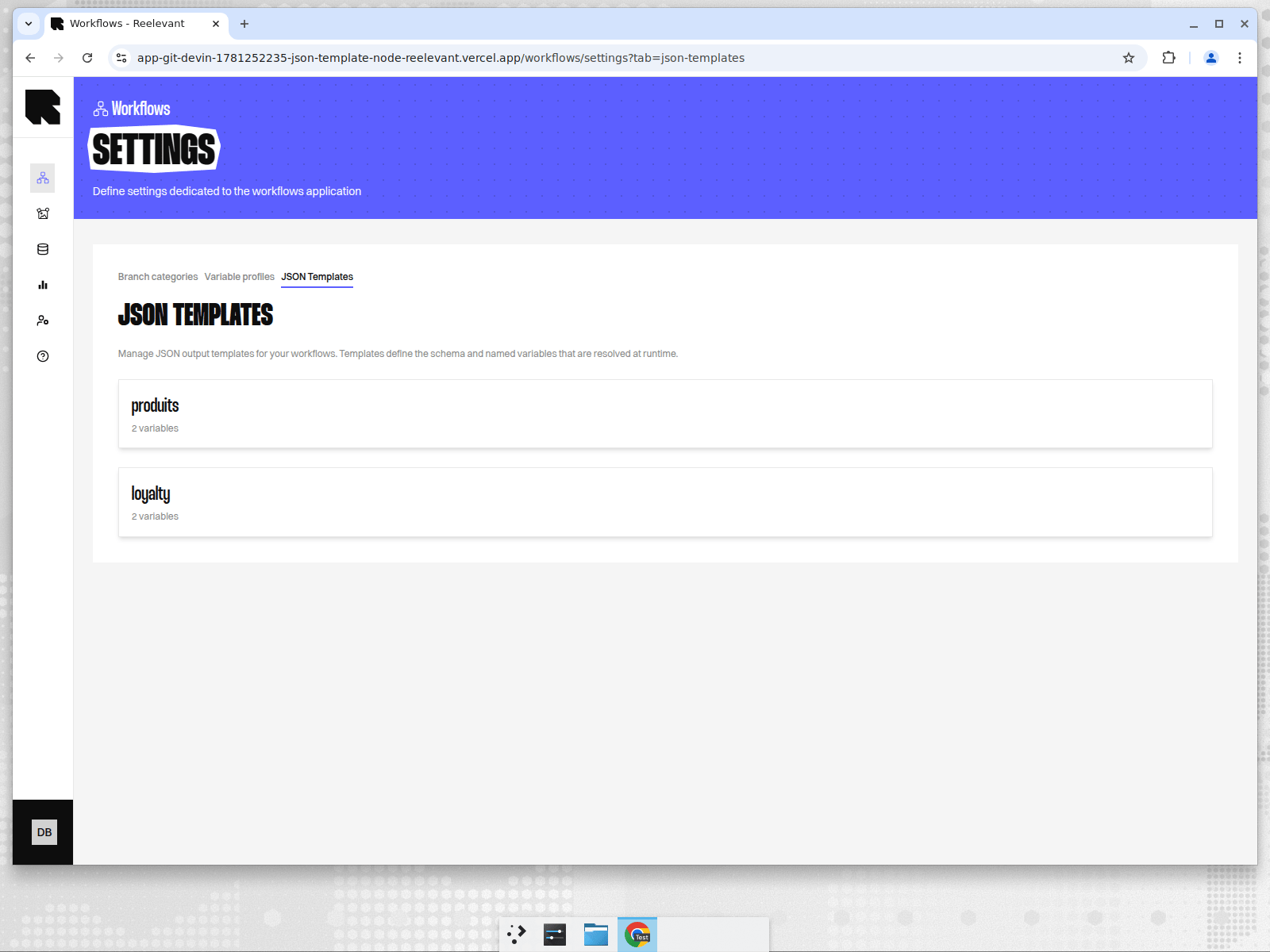
The JSON Templates tab displays all configured templates with their name and variable count. Click a template to open its edit drawer.Creating a Template
1
Open the creation form
Click the Create button in the top-right corner of the JSON Templates tab. A drawer opens on the right.
2
Name the template
Enter a descriptive name (e.g., “Product Recommendations”, “Loyalty Dashboard”).
3
Assign teams
Select one or more teams that should have access to this template. This controls visibility — only workflows belonging to matching teams will see this template in their node configuration.
4
Define the JSON schema
Use the JSON editor to write the template definition. Each field is a key-value pair where the value describes how it will be resolved:At runtime, static values are returned as-is and dependency values are replaced with real data from the bound datasource.
- Static fields —
{ "type": "static", "value": <default> }— Hardcoded values that never change at runtime. - Dependency fields —
{ "type": "dependency", "variable": "<variableName>" }— Dynamic slots bound to datasource fields by the marketing team.
5
Configure variables
For each dependency field in the definition, add a variable entry:
- Name — Must exactly match the
variablevalue in the definition (e.g.,productName). - Description — Optional; helps marketing understand what the variable represents.
- Value — Choose how the variable resolves data:
- Array — retrieve all values from the datasource (e.g., a list of products).
- Scalar — retrieve a single value, chosen automatically (e.g., a single loyalty score).
- Datasource item #1 … #20 — always retrieve one fixed position in the datasource (e.g., always the 2nd product).
6
Choose a click redirect variable (optional)
Use the Click redirect variable dropdown to pick the variable that holds a URL (e.g.,
productUrl). When a visitor clicks the Workflow’s click tracking link, they are redirected to that URL and the click is recorded.Only Scalar and Datasource item variables can be selected. Leave No redirect if the template is not meant to be clicked.7
Save
Click Save to create the template. It becomes immediately available for selection in JSON Template output nodes across your workflows.
Editing a Template
Click on a template in the list to open its edit drawer. You can update the name, JSON definition, variables, and click redirect variable. Changes take effect on the next publish of any workflow using this template.Deleting a Template
- Open the template’s edit drawer.
- Click the Delete button.
- Confirm the deletion in the modal.
JSON Definition Best Practices
- Keep it flat when possible. Nested objects are supported but flat schemas are easier for frontend teams to consume.
- Use meaningful key names. Keys like
productName,loyaltyScore,recommendedItemsare self-documenting. - Provide realistic static defaults. Use values that reflect the expected type (e.g.,
{ "type": "static", "value": "default text" }for strings,{ "type": "static", "value": 0 }for numbers). - Document the contract externally. Share the runtime output shape (with variables resolved) with your frontend/mobile team so they can build typed clients against it.
Variable Configuration
Each variable represents a dynamic slot in the JSON payload:Publish Validation
When a workflow with JSON Template output nodes is published, the system validates:- Template exists — The referenced template ID must point to an existing template.
- Cross-branch consistency — All JSON Template nodes across all branches must reference the same template. This ensures every branch produces the same JSON shape.