

Overview
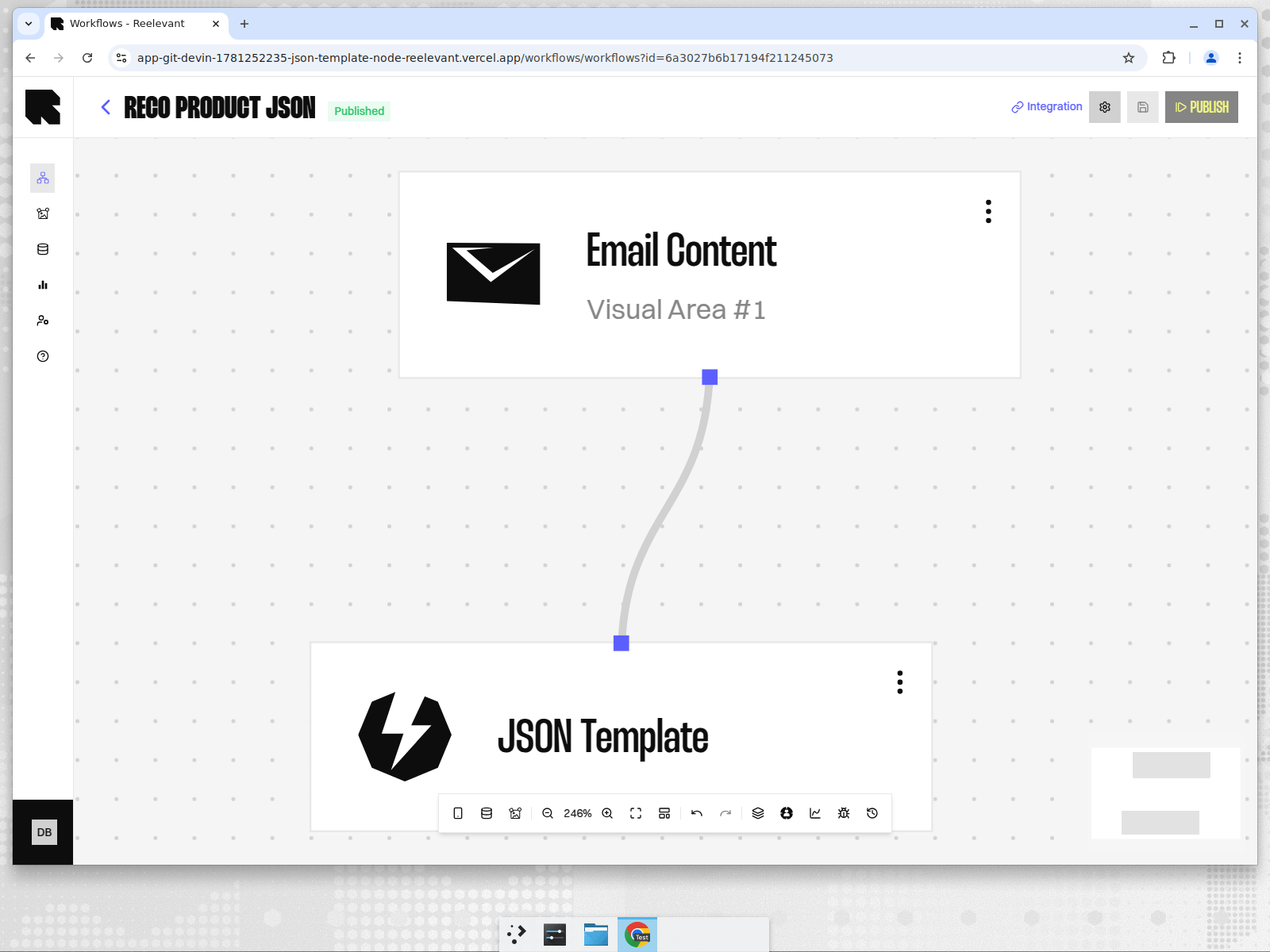
The JSON Template output node returns a structured JSON payload based on a pre-defined template with a consistent, predictable schema across every execution. Each template declares named variables that are resolved at runtime from your workflow’s datasources. This means your frontend always receives the exact fields it expects — no guessing, no parsing surprises.JSON Templates are ideal when your technical team defines the contract (the JSON shape) and your marketing team decides what data fills it. The schema stays stable; only the variable bindings change.
Configuration
1
Open the configuration drawer
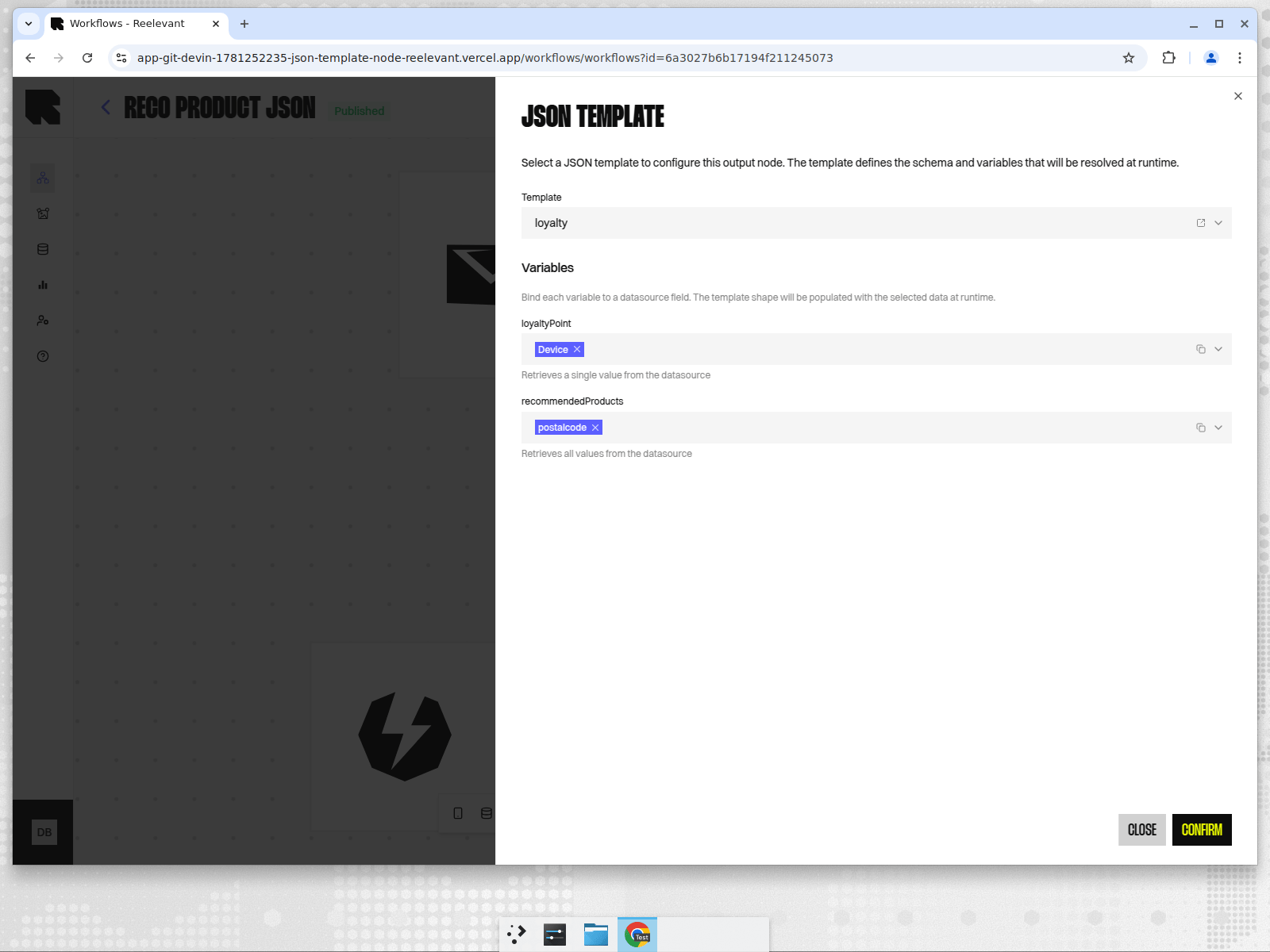
Click the three-dot menu (⋮) on the JSON Template node in the canvas, then select Edit.
2
Select a template
Use the Template dropdown to choose from the available JSON Templates. Templates are created and managed by your engineering team in Workflow Settings.
3
Bind variables
Once a template is selected, its variables appear below. For each variable:
- Click the Parameter value picker.
- Select a datasource field from your workflow’s upstream data nodes.
4
Confirm
Click Confirm to save the configuration. The node is now ready for publishing.
Understanding Variables
Variables are the dynamic slots in your JSON template. When the workflow runs, each variable is replaced by real data from your datasources.Scalar Variables (single value)
A scalar variable retrieves one value from the datasource — for example, a user’s loyalty points or a product name. The description reads: “Retrieves a single value from the datasource”.Array Variables (all values)
An array variable retrieves all matching values — for example, a list of recommended products or recent purchases. The description reads: “Retrieves all values from the datasource”. The engine automatically iterates over all rows in the datasource.Specific Item Variables (a fixed position)
A specific-item variable always retrieves the value at a fixed position in the datasource — for example, always the 1st product, or always the 3rd. You can pick any item from #1 up to #20. Use this when you want a predictable slot instead of the value the engine chooses automatically — a common alternative to building extra steps just to reach one item.How It Works
When the workflow executes and reaches a JSON Template output node:- The engine loads the selected template’s definition (the JSON structure).
- For each variable in the template, it resolves the bound datasource field to a real value.
- The final JSON — with all variables filled in — is returned as the HTTP response.
200 OK with Content-Type: application/json when data is available, or a 204 No Content when no personalisation applies.
Example
Suppose you want to personalise a product recommendation card. Your engineering team creates a JSON Template with this definition:"type": "static"— a fixed value that never changes at runtime."type": "dependency"— a named variable that the marketing team binds to a datasource field.
productName— Array → retrieves all matching rows from the datasourceloyaltyPoints— Scalar → retrieves a single value
Click Redirect
A JSON Template can also power a click link. The template declares a Click redirect variable in JSON Templates settings. When a visitor clicks, the Workflow sends them to the link held by that variable and records the click. The redirect uses the same binding as the variable. BindproductUrl to the product link field, and the click lands on the product that was displayed. This stays true when a fallback Data Node provided the product.
The click link is the Workflow’s click tracking link from the Integration page. Your team places it on the displayed card. Tracking parameters (user identifier, UTM tags) are passed on to the destination.
Without a Click redirect variable, a click on a JSON Template Output Node returns an empty response instead of redirecting.
Best Practices
- Let engineering define the template, marketing bind the variables. This separation keeps the schema stable while allowing marketing to experiment with different datasource bindings.
- Use descriptive variable names. Names like
productRecommendationsoruserLoyaltyScoremake it clear what data each variable expects. - Test with real data. Use the Integration URL to call the workflow directly and verify the JSON output matches your frontend’s expectations.
- One template per workflow. All JSON Template nodes in a workflow must reference the same template — this is enforced at publish time.
Feature Flag
The JSON Template output node requires the
workflow_output_json-template feature flag to be enabled for your company. Contact your account manager or enable it in Workflow Settings > Feature Flags.