

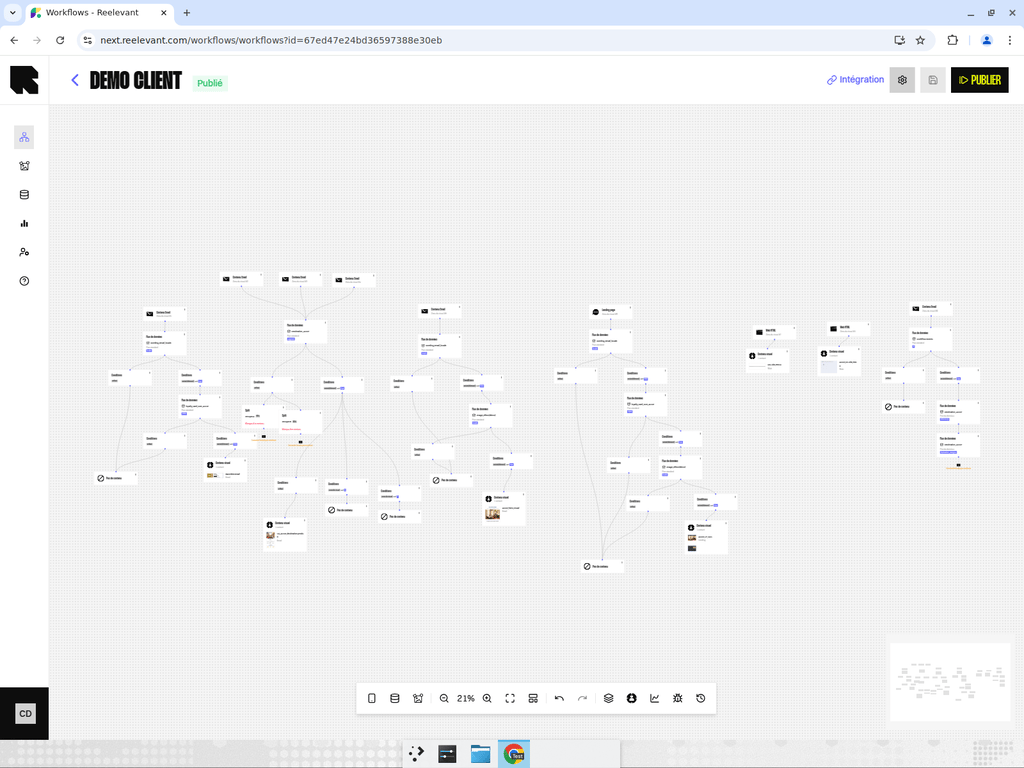
Editor Layout
The workflow editor is a full-screen, visual canvas where you build your workflow by adding and connecting nodes. It consists of three main areas:- Header bar — Displays the workflow name, status badge, and action buttons (Settings, Save, Publish, Use).
- Canvas — The main interactive area where nodes are displayed as a flow diagram. You can pan, zoom, and drag nodes around.
- Bottom toolbar — A menu bar at the bottom of the canvas with tools for adding nodes, zooming, undo/redo, and more.
Header Actions
The editor header provides quick access to key workflow operations:Bottom Toolbar
The bottom toolbar is organized into sections:Adding Nodes
Canvas Navigation
History
View Modes
Working with Nodes
Adding Nodes
There are several ways to add nodes:- Toolbar — Use the bottom toolbar buttons to add channels, data nodes, or outputs.
- Context menu — Right-click on the canvas or on an existing node for contextual actions.
- Drag and drop — Drag node types from the picker drawers onto the canvas.
Connecting Nodes
Nodes have connection handles (small circles on their edges). To connect two nodes:- Click and drag from a handle on one node.
- Drop on the handle of another node.
- An edge (arrow) appears connecting them.
Configuring Nodes
Click on any node to open its configuration drawer on the right side of the canvas. The configuration options vary depending on the node type — see the dedicated pages for channels, data nodes, logic nodes, and output nodes.Context Menu Actions
Right-click on a node to access:- Edit — Open the configuration drawer.
- Duplicate — Create a copy of the node.
- Delete — Remove the node and its connections.
- Add documentation — Attach a documentation note to the node.
- Create branches — Add a logic node downstream.
- Use data — Add a data node downstream.
- Add content — Add an output node downstream.
- Delete — Remove the connection between two nodes.
- Qualify branch — Assign a branch category to this path.
Publishing a Workflow
Before a workflow can serve content, it must be published:1
Click Publish
Click the Publish button in the header.
2
Automatic validation
The system validates the workflow for common errors:
- Missing channels
- Missing outputs
- Circular dependencies
- Invalid node configurations
- Content bindings errors
3
Save and publish
If validation passes, the workflow is saved and published in one step. The status badge changes to Published.