

Overview
A Datagraph Object is a named SQL query over the Datagraph model, with declared parameters and inferred output columns. Open DataHub → Datagraph → Objects — Manage datagraph objects for your account. The OBJECTS listing shows Name, Status, and Last update. Its description is Manage datagraph objects for your account. Select CREATE OBJECT to open a new Draft. The empty state says No objects yet.Before You Begin
- The Datagraph Schema must be published, because output columns are inferred against the Live model. See Datagraph Schema.
- Every Datasource referenced by the SQL needs a Live version.
- Datasources protected by row-level filters cannot be queried from an Object.
Editor Layout
The editor breadcrumb is Datagraph > Objects. Its subtitle is Define and manage your datagraph object SQL query and options. The Object name field uses snake_case. The Edited object selector switches the version being edited. The side panels are INPUT / OUTPUT and VERSIONS. The SQL editor runs a preview against the selected Object. Results include up to 10 rows, a row count, and a Trace ID.Writing the SQL
Datasource tables are referenced by their Datasource identifier, quoted:Worked Examples
The patterns below come from a property listings model built on five Datasources: users, listings, price-per-square-metre by area, pre-computed recommendations, and editorial content.
The same patterns transfer to other models: last items purchased by a customer, remaining stock in a preferred store, best sellers of a category, or complementary products of an order.
Filters that combine several user preferences — budget range plus minimum number of rooms, for example — can legitimately return zero rows. Preview each Object with a real identifier before publishing, and relax the least critical condition when the result set is empty.
Parameters
Parameters are declared in INPUT / OUTPUT and bound to SQL placeholders. Click Add to create one.
Accepted parameter types:
A NULL parameter compared with
= or <> never matches. The editor flags it and asks you to use IS NULL or IS NOT NULL in the SQL query instead.Suggested Values
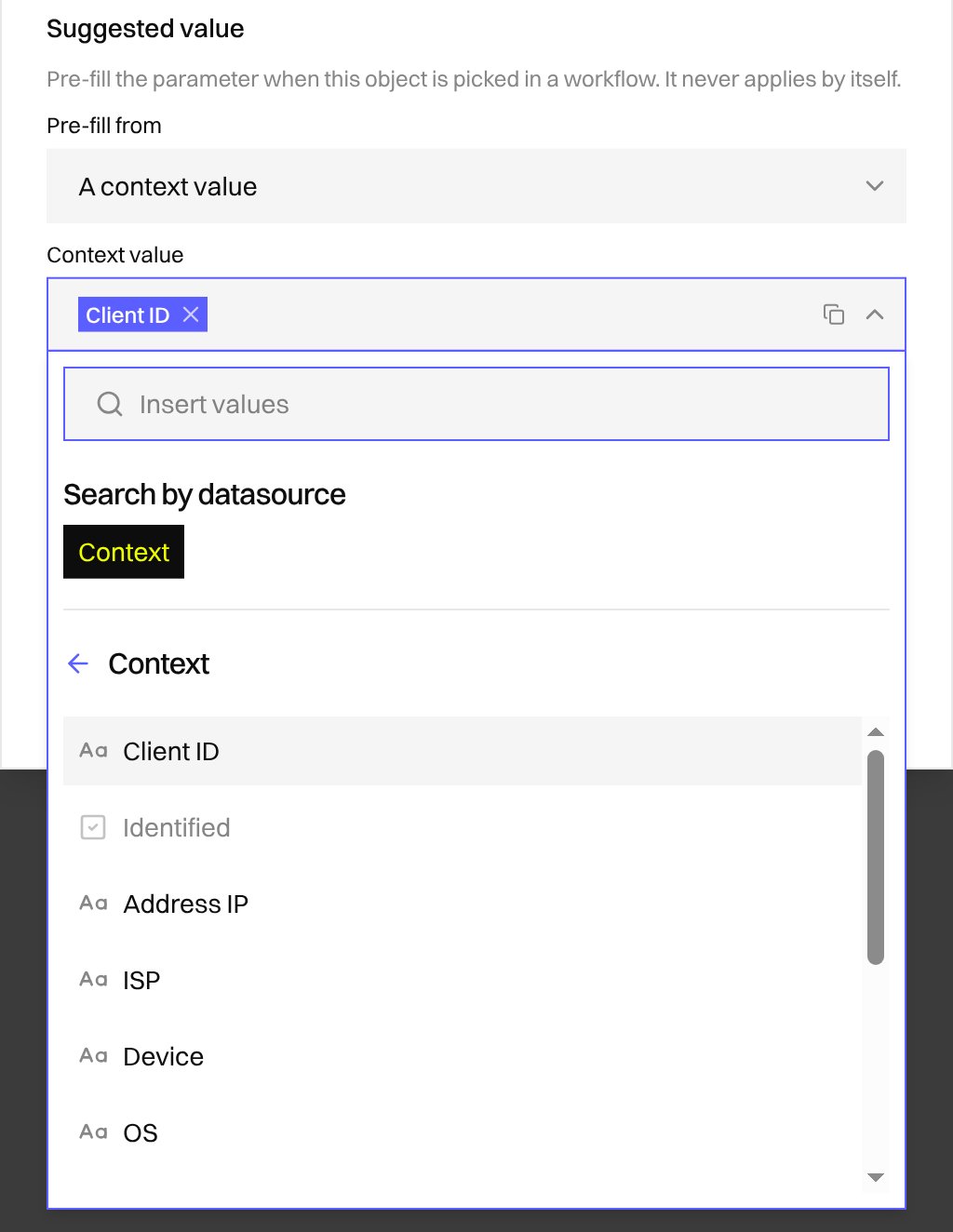
Each parameter can carry a suggested value and a list of allowed values. Both are configuration hints for the Datagraph Object Node — see Datagraph Object. They change nothing when the SQL runs.Suggested Value
Set under SUGGESTED VALUE → Source in the parameter editor:
Dictionary types (
string{}, number{}) cannot use From context.
Allowed Values
Forstring, number, string[] and number[] parameters, Allowed values lists the values the parameter may take, with no duplicates. The Datagraph Object Node renders them as a select or multi-select instead of a free input.
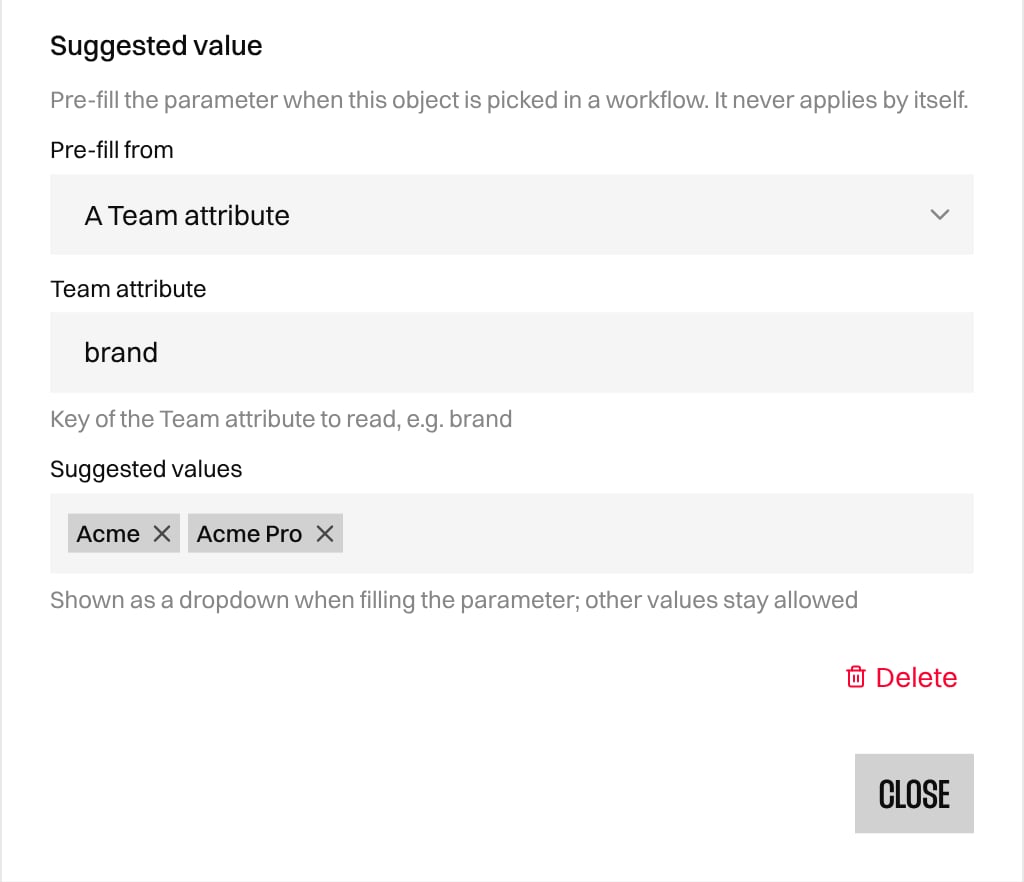
An invalid suggestion or allowed value is reported on the matching field when you save. When you change a parameter’s type, a suggestion or allowed value that no longer fits is dropped.
Output Columns
The INPUT / OUTPUT panel lists each output Column and Type. Displayed types include Text, Number, and Image URL. The list is computed from SQL against the Published Datagraph model and recalculated on every save.Previewing Results
- Save the Object before running a preview.
- Click RUN QUERY to open QUERY PARAMETERS.
- The modal says Fill in the object parameters before running the SQL preview. Each parameter shows its type and short description.
- Select Fill sample values to find realistic values, then click RUN QUERY.
The Queries page is available at DataHub → Datagraph → Queries. It runs Datagraph Object SQL queries and displays results. Select an Object and run it to see results; pages show 10 rows.
Publishing
Click Publish to open the Publish object dialog and publish the Draft. The previous Published version becomes Inactive, and a new Draft copy is created. Only published Objects are selectable in Workflows. The Delete object dialog warns that Workflows that query this object will stop resolving. Deleting an Object cannot be undone.When the Object belongs to a published Datagraph Object Family, publishing fails with Entity group contract violated if the new output columns no longer satisfy the family contract. An Object listed in a published family cannot be deleted either.
Sharing a Contract Across Objects
Several Objects that answer the same question for different segments — one recommendation algorithm per Object, for example — can be bound to a Datagraph Object Family. The family declares the fields every member must return, and checks the Live version of each member against it. See Datagraph Object Families.Using an Object in a Workflow
Add the Datagraph Object Data Node — Run a datagraph object query and expose its results to the workflow.
The empty selector message is No published object is available yet. Open object in Datahub opens the Object editor.
The Result limit field is hidden by default. It appears only when a tech admin enables Datagraph Object: result limit under Workflow settings → Features. It accepts 1 to 200 rows.
Parameter values coming from Workflow variables are converted to the declared parameter type. A variable that cannot be converted — free text into a
number parameter, for example — makes the Node fail at execution time rather than at configuration time.What’s Next?
Object families
Bind several Objects to one shared output contract.
Schema
Add the columns and relations your SQL needs.
Schema views
Inspect the Diagram, Relations, and Datasources tabs on the Schema page.
Datasource Data Node
Compare with querying a single Datasource in a Workflow.
Datagraph Schema API
Manage the model programmatically.