

Version History
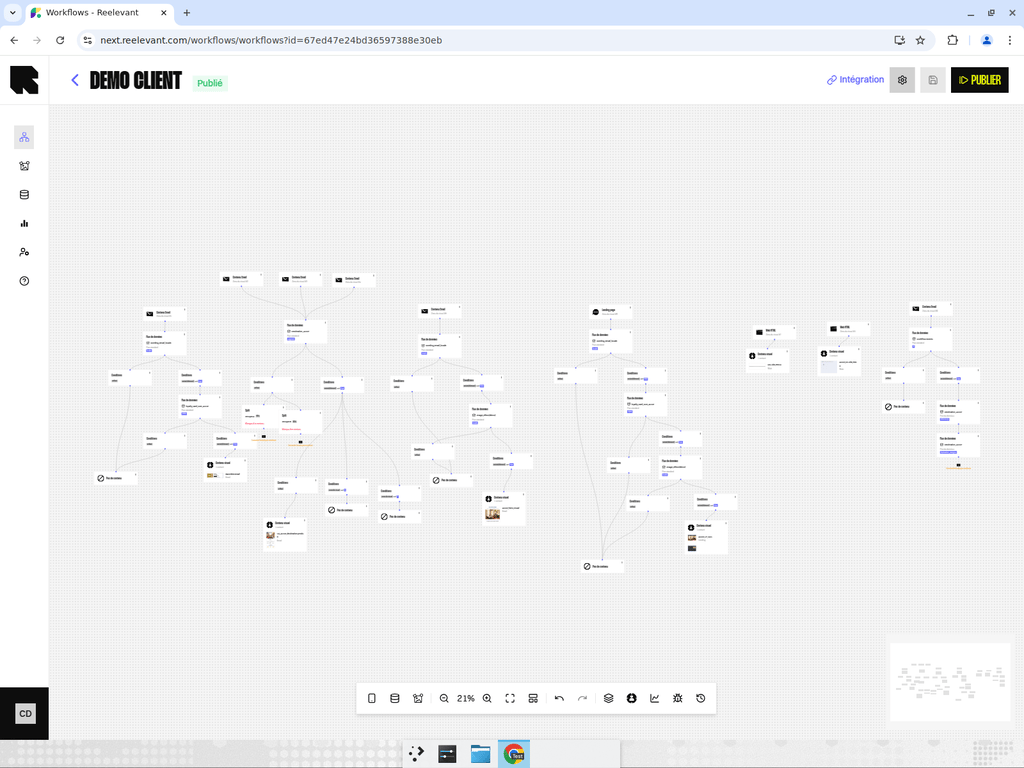
Every time you publish a workflow, a new version is automatically created. The version history provides a complete audit trail of all published states of your workflow.Accessing Versions
- Click the Versions button (clock icon) in the bottom toolbar of the workflow editor.
- The versions drawer opens on the right side, listing all versions from newest to oldest.
- Version number — Sequential identifier (Version 1, Version 2, etc.).
- Timestamp — When this version was published.
- Status — Whether this is the currently active version.
Browsing a Previous Version
Click on any version card to load that version in the editor. When viewing a previous version:- The canvas displays the workflow as it was at that point in time.
- The editor enters read-only mode — you cannot modify the nodes or connections.
- A distinct visual indicator shows you’re viewing a historical version, not the current draft.
Restoring a Previous Version
If you need to revert to a previous version:- Open the versions drawer and select the version you want to restore.
- The workflow loads in read-only mode.
- Click the Restore button to make this version the active draft.
- The workflow returns to edit mode with the restored version’s content.
- You can now modify it further or publish it directly.
Restoring a version creates a new draft based on the selected version. It does not delete any existing versions — the full history is preserved.
Saving Version Metadata
When viewing a specific version, you can save version-level metadata (such as analysis overrides) using the Save version button in the header. This updates the metadata for that specific version without affecting the current draft.Tips
- Use versions to safely experiment — publish a new version, and if it doesn’t perform well, restore the previous one.
- Version history is read-only by design. You can always go back and see exactly what was live at any point in time.
- Combine version history with Analytics to correlate performance changes with specific workflow updates.