

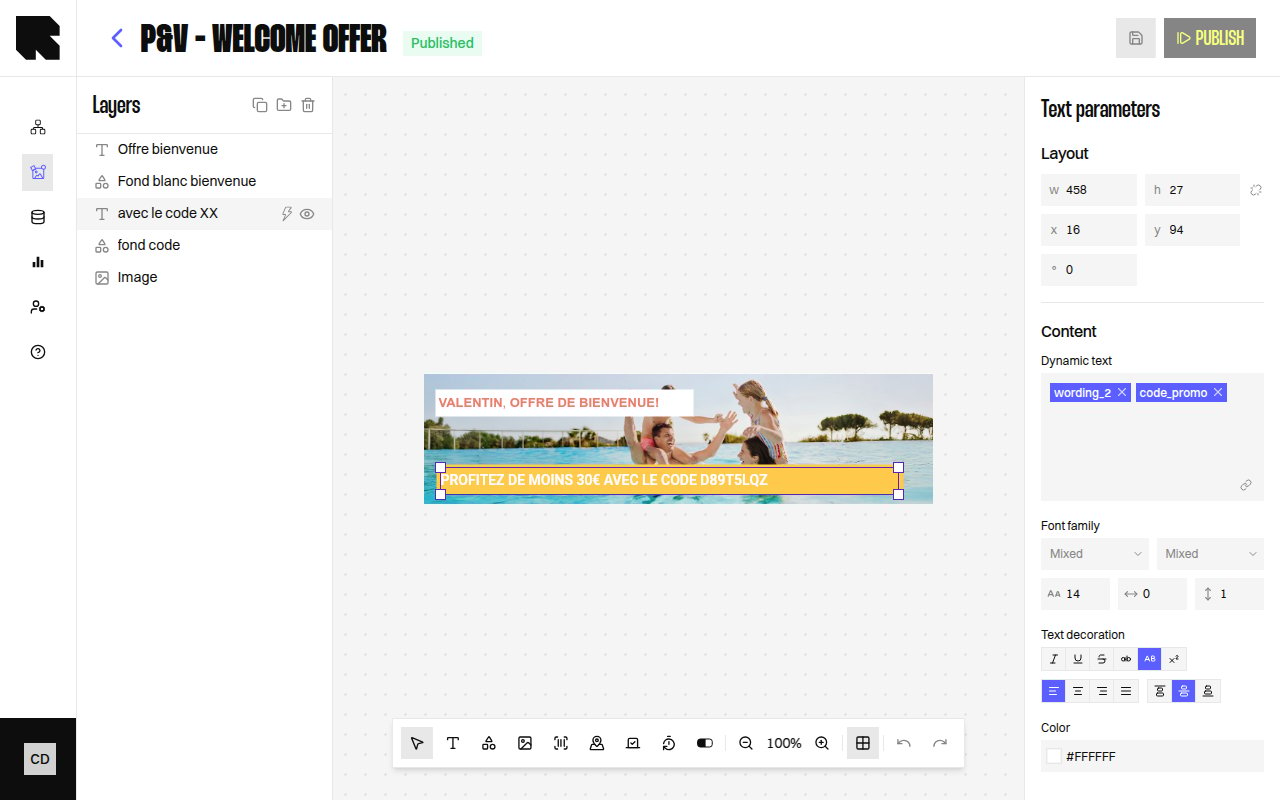
Overview
Data binding connects component properties to dynamic values that resolve at render time. Instead of hardcoding text, images, or URLs, you bind them to variables from datasources, URL parameters, or other data sources configured in your workflow.Adding a Datasource
Before binding variables, you need to attach a data source to your content:Open the datasource configuration
Click Add a datasource in the editor or access it through the configuration panel when binding a variable.
Select the source type
Choose where your data comes from:
| Source Type | Description |
|---|---|
| Datasource | Connect to a DataHub datasource to access its fields. |
| Workflow | Use data from the parent workflow — URL parameters, live polling, geolocation, or weather. |
| Custom | Define a custom variable using transformation formulas. |
Select the specific datasource
For Datasource type, search and select from your available datasources.For Workflow type, choose the sub-type:
- Url parameter — A named URL parameter passed at render time.
- Live polling — Real-time click percentage data.
- Geolocation — User’s geographic coordinates.
- Weather — Weather data at the user’s location.
Variable Picker
Once a datasource is attached, you can bind its fields to component properties using the Variables picker:- Click the variable picker icon next to any bindable field in the configuration panel.
- The variables panel shows all available fields grouped by datasource.
- Select a field to bind it.
Datasource Item Selection
When a datasource returns multiple results, you can choose which item to display:| Option | Description |
|---|---|
| Reuse the displayed item | Use the same item (default: item #1) as other bindings from the same datasource. |
| Display datasource item #N | Use a specific result index (e.g., item #2 for the second product). |
Custom Variables
Custom variables let you define derived values using transformation formulas. After creating a custom variable with a Variable name, you configure the formula in the transformation editor.Grouping Results
For product datasources, you can optionally group results by a field:| Option | Description |
|---|---|
| Aggregated data | Aggregate values across the group. |
| 1st product of every group | Show one product per unique group value. |
| All products of 1st group | Show all products from the first group. |
| All products of all groups | Show all products regardless of grouping. |