

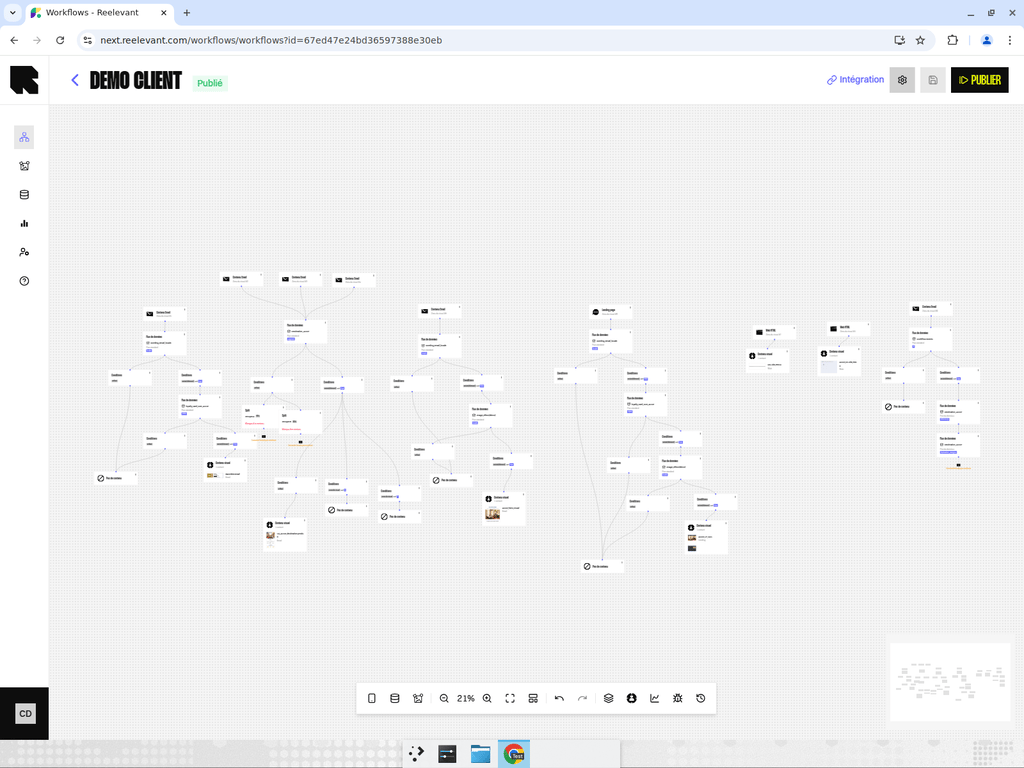
What is a Workflow?
A workflow is the core building block of every Reelevant campaign. It is a visual, node-based graph (a directed acyclic graph, or DAG) that defines the logic for delivering personalized content to your audience. Each workflow answers three questions:- Where does the content appear? (Channels)
- What data drives the personalization? (Data nodes)
- What logic determines the experience? (Logic nodes, conditions, splits)
Workflow Structure
A workflow is composed of connected nodes organized into four categories:Channels
Define where content is displayed — Email, Web (image or HTML), Landing Page, or Mobile (push, in-app, inbox).
Data Nodes
Fetch and transform data — product catalogs, geolocation, weather, URL parameters, website events, and more.
Logic Nodes
Control the flow — conditions, A/B splits, and real-time testing decide which branch a user follows.
Output Nodes
Define what gets returned — a visual content template, a JSON format payload, or an empty response.
Workflow Lifecycle
Every workflow goes through a series of states:| Status | Description |
|---|---|
| Draft | The workflow is being edited and has not been published yet. |
| Publishing | The workflow is in the process of being published. |
| Published | The workflow is live and actively serving personalized content. |
| Inactive | The workflow has been archived and is no longer serving content. |
| Error | The workflow encountered an issue during publishing. |
You can only integrate (deploy) a workflow after it has been Published.
Branches
A branch is a unique path through the workflow from a channel to an output node. Branches are the fundamental unit of personalization — each branch can deliver a different experience based on the user’s context. Branches can be:- Qualified with a category (e.g., “Promotion”, “New Arrivals”) using the branch categories defined in Workflow Settings.
- Highlighted as individualized branches in the editor to visually distinguish personalized paths.
- Analyzed for statistics to see how traffic distributes across different paths.
Versions
Workflows support versioning. Each time you publish, a new version is created. You can:- View the history of all published versions.
- Browse any previous version in read-only mode.
- Restore a previous version by making it the active draft.
What’s Next?
Creating a Workflow
Step-by-step guide to creating your first workflow.
Workflow Editor
Learn how to use the visual editor.
Channels
Understand the different channel types.
Data Nodes
Learn how to bring data into your workflow.