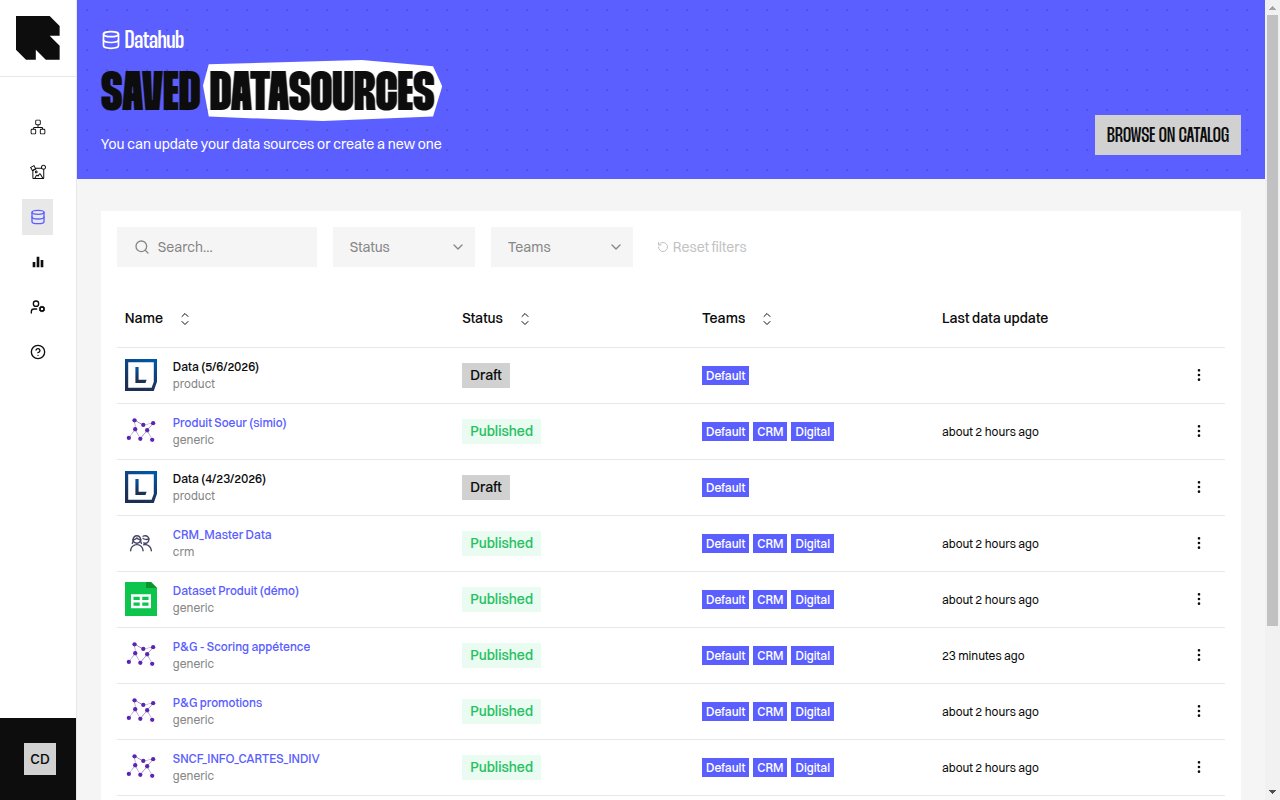
Datasource Listing
The listing page displays all your saved datasources in a table. Access it from the DataHub sidebar navigation.
Table Columns
| Column | Description |
|---|
| Name | The datasource name. Click to open its configuration. |
| Type | The datasource category — Generic, Product, Location, Analytics, Customer Data. |
| Status | Current status with a color indicator and tooltip. |
| Format | The data format (CSV, JSON, etc.). |
| Teams | The resource groups assigned to the datasource. |
| Last data update | When the data was last refreshed. |
| Last modification | When the configuration was last changed. |
Filters
| Filter | Description |
|---|
| Search | Search a datasource by name. |
| Filter by status | Ok, Warning, Error, Inactive. |
| Filter by type | Generic, Product, Location, Analytics, Customer Data. |
| Filter by teams | Filter by resource group. |
| Display archived data sources | Toggle to include archived datasources. |
Status Indicators
| Status | Description |
|---|
| Draft | The datasource has not yet been imported. |
| Publishing | Importing data for the first time. |
| Published | Data is up to date and ready to use. |
| Updating | Datasource is currently refreshing its data. |
| Paused | Data refresh is paused. |
| Error | Import or update failed — consult the logs. |
| Warning | Some entries could not be imported — consult the logs. |
Hover over a status indicator to see a detailed tooltip explaining the current state.
Actions
The actions menu (three dots) on each row provides:
| Action | Description |
|---|
| Edit | Open the configuration wizard to modify the datasource. |
| Queries | Open the queries page to search the datasource data. |
| Logs | Open the logs page to see execution history. |
| Preview | Quick preview of the datasource data. |
| Update fields | Update the field mapping configuration. |
| Update source | Change the data source URL or file. |
| Launch update | Manually trigger a data refresh. |
| Reimport | Re-import the datasource from scratch. |
| Retry | Retry a failed import. |
| Repair | Attempt to repair a broken datasource. |
| Enable synchronisation / Stop synchronisation | Enable or pause automatic data refresh. |
| Archive | Archive the datasource. |
| Delete | Delete the datasource (only available if not used by any workflow or content). |
You cannot delete a datasource that is used in a workflow or content. The delete action will show which resources reference it.
Error Alerts
When datasources have issues, alert banners appear at the top of the listing:
- Datasources in error — Shows how many datasources failed with a link to view the errors.
- Missing fields — Detected fields that are not present in the datasource, with a quick action to add them.

