

Design Import is currently available to beta testers only. If you would like access, please contact your account manager.
Overview
Design Import lets you convert an existing Figma or Adobe Photoshop design into a Reelevant content template. Instead of recreating layouts from scratch in the Content Editor, you can import a design file and get a fully structured template with positioned text, images, and shapes ready to edit. Supported formats:| Format | File type | How to obtain |
|---|---|---|
| Figma | JSON export (.json) | Use the Reelevant Exporter Figma plugin to export the selected frame. |
| Photoshop | PSD file (.psd) | Save or export your design as a .psd file from Adobe Photoshop. |
Importing a Design
Design import is part of the content creation flow. When you create a new content, you can optionally attach a design file.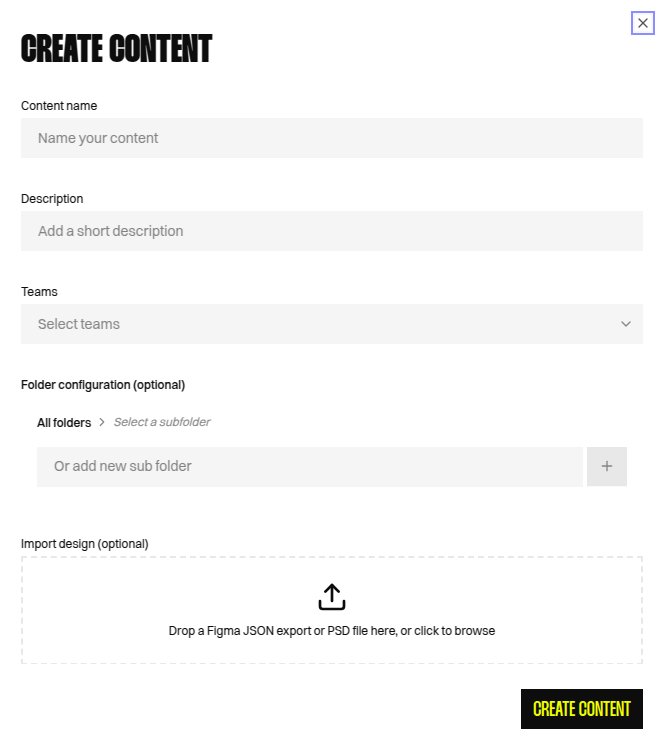
Open the content creation modal
From the Content Listing page, click the Create content button.
Fill in the content details
Enter a name, optional description, select teams, and configure the folder hierarchy as usual.
Attach a design file
In the Import design field at the bottom of the form, drag and drop your Figma JSON export or PSD file — or click to browse and select the file from your computer.Only
.json (Figma export) and .psd (Photoshop) files are accepted.Exporting from Figma
To export a design from Figma for import into Reelevant, use the Reelevant Exporter Figma plugin:Install the plugin
Install the Reelevant Exporter plugin from the Figma Community.
Select a frame
In your Figma file, select the frame you want to export. The plugin exports one frame at a time.
Run the export
Open the plugin and click Export selected frame. The plugin will:
- Export the frame’s JSON structure
- Capture a PNG snapshot of the frame
- Crop individual graphic elements from the snapshot
- Package everything into a single
.jsonfile
Exporting from Photoshop
No special plugin is needed for Photoshop. Save your design as a standard.psd file and use it directly in the import flow.
For best results, keep your Photoshop file organized with named layers. The importer reads the layer structure to create corresponding components in the content template.
What Gets Imported
The importer converts design elements into Reelevant content components:| Design element | Reelevant component | Notes |
|---|---|---|
| Text layers | Text | Font family, size, weight, color, alignment, letter spacing, and line height are preserved. |
| Rectangles & shapes | Shape | Fill color and position are imported. |
| Images | Image | Raster images are extracted, uploaded, and linked. |
| Layer positions | Component layout | Absolute positions and sizes are mapped to the canvas. |
Font Handling
Imported fonts are automatically matched against fonts available in your Reelevant account. If a font family from the design is not found, a default fallback font is used. You can update the font after import via the Text component configuration panel.Limitations
- Only one frame or artboard is imported per file. For multi-frame content, import the primary frame and add additional frames manually.
- Complex vector paths, effects (shadows, blurs), and gradients are not imported — only solid fills are supported.
- Nested components and symbols are flattened into their visual representation.
- After import, the template may need minor layout adjustments. Use the Content Editor to fine-tune positions and styling.