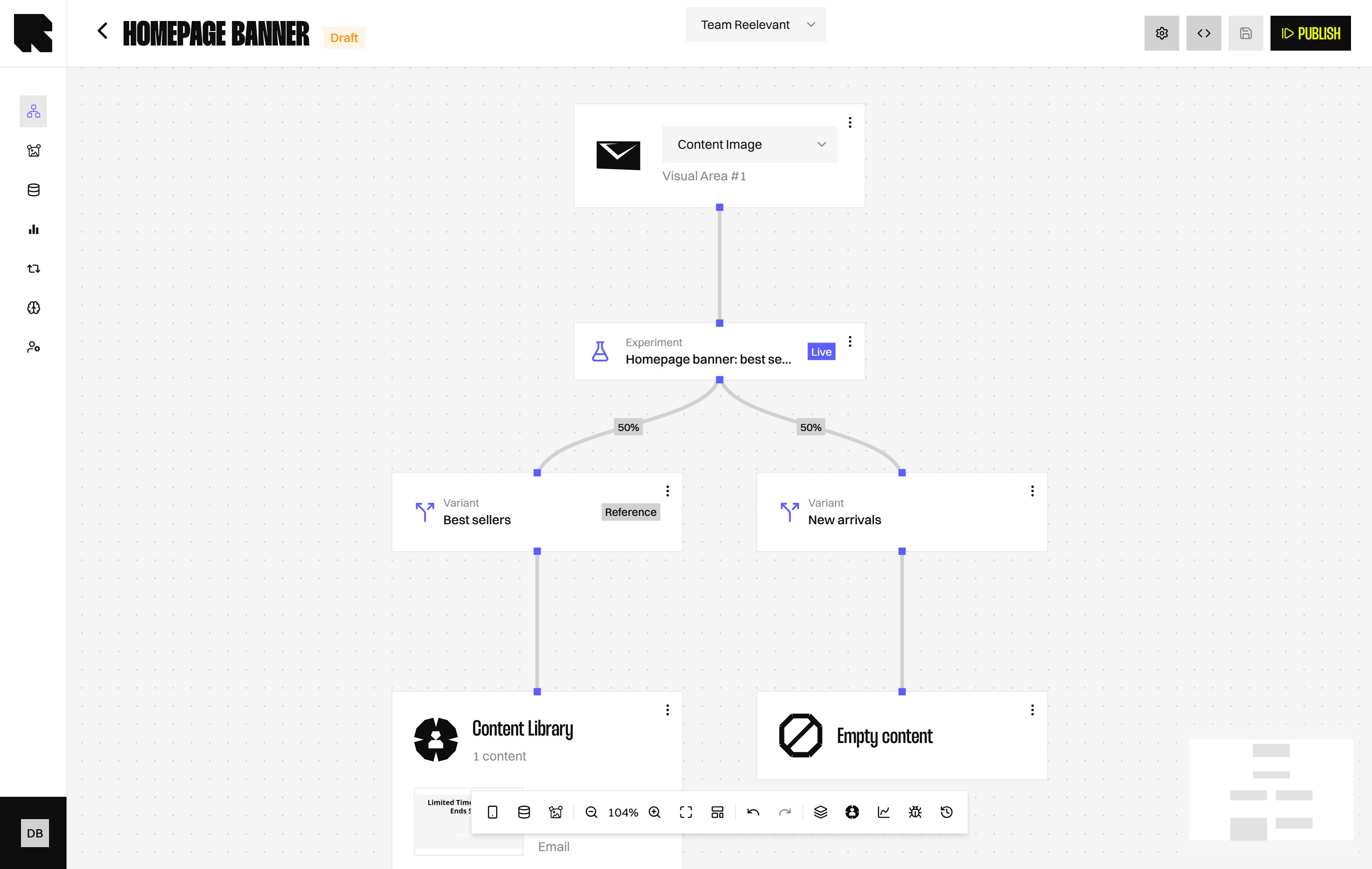
Experiment Node with its experiment and variant Branches in a Workflow Use the Experiment Node (a Logic Node that divides traffic) to turn an Analytics Experiment’s Variants into Workflow Branches. Each Variant becomes a Variant Node (a Branch) showing the share of traffic it receives right now. Until the Experiment starts, the Control or Reference shows 100%.

Add an Experiment Node
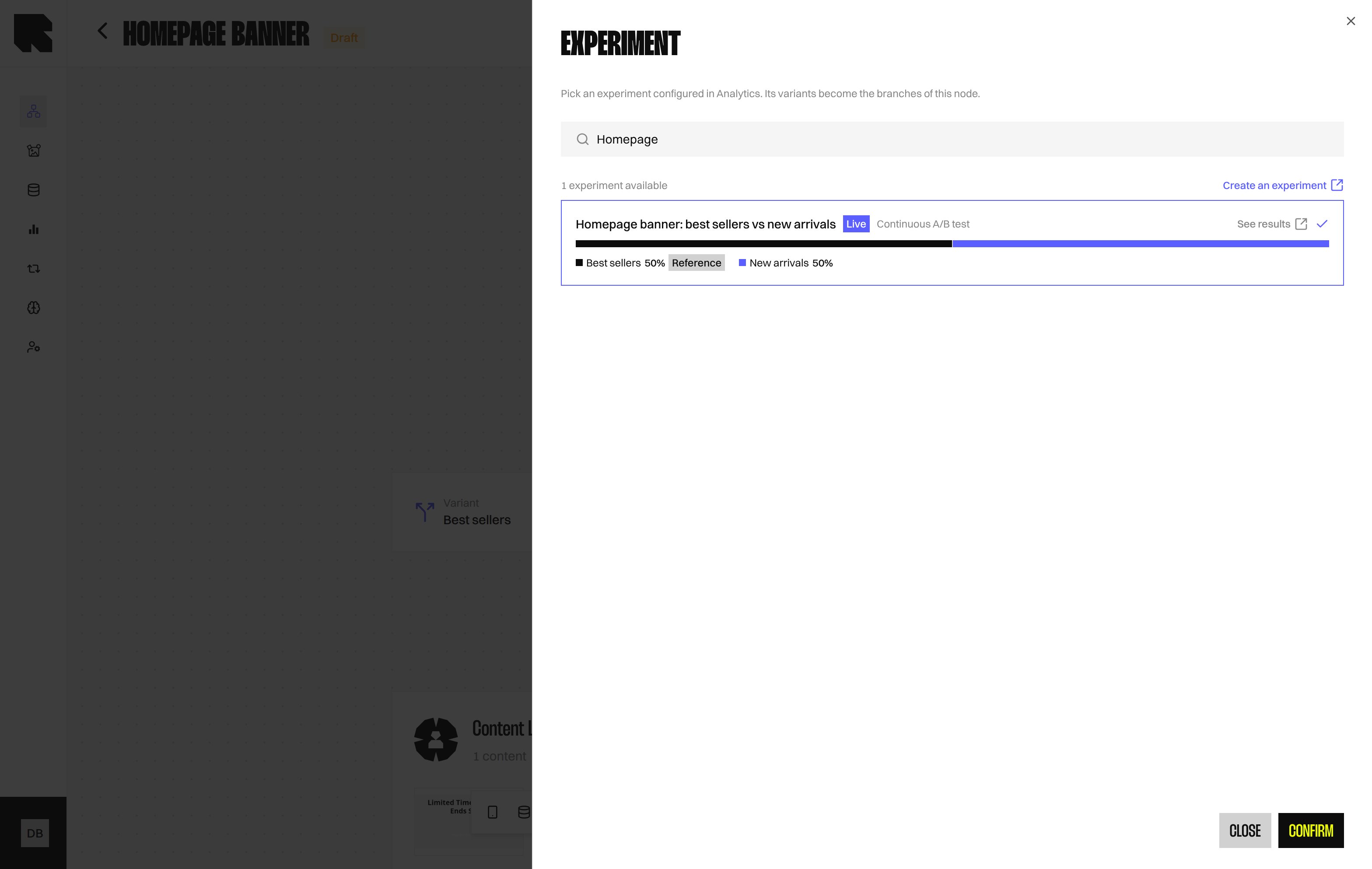
Experiment drawer with search, available experiments, allocation bars, and selection controls
  1. In the Workflow Node picker, select Experiment.
  2. Search for a Ready or Live Experiment and select its card.
  3. Select Confirm to add the Experiment Node.
Only Ready and Live Experiments are listed. If none is available, use Create an experiment to open Analytics.
If publishing reports a Variant problem on this Node, reopen it and select the Experiment again. Its Branches are rebuilt from the Experiment’s Variants.

After an Experiment is concluded

The kept Variant shows Winner, and the Node routes all traffic to it. An Experiment that has ended stays on the Node and keeps routing to its outcome. You cannot pick it for a new Node. If the Experiment is archived or missing, the Node shows Experiment unavailable and sends all traffic to the Control or Reference.

What’s Next?

Experiments

Create and manage Experiments in Analytics.

Split

Divide traffic between Workflow Branches.

Real-Time Testing

Optimise traffic across variants automatically.